What you’ll achieve
By the end of this guide one country counts against the number you actually have to watch, instead of the app’s generic default.
Nomad Tracker starts a country at 183 days, because a majority of jurisdictions draw the line at more than half a year. It already knows a few that do not, Thailand at 180 and Malaysia at 182 among them. Everything else is a default, and a counter measured against the wrong number is worse than no counter at all.
This sets what the app measures. It does not decide whether you are tax resident anywhere, which depends on ties, intent and treaties as well as days.
Step 1: Open the country
Open the Settings tab and tap Countries & Regions.
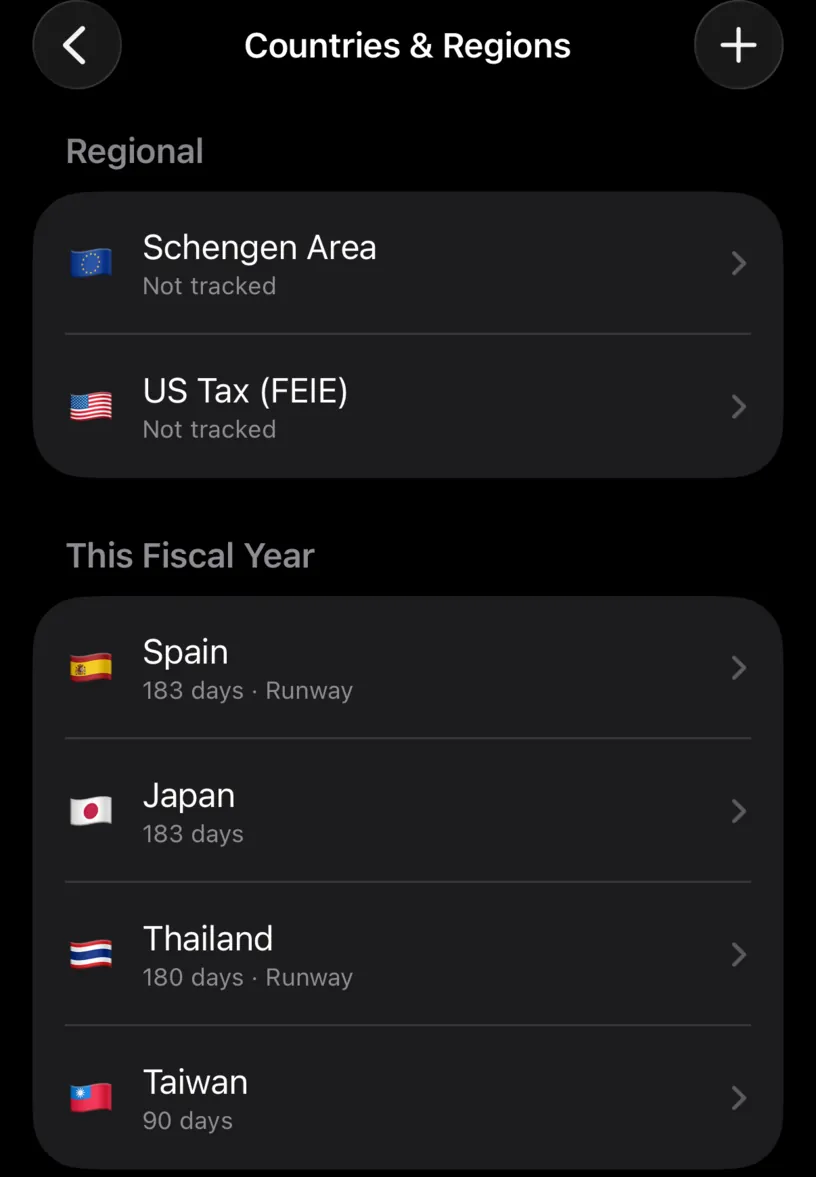
Every country you have days in is here, under This Fiscal Year, with its current limit under the name. Check it before you change it: Thailand already reads 180 days because the app carries that one, while Japan reads 183 days, which is the generic default rather than a figure anyone chose.
If the country you want is missing, tap + in the top right and add it.
Tap the country.
Step 2: Read what the number governs
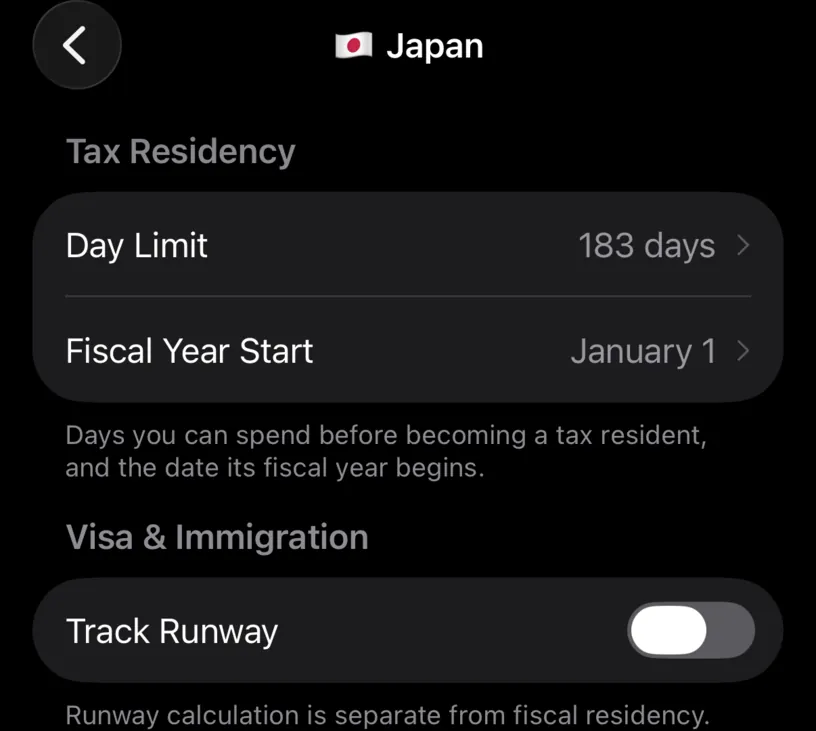
Day Limit sits under Tax Residency, and the footer says what it is for: the days you can spend before becoming a tax resident.
The Visa & Immigration section below it is a different question with a different number. How long a country lets you stay and how long you can stay before it taxes you are rarely the same figure, so the app keeps them apart. Set a country’s visa limit covers that one.
Tap Day Limit.
Step 3: Set the number
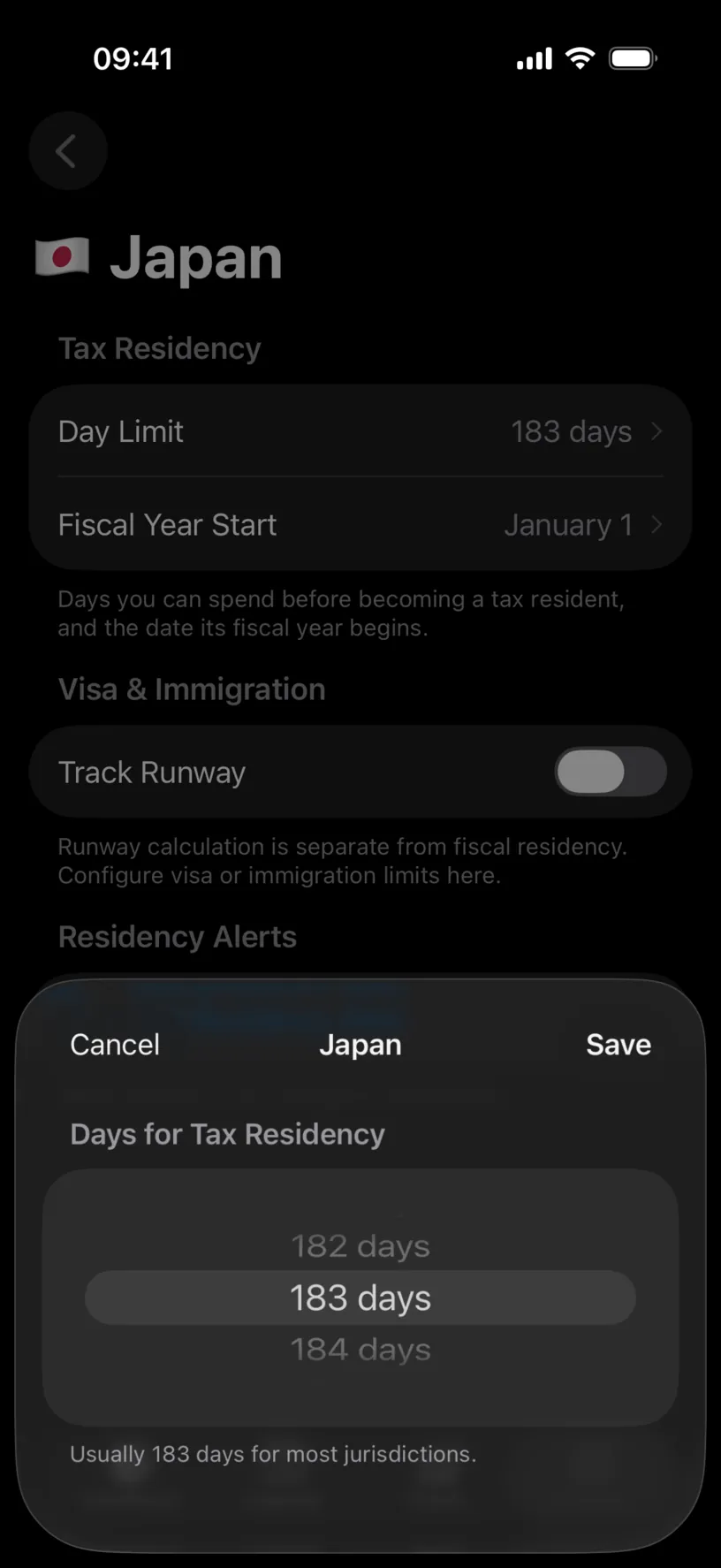
Scroll the wheel to the number you need, then tap Save.
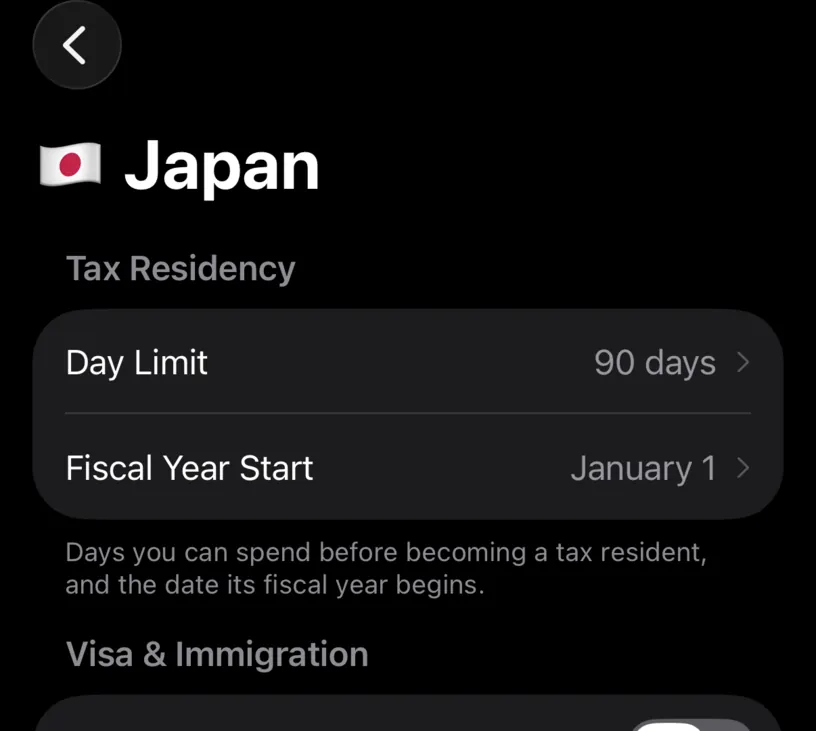
Use the figure from the rule you are actually tracking. Common cases are 183 for the many jurisdictions that use half a year, 90 where a shorter presence test applies, and a lower number you have chosen yourself as a margin you do not want to cross.
Setting it below the legal figure is a legitimate use. The counter is a warning line, not a verdict, so putting it at 150 when the rule says 183 buys you a month of notice.
Check your result
The country screen shows the new limit, and so does its row in Countries & Regions.
Open the Dashboard tab and scroll to that country’s card. The denominator is your number, and the days remaining are counted from it.
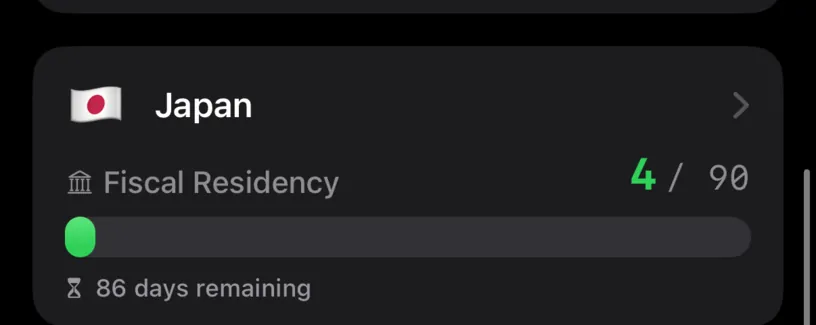
The card turns from green to orange to red as your days approach the limit, so the colour now means something specific to that country instead of a default nobody chose.
If something looks different
The days counted did not change, only the limit. That is correct. You changed what the days are measured against, not the days themselves.
The number resets when you scroll past it. The wheel is a picker, and nothing is stored until you tap Save. Cancel leaves the old value.
The country is not in the list. The list holds countries you have days in, plus any you added. Use + to add one before you have travelled there.
You want an alert before the limit, not just a colour. Use Add Residency Alert further down the same screen. Alerts are PRO. Configure fiscal day-count alerts sets one up.
The card counts a period you did not expect. The days are counted over that country’s fiscal year, not the calendar year, and the two are not always the same. Set a non-calendar fiscal year explains the second row on this screen.
Two countries need the same number. Each is set on its own. There is no shared default, which is the point: the app should not assume Portugal and Thailand agree.
Next steps
Set a non-calendar fiscal year sets the window the limit is measured over.
Configure fiscal day-count alerts turns the limit into a notification before you reach it.
Set a country’s visa limit does the same job for how long you are allowed to stay.