What you’ll achieve
By the end of this guide your day counts are measured over the year your tax authority actually uses, and the dashboard says which year it is showing.
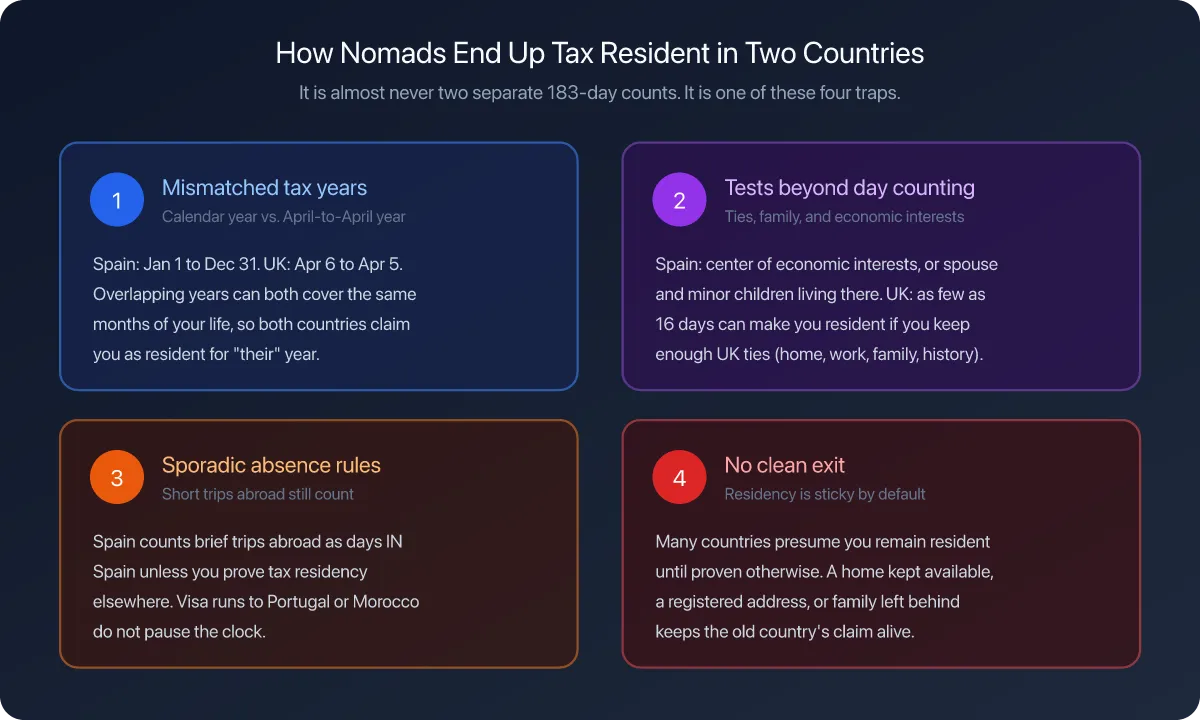
Plenty of jurisdictions do not use the calendar year. The United Kingdom runs 6 April to 5 April, Australia 1 July to 30 June, India 1 April to 31 March. Counting those days from January gives a number that is right about nothing.
Step 1: Open your tax residence
The dashboard groups your travel history by the fiscal year of one country: the one you have set as your tax residence. Start there.
Open the Settings tab and tap Residence.
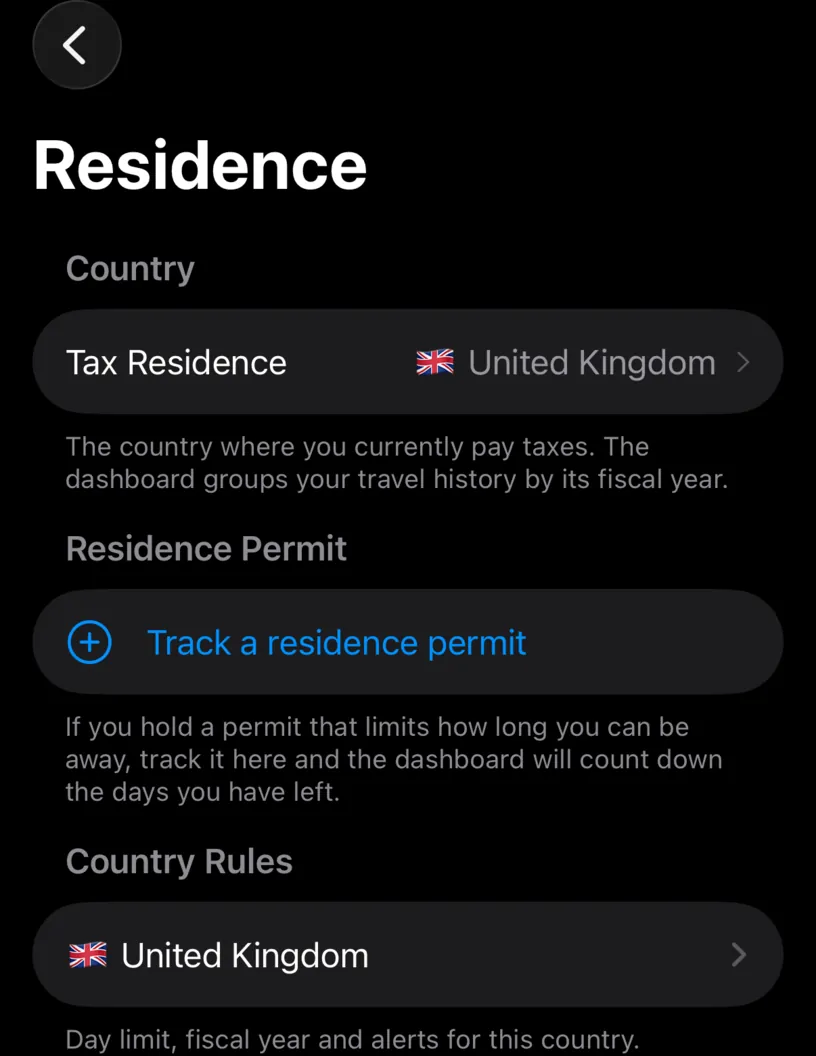
The footer under Tax Residence states the rule in one line. Under Country Rules, the same country appears again, and that row is where its year is defined.
Tap it.
Step 2: Check what the app already assumes
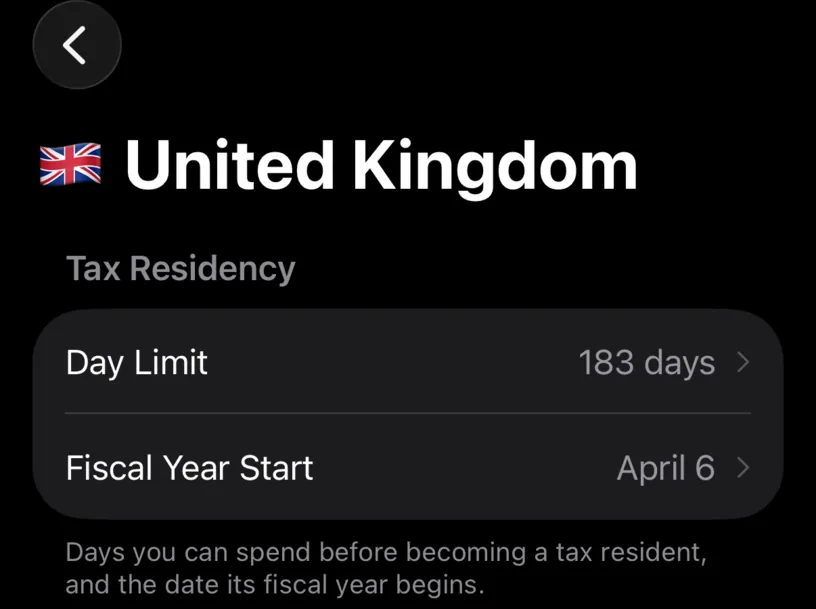
Fiscal Year Start is the second row under Tax Residency. It is a month and a day, not a full date, because it repeats every year.
The app already carries the common non-calendar years, so this row may be right before you touch it. The United Kingdom arrives on April 6, Australia on July 1, India, New Zealand and Hong Kong on April 1, South Africa on March 1, Egypt on July 1. Everything else starts on January 1.
If the row already says what you need, you are done. Change it when the app’s assumption does not match your situation, or when your country is not one it knows.
Step 3: Set the start date
Tap Fiscal Year Start.
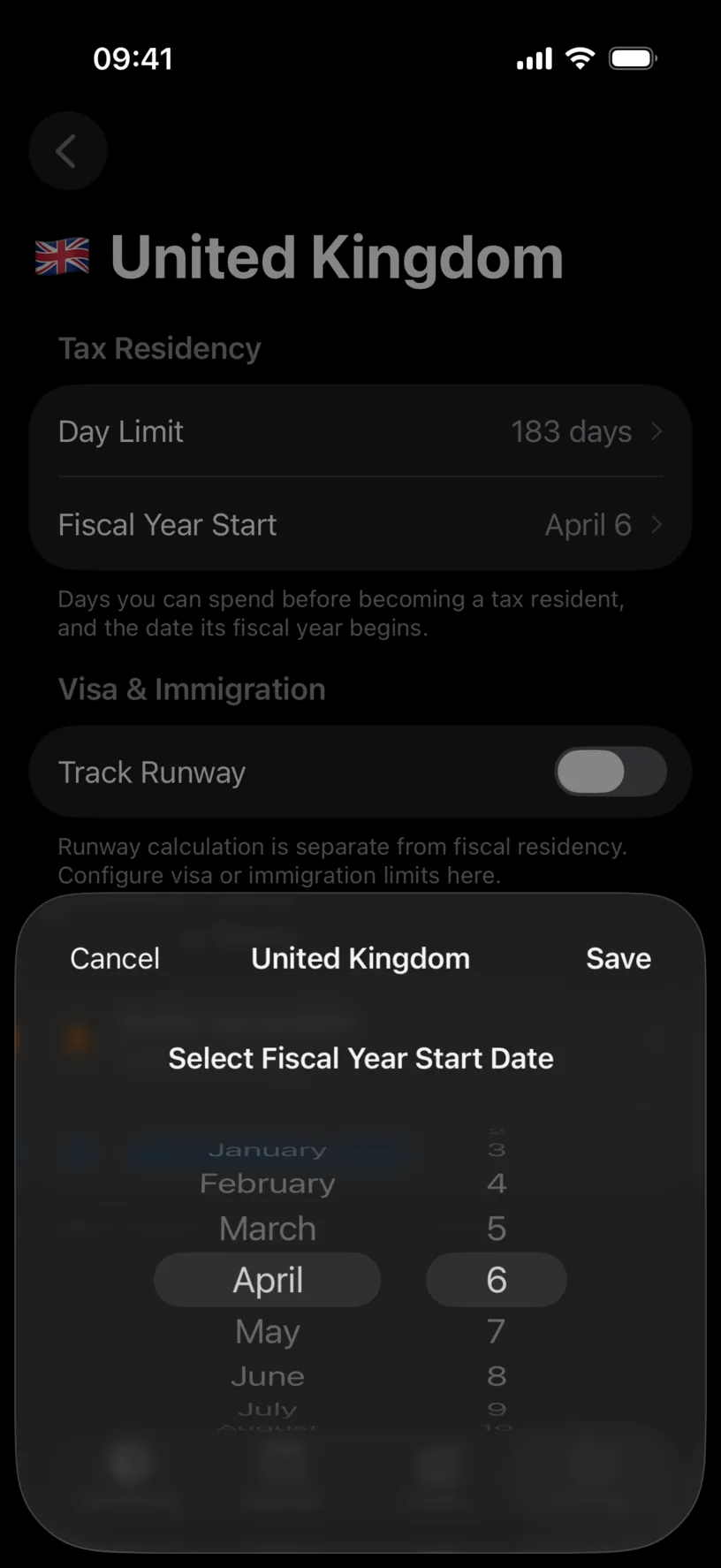
Two wheels, a month and a day. Set the first day of the year, not the last: April 6 means the year runs from 6 April to 5 April.
Tap Save.
Check your result
Open the Dashboard tab. The year chip in the top left stops being a plain year.
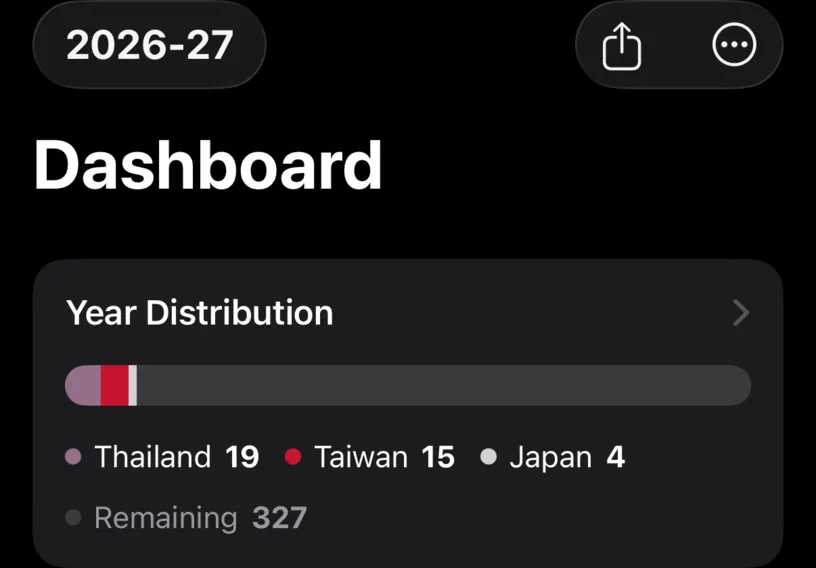
2026-27 is a fiscal year, not a calendar one, and every number under it is counted over that window. The totals change, sometimes a lot, because days that used to sit in the same year are now split between two.
Tap the chip to move between years.
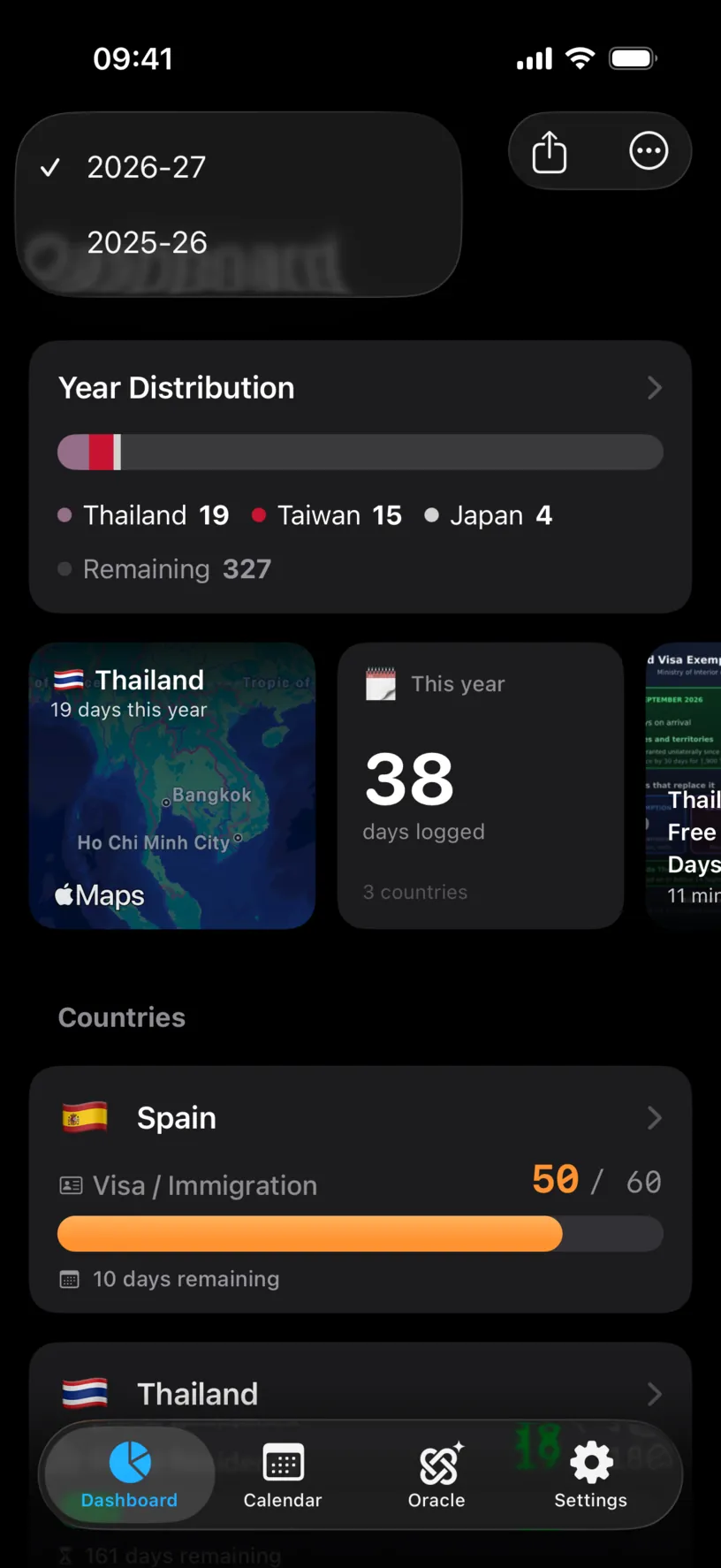
The list is built from the years your travel actually covers, labelled the same way. A trip in March and a trip in May now belong to different years, and this is where you switch between them.
If something looks different
The chip still shows a single year. The country you changed is not your tax residence. A country’s fiscal year governs its own counter; only the residence moves the dashboard.
The totals dropped after the change. Nothing was deleted. The dashboard is showing a shorter or different window, and the missing days are in the neighbouring year. Tap the chip to see them.
The country already had the right date. Then the app knew it. Leave it and move on.
Your fiscal year is not tied to a country. Set the start date you actually report on. The app does not check the value against anything, so a personal accounting year works exactly like a national one.
The days for other countries look unchanged. They are counted over their own fiscal years, which you set on each country’s screen. Only the dashboard follows the residence.
Your fiscal year changed because you moved. Change the residence first, then check this row. Set your tax residence covers the move.
Next steps
Customize a country’s fiscal day limit sets the number of days counted inside this window.
Set your tax residence decides which country’s year the dashboard follows.
Configure fiscal day-count alerts warns you before the limit lands, within the year you just defined.