What you’ll achieve
By the end of this guide your iPhone tells you that you are approaching a country’s tax residency threshold, before you cross it.
A counter only warns the people who open the app. An alert reaches the ones who do not, which is when a day limit is most likely to slip past.
The example puts two alerts on Thailand, whose limit is set to 180 days.
Step 1: Let the app send notifications
Open the Settings tab and tap Countries & Regions.
If the app has never asked, the first thing on the screen is Enable Notifications, under a line explaining why: to get alerted when you approach residency limits.
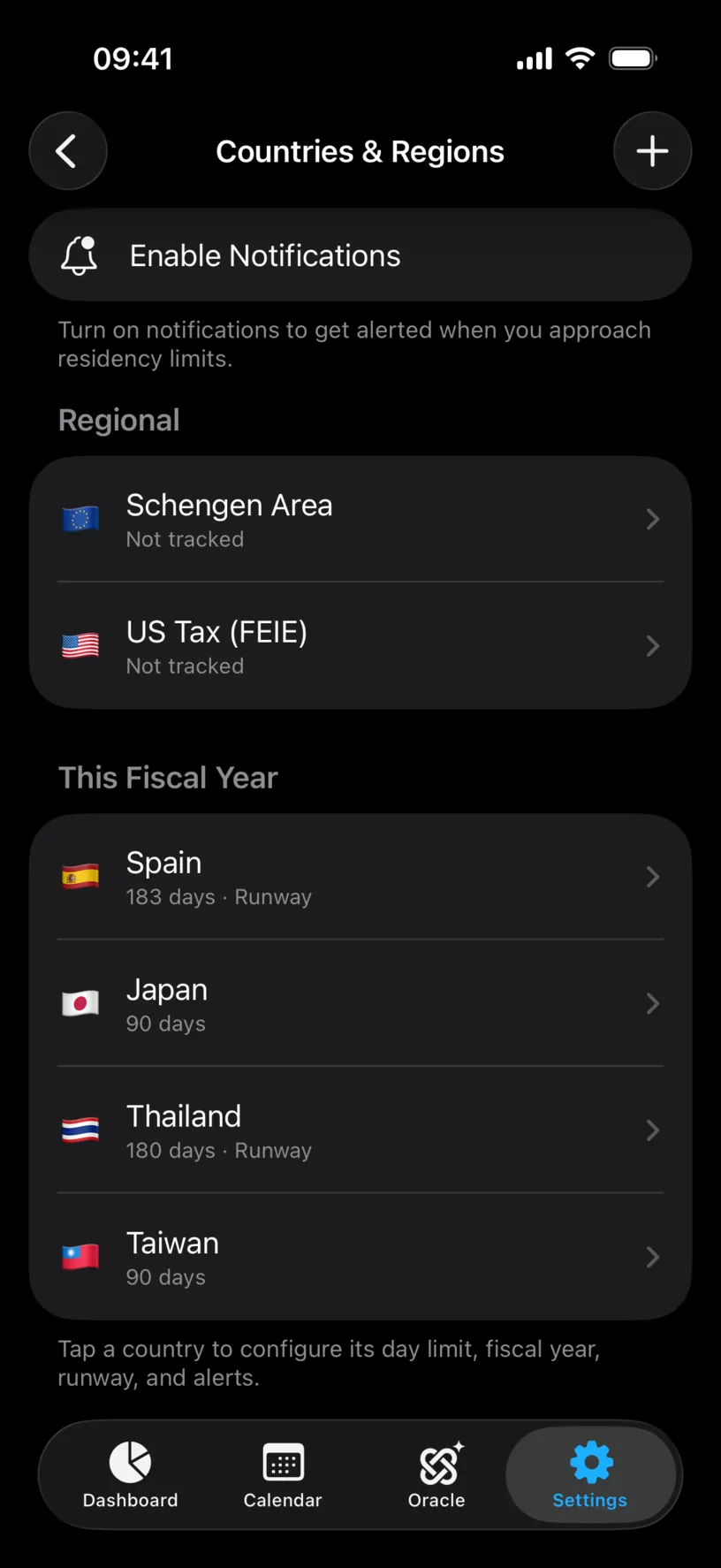
Tap it. iOS asks once.
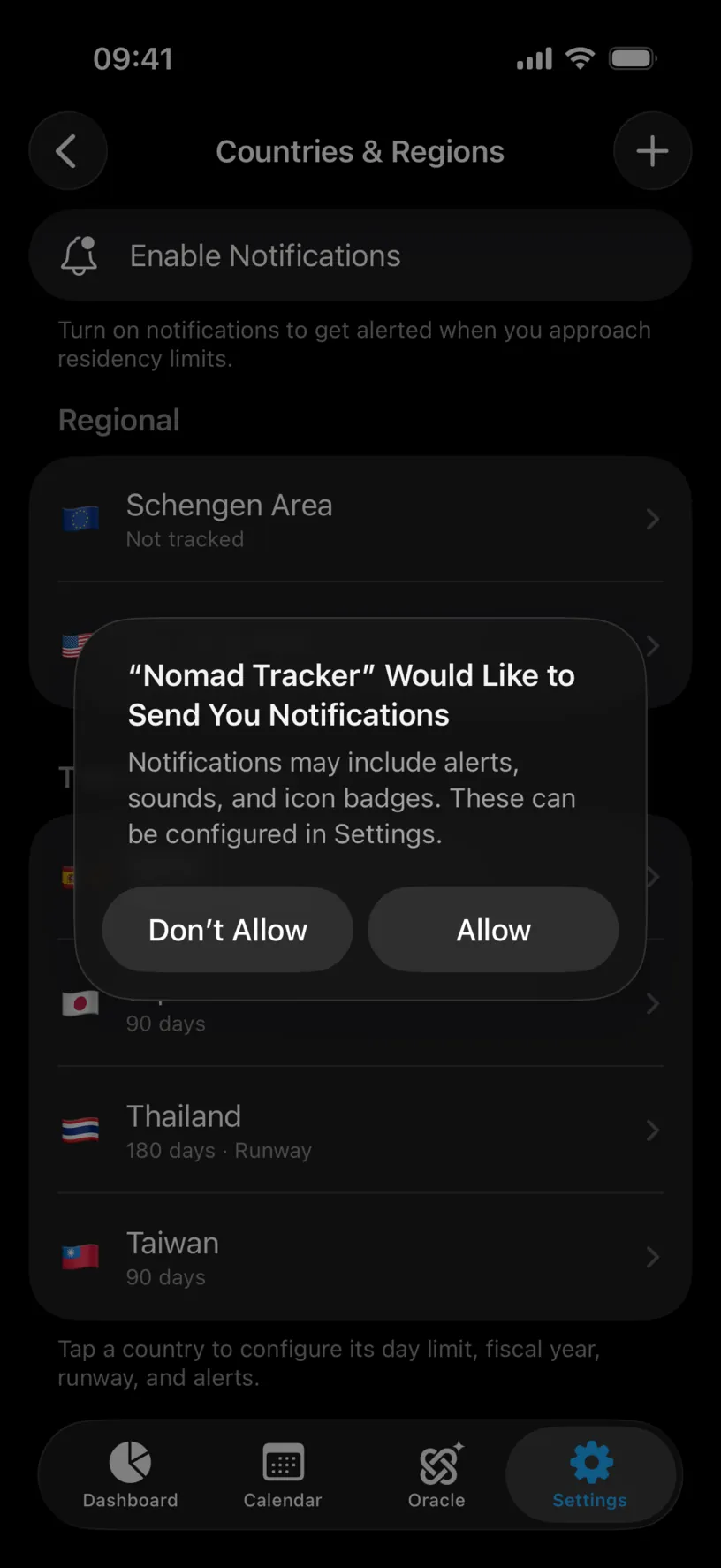
Tap Allow. The button disappears, which is the confirmation: it is only there while permission is missing.
Step 2: Open the country you want warned about
Tap the country in the list. Its screen has four groups: Tax Residency, Visa & Immigration, Residency Alerts and Visa Alerts.
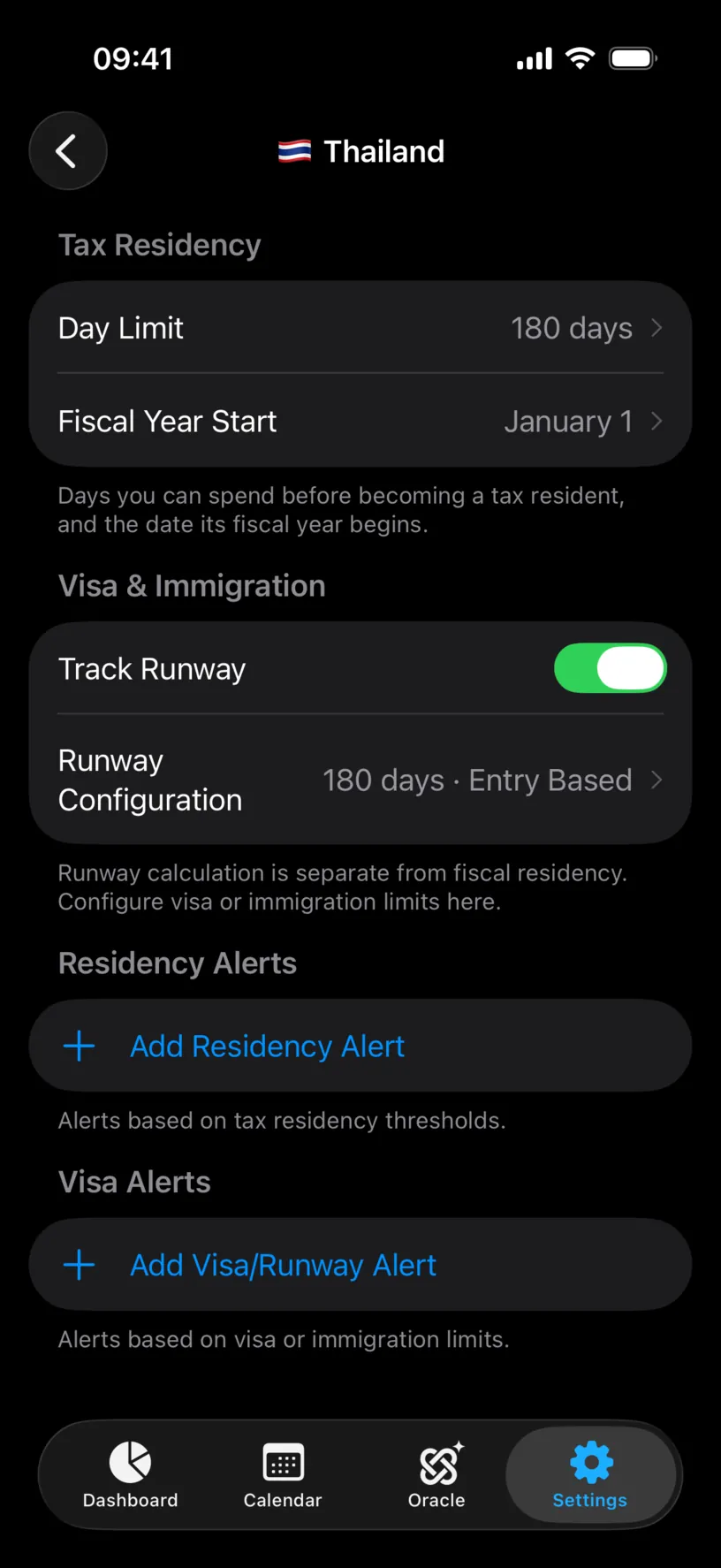
Residency Alerts is the one this guide is about. It watches the Day Limit above it, the number of days you can spend before that country can treat you as a tax resident.
Visa Alerts, below it, watches a different number entirely.
Step 3: Add the alert
Tap Add Residency Alert. A small Edit Alert sheet opens on 80%.
Drag the slider. It moves in 5% steps, and the line under it converts the percentage into the number that matters: at 70% of a 180-day limit, 126 / 180.
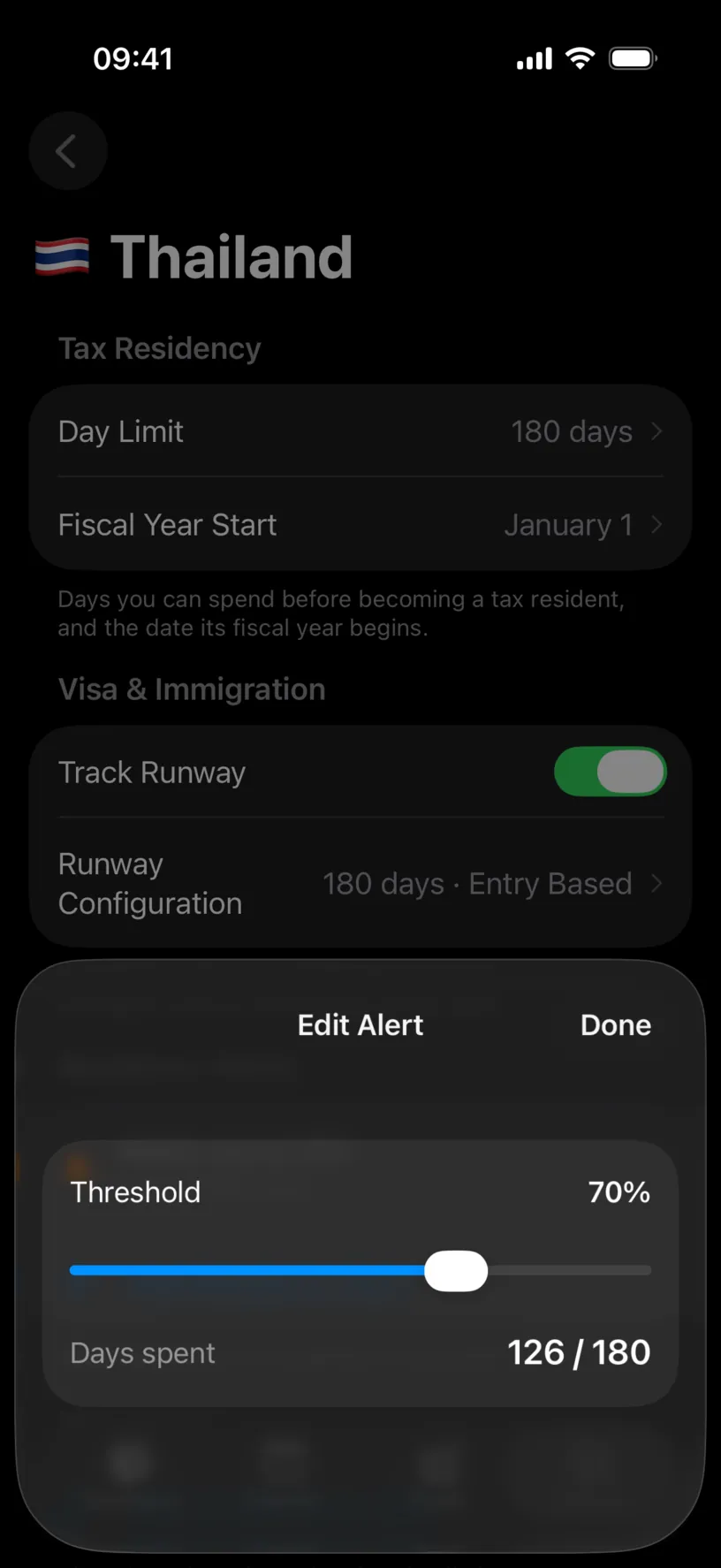
Tap Done.
Percentages, not days, is a deliberate choice. Change the country’s Day Limit later and every alert on it moves with it, instead of pointing at a number that no longer means anything.
Step 4: Add a second one
One alert is a deadline. Two are a warning and a deadline.
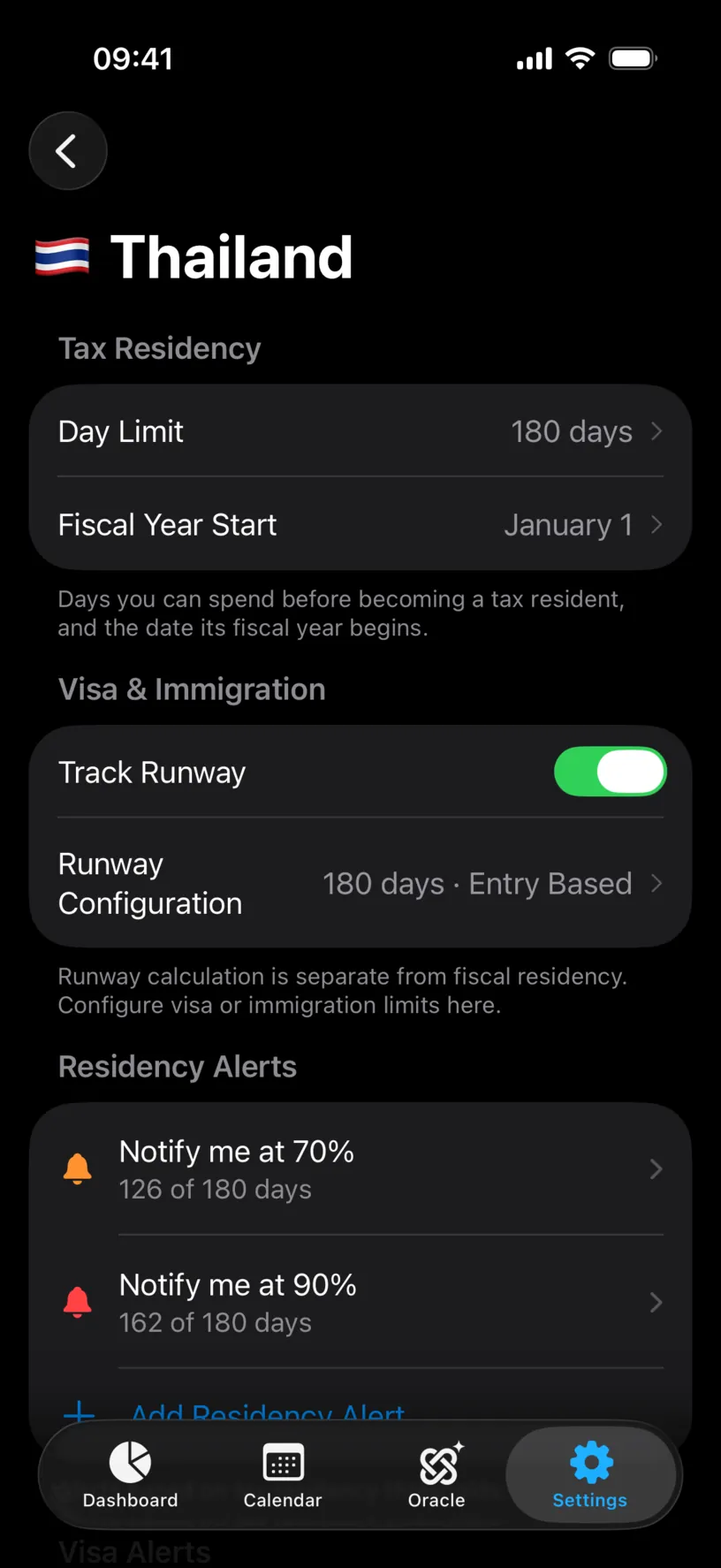
Add another at a higher threshold. The bell in each row is tinted by how close the threshold sits to the limit: blue under 70%, orange from 70 to 90, red above.
Check your result
Each row reads back as an intention, Notify me at 70%, with the day count under it. That row is the whole setting: tapping it reopens the slider, and swiping it left deletes it.
Go back to Countries & Regions. The country’s summary line now ends with the number of alerts on it, so you can see at a glance which countries are being watched and which are not.
When a threshold is crossed, the notification names the country and the arithmetic: how many days you have spent, what percentage of the limit that is, and the limit itself.
If something looks different
The alert sections show a single locked row instead. Alerts are a PRO feature. Residency & Visa Alerts with a padlock is the row a free account sees, and tapping it opens the paywall.
The screen shows Notifications Disabled in orange. Permission was refused, and iOS will not let the app ask again. Tap that row to jump to the iOS Settings app and turn notifications on there.
There is no Enable Notifications button and no orange row. Permission is already granted. Nothing to do.
The alert fired later than you expected. Alerts are evaluated against your logged days, so a day the app does not know about yet is a day it cannot count. Days entered by hand count immediately; days that arrive from GPS or a photo import count once they land.
You set 80% and want a specific day count. Work backwards from the limit. The Days spent line under the slider does the arithmetic live, so drag until it reads the number you had in mind.
You want to be warned about a visa, not a tax threshold. Use Visa Alerts in the section below, which measures against the runway limit rather than the fiscal one.
Next steps
Set your tax residence decides the fiscal year every one of these counters is measured over.
Read your dashboard at a glance shows the same counters the alerts are watching.
Plan your first trip with Ghost Trips tests whether a trip would cross a threshold before you book it.