What you’ll achieve
By the end of this guide you have a trip you have not taken sitting in your calendar, and you can read exactly what it would do to your day counters before you book anything.
Nomad Tracker calls these ghost trips. They live in a simulation layer on top of your real history: your logged days never change, and the app labels every number the simulation touches.
Step 1: Start a ghost trip
Open the Calendar tab and tap Add in the top right, then Add Ghost Trip.
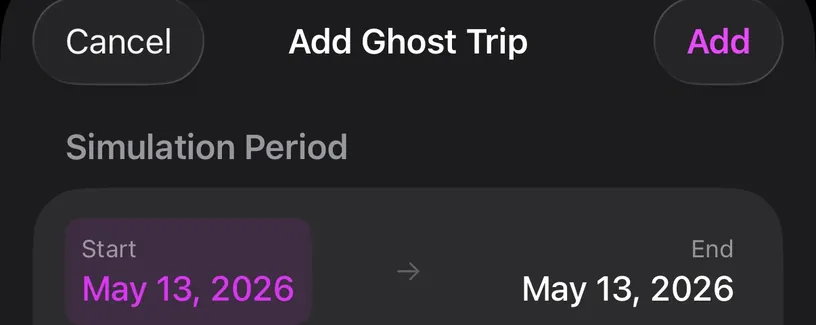
The sheet is titled Add Ghost Trip, with Cancel on the left and Add on the right. Under Simulation Period the Start and End both begin on today.
Step 2: Pick the dates
Move to the month you are planning with the arrows, or tap the month name to jump.
Tap the first day of the trip, then tap the last. The app fills the range between them and marks both ends.
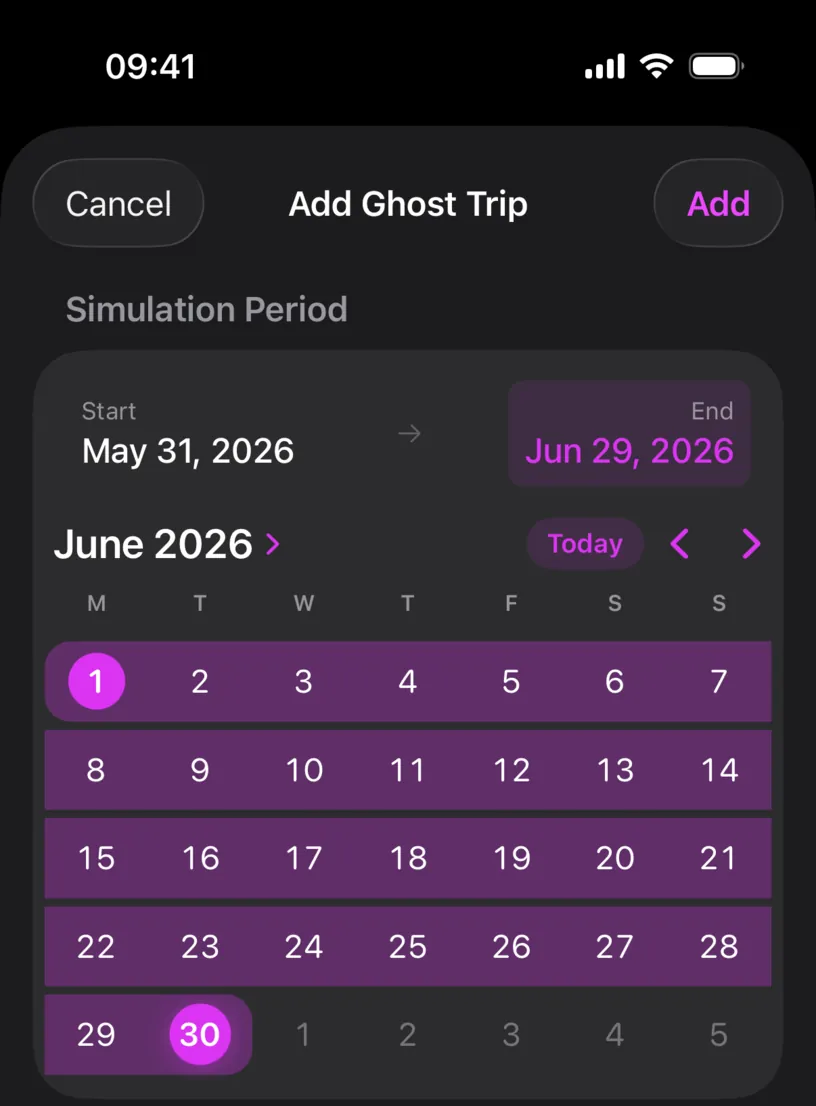
Under the calendar the app states what it is doing, in case the point is not obvious: Ghost trips are hypothetical stays used for scenario planning.
Step 3: Pick where you are going
The Location section arrives with a country already filled in, the one you are in now.
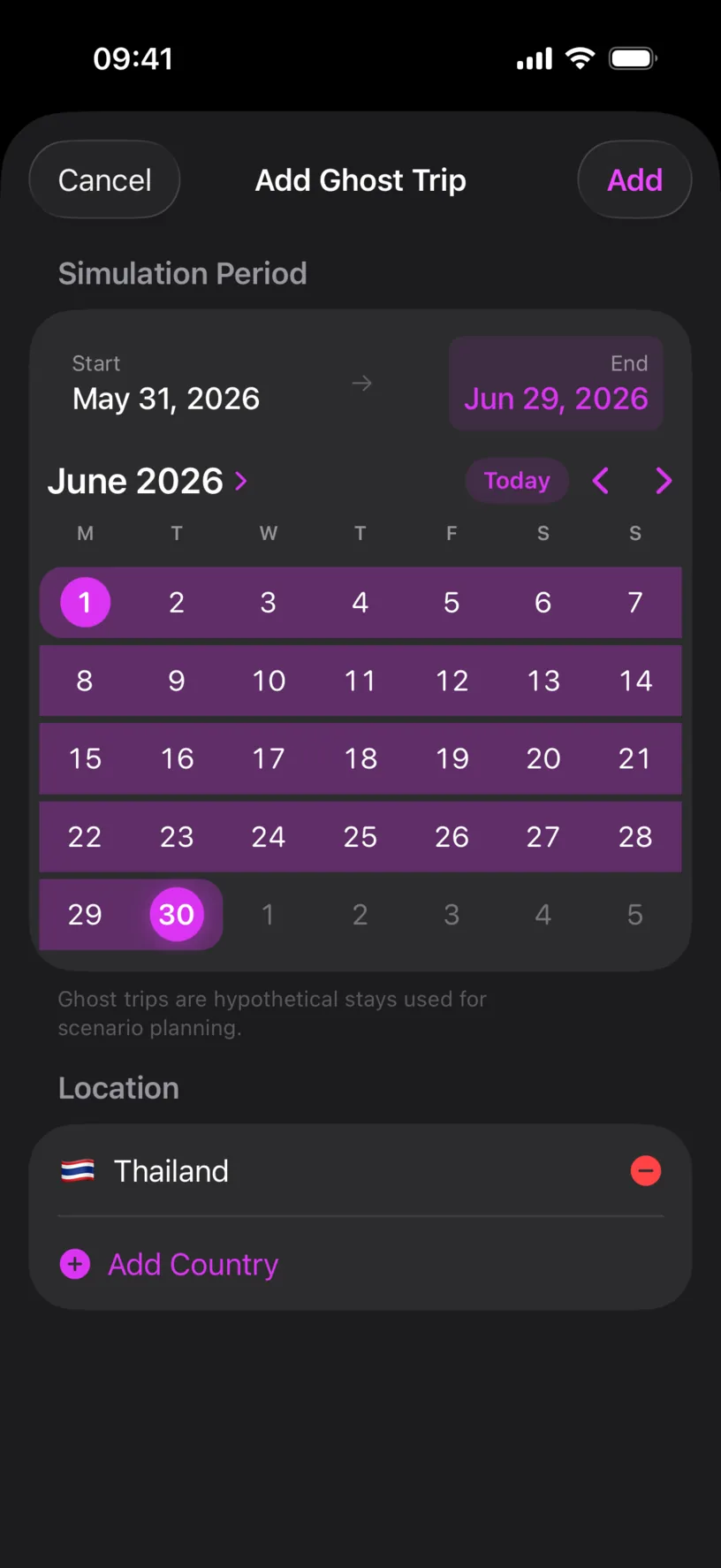
Tap the minus button to drop that country, and Add Country to choose another. More than one country here spreads the same period across all of them, which is what you want for a multi stop itinerary and not what you want for a single trip.
This guide simulates a month in Thailand, the country the profile is already in.
Tap Add when the dates and the country are right.
Step 4: Find the trip in your calendar
Move the Calendar tab to the month you simulated. The simulated days carry a dashed outline in a different color from your logged days, and a chip above the grid counts them: 30 ghost trip days.
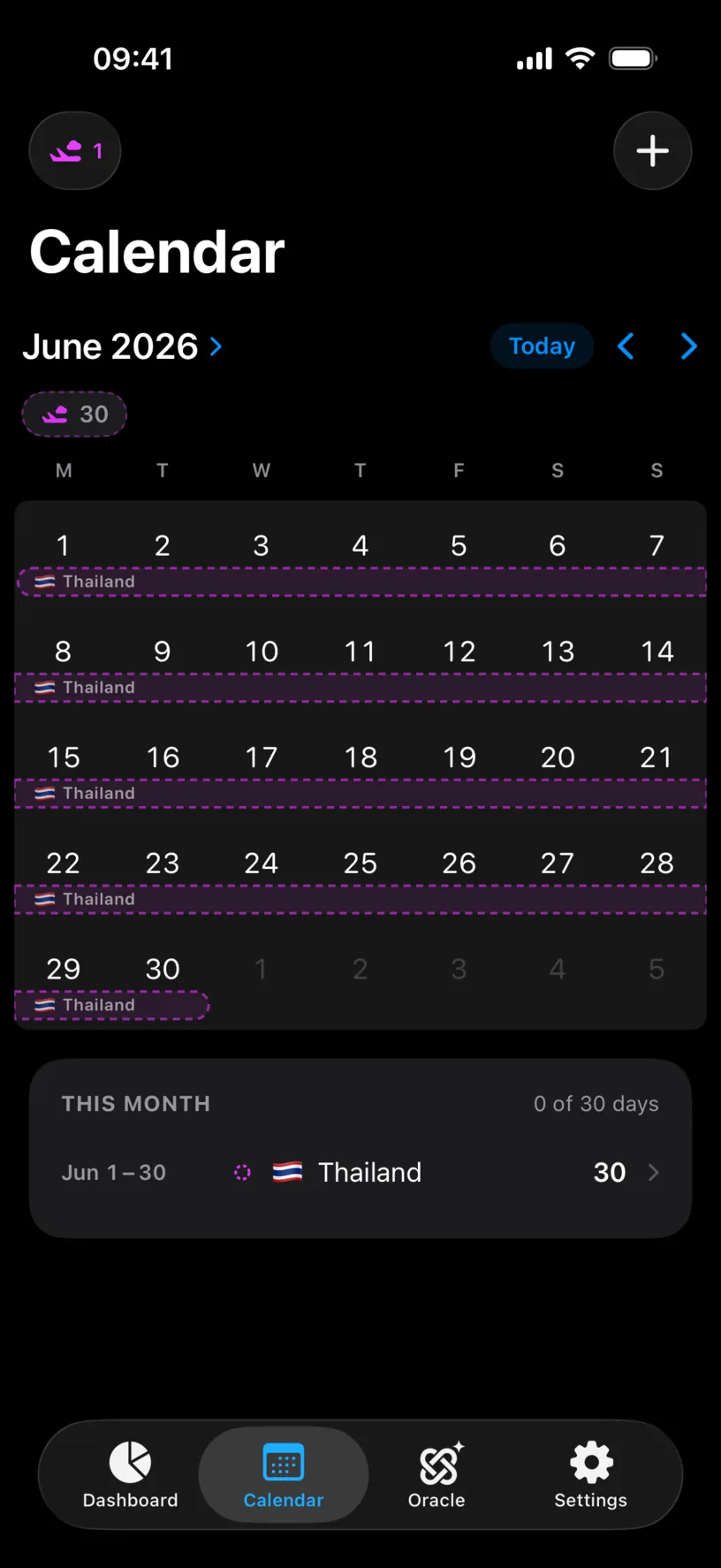
Look at THIS MONTH underneath. It reads 0 of 30 days, because none of those days is logged. The stay row below it still lists the simulated trip and its 30 days. Logged and simulated are two different questions and the app answers both.
Step 5: Compare the counters on your dashboard
This is the point of the exercise. Open the Dashboard tab and read the country card you simulated into.
Before the simulation, Thailand read 59 / 180 with 121 days remaining.
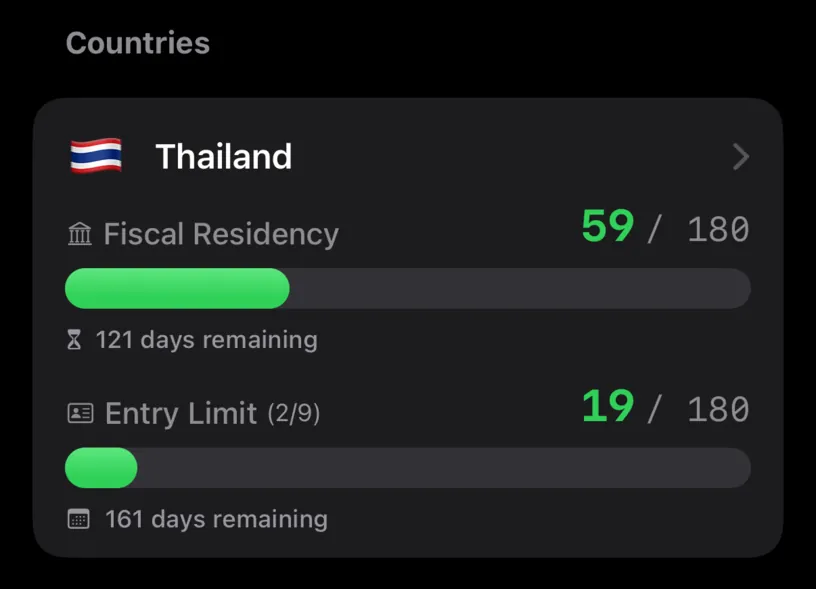
After it, the same card reads 89 / 180 with 91 days remaining, and the bar splits into a solid part and a dashed part.
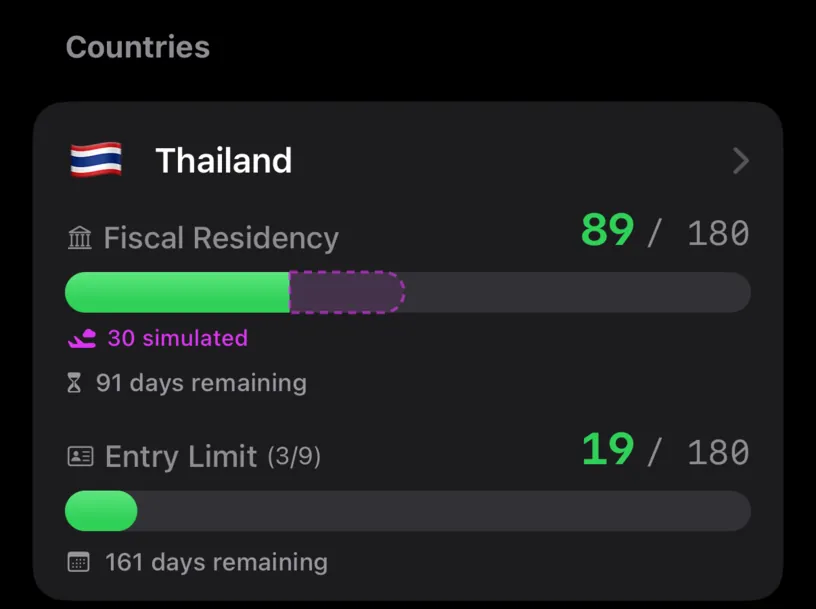
The dashed segment is labeled 30 simulated, so you can always see how much of a number you have actually lived. The Entry Limit count also moves, from (2/9) to (3/9), because the trip is a new entry into the country.
Step 6: Check the year and the strip
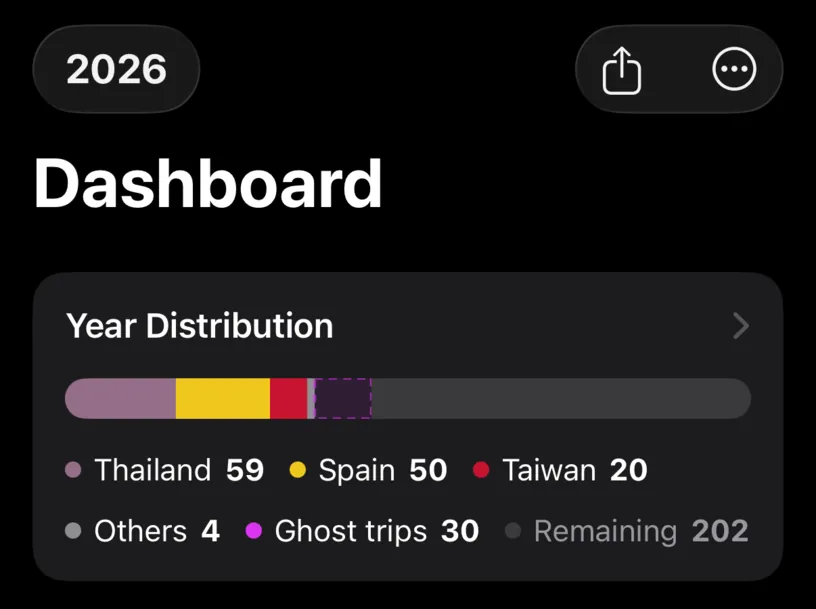
Year Distribution gains a Ghost trips entry, and Remaining drops by the simulated days: 232 becomes 202.
A Simulation tile also appears at the front of the widget strip, reporting 1 ghost trip in your numbers and 30 planned days.
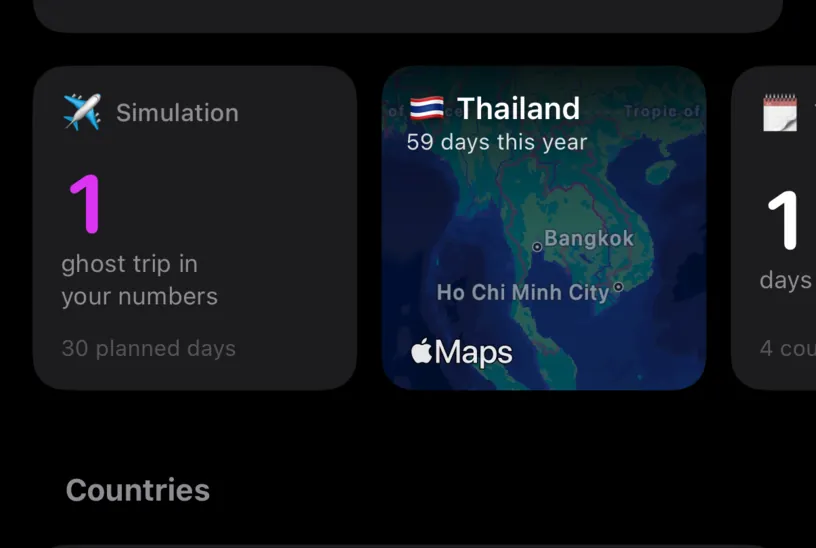
The This year tile does not move. It counts days logged, and a simulated day is not logged.
Step 7: Clear the simulation
Tap the chip in the top left of the Calendar tab, the one showing a plane and the number of trips.
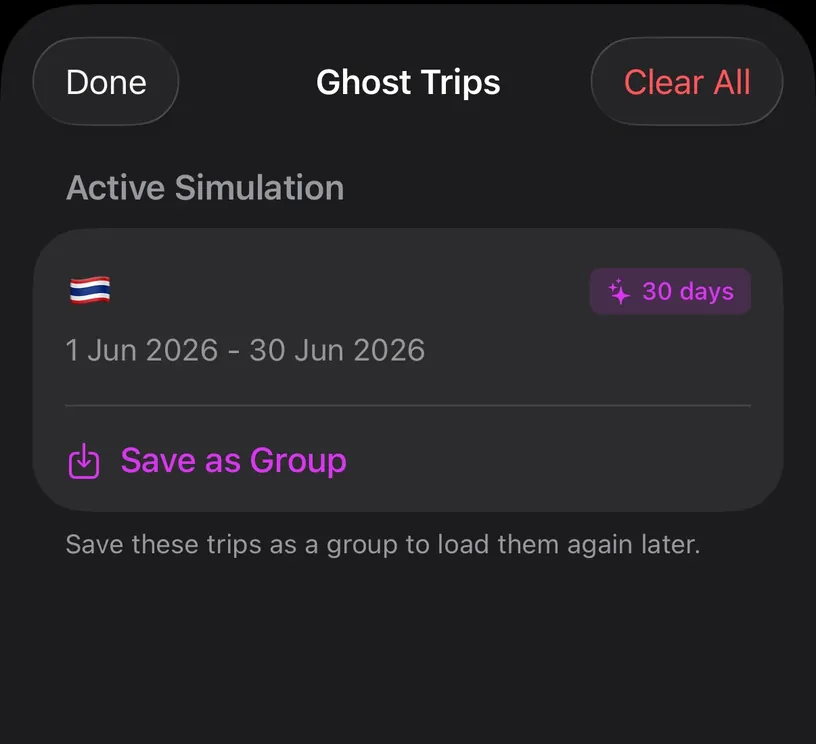
The Ghost Trips sheet lists everything under Active Simulation. Clear All removes the lot, and Done closes the sheet and keeps it.
The active simulation is not saved. Close the app and it is gone, which is deliberate: a scenario you were toying with should not quietly become part of your record. To keep one, tap Save as Group, which is a PRO feature and stores the trips under a name you can load again.
Check your result
Compare two numbers on the dashboard. The country card shows the simulated total with 30 simulated under it, and the This year tile shows the logged total unchanged.
If both are true, the simulation is doing its job: it answers what would happen without touching what did.
Then tap Clear All and check the card returns to its original number.
If something looks different
The Start and End dates above the calendar do not match the days you tapped. Trust the calendar. The days highlighted in the grid, and the trip the app creates, are the days you tapped. Check the dates in the Ghost Trips sheet after adding, where the trip is listed with its real range.
Nothing changed on the dashboard. Check the year chip. A trip simulated into next year only moves that year's counters, and the dashboard shows one fiscal year at a time.
The simulated days vanished. The active simulation lasts for the session. If you closed the app, build it again, or load a group you saved.
A card shows no dashed segment. The simulation did not add days to that country. Only the countries in the ghost trip's Location list are affected.
The simulated days sit on top of days you already logged. The app shows both and your logged day keeps priority. Simulating over a day you have already recorded tells you very little, so simulate into empty days.
Save as Group opens the subscription screen. Saving a simulation under a name is part of PRO. Building, reading and clearing a simulation is not.
Next steps
Set up Nomad Tracker for the first time covers the day limits your simulation is measured against, so the counters it moves mean something.
If the trip you are planning crosses the Schengen area, the blog walkthrough on setting up Schengen tracking explains the 90/180 window a simulated trip is checked against.