What you’ll achieve
By the end of this guide you can open the Dashboard tab and read every number on it: how many days you have spent in each country this fiscal year, how many you have left before you cross a limit, and which stays those numbers come from.
The screenshots use a profile with 133 days logged in 2026, read on 13 May 2026. Your numbers differ, the layout does not.
Step 1: Open the Dashboard tab
Tap Dashboard, the first of the four tabs at the bottom of the app.
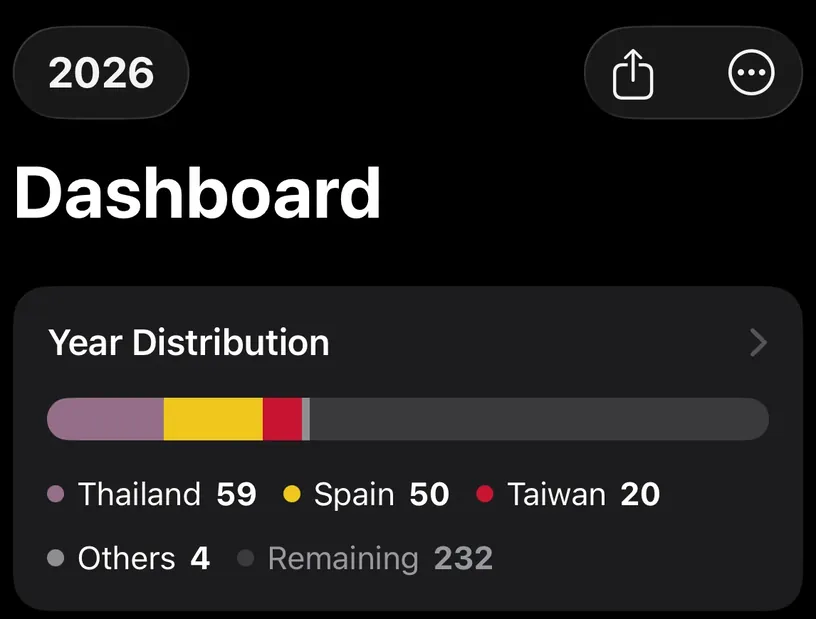
The chip in the top left shows the fiscal year you are reading. It says 2026 here. Every count on the screen belongs to that year, so check the chip before you trust a number.
Step 2: Read the Year Distribution card
Year Distribution is the whole fiscal year as one bar, split by country, with the day count under it.
Here it reads Thailand 59, Spain 50, Taiwan 20, Others 4 and Remaining 232.
Two labels need care. Others collects every country outside the top three, so a single number can hide several places. Remaining is the days of the fiscal year you have not logged at all, not days you are still free to spend somewhere.
Step 3: Check the widget strip
Under the card sits a strip of three tiles you can scroll sideways.
The map tile names your current country and its total, Thailand and 59 days this year. The This year tile totals the whole year, 133 days logged across 4 countries. The third tile is Latest on the blog.
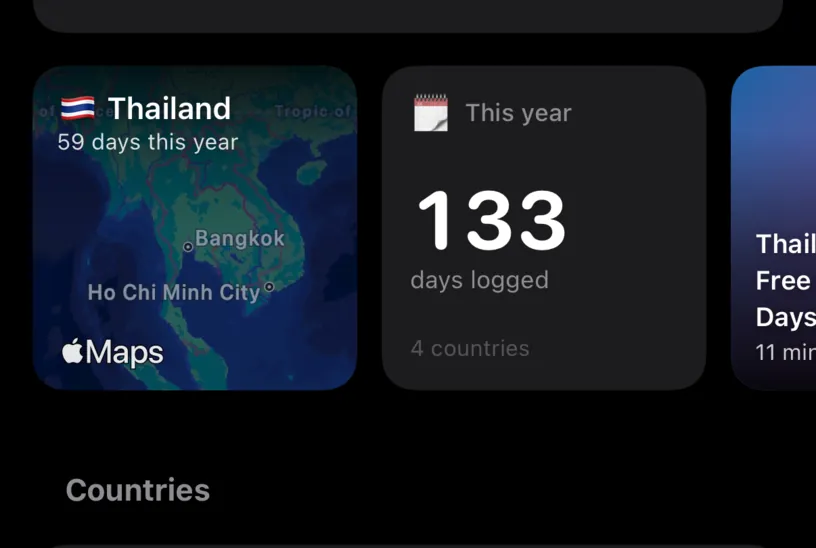
The strip holds three tiles at a time. To change them, scroll to the end of the strip and tap Edit widgets, which says Remove one to add another.
Step 4: Read a country card
Under the Countries heading, each country you logged gets a card. Tall cards carry two counters, and they answer different questions.
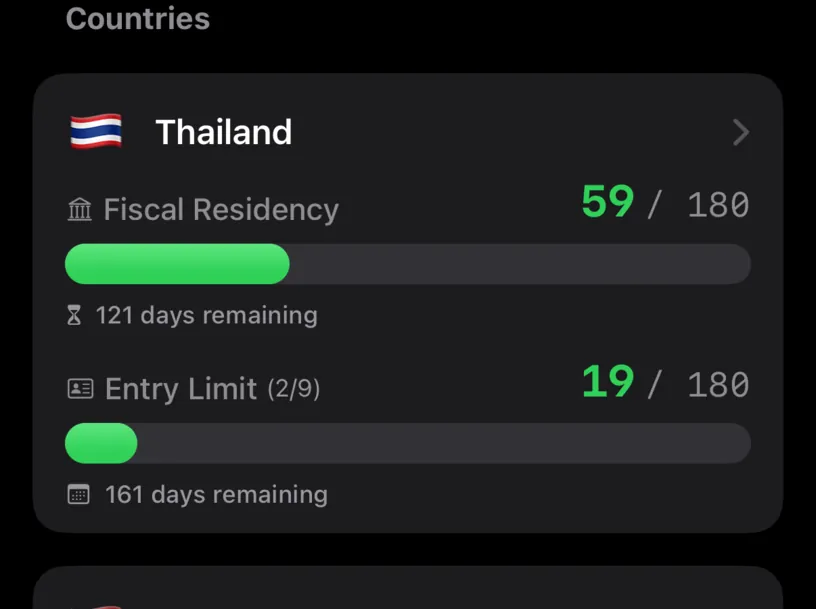
Fiscal Residency is the tax counter. Thailand reads 59 / 180 with 121 days remaining, so 59 days spent against a 180 day threshold.
Entry Limit is the immigration counter, and its label follows the rule you set for that country. Thailand uses an entry-based rule, so the card reads Entry Limit with (2/9) next to it: this is the second of 9 entries the rule allows in a year. The 19 / 180 counts the days of the current entry against the days that entry may last.
A country whose rule is not entry-based labels the same row Visa / Immigration instead.
Step 5: Use the color as a warning
The number and its bar are green while you have room, and turn orange as the counter approaches its limit.
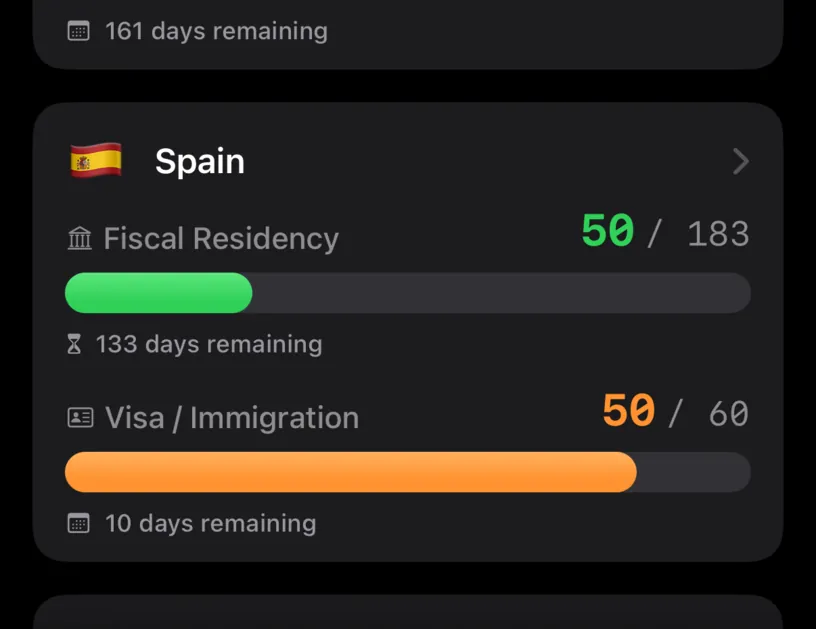
Spain shows both states on one card. Fiscal Residency is green at 50 / 183, while Visa / Immigration is orange at 50 / 60 with 10 days remaining.
Step 6: Open a country to see the stays behind the number
Tap a country card. The detail screen opens on the year and its total, 2026 and 59 days, followed by the stays that add up to it, most recent first.
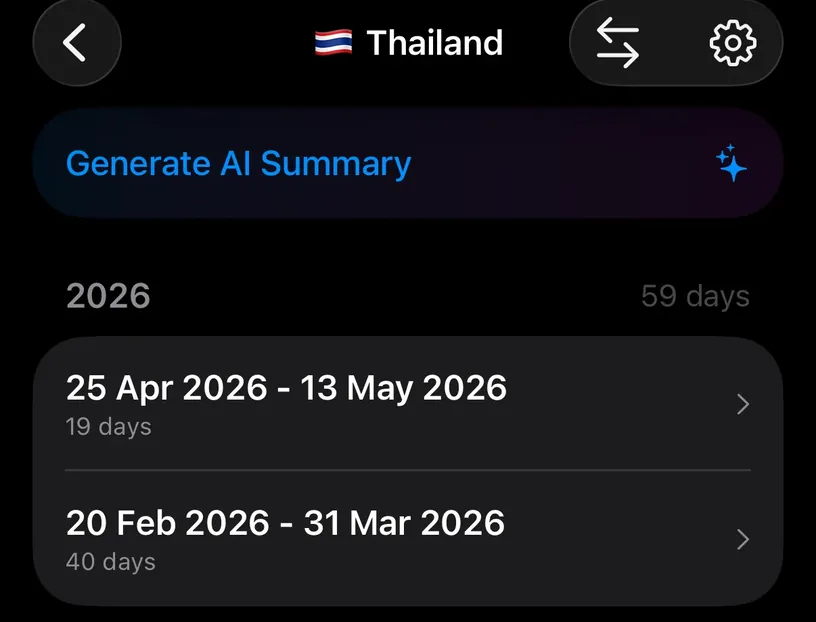
Thailand's two stays, 19 days and 40 days, are the 59 on the card. This screen is where you check a count you disagree with, because a wrong total is always a wrong stay.
Step 7: See the year as a calendar
Tap the Year Distribution card to open 2026 Overview: one dot per day of the year, colored by country, with today ringed.
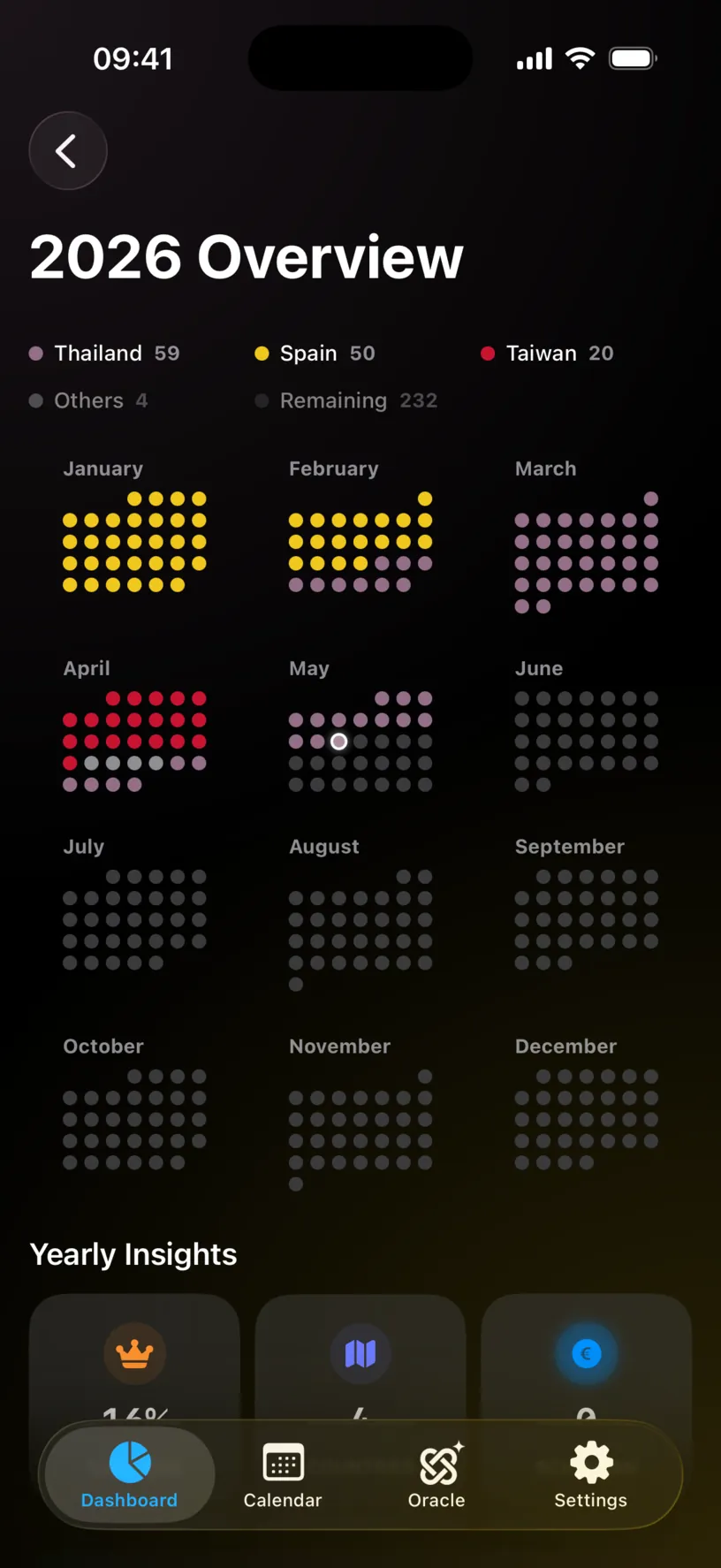
Gray dots are days with no log. This is the fastest way to spot a gap in your history.
Step 8: Switch the fiscal year
Tap the year chip in the top left. The menu lists the years you have logged days in, with the current one checked.
Pick a year and the whole dashboard, cards and totals, moves to it.
Check your result
Add the country days in Year Distribution and compare the total with the This year tile: 59 plus 50 plus 20 plus 4 is 133, and the tile reads 133.
Then open one country and add its stays. If they match the total on its card, you are reading the dashboard correctly.
If something looks different
The dashboard says No Travel Data. No days are logged for the selected year. Add days in the Calendar tab, or check the year chip is on a year you traveled in.
A country you visited has no card. Cards appear only for countries with at least one logged day in the selected fiscal year. Check the year chip first, then the Calendar tab.
A card has only one row. The immigration counter appears only when a country has runway tracking on. Open the country, tap the gear icon for Country Settings, and look at Track Runway under Visa & Immigration.
The two counters disagree, one green and one orange. That is normal. Fiscal Residency and the immigration row count against different limits over different windows, and the app keeps them apart on purpose.
The fiscal year does not start in January. The dashboard groups your travel by the fiscal year of your residence country, which you set in Settings under Residence.
A Monthly Fiscal Report sheet covers the dashboard. The app shows a report for the previous month on the first open of a new month. Close it with the button in its corner.
Next steps
If any counter is missing a country or a limit, set up Nomad Tracker for the first time covers the residence and passport settings that create these counters.
If the dashboard has nothing to count yet, log your first trip fills a stay by hand and rebuild travel history from photos fills years of them at once.
If you track the Schengen 90/180 limit, read your Schengen day counter explains that card, and the blog walkthrough on setting up Schengen tracking covers exempt countries and alert thresholds.