What you’ll achieve
By the end of this guide your past travel is in the app, entered the fastest way available for each kind of trip, and you know how far back you actually needed to go.
Every counter in Nomad Tracker is arithmetic on your logged days. A fresh install counts nothing, so the first real task is not tracking today. It is loading the history the counters need.
There are three ways in, and the right answer is usually two of them.
Step 1: Work out how far back you need to go
More history is never wrong, but it is work. What you need depends on what you are tracking, and these are the three ranges that matter:
Fiscal residency needs the current fiscal year, from its first day to today. For most countries that is 1 January onwards.
The Schengen 90/180 rule needs the last 180 days. Nothing older is in the window, so nothing older changes the number.
The FEIE 330-day test needs the last twelve months, because the test uses any twelve consecutive months and the app follows the twelve that end today.
Take the longest range that applies to you and treat it as your target. If you track a fiscal year and Schengen, the fiscal year is almost always the longer of the two.
Anything before that target is optional. It makes next year’s reports better and it does nothing for today’s numbers.
Step 2: Choose your route
Open the Calendar tab and tap +.
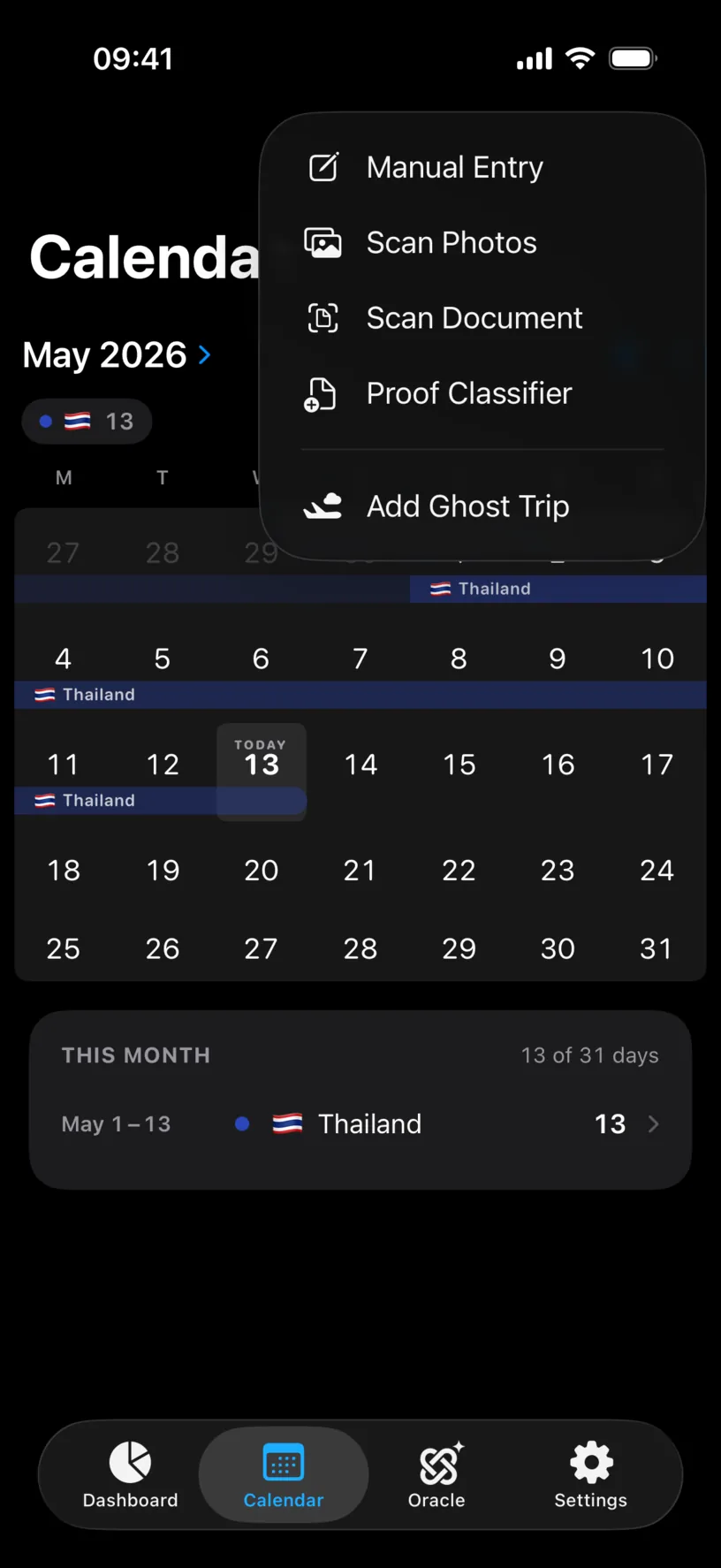
Three of these five build history, and they suit different trips.
Scan Photos reads the date and location of the photos you already took and proposes the stays it finds. It is the fastest route by a wide margin for trips more than a few months old, and the one to start with if you do not remember exact dates. It needs photos that carry a location, so a library full of screenshots gives it nothing to work with. Rebuild travel history from photos covers it.
Manual Entry types a stay in by hand: a date range and a country. It is exact, it needs no permissions, and for a handful of long stays it is quicker than any import. Log your first trip covers it.
Calendar Sync, which lives in Settings rather than this menu, reads the trips out of your calendars. It suits people whose flights and apartments are already in a calendar, and it is a PRO feature. Connect your calendars covers it.
The other two entries in this menu are about evidence rather than history. Scan Document and Proof Classifier attach proof to days you already logged.
Step 3: Do the bulk first, then the corrections
Run one import over your whole target range before you fix anything.
Scanning photos for a full year takes one pass, and the app proposes stays in batches you accept or skip. Correcting as you go doubles the work, because a later pass can move a boundary you already fixed.
Then type in what the import could not know. Long stays with no photos, weekends at home, the week you left your phone in a drawer. This is also where a country the import guessed wrong gets fixed, which Correct a country or date in your history covers.
The order matters more than the tool. Bulk, then repair.
Step 4: Check the shape of what you loaded
Open the Dashboard tab.
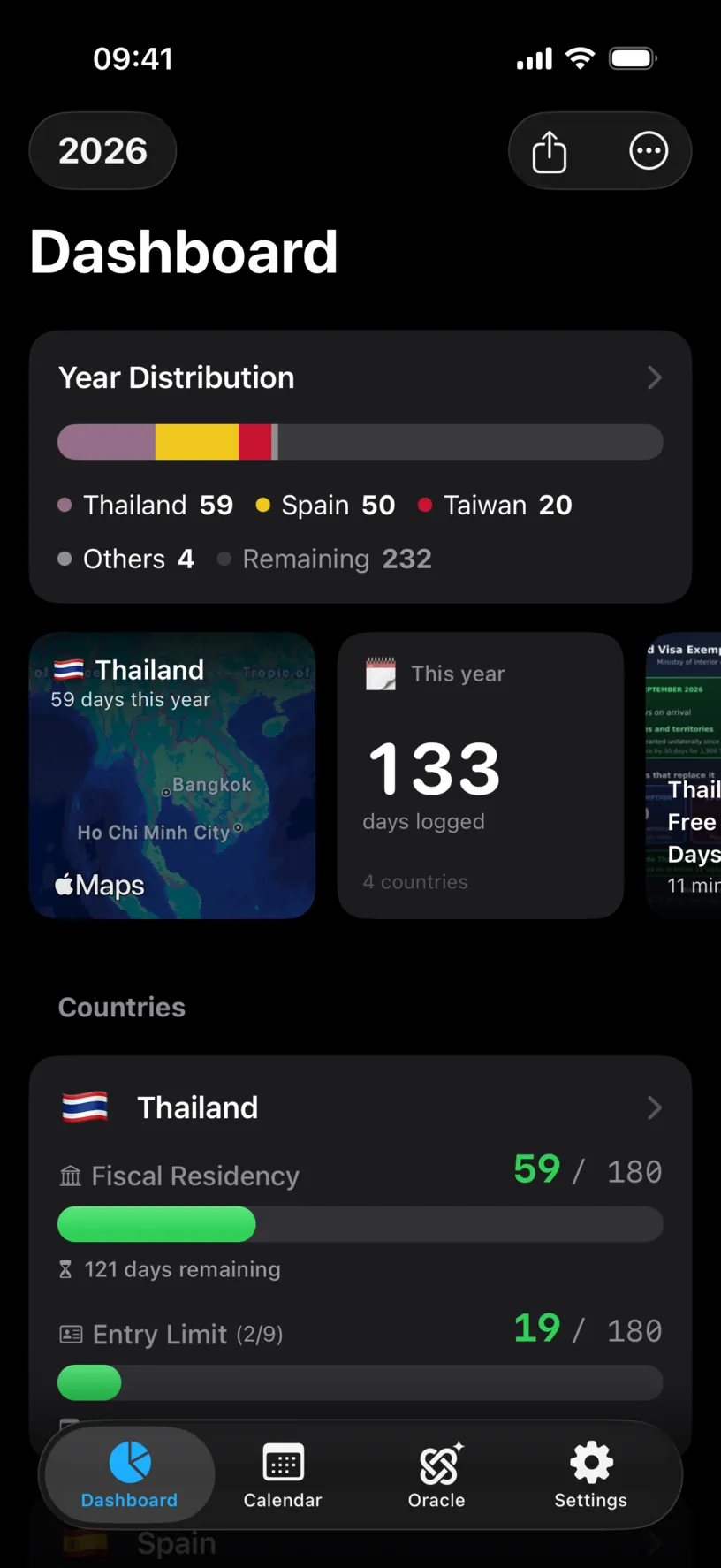
Year Distribution is the fastest sanity check in the app. It splits the fiscal year by country and names what is left: Thailand 59, Spain 50, Taiwan 20, Others 4, Remaining 232.
Read it as a shape, not as a number. A country that should be there and is not, a total that is far too low, a Remaining that looks nothing like the rest of your year: all of those are import problems, and they are easier to see here than anywhere else.
The This year tile does the same job in one line, 133 days logged across 4 countries.
Check your result
Open the Calendar tab and walk the months inside your target range.
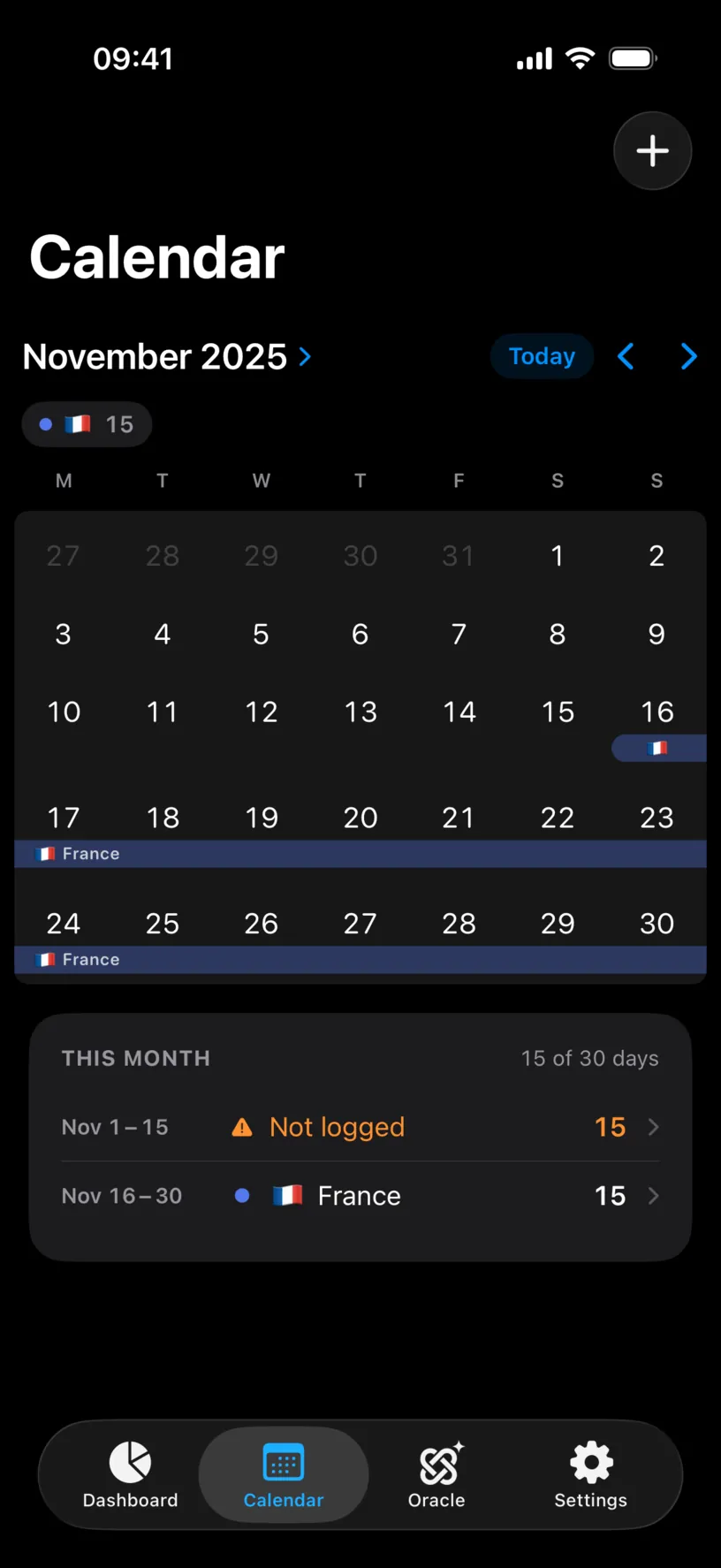
THIS MONTH counts the logged days of each month and lists what is missing as orange Not logged rows. A month that reads 30 of 30 days is complete. 15 of 30 days is not.
Your history is loaded when every month inside your target range is either complete or has gaps you have deliberately left. That is a check you can finish in a minute per month, and it is the only one that catches a whole missing trip.
Find and fill missing days is the tool for closing what is left.
If something looks different
The photo scan found nothing. Your photos have no location data, or the app has limited library access and can only see the ones you picked. Both are covered in Rebuild travel history from photos.
The scan proposed a country you were never in. Photo locations come from where the photo was taken, and a photo saved from a chat carries the sender’s location. Skip those proposals rather than accepting and fixing them.
Calendar Sync asks for a subscription. It is PRO. Photo scanning and manual entry are free, and between them they cover the same history.
Two routes both logged the same trip. Manual entries win over imports by design, so a day you typed keeps its country. If you see two countries on one day, that day has two logs, and Record two countries on the same day explains when that is right and how to change it.
A month you never travelled in is full of gaps. That is fine and it is not a warning. Days at home still want logging if you track a fiscal residency, since those are the days that build it.
Your counters look wrong after the import. Check the year first. The dashboard shows one fiscal year at a time, and a trip logged in the previous one does not appear in this one.
You do not know where you were. Boarding passes, card statements and hotel confirmations all beat a guess, and the photos on your phone usually settle it faster than any of them.
Next steps
Rebuild travel history from photos is the route to run first if your trips are older than your memory of them.
Log your first trip covers the manual route, which every history needs for something.
Find and fill missing days closes the gaps the imports leave behind.