What you’ll achieve
By the end of this guide you know exactly which days of the year have no entry, and the last one is filled.
A gap is not a neutral blank. Every counter in the app divides your days between countries, so a day with no country is a day nobody is counting, and the totals quietly stop adding up.
Step 1: Put the count on your dashboard
Open the Dashboard tab, scroll the widget strip to its end, and tap Add a widget. If it says Edit widgets instead, the strip is full: swipe left on one row in the list to remove it first.
Under Add, choose Not logged, described as “Days this year with no entry, so you know what is missing”.
The tile joins the strip with one number and the year it is measured over.
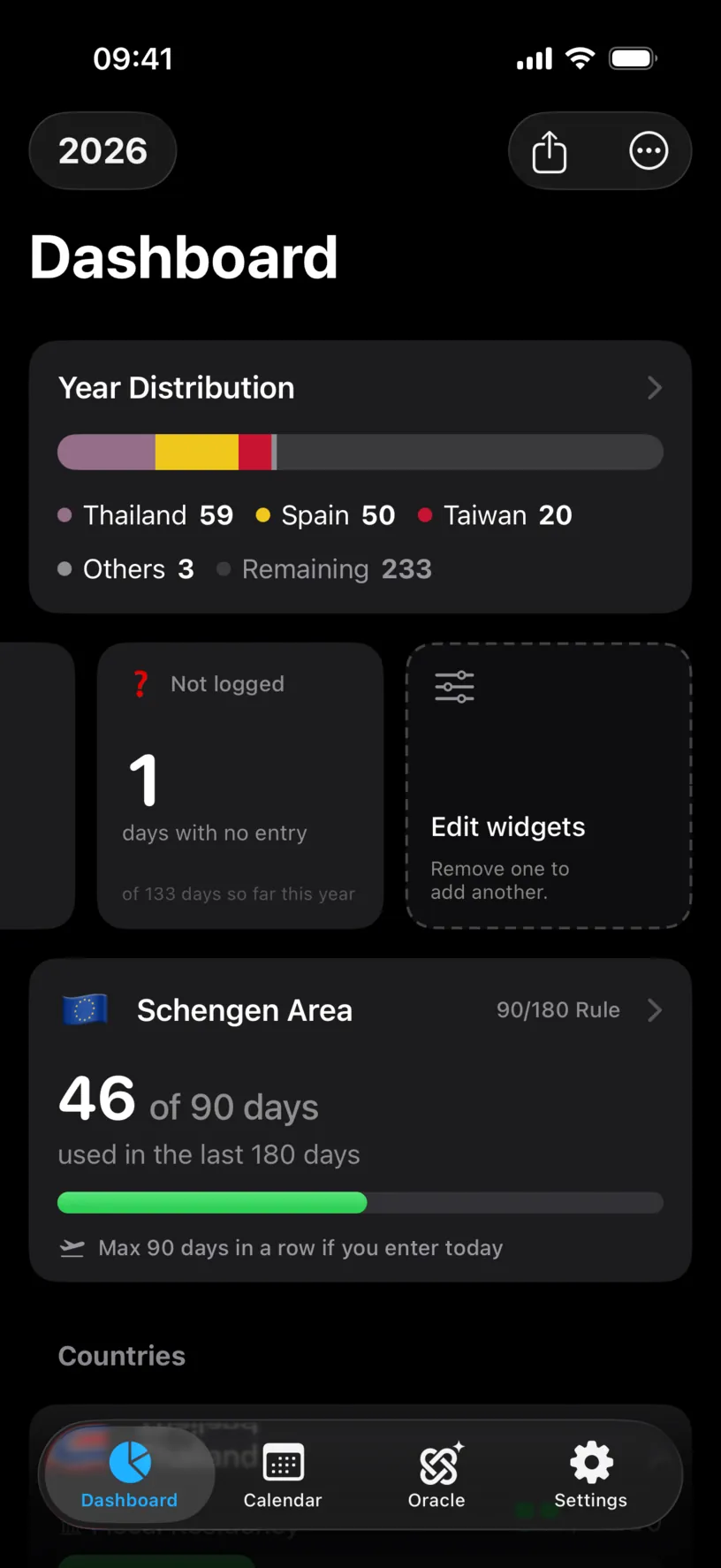
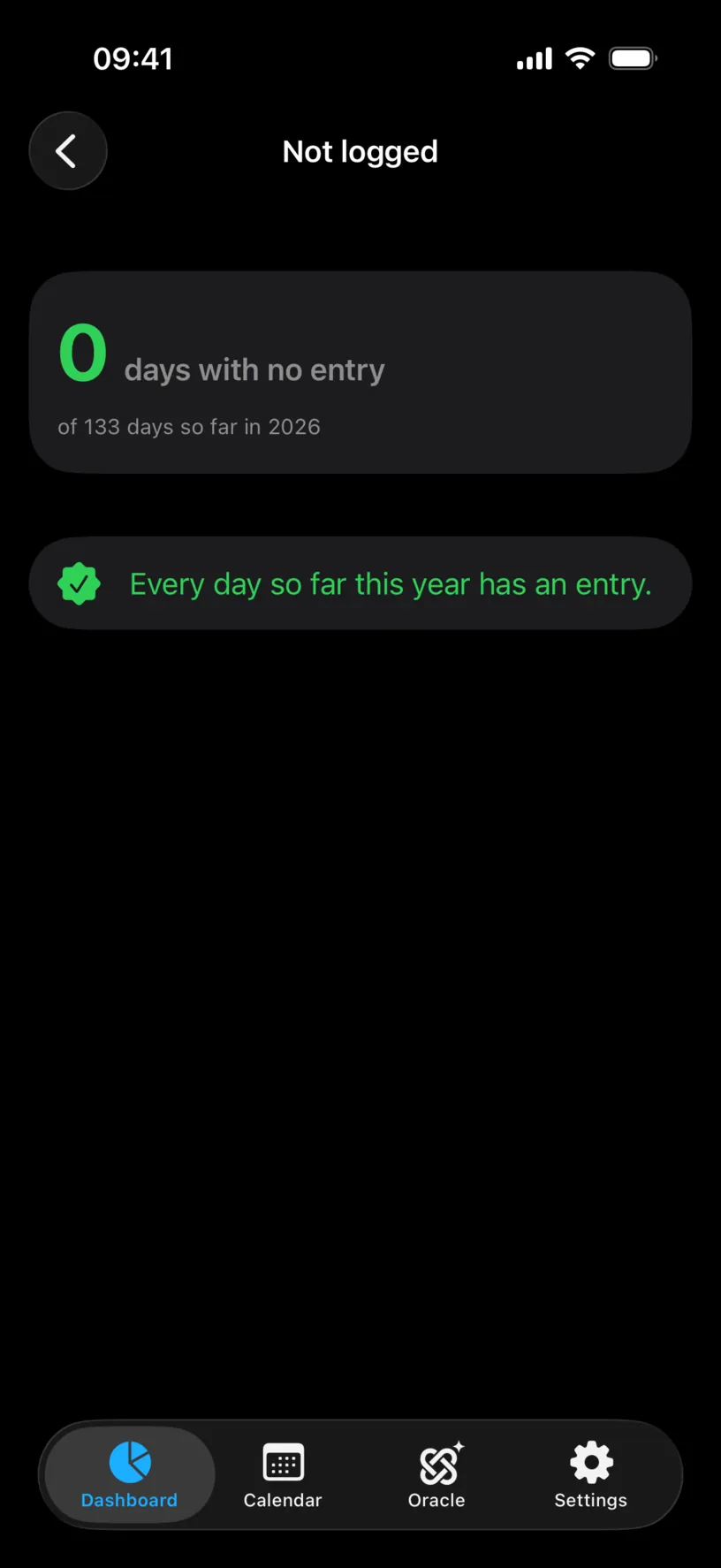
“Of 133 days so far this year” is the honest denominator. The tile counts elapsed days, not the whole year, so a January gap does not sit hidden behind eleven months that have not happened yet.
Step 2: Open the list of gaps
Tap the tile.
The Not logged screen repeats the number and then lists every gap under Gaps, newest first, with its date, its weekday and how many days it covers.
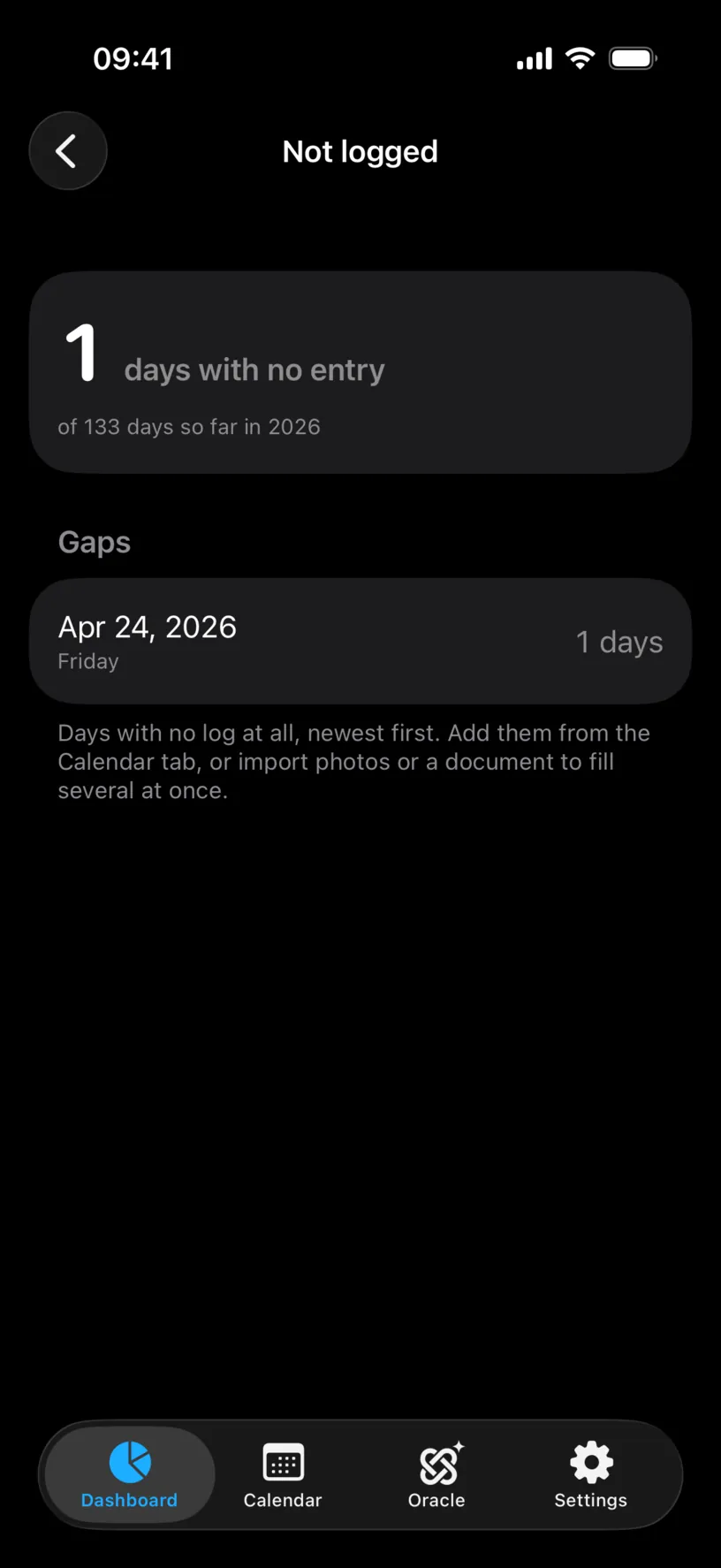
This is a list, not a to-do list: the rows are not tappable. The footer says where to go, which is the Calendar tab.
Step 3: Find the gap in the month
Open the Calendar tab and move to the month the list named.
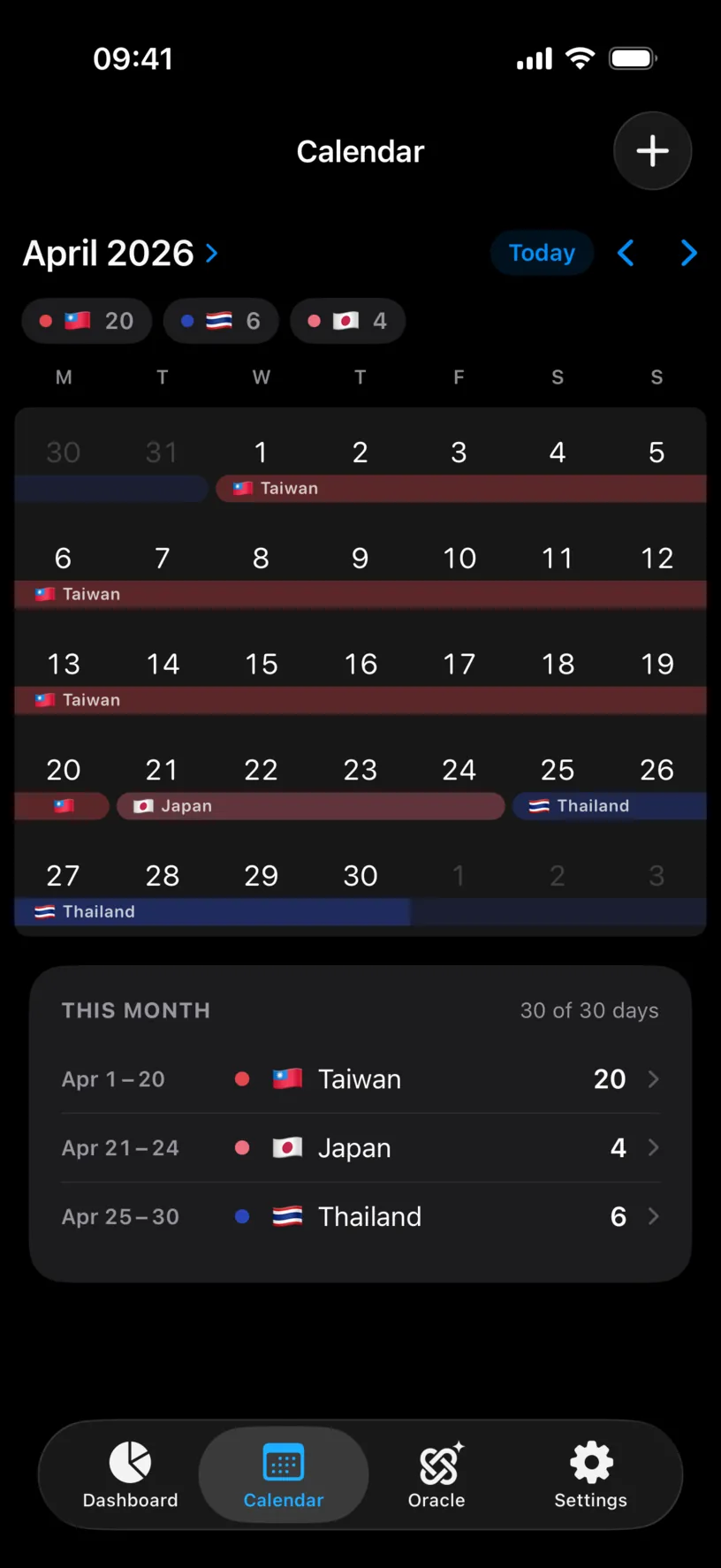
The gap is visible twice. In the grid the day sits bare between two coloured bands, and in THIS MONTH it has its own row, with a warning triangle and Not logged where a country would be.
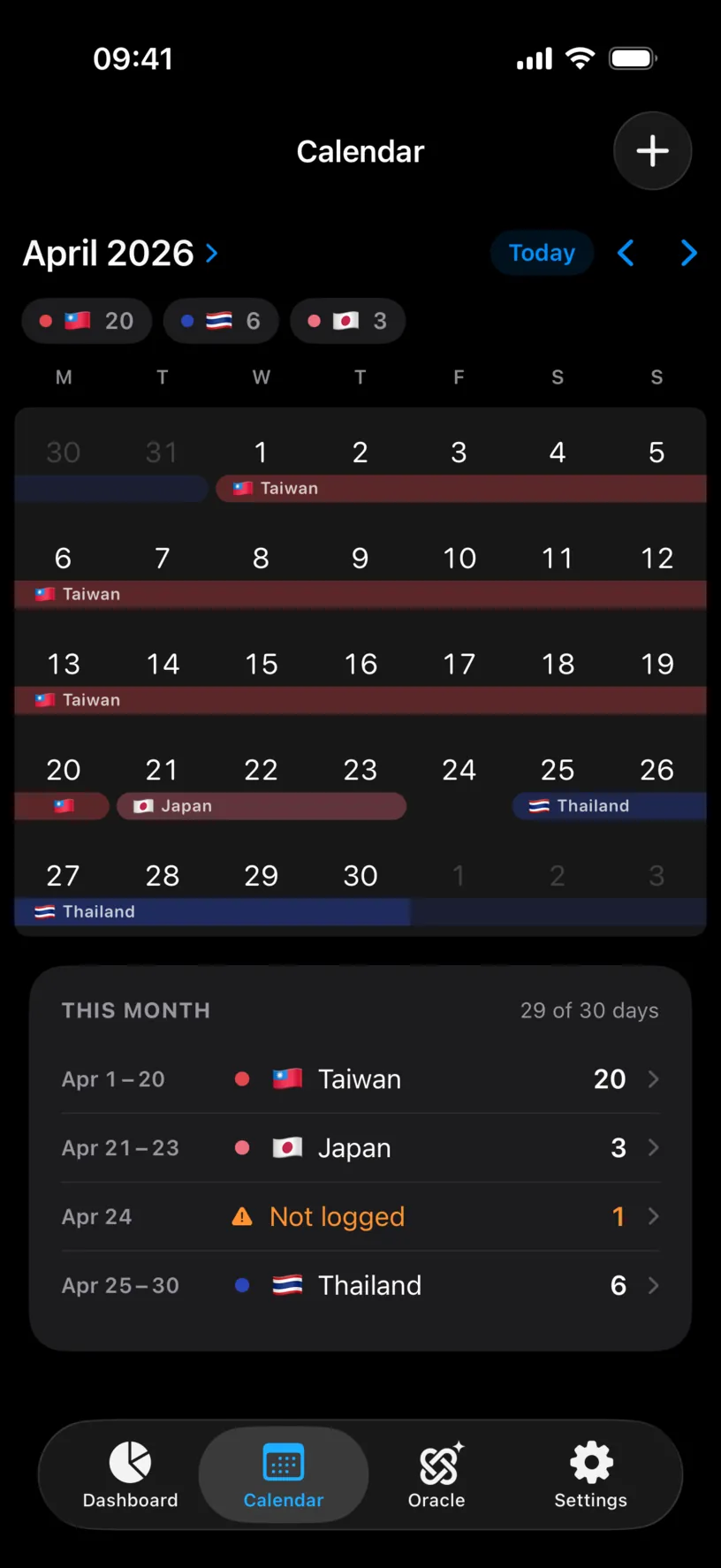
The header of that list, 29 of 30 days, is the same check in one line. A month that reads a full count has no gaps in it.
Step 4: Fill it
Tap the empty day in the grid.
The Add Stay sheet opens with that date already in both START and END, so a one-day gap needs no date work at all. For a longer gap, tap END and then the last day in the grid.
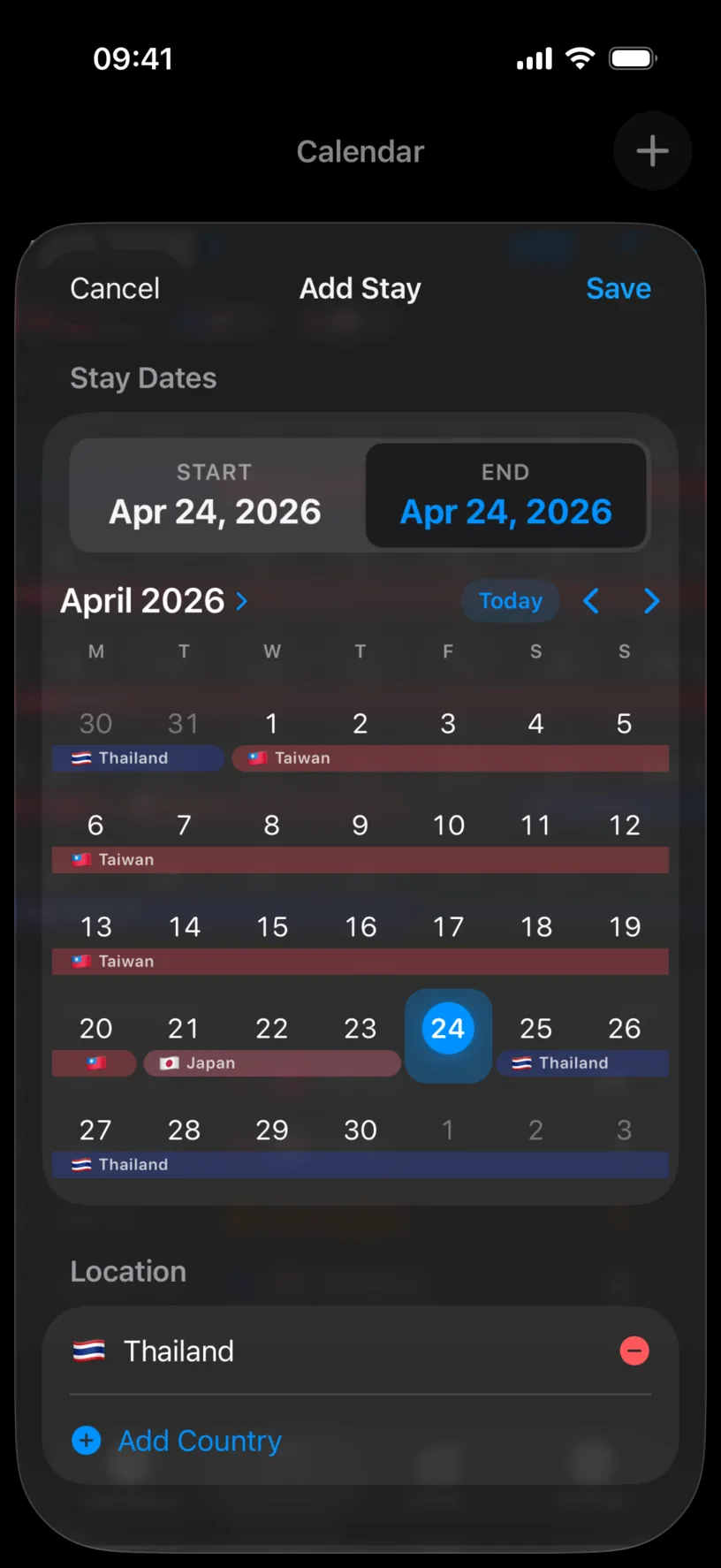
Scroll to Location. The app pre-fills the country you are logged in today, which is convenient for a gap you are filling now and wrong for one from three months ago.
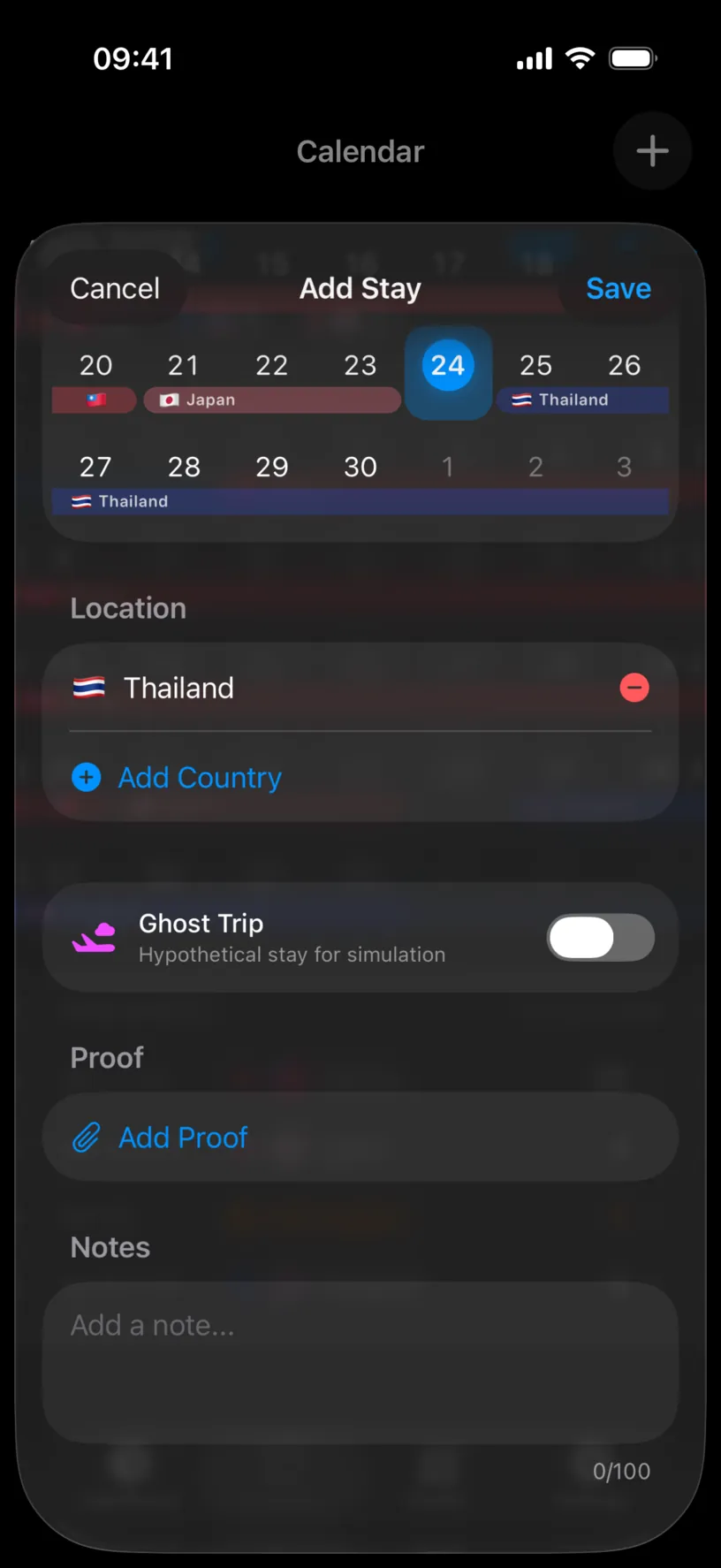
Tap the red minus to remove it, tap Add Country, and pick the country you were actually in. Then tap Save.
Check your result
The month closes its gap: the band runs through the day, THIS MONTH loses the Not logged row, and the header reads a full count.
Back on the dashboard, the Not logged tile reads 0, and its screen says so in a sentence: every day so far this year has an entry.
If something looks different
The tile shows a big number and you do not remember travelling. Gaps are usually days before you installed the app, or days automatic tracking could not cover. Filling years of them one at a time is the wrong tool; use Scan Photos from the Calendar tab’s Add menu instead.
There is no Not logged option in the widget list. The tile is already on your dashboard. Scroll the strip.
The gap list is empty but a month still looks wrong. The list counts days with no entry at all. A day logged to the wrong country is not a gap, and the app cannot tell it is wrong.
The gap is in the future. It should not be listed. The count covers days that have already happened, so a trip you have not taken yet is not missing.
You filled a gap and the number did not move. The tile reads its year from the fiscal year on your dashboard. A gap in a different year does not count toward it.
The day you filled took a country you did not pick. The sheet pre-fills today’s country. Open the day again, choose Edit This Day Only, and set the right one.
Next steps
Add and edit a stay in the calendar is the other way to close a gap, by extending the stay next to it instead of adding a new one.
Rebuild travel history from photos fills months of gaps at once, from dates and places your camera roll already holds.
Turn on automatic location tracking stops new gaps appearing from here on.