What you’ll achieve
By the end of this guide you can change any stay already in your calendar: its dates, its country, and whether it exists at all.
The example fixes a Japan stay logged as 21 to 23 April when the trip actually ran to the 24th. The day it leaves behind is unlogged, which is what makes the mistake visible in the first place.
Step 1: Spot the problem
Open the Calendar tab and move to the month.
The grid shows a coloured band for each stay, and the list under it, THIS MONTH, spells the same thing out in rows. Here the band stops on the 23rd, the 24th is bare, and the header reads 29 of 30 days.
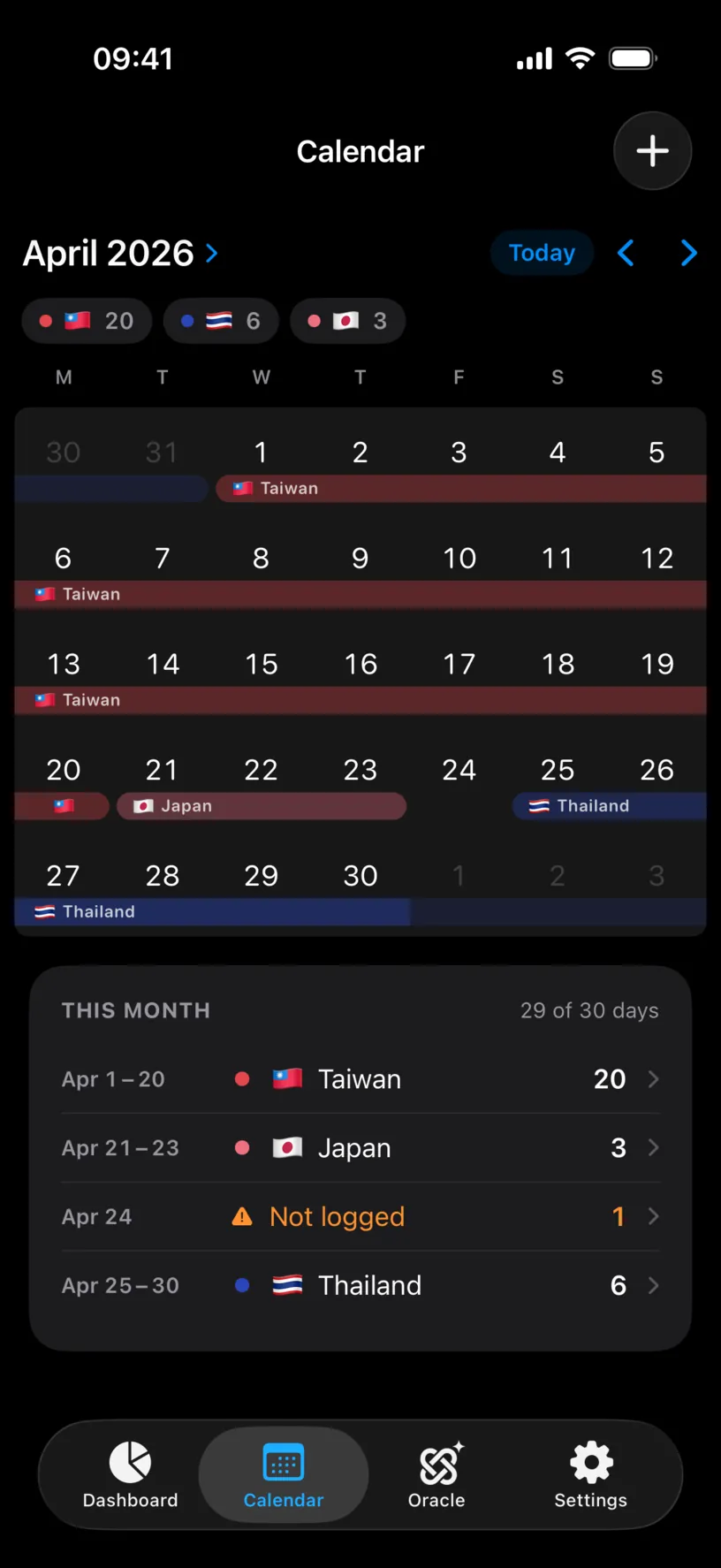
That header is the fastest check in the app. Any month where it is not a full count has a gap in it.
Step 2: Choose what you are editing
Tap any day inside the stay. A sheet asks which scope you mean.
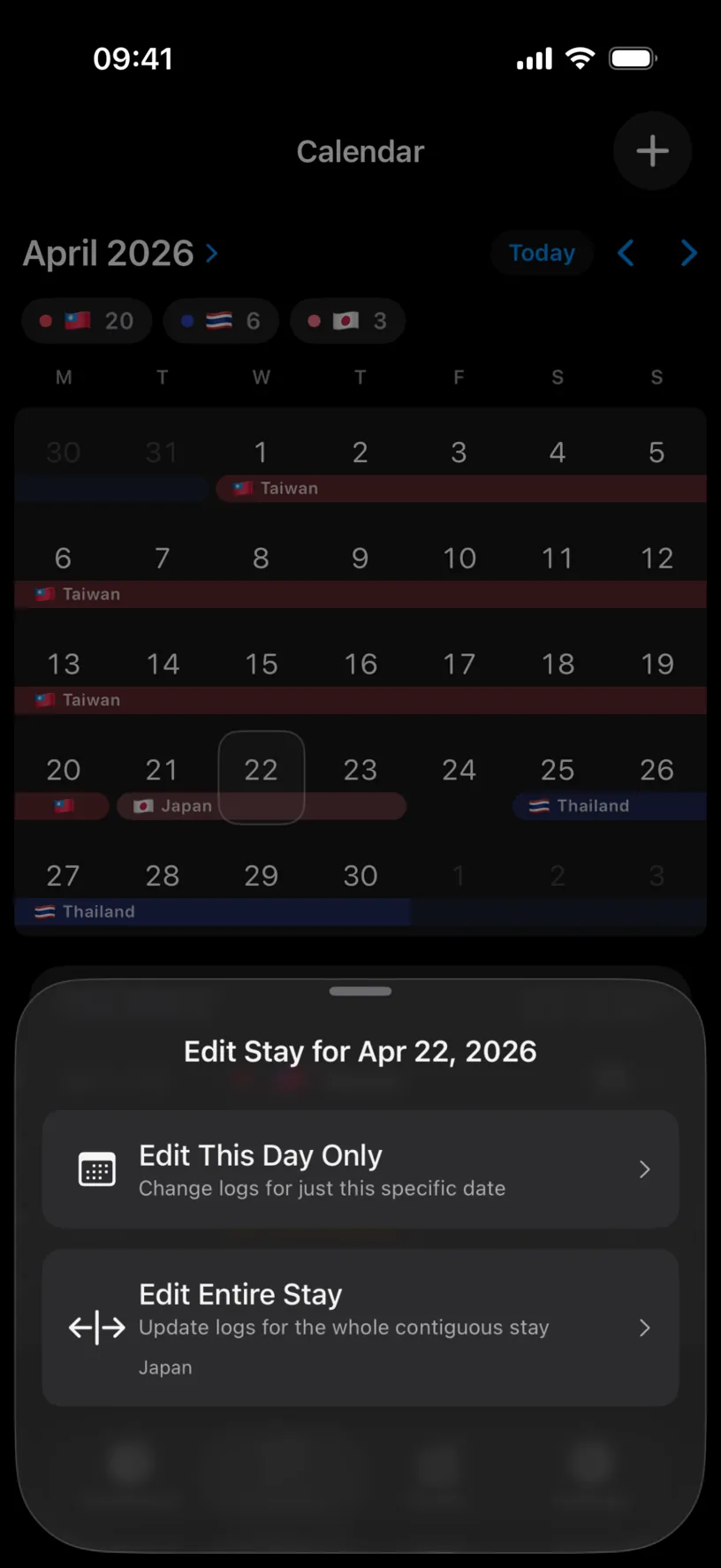
Edit This Day Only changes logs for that single date. Use it when one day inside a longer stay was different, a travel day that touched two countries for instance.
Edit Entire Stay updates the whole contiguous run, and names it so you know what you are about to move. Use it when the trip itself was recorded wrong.
Tap Edit Entire Stay.
Step 3: Move the dates
The Edit Stay sheet opens with START and END filled in, and the stay highlighted in the grid below.
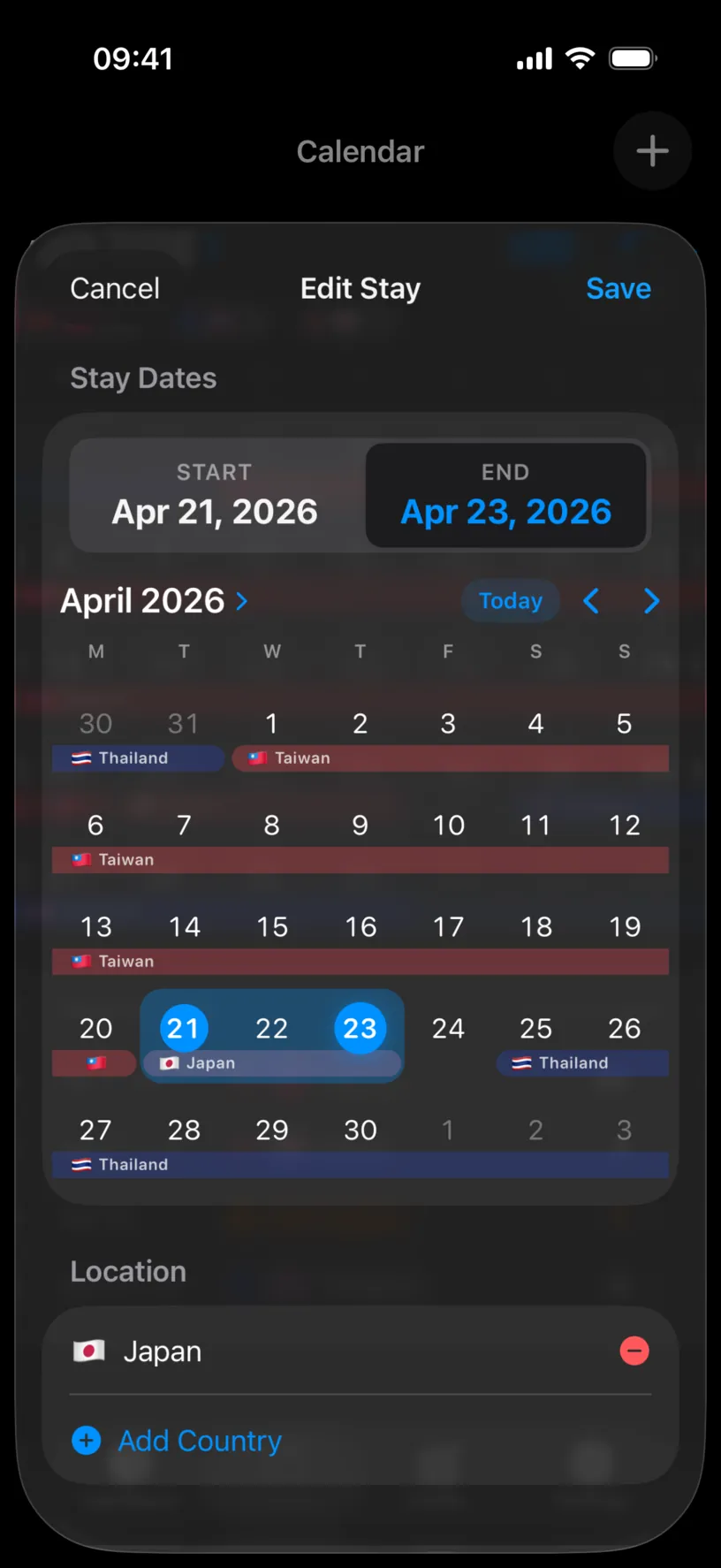
Tap the box you want to change, then tap the new day in the grid. Tapping START moves the beginning, tapping END moves the end, and the highlighted range redraws as you go.
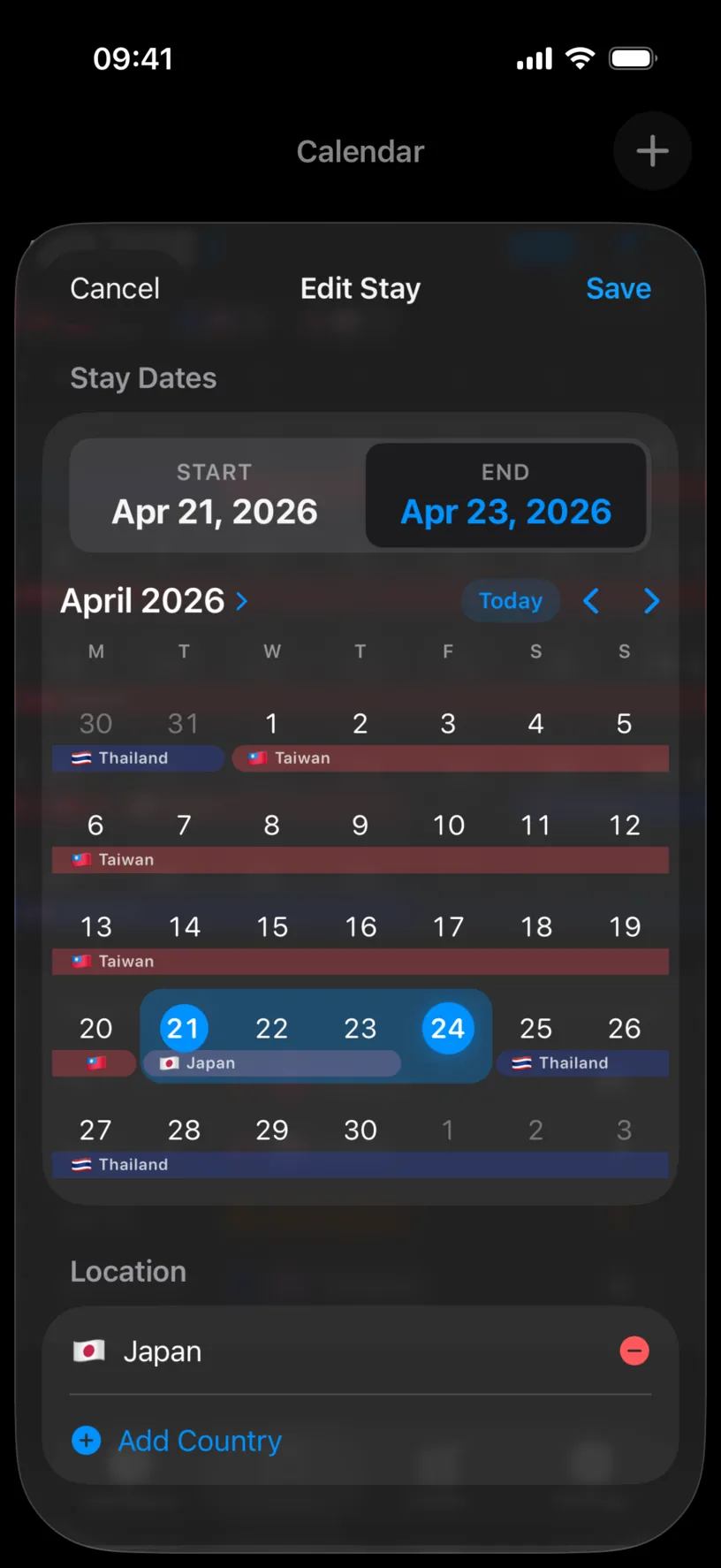
Read the grid, not the two boxes. The boxes can print one day earlier than the day you tapped, while the highlighted range is what the app saves.
Step 4: Change the country, or delete the stay
Scroll down for everything else.
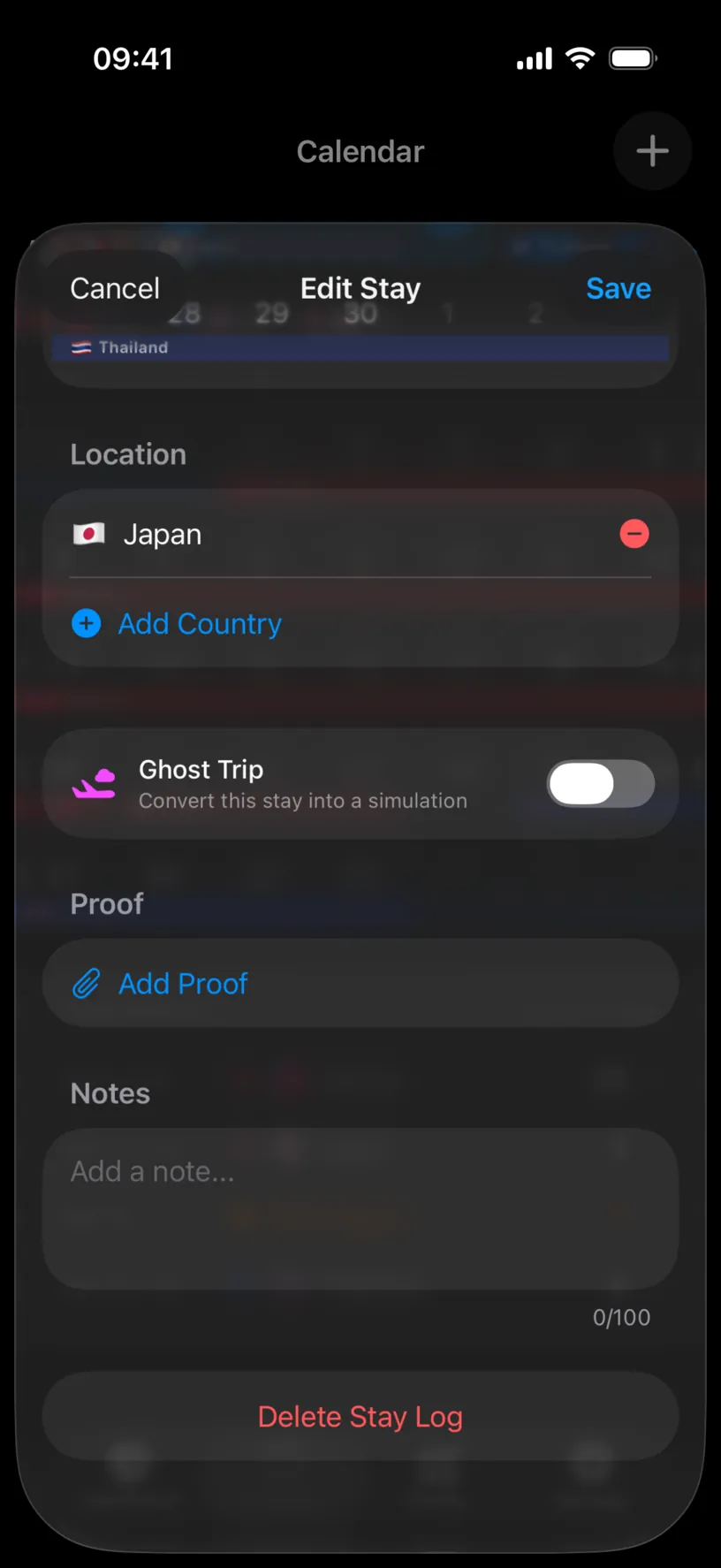
Location holds the countries on the stay. The red minus takes one out, Add Country puts one in, and a stay can carry two for a travel day that touched both.
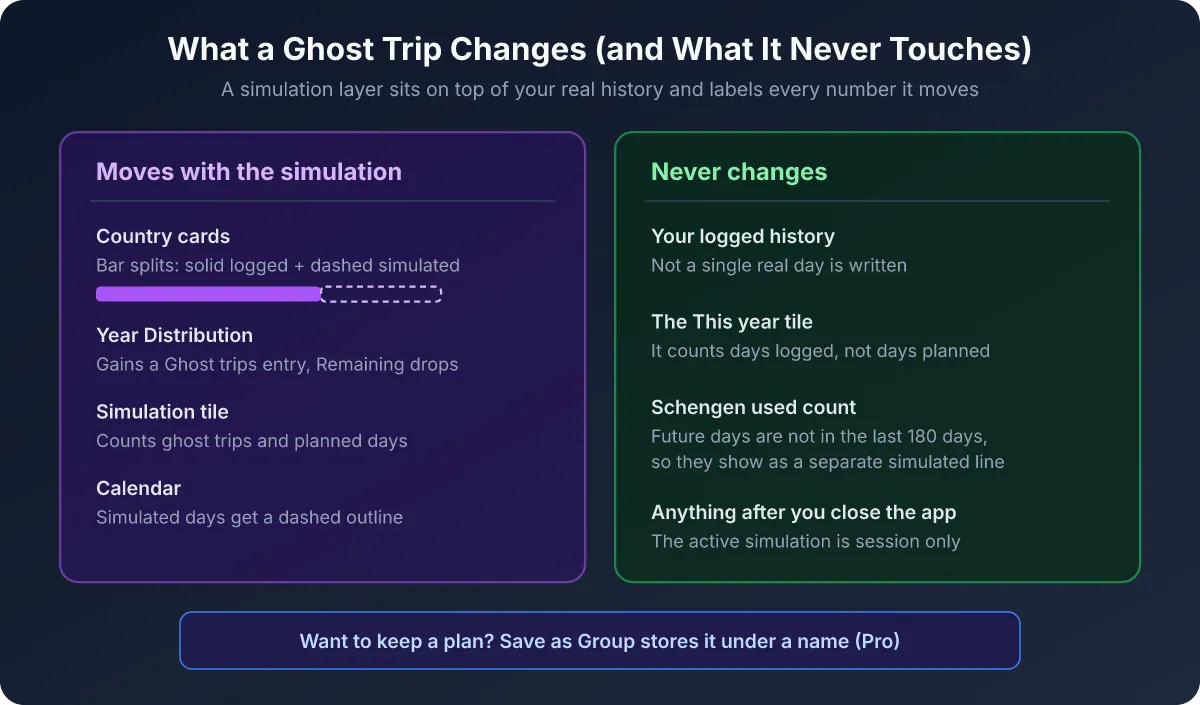
Ghost Trip converts the stay into a simulation instead of a logged fact. Leave it off for a trip you actually took.
Proof attaches a document, a boarding pass or a hotel invoice. Notes takes up to 100 characters.
Delete Stay Log, in red at the bottom, removes the whole stay. Those days become unlogged rather than being assigned to a neighbour.
Tap Save.
Check your result
The month reloads with the change in it.
The chip under the month name reads 🇯🇵 4 instead of 3, the band now covers the 24th, THIS MONTH reads 30 of 30 days, and the list row says Apr 21 – 24.
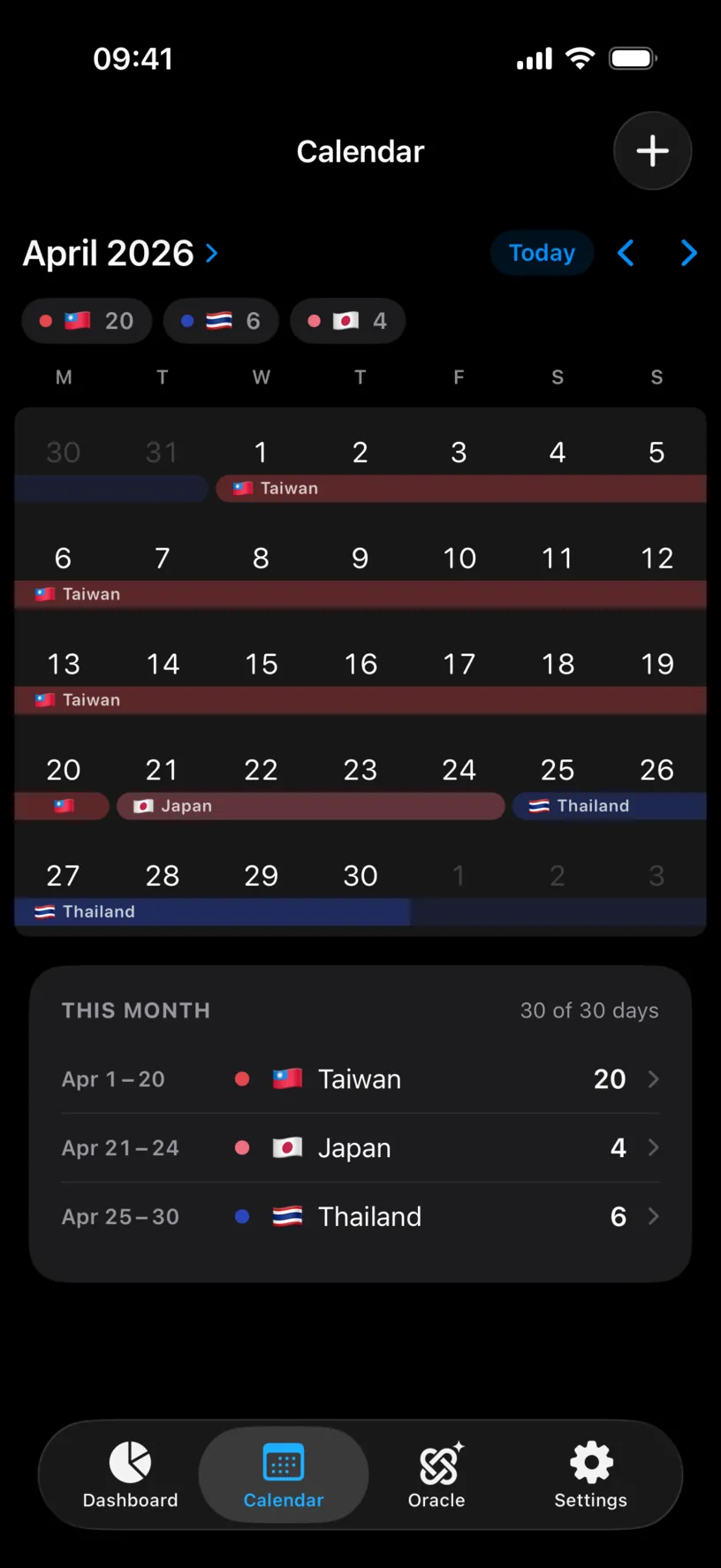
Those four things move together. If the chip changed and the header did not, the days went somewhere you did not intend.
If something looks different
The stay you edited split into two rows. The month list groups days by country, so extending a stay onto a day that already belonged to another country leaves a one-day run behind. Open the leftover and correct it.
Your edit landed a day off. The START and END boxes can read a day earlier than the grid. Reopen the stay, set the range again using the grid, and save.
Save is dimmed. Location is empty. A day with no country is nothing the app can count, so add one.
The whole stay moved when you only wanted one day. You chose Edit Entire Stay. Reopen the day and pick Edit This Day Only instead.
The days became outlined instead of filled. The Ghost Trip switch was turned on, so the app stored a simulation rather than a logged stay. Reopen the stay and turn it off.
You deleted the wrong stay. There is no undo. Re-enter it from the Calendar tab: what you type by hand always outranks anything the app detected.
The edit overwrote days you wanted to keep. A manual entry replaces whatever was on those days. That is deliberate, and it is why the country list is worth checking before saving.
Next steps
Log your first trip covers creating a stay from scratch, with the same sheet.
Find and fill missing days is the other way to close the gap this guide left behind, starting from the dashboard rather than the calendar.
Read your dashboard at a glance explains the counters every edit here moves.