What you’ll achieve
By the end of this guide one trip is in your calendar with the right dates and the right country, and the month it belongs to counts it.
The example logs four days in Japan, from 21 to 24 April 2026. Your trip differs, the gesture does not.
Step 1: Open the add menu
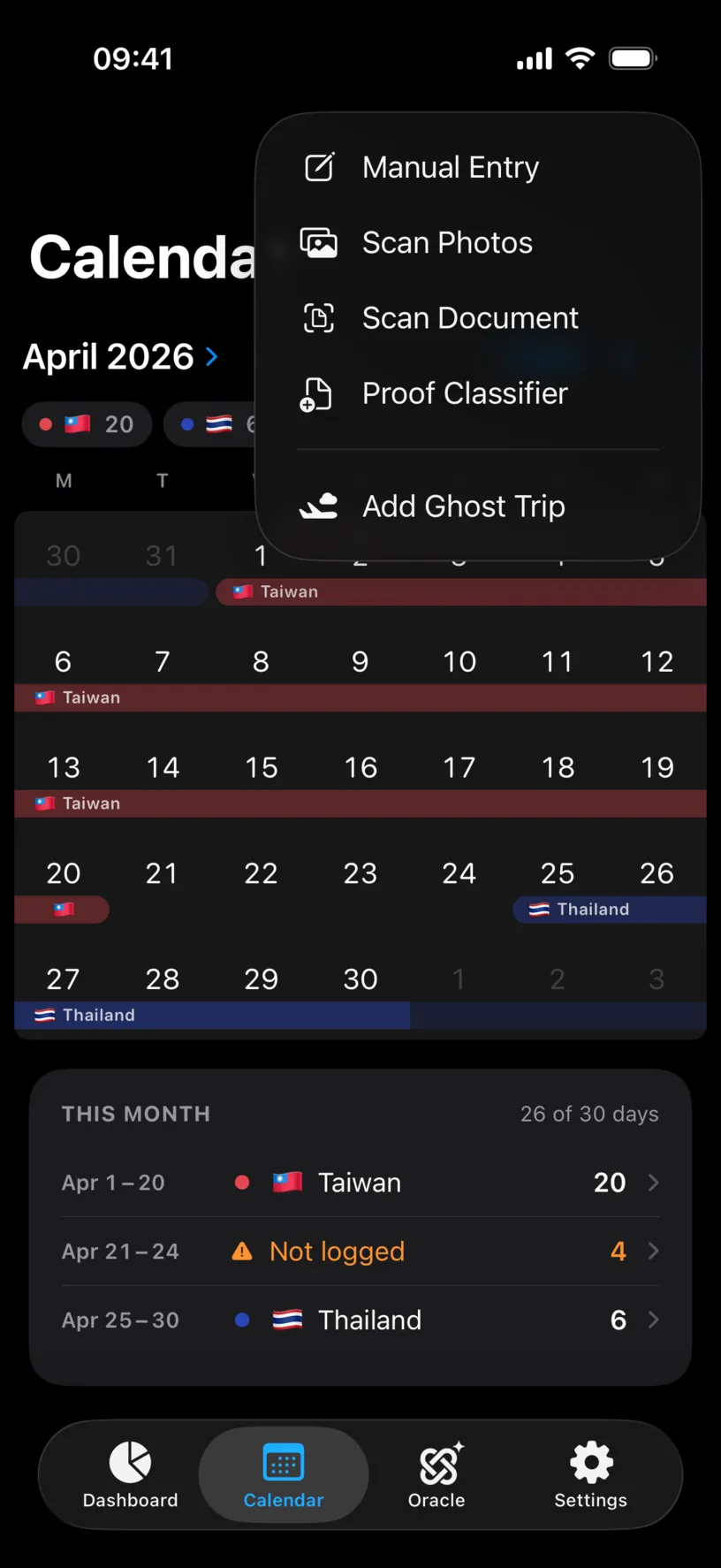
Open the Calendar tab and tap Add, the circled plus in the top right.
The menu lists five ways to fill your calendar. Manual Entry is the one you type in yourself. Scan Photos and Scan Document read your history from files you already have, Proof Classifier sorts documents into days, and Add Ghost Trip logs a trip you are only considering.
Tap Manual Entry.
Step 2: Set the dates
The Add Stay sheet opens on today, with START and END both on today’s date.
Move the grid to the month of your trip with the ‹ and › arrows, or tap the month name to jump straight to another month and year.
Then tap START, tap the first day of the stay, and tap the last day. The sheet moves from START to END by itself after the first tap, so the two taps land in the right fields, and the days in between fill in.
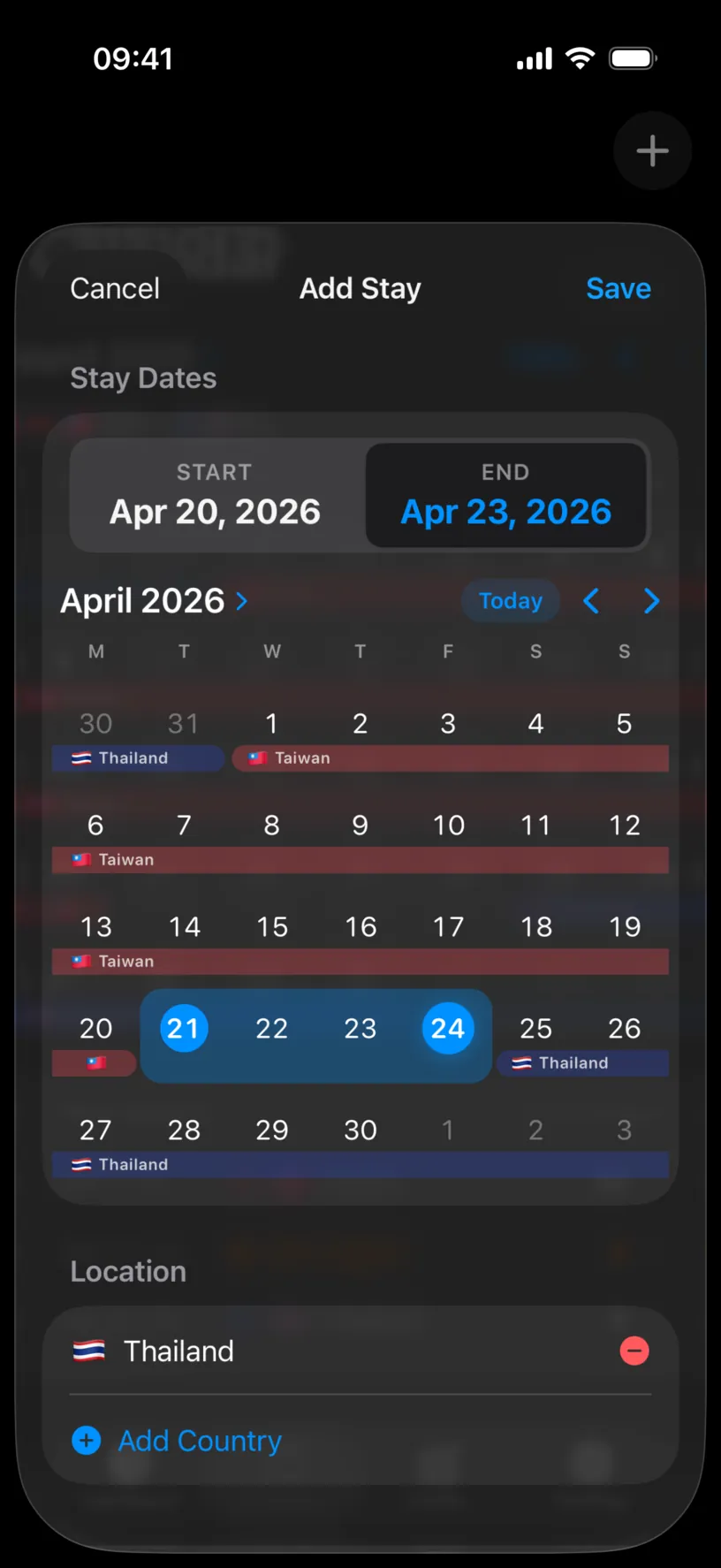
Trust the grid rather than the two boxes above it. The boxes can print a day earlier than the days you tapped, while the highlighted range is what the app saves.
Step 3: Say which country
Scroll down to Location. The app arrives with the country you are logged in today already filled in, which is convenient for a trip you are on and wrong for a trip you are backfilling. Check it before saving.
Tap the red minus to take a country out, then tap Add Country.
The Select Countries sheet opens. This Fiscal Year at the top holds the countries you already have days in, Special holds International Waters, and All Countries holds everything else in alphabetical order after United States.
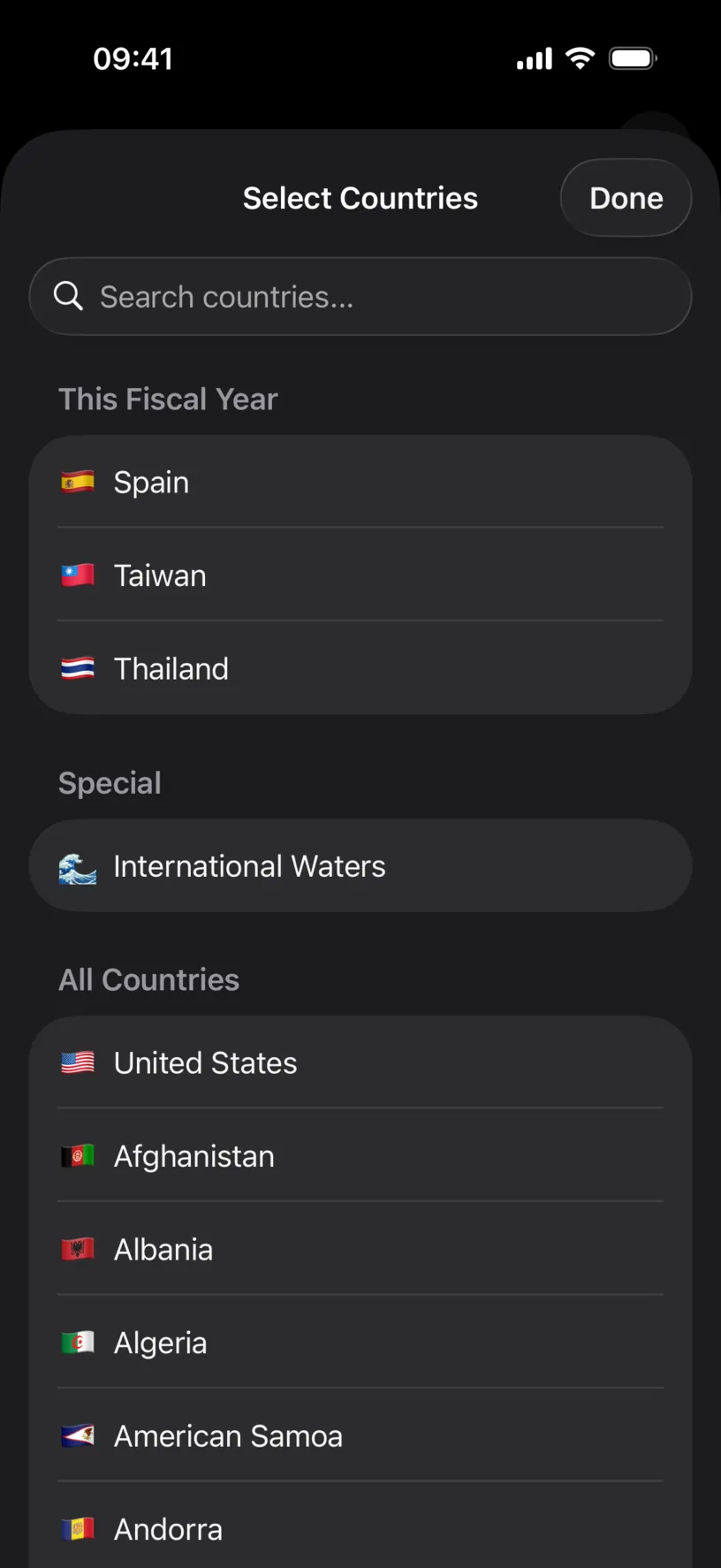
Type the country name in Search countries... and tap the result. The sheet closes on the tap and the country appears under Location.
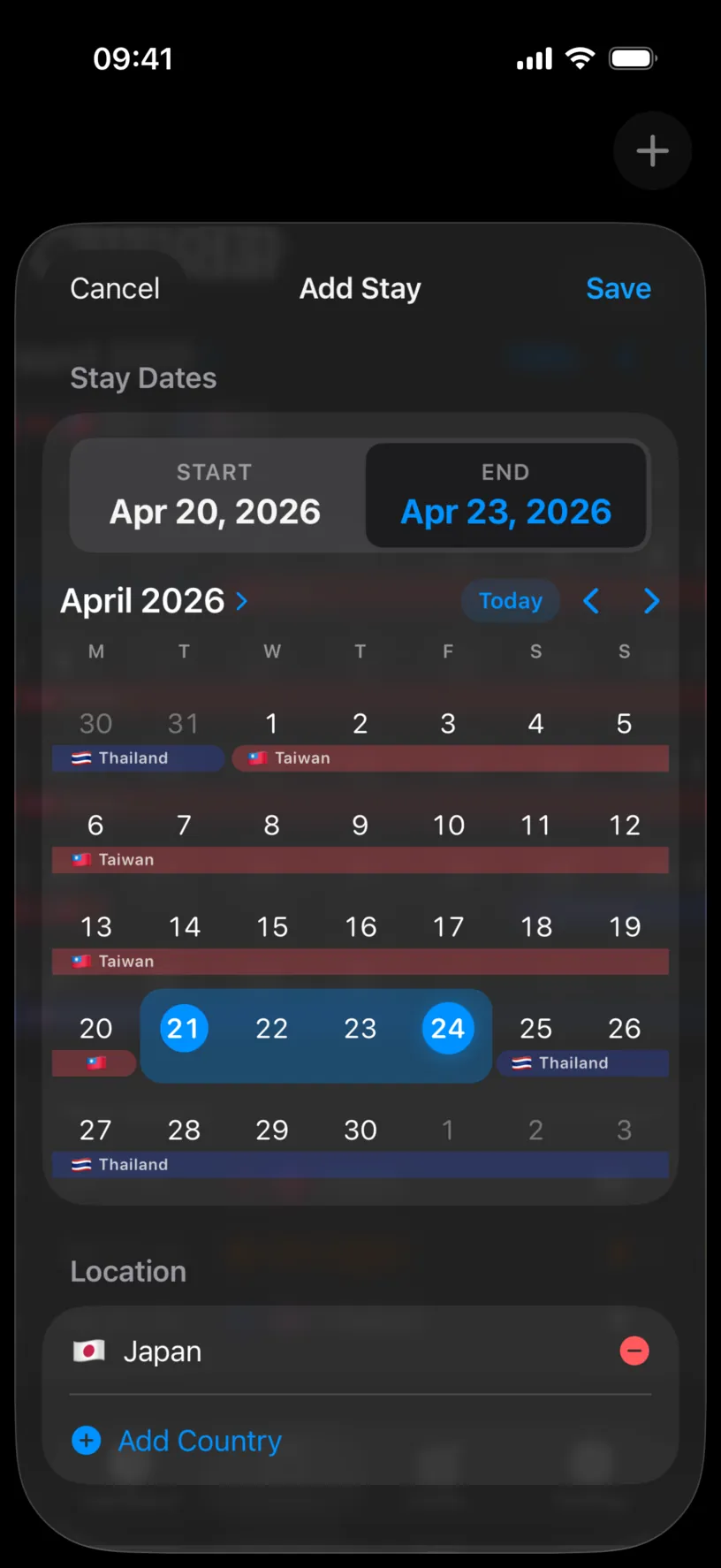
A stay holds up to two countries, for the travel day that touched both. The order you add them in is the order the calendar shows them, so add the country you left first.
Step 4: Leave the rest alone unless you need it
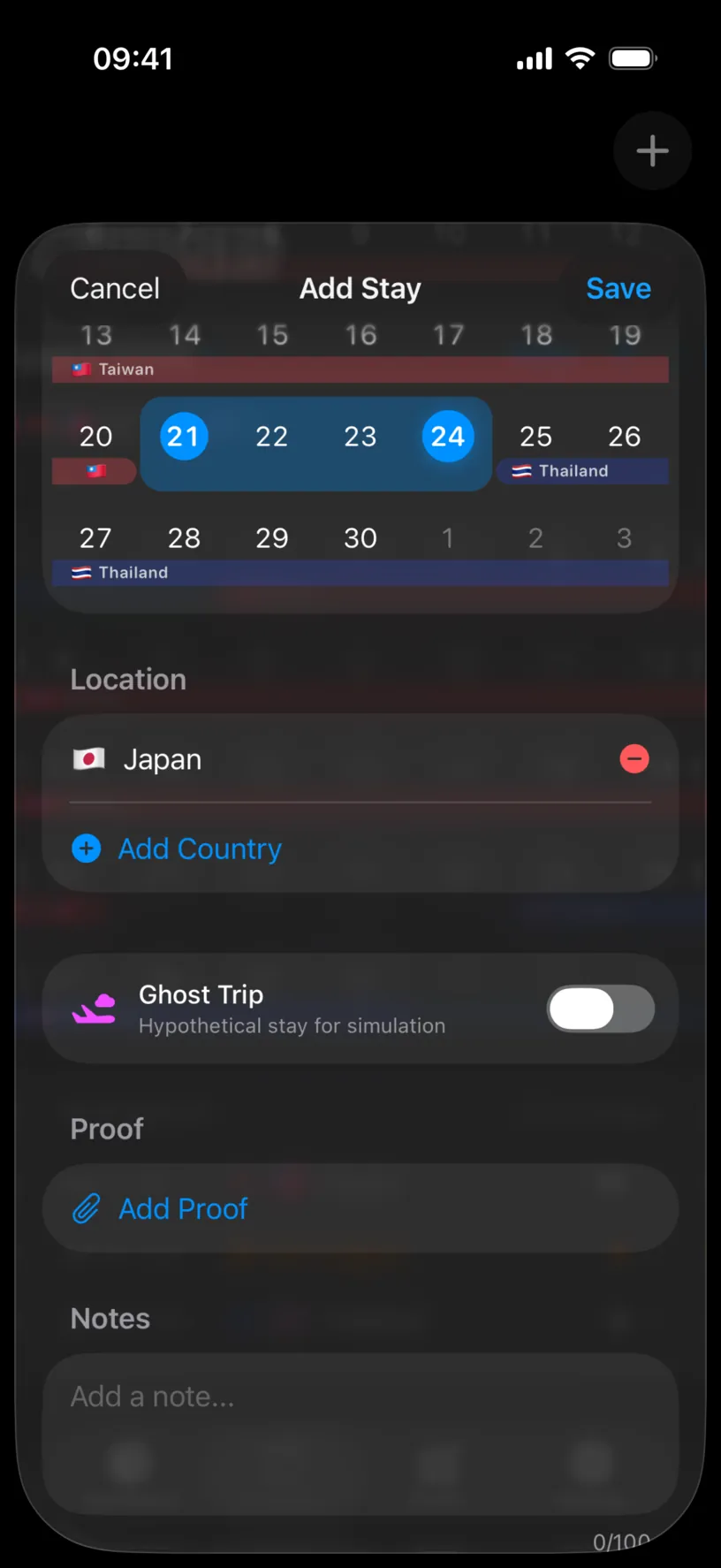
Under Location sit three optional things.
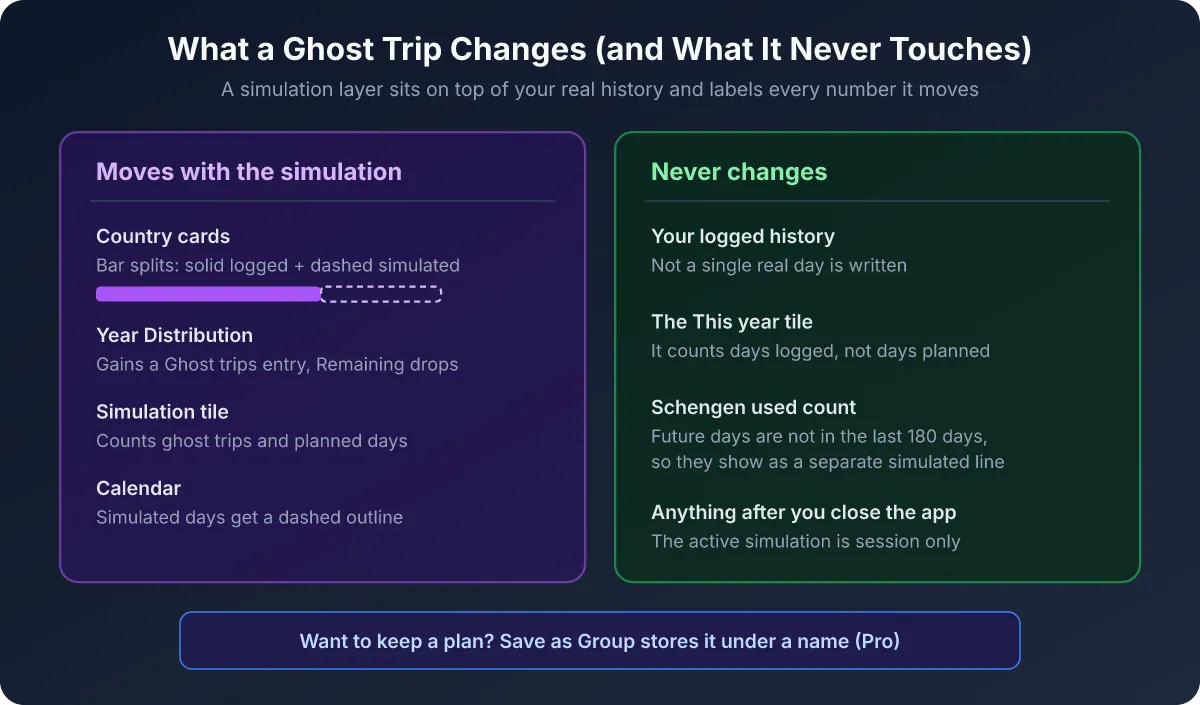
Ghost Trip converts the stay into a simulation instead of a real logged day, so leave it off for a trip you actually took. Add Proof attaches a document, a boarding pass or a hotel invoice, to the stay. Notes takes up to 100 characters.
Step 5: Save
Tap Save. The sheet closes and the month reloads with your stay in it.
Save stays dimmed while Location is empty, because a day with no country is nothing the app can count.
Check your result
Three things change in the month you just filled.
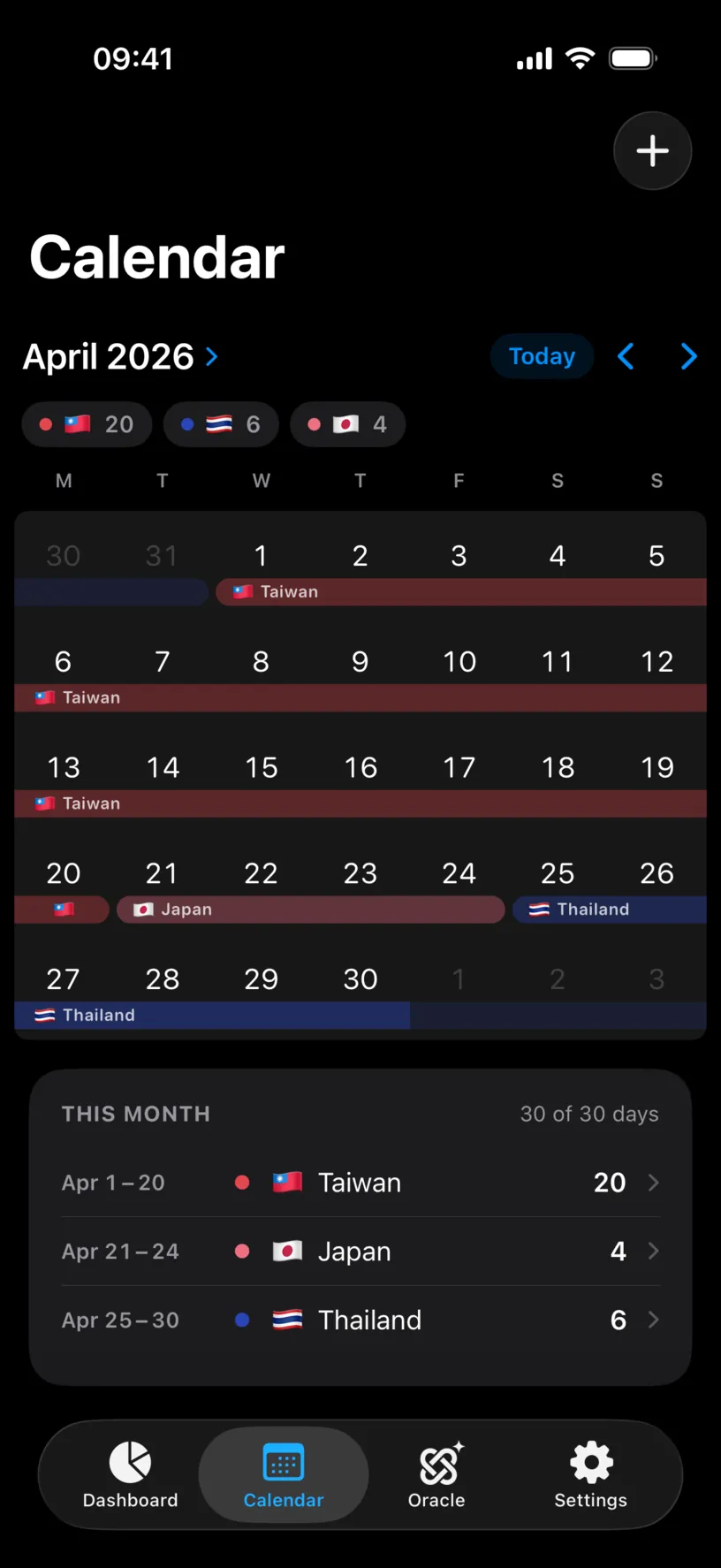
The chips under the month name gain your country with its day count, here 🇯🇵 4. THIS MONTH reads 30 of 30 days instead of 26. And the list under it gains a row for Apr 21 to 24, in Japan, worth 4 days.
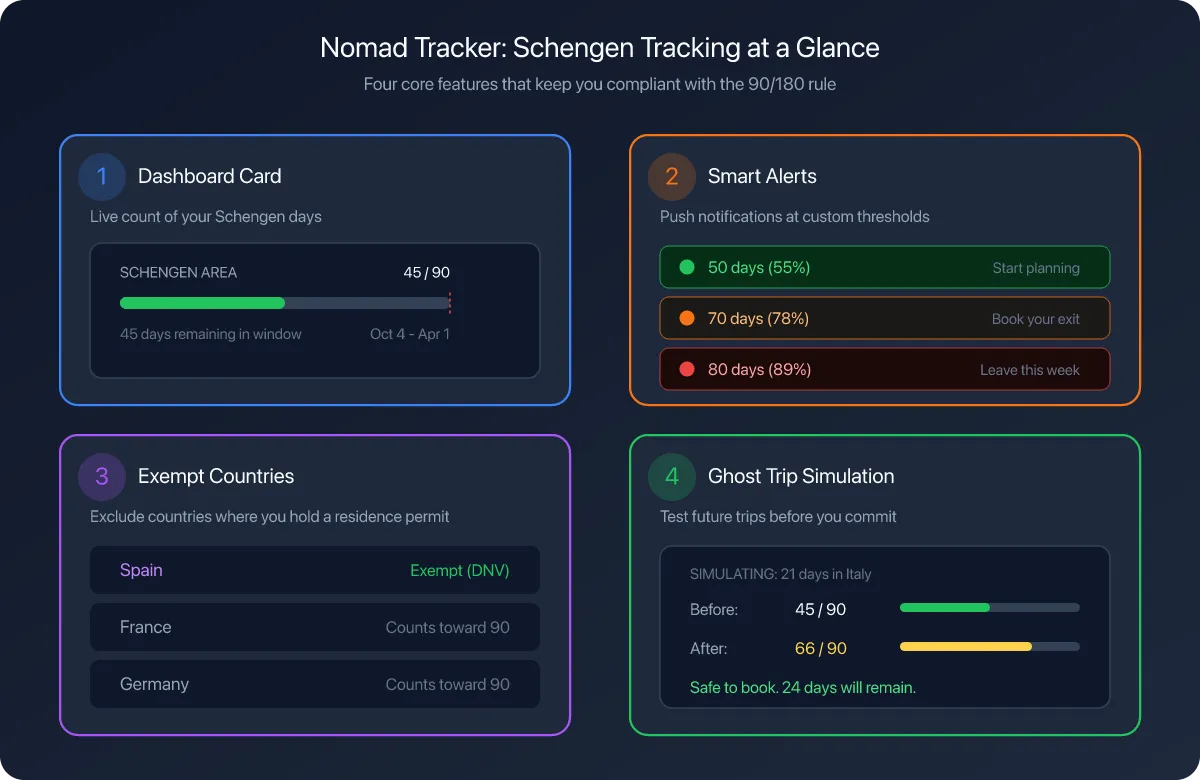
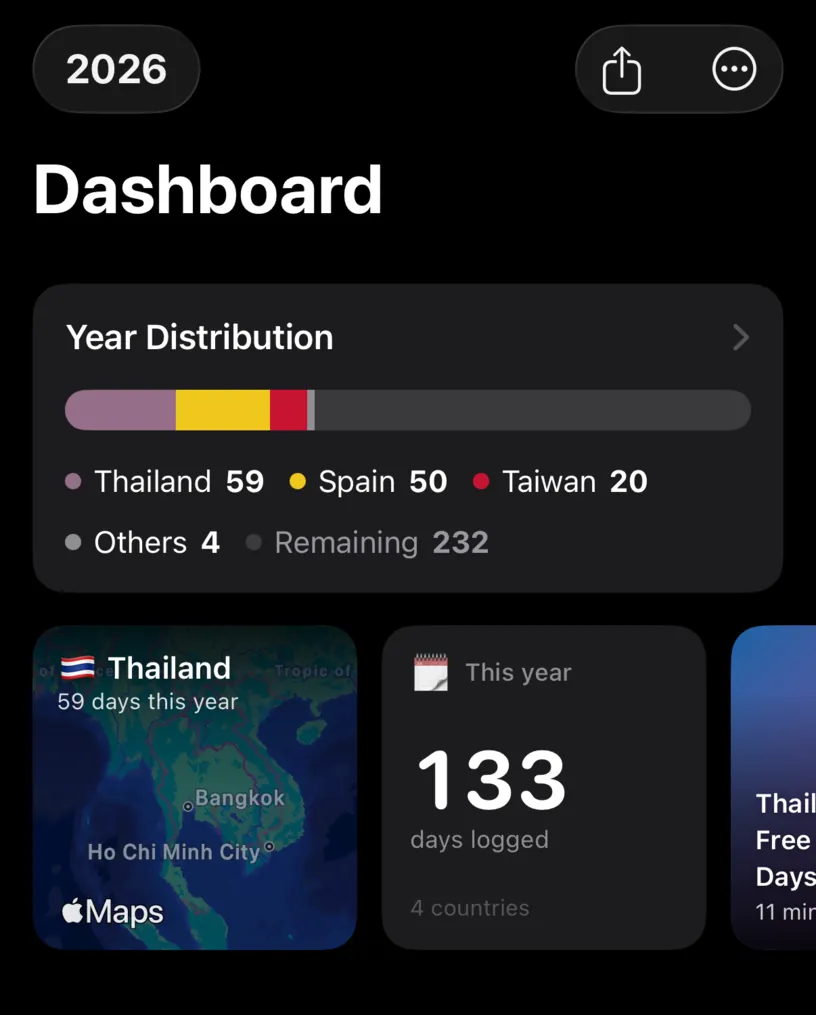
The dashboard counts the same four days. In Year Distribution they land in Others, because Thailand, Spain and Taiwan hold the three named places, and the This year tile totals 133 days logged across 4 countries.
If something looks different
The month still shows Not logged for those days. The sheet saved into a different month. It opens on today, so a trip in any other month needs the arrows or the month name before the day taps.
The stay landed on days you did not pick. The START and END boxes can read a day earlier than the grid. Tap the stay in the month list, choose Edit Entire Stay, set the range again, and save.
The days show a country you did not pick. The country the sheet pre-filled was left in place. Tap the stay, choose Edit Entire Stay, tap the red minus next to the wrong country, add the right one, and save.
Save does nothing. It is disabled, not broken. Scroll to Location and add a country.
Your new stay merged into the one next to it. The month list groups days by country, so days that touch an existing stay in the same country become one row with one total.
The days are outlined instead of filled, and THIS MONTH did not change. The Ghost Trip switch was on, so the app stored a simulation instead of a logged stay. Tap the chip in the top left of the Calendar tab, tap Clear All, then add the stay again with the switch off.
Those days already had a country. A manual entry replaces what was there. That is deliberate: what you type by hand outranks anything the app guessed from a photo or from GPS.
Next steps
Read your dashboard at a glance explains the counters your new stay just moved.
If you have years of travel to enter, do not type it all. Rebuild travel history from photos reads the dates and places out of your camera roll instead, and turn on automatic location tracking keeps the calendar filled from here on.