What you’ll achieve
By the end of this guide one country is tracked with a day limit you chose, and its counter is on your dashboard.
The example adds Japan with a 90-day limit. Your country and your limit differ, the four taps do not.
Step 1: Open the country list
Open the Settings tab and tap Countries & Regions.
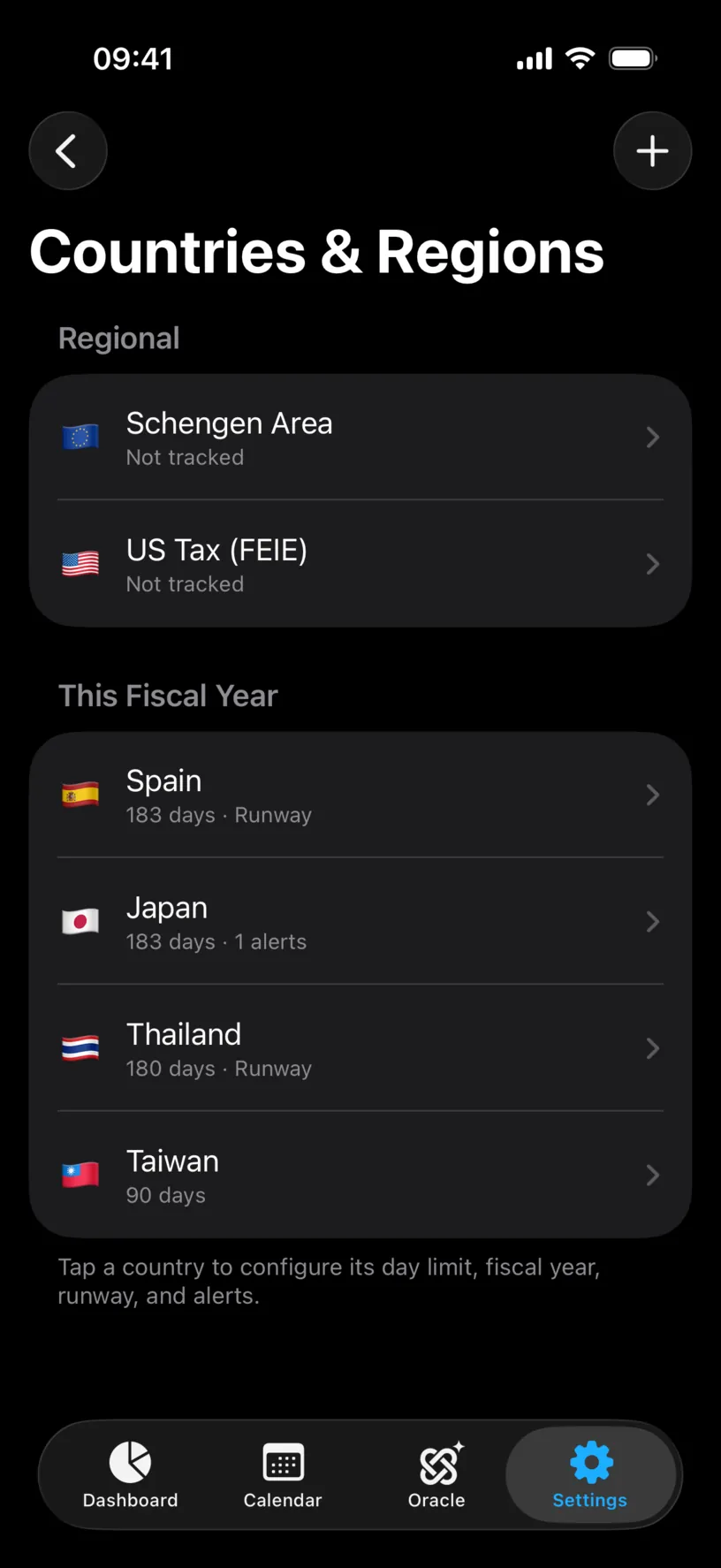
The screen has two parts. Regional holds the two area-wide rules, Schengen Area and US Tax (FEIE). Under it, This Fiscal Year lists every country you already track and what it is set to.
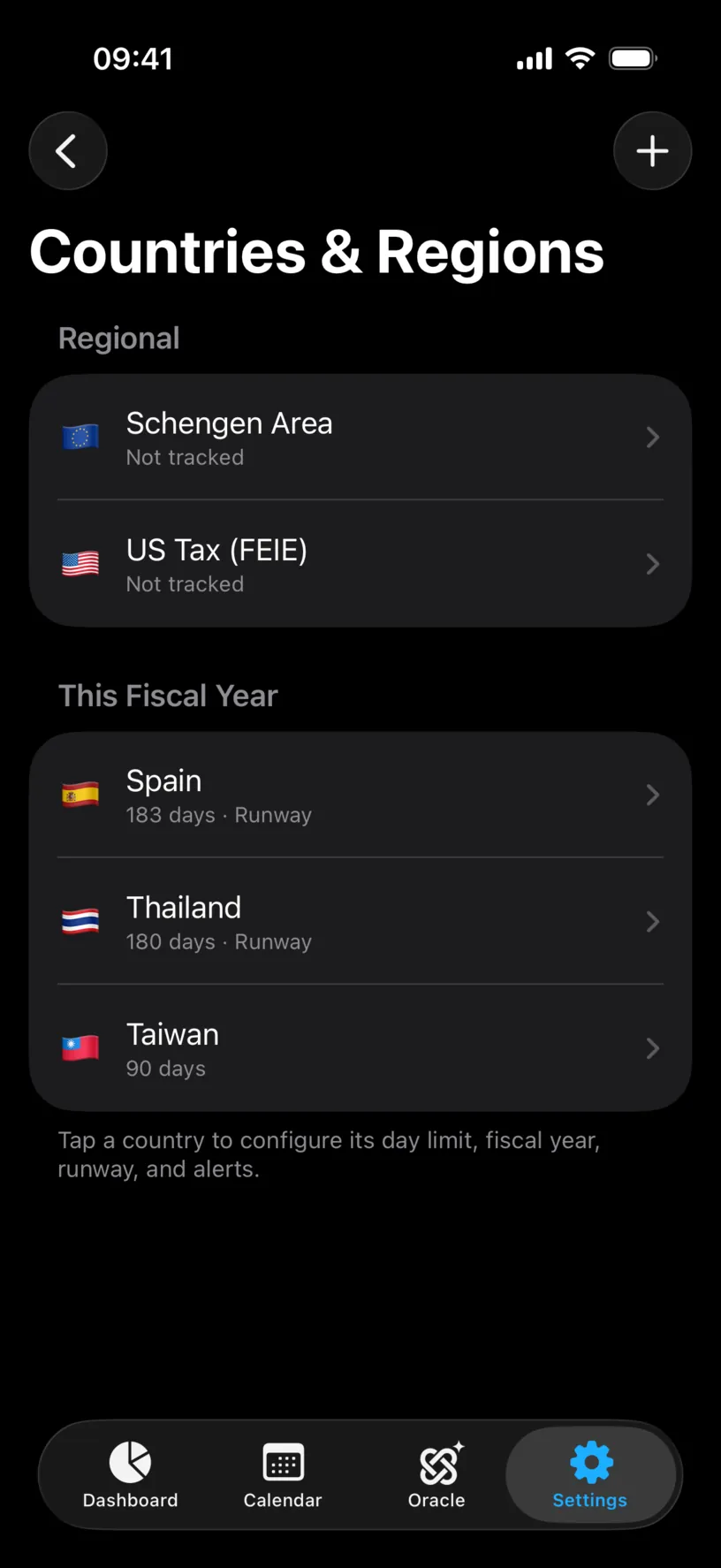
The line under each name is its summary: the day limit first, then Runway if immigration tracking is on, then the number of alerts.
Step 2: Open the country picker
Tap Add, the plus in the top right.
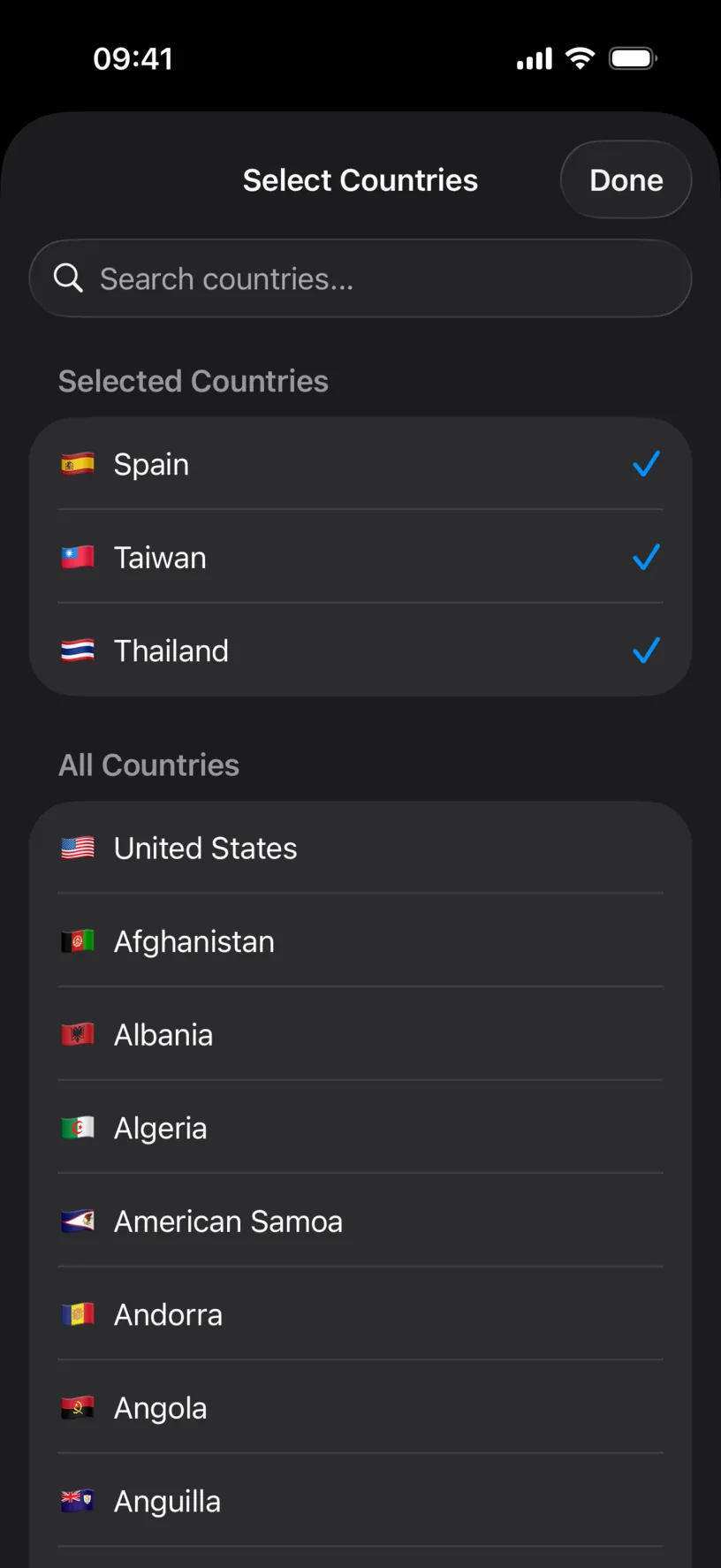
The Select Countries sheet opens with everything you already track under Selected Countries, and the rest under All Countries, alphabetical after United States.
Step 3: Pick the country
Type the name in Search countries.... The list narrows to Search Results.
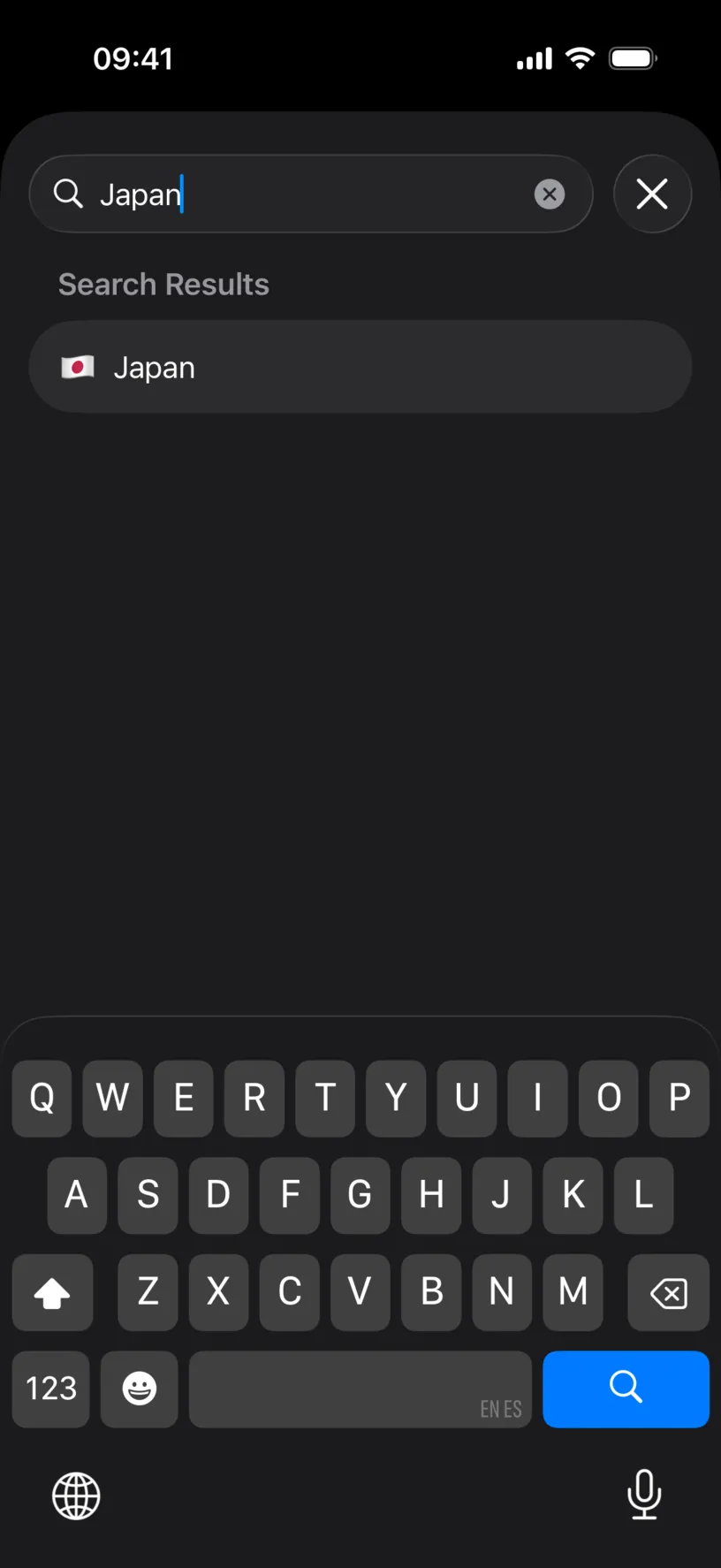
Tap the country. It moves up into Selected Countries with a checkmark. You can pick several in one go.
Tap Done. The new country appears in the list with a day limit already filled in.
Step 4: Check what it arrived with
Tap the new country.
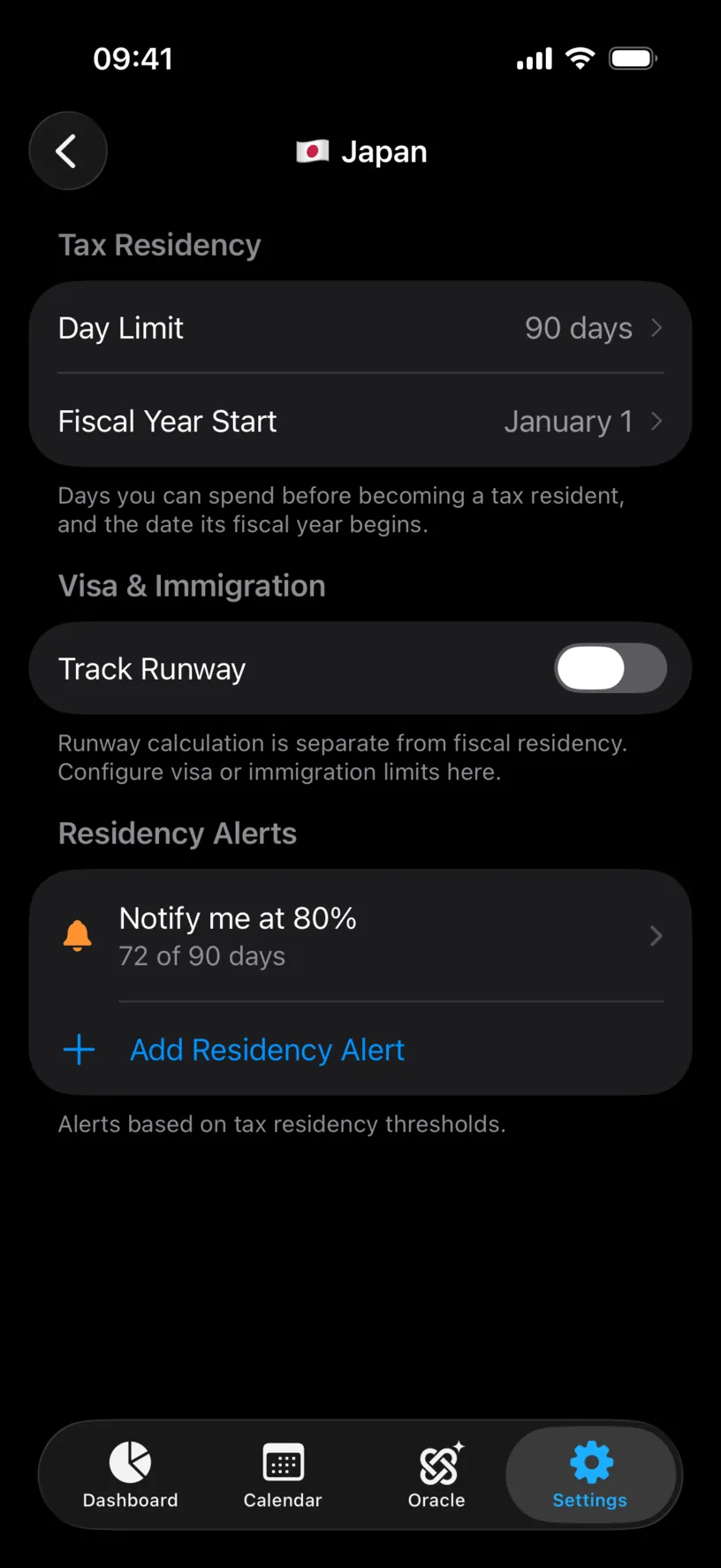
The app fills in a default day limit and a fiscal year start, and it adds one alert at 80% of that limit so the country is not silently untracked. Track Runway starts off, because a tax threshold and a visa limit are different numbers and the app does not guess the second one.
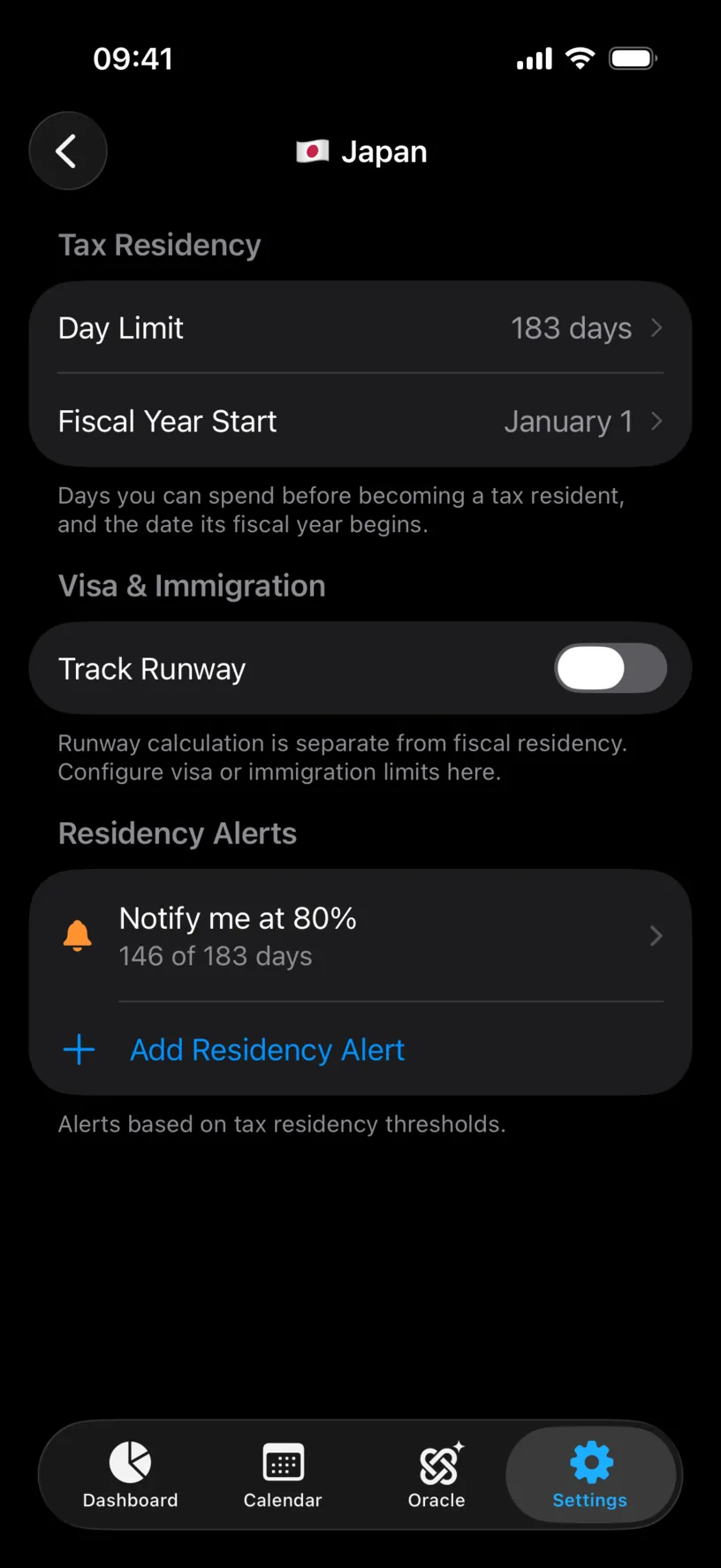
The default is a starting point, not a verdict. The threshold that matters is the one in the country’s own tax rules, and it is often not 183 days.
Step 5: Set the day limit
Tap Day Limit. A Days for Tax Residency wheel opens.
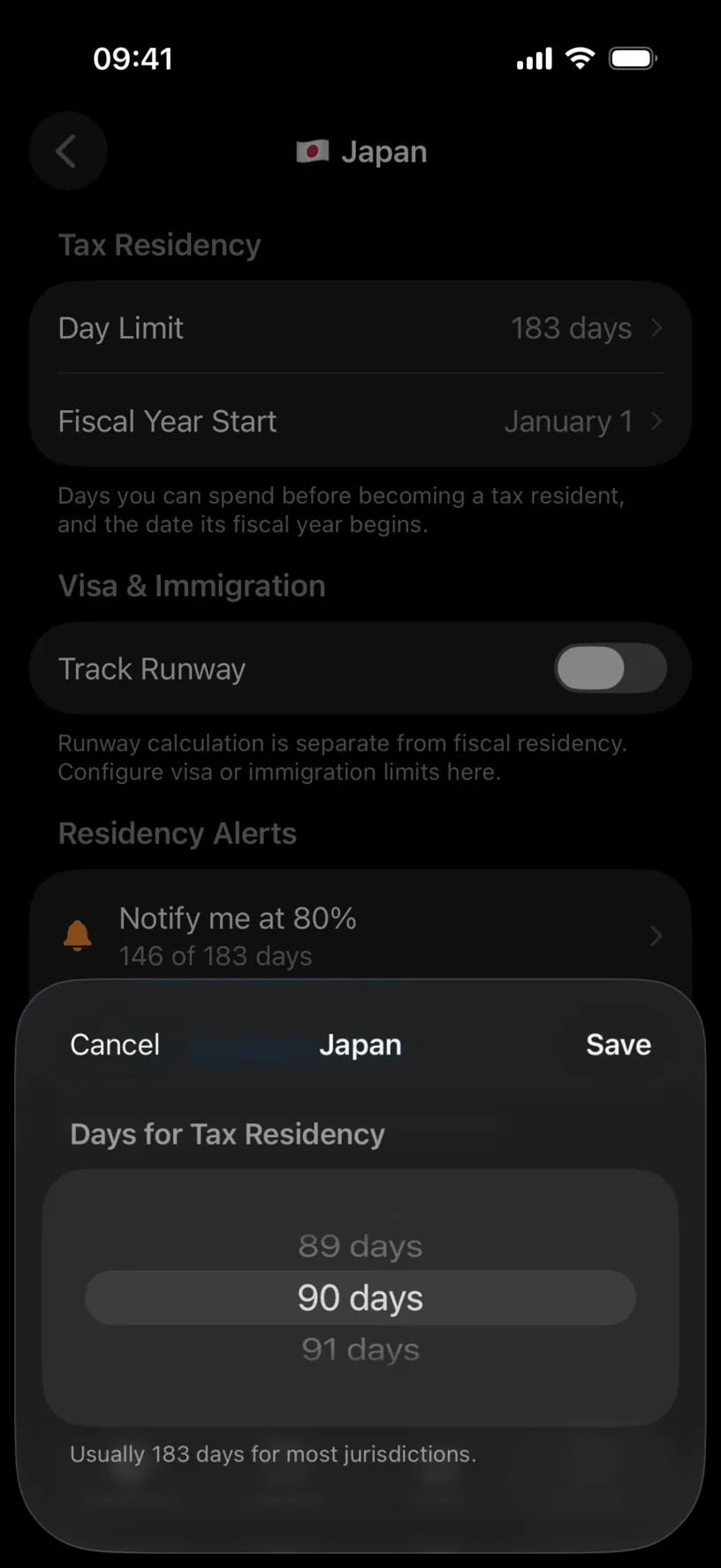
Spin it to your number and tap Save.
The alert follows the limit. It is stored as a percentage, so the 80% alert that read 146 of 183 days now reads 72 of 90 without you touching it.
Check your result
Open the Dashboard tab and scroll to Countries.
The new country has a card with Fiscal Residency, the days you have logged there this fiscal year, and the limit you just set. Here Japan reads 4 of 90, with 86 days remaining.
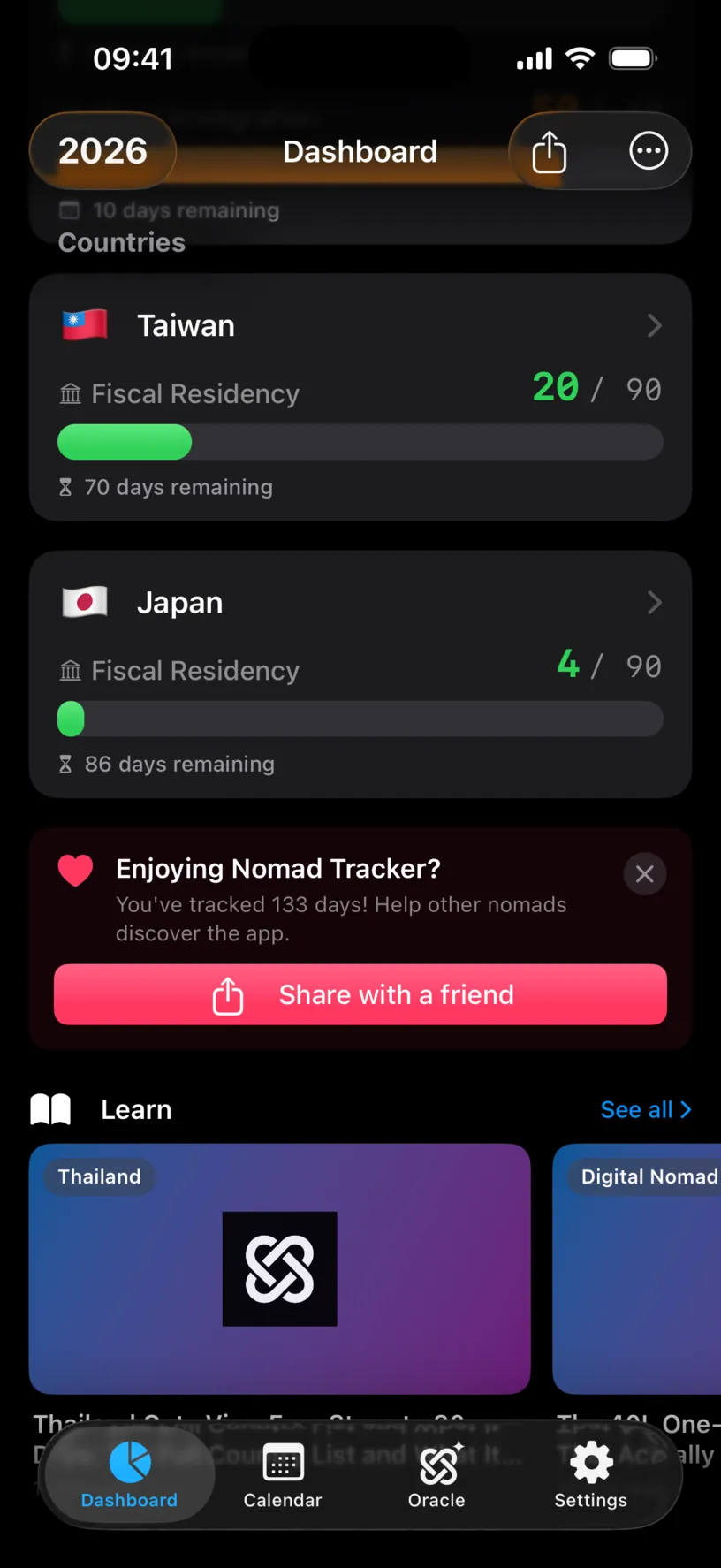
If the card is missing, you have no logged days in that country yet. Add one in the Calendar tab and it appears.
If something looks different
The country landed under Other Countries instead of This Fiscal Year. That section holds countries with no days logged in the current fiscal year. It moves up on its own once you log a day there.
The day limit is wrong for your situation. It is a default, and defaults do not know your nationality, your treaties or your visa. Change it in Day Limit, and change Fiscal Year Start too if that country’s tax year does not begin on 1 January.
You want a visa limit, not a tax threshold. They are separate on purpose. Day Limit counts toward tax residency; the Track Runway switch below it is the immigration one.
You added the wrong country. Swipe left on its row in Countries & Regions and tap Delete. The app confirms first, because this removes its day limit, fiscal year, runway tracking and alerts.
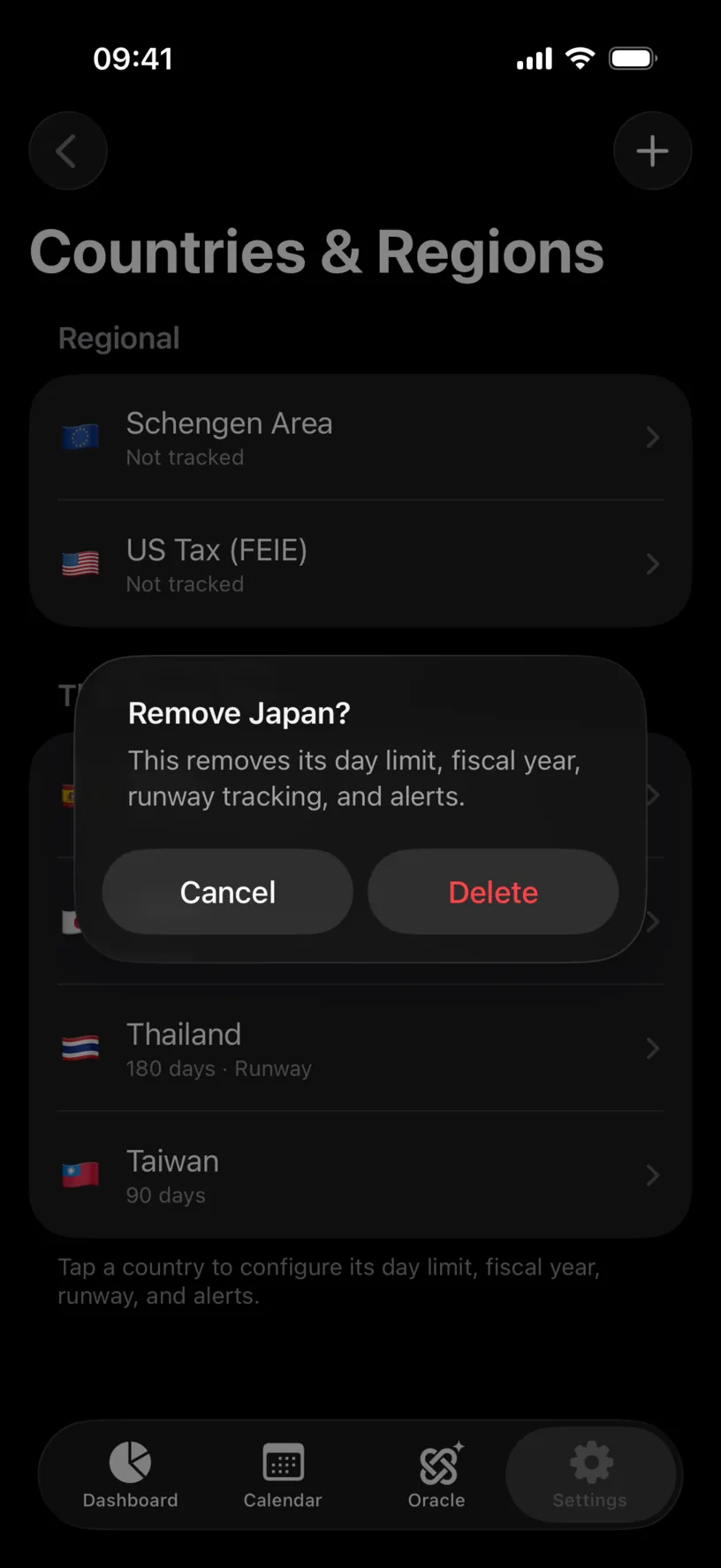
Your logged days survive. Only the rule is deleted, so the country keeps appearing in your calendar and in Year Distribution.
Next steps
Set your tax residence sets the country you actually pay tax in, which is what decides the fiscal year the dashboard groups everything by.
Read your dashboard at a glance explains the card your new country just got.
Log your first trip fills the days those counters need.