What you’ll achieve
By the end of this guide a wrong country and a wrong date are fixed, and the totals that were built on them agree with what actually happened.
Every day in the app came from somewhere: you typed it, GPS wrote it, a photo or a document put it there. All of them are edited the same way, and your edit always wins.
Step 1: Find the mistake
Open the Calendar tab and move to the month with the problem, using the arrows next to the month name.
The grid is the fast read: coloured bands are stays, and a band that breaks where it should not is your error. Below it, THIS MONTH is the precise read.
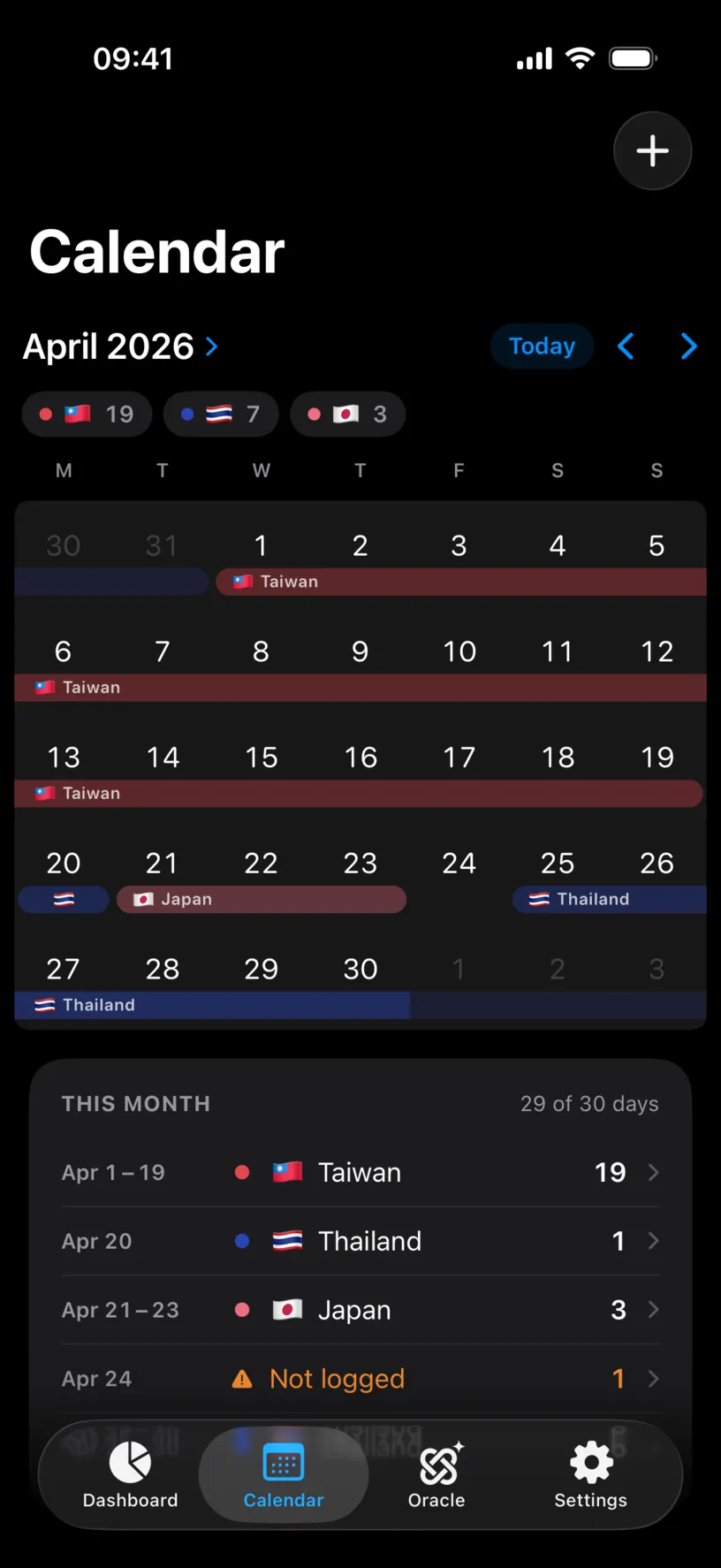
Two things are wrong in this month. Apr 20 is logged as Thailand in the middle of a Taiwan stay, and the Japan stay ends a day too early, which leaves Apr 24 Not logged. The header counts it: 29 of 30 days.
The month list is also the shortcut. Tapping one of its rows opens the same editor as tapping the day in the grid.
Step 2: Choose how much to change
Tap the wrong day.
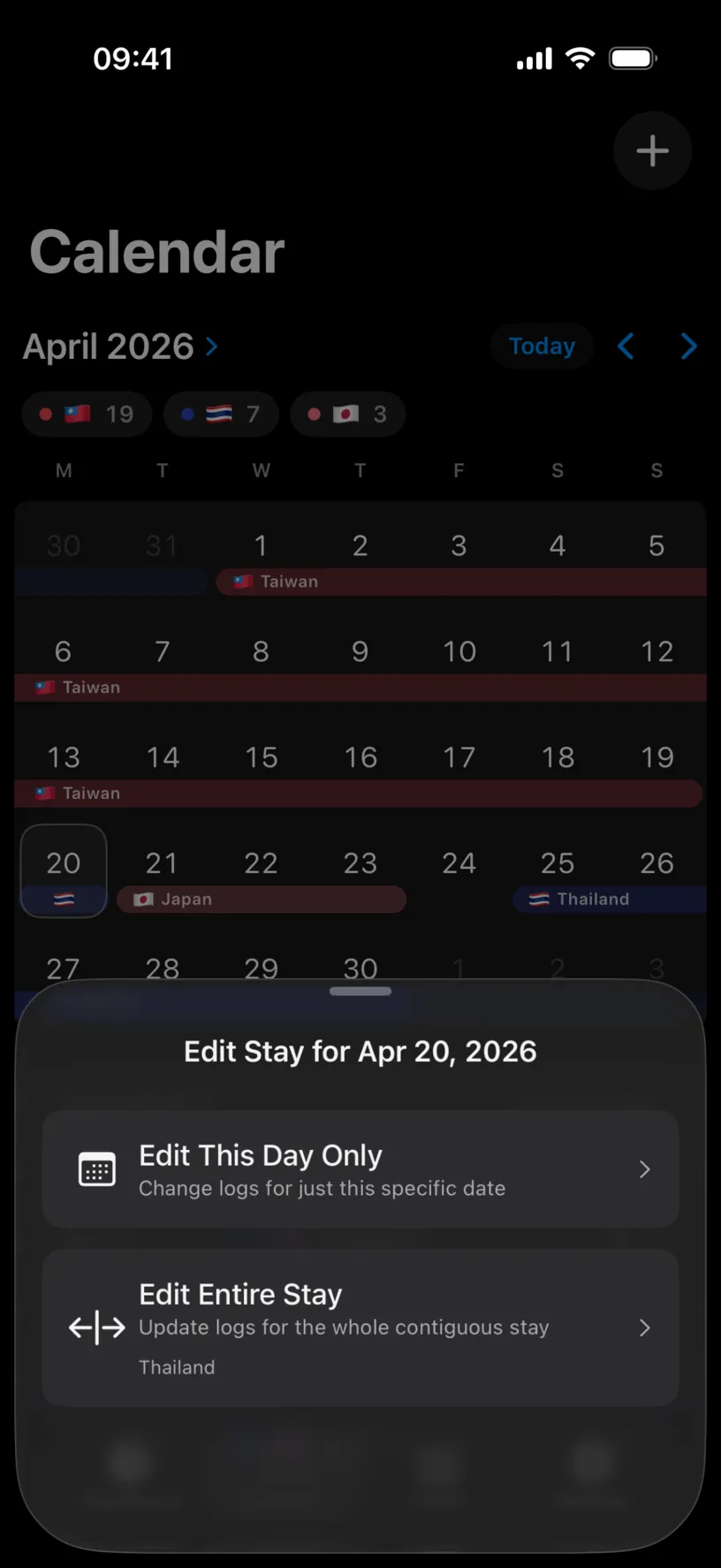
The sheet asks how far the change should reach.
Edit This Day Only changes the day you tapped and nothing else. It is what a single wrong day needs.
Edit Entire Stay changes every consecutive day of that stay at once. The country under the label tells you which stay it means. Use it when the whole trip is wrong, or when the dates are.
Tap Edit This Day Only.
Step 3: Fix the country
The Edit Date sheet lists what that day holds.
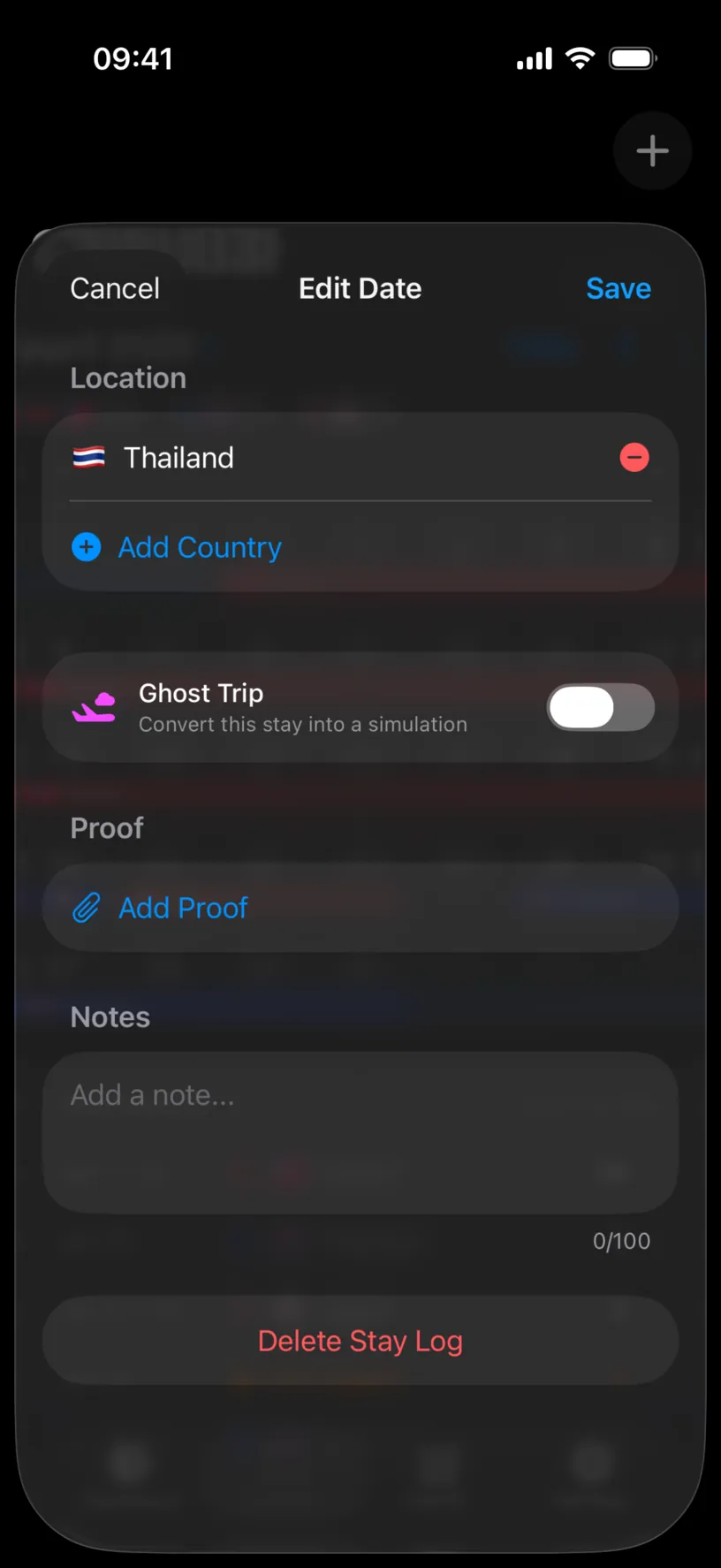
Tap the red button next to the wrong country to take it off the day, then tap Add Country.
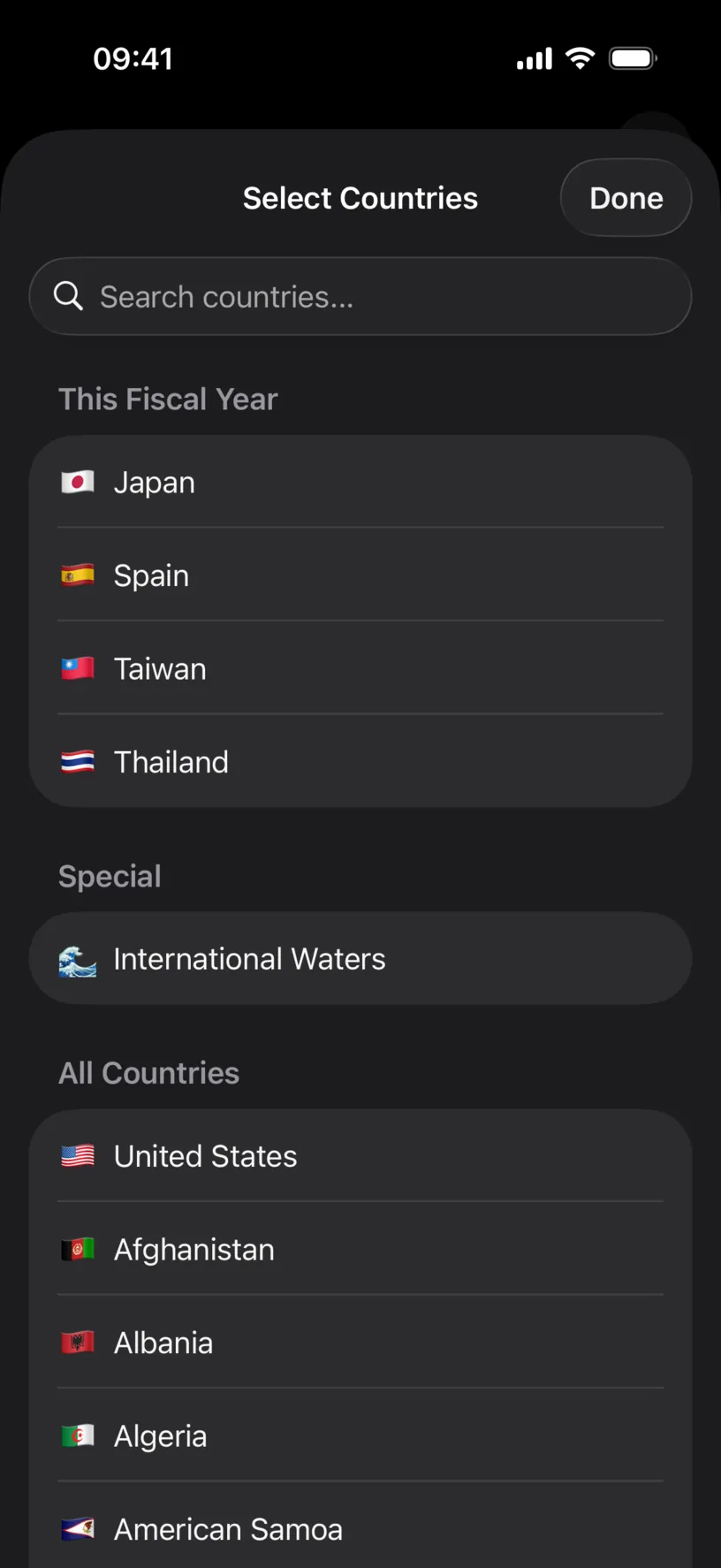
This Fiscal Year is at the top, holding the countries already in your history, so the usual correction is one tap. Search when the right one is not there.
Tap Save. The day changes colour in the grid and the month list redraws underneath.
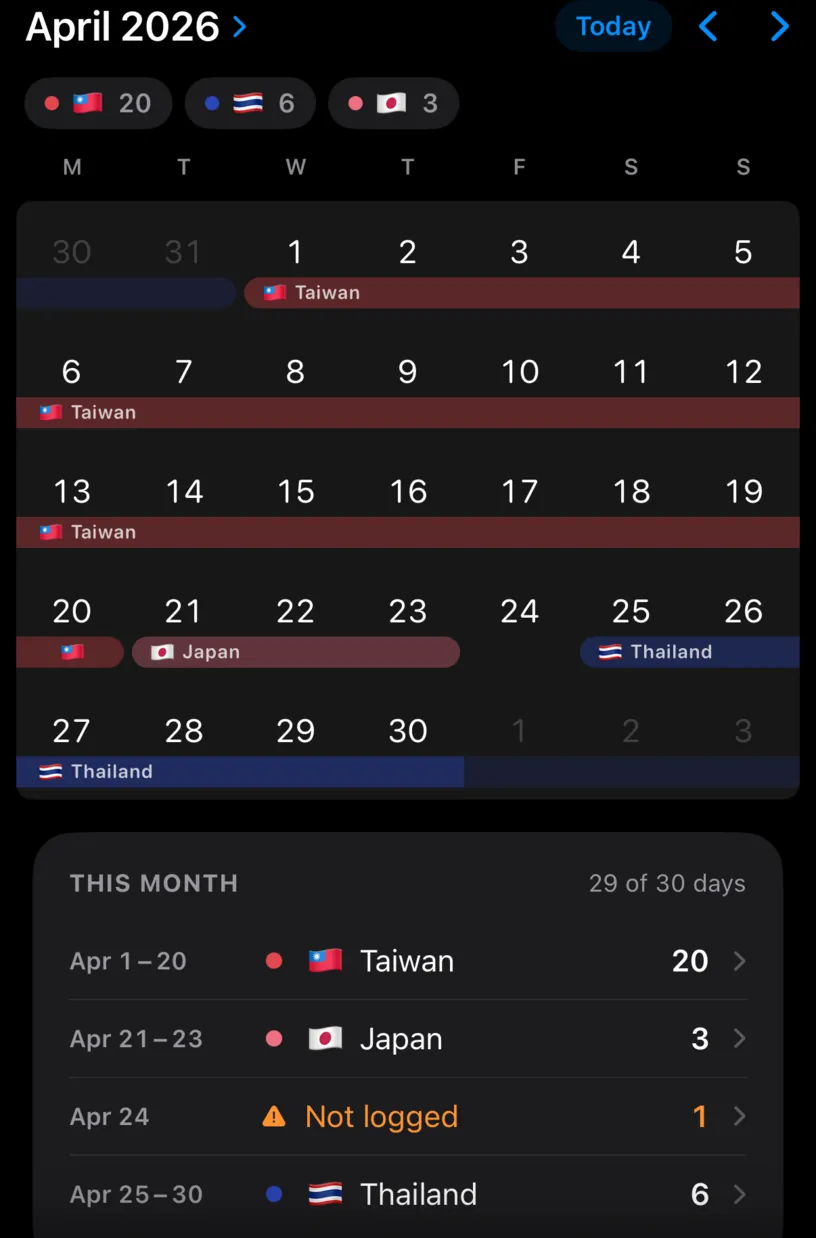
Taiwan is back to twenty days, and the stray Thailand day is gone. The date problem is still there.
Step 4: Fix the dates of a stay
Tap the stay in the month list, then tap Edit Entire Stay.
Stay Dates at the top has a START box and an END box, and a calendar under them. Tap START, tap the first day of the stay, then tap the last day. The grid fills in the days between.
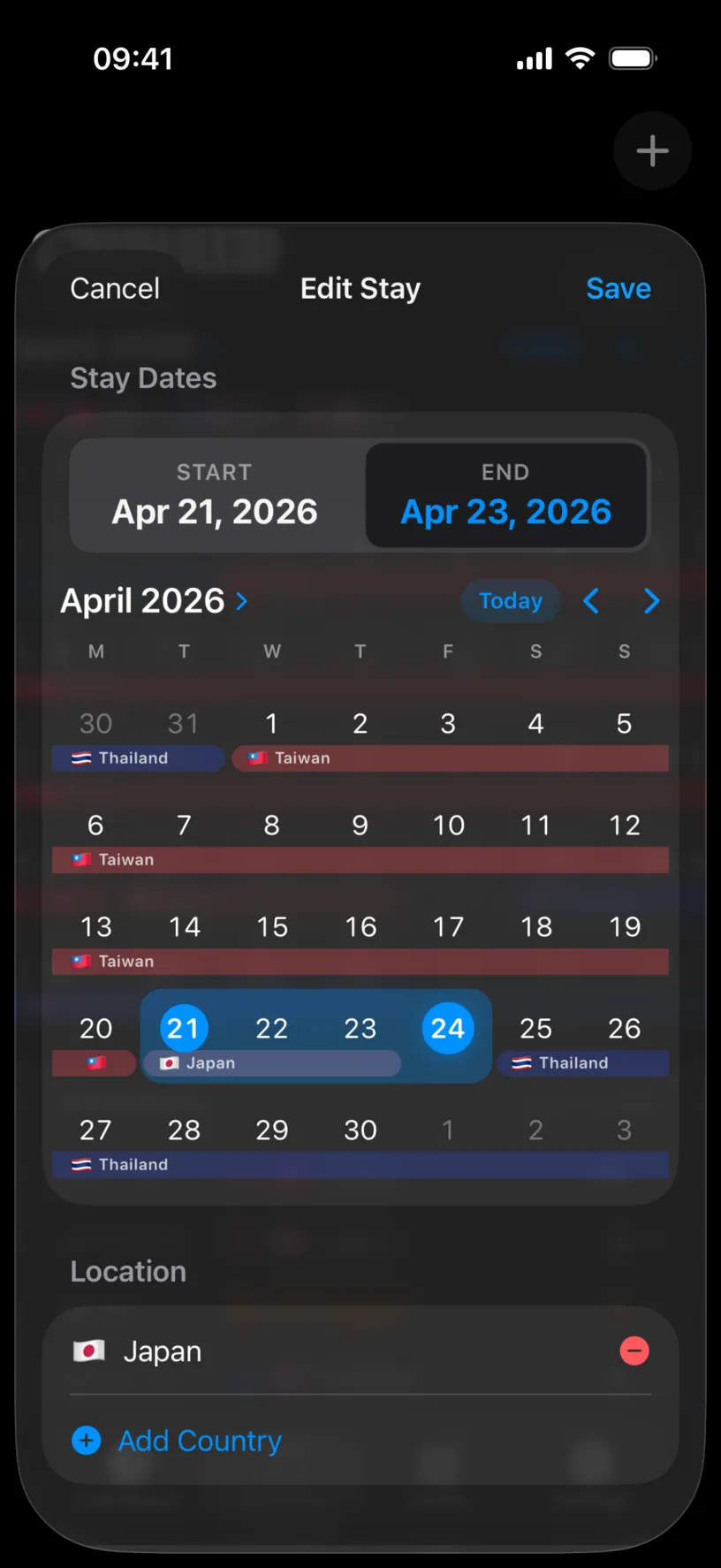
Trust the grid, not the boxes. The END box can print the day before the one you tapped, as it does here: the grid has Apr 24 selected while the box reads Apr 23. The days that get saved are the ones highlighted in the grid.
Tap Save.
Shortening a stay this way removes the days you trimmed off, so they go back to being unlogged. Lengthening it takes those days over from whatever they held before. Either way the change is confined to the range you set.
Check your result
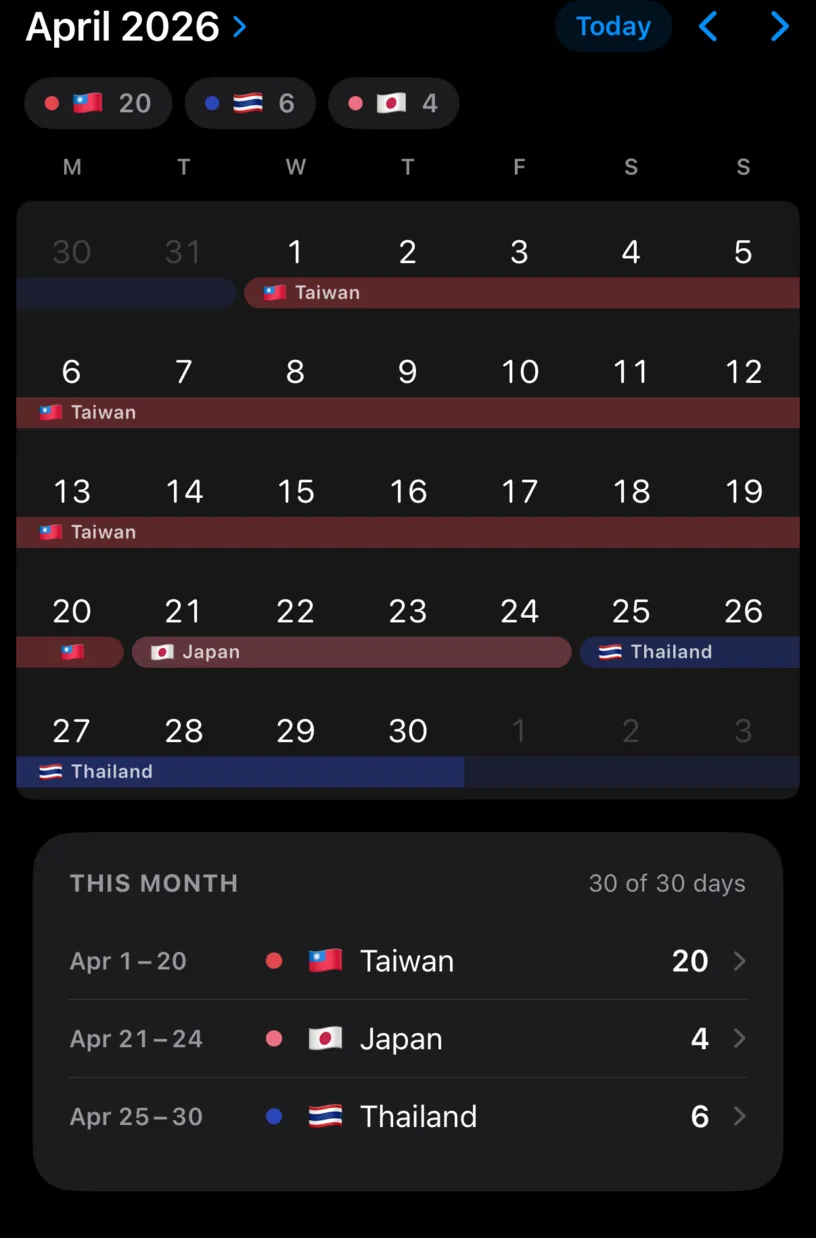
The month header reads 30 of 30 days, the month list has one row per stay and no Not logged row, and the bands in the grid meet where your trips actually met.
Then open the Dashboard tab. Year Distribution is the number that mattered: the country totals your fiscal and visa counters are built on.
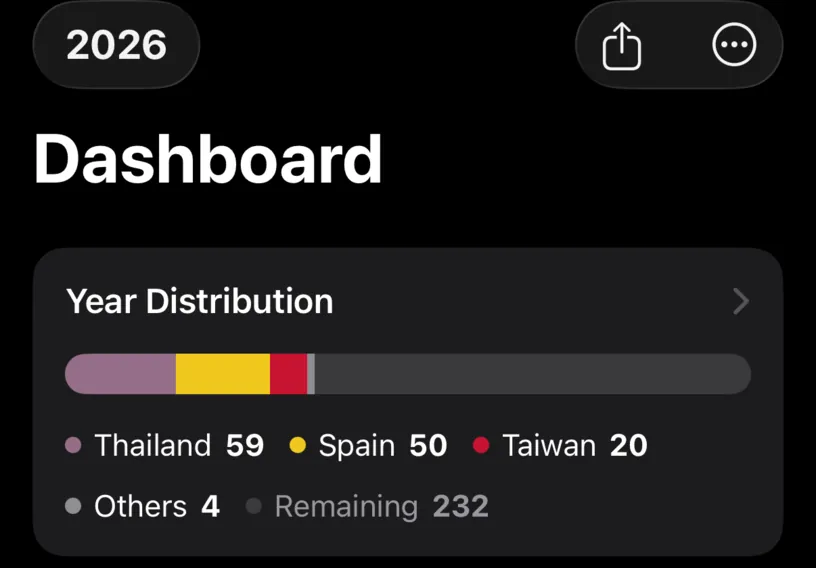
Counters, runway and alerts all recompute from the day you saved. There is nothing to refresh.
If something looks different
Tapping the day opened a different sheet. A day with nothing logged goes straight to the entry sheet, because there is no stay to edit yet. Add the country and save, and the day joins its neighbours.
Edit Entire Stay changed more days than you expected. A stay is every consecutive day with that country, across month boundaries. The trip you saw in April may have started in March.
The stay landed on days you did not pick. The START and END boxes read a day earlier than the grid. Open the stay again, set the range from the grid, and save.
The day came back wrong the next time you opened the app. Automatic tracking never overwrites a day you edited by hand, so the usual cause is a second device syncing an older version through iCloud. Let the sync finish and check again.
You want the day gone, not corrected. Delete Stay Log at the bottom of Edit Date removes the entry and leaves the day unlogged.
A day holds two countries and you only want to drop one. Remove that one country in Edit Date and save. The day keeps the other.
Next steps
Find and fill missing days covers the opposite problem, days with nothing in them at all.
Add and edit a stay in the calendar is the full tour of the same editor.
Read your dashboard at a glance explains which counters your correction has just moved.