What you’ll achieve
By the end of this guide a record that should not be in your history is gone, and you know which dates went with it.
Removal is the one edit the app performs without asking twice. There is no confirmation and no undo, so the work happens before you tap: you check the range first, then delete it.
That is why this guide spends three steps on reading and one on deleting.
Step 1: Find the entry
Open the Calendar tab and go to the month that holds it. Tap the month name to open the month and year wheels, or use the arrows on the right.
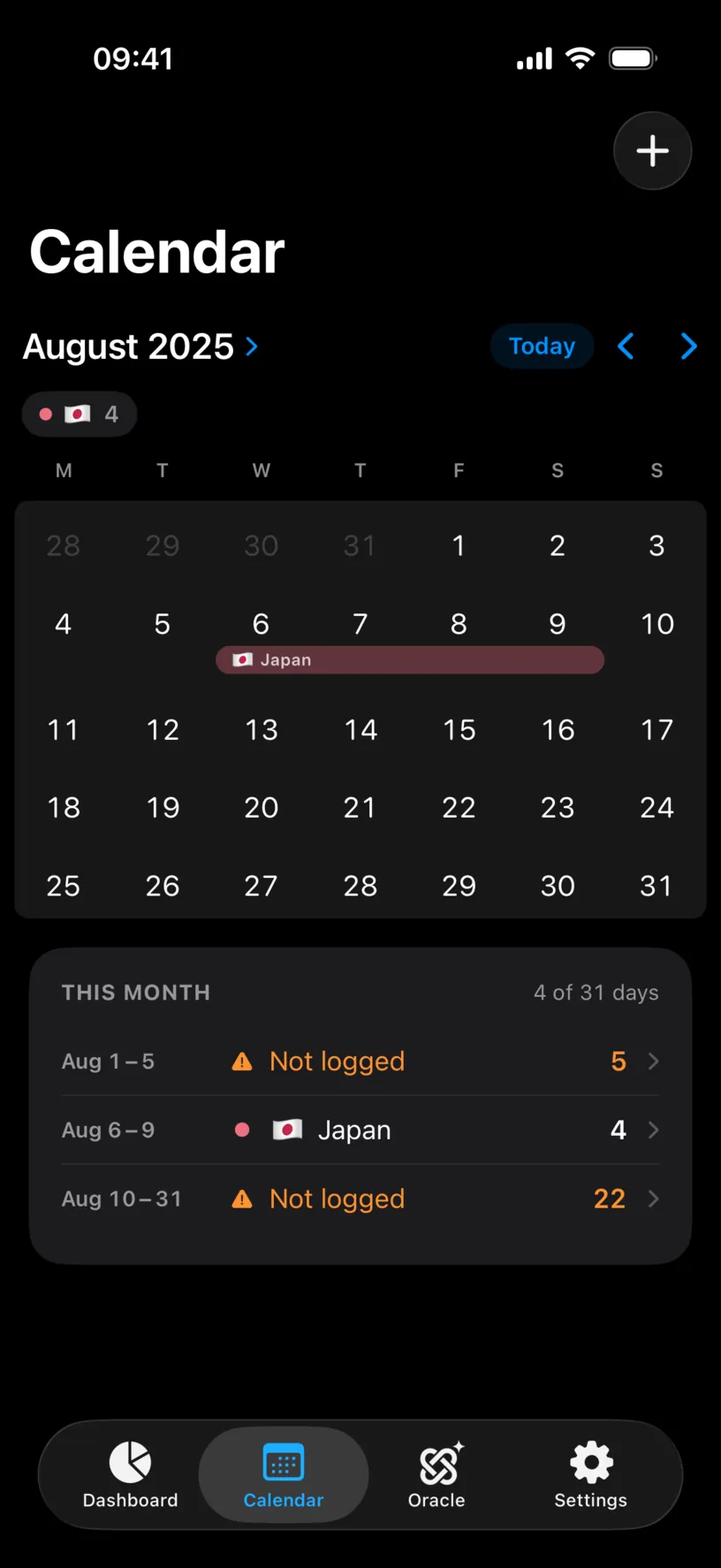
Read THIS MONTH rather than the grid. The grid shows days; the list shows records, one row per stay, with the dates and the day count that each one contributes. A four-day trip you do not recognise is easier to spot as a row than as a coloured band.
Here a four-day stay in Japan sits on the 6th to the 9th of August, and it never happened.
Step 2: Decide how much to remove
Tap the row, or any day inside it.
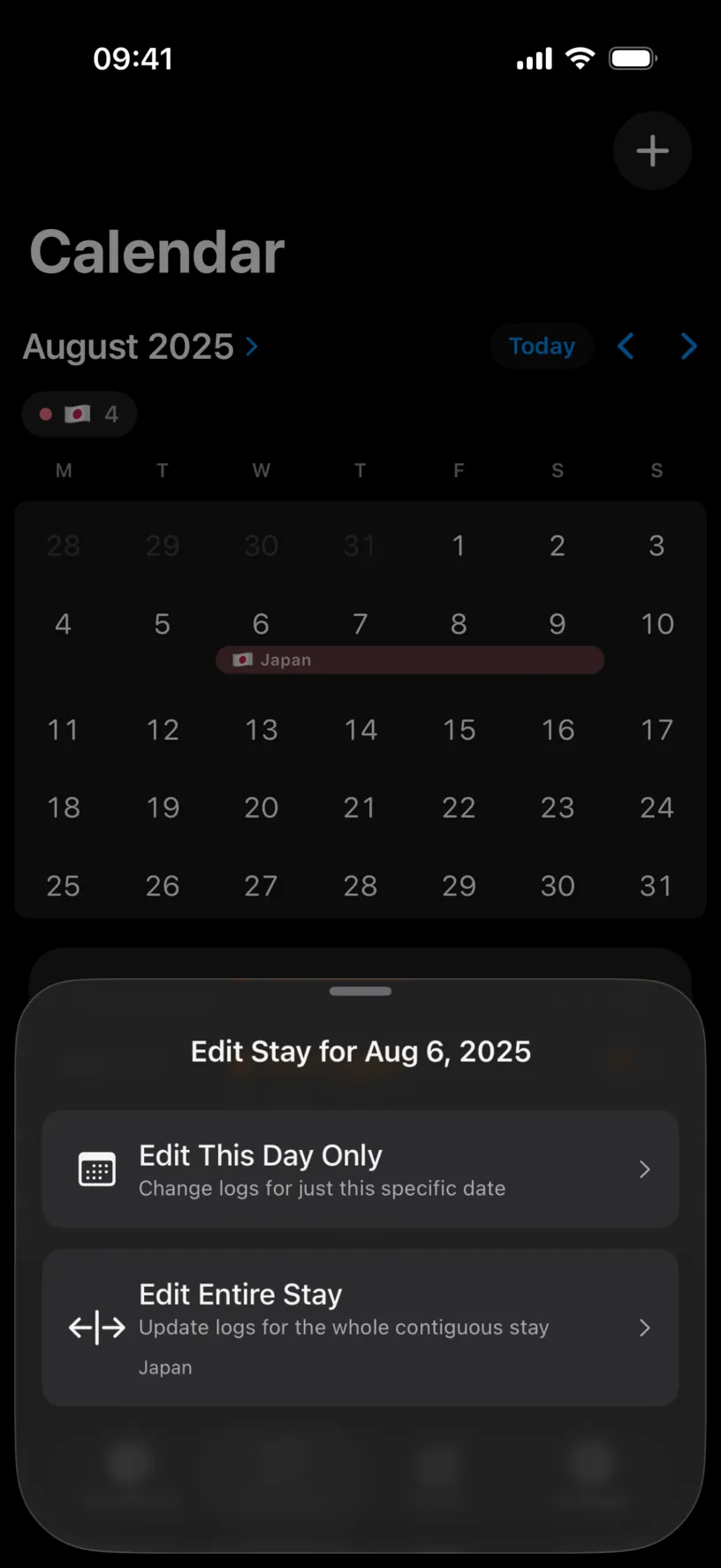
The sheet asks how far your change should reach, and the answer decides what gets deleted.
Edit This Day Only touches the single date you tapped. Edit Entire Stay takes the whole contiguous run of days in that country, and names the country so you know which run it means.
One warning about the second option: a stay is every consecutive day logged in that country, not the trip you have in mind. It runs as far in both directions as those days run, and stays cross month boundaries while the calendar shows you one month at a time. A three-week block that you think of as two trips is one stay to the app.
The run ends at the first day that does not carry that country, whether that day holds a different country or nothing at all.
Tap Edit Entire Stay.
Step 3: Check the dates before you delete
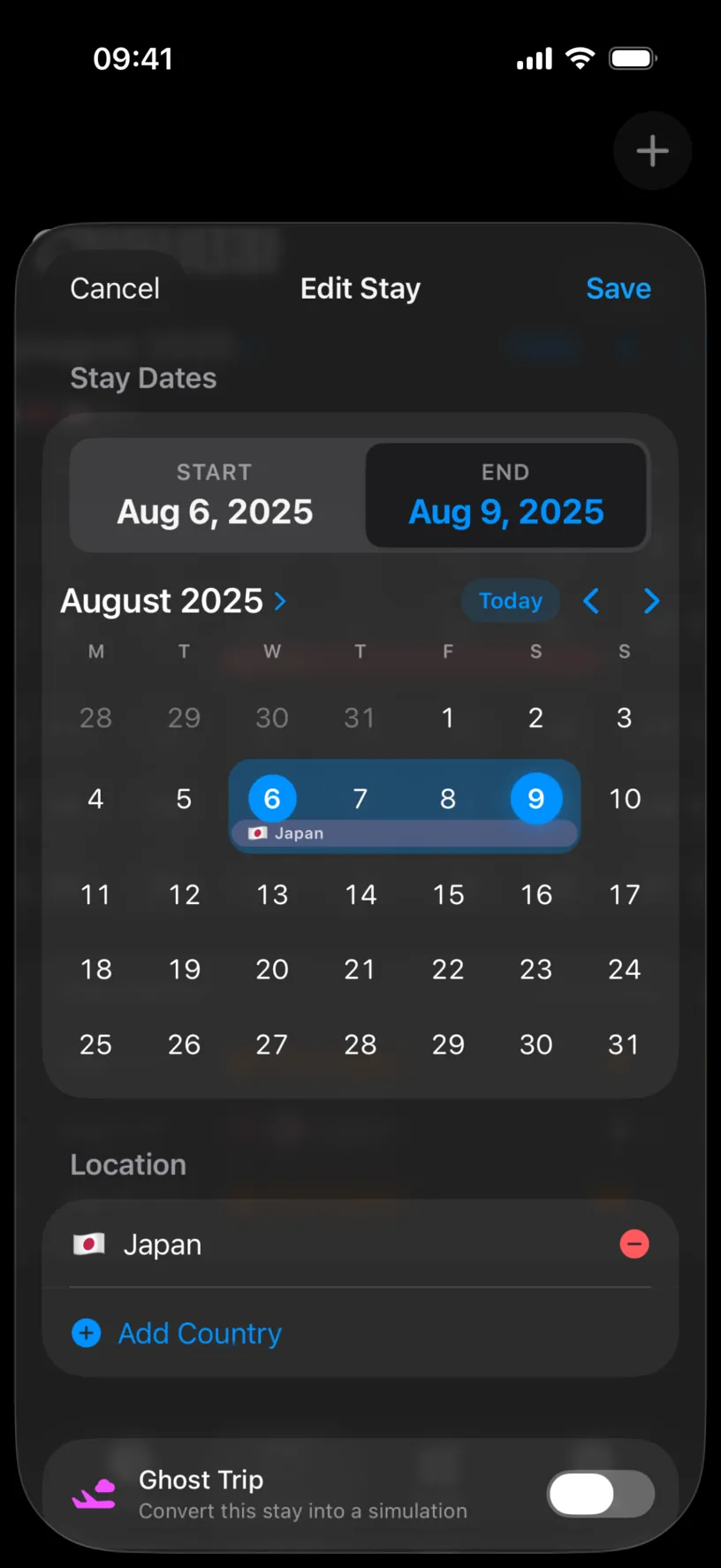
START and END are the exact range the app is about to remove, and the grid below highlights it. When you open an existing stay both agree, so use them together: the boxes give you the dates in words, the highlight shows you how far they reach.
If the range is wider than the record you meant to remove, tap Cancel. Go back in and choose Edit This Day Only for each wrong day instead, or fix the dates rather than deleting them, which Correct a country or date in your history covers.
Here the range reads Aug 6, 2025 to Aug 9, 2025, which is the trip that should not exist.
Step 4: Delete it
Scroll to the bottom of the sheet.
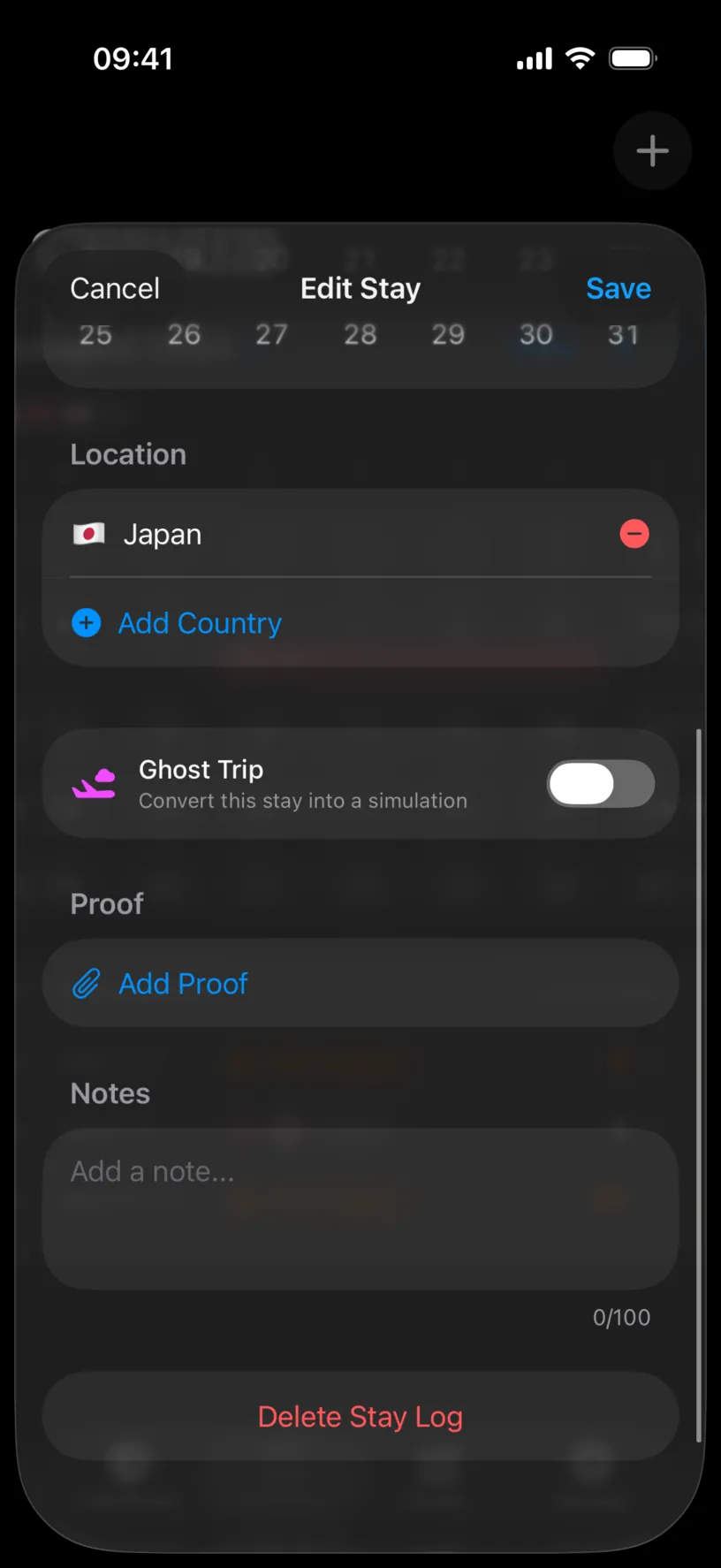
Before you reach for the red button, two things above it remove less and might be what you want.
The red minus next to Japan takes that country off the stay and leaves the days. On a day logged in two countries, that is how you drop the wrong one and keep the right one.
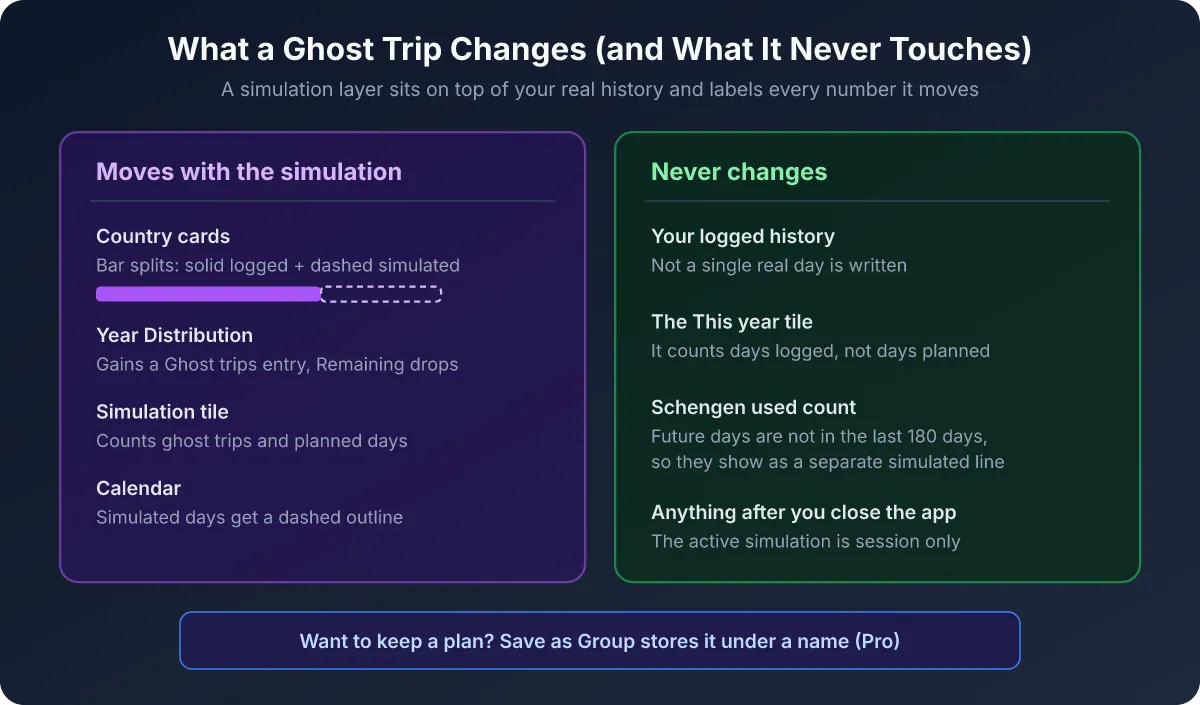
Ghost Trip converts the stay into a simulation instead of removing it. For a trip that is planned rather than taken, that is the better move: the days stop counting as history and stay visible as a plan.
Tap Delete Stay Log.
The sheet closes and the days are gone. Nothing asks you to confirm, so treat the tap as final.
Check your result
The month reloads without the record.
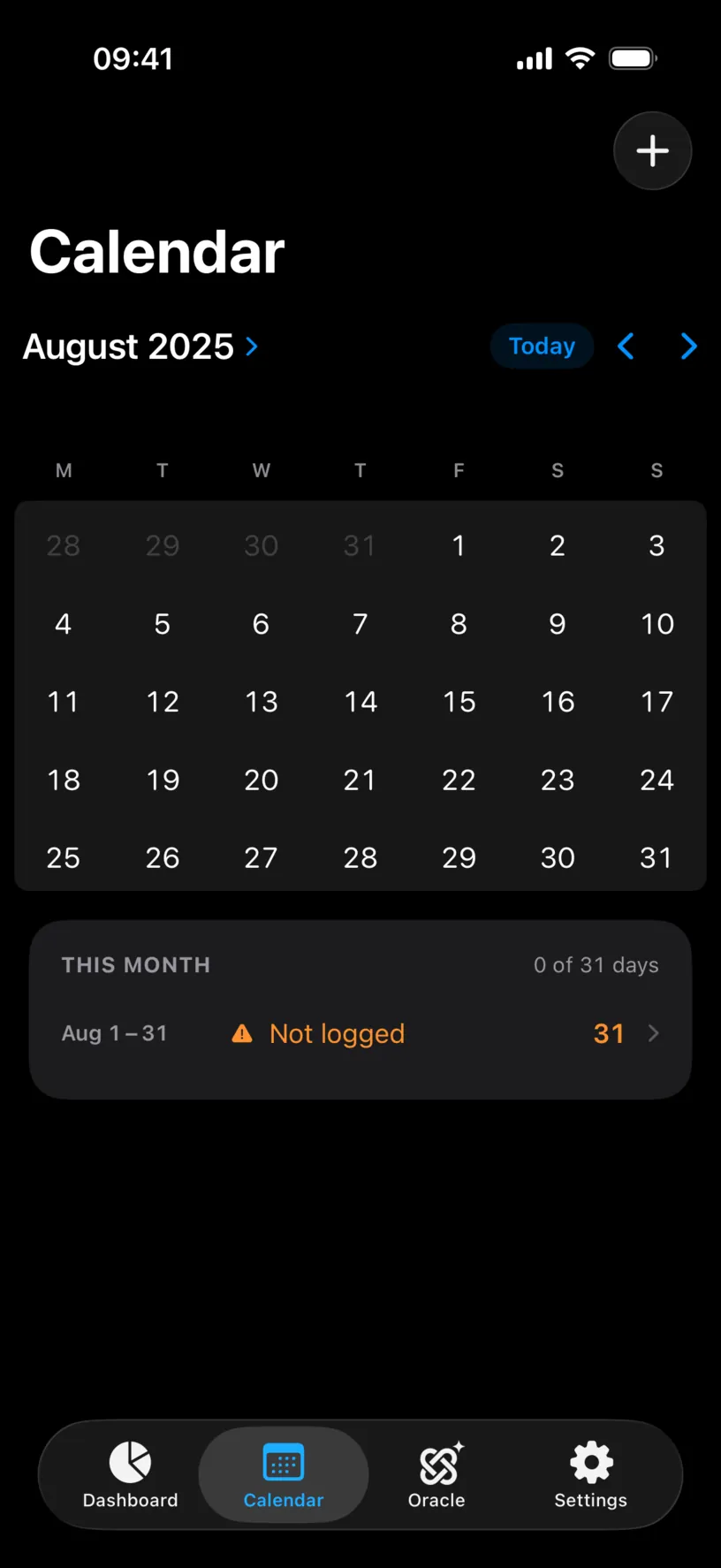
Three things move together, and all three are worth a look:
The THIS MONTH header counts logged days, and it dropped from 4 of 31 days to 0 of 31 days. The list replaced the Japan row with a Not logged row. And the country chip under the month name is gone, because the month no longer holds a logged country.
Deleted days become unlogged. They are not handed to the country next door, which is the right behaviour and also the thing to remember: a gap is a gap, and every counter in the app now treats those dates as days it knows nothing about.
Remove a single day instead
For one wrong day inside a trip that is otherwise correct, choose Edit This Day Only in step 2.
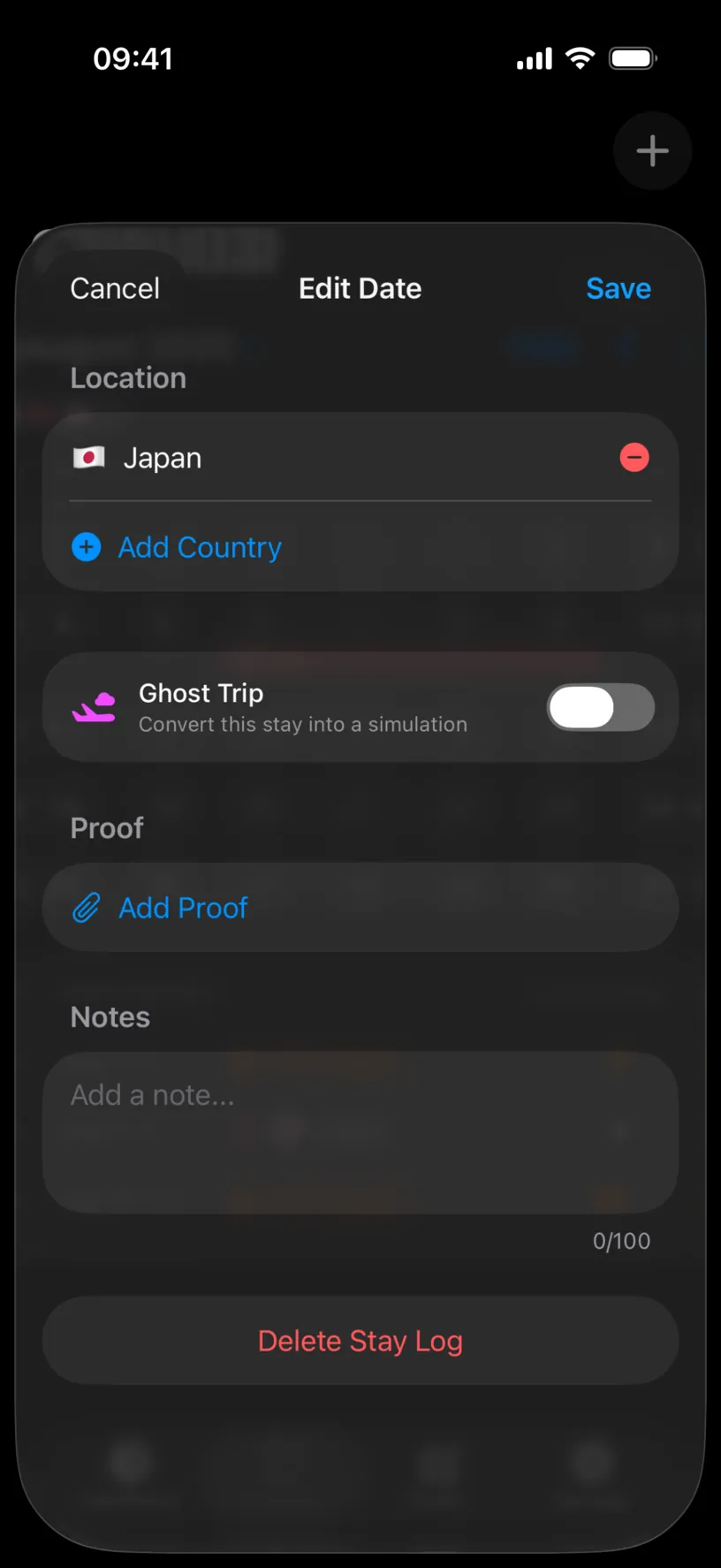
The Edit Date sheet is the same set of controls without the date range, since the date is the one you tapped. Delete Stay Log here removes that day and leaves the rest of the stay standing, which splits a longer stay in two.
The red minus does the smallest removal available: one country off one day.
If something looks different
Nothing asked you to confirm. By design, and there is no undo. If you deleted the wrong thing, add it back by hand: Add and edit a stay in the calendar is the fastest route, and the dates you need are the ones you read in step 3.
More days disappeared than you expected. Edit Entire Stay removed the whole contiguous run, and the run reached further than the dates you had in mind. Step 3 is where that is visible: the range in the boxes is the range that goes.
The day held two countries and only one stay was removed. The entire-stay route follows a single country, so on a border day use Edit This Day Only and take the wrong country off with the red minus instead.
The days came back. Something else is writing them. Automatic tracking fills in recent days from your location, so a day you delete near today gets logged again on the next update. Turn the switch off first, then delete: Understand your tracking status shows where it lives.
The entry came from your calendar. Removing the days leaves the synced trip in place, because calendar sync keeps its own record of it. Use Ignore this trip instead, which Review trips detected in your calendar covers.
The day carried a note or a proof. Both belong to the day, so they go when the day goes. Open the day and copy the note, or detach the file, before you delete anything you want to keep.
Your counters dropped more than the day count. Removing days from a stay changes what every rule sees. A Schengen or fiscal count falls by the days you removed, and a residence-permit count can move the other way, since unlogged days count as days at home for that one.
You want to start over completely. Delete All Data in Settings erases logs, country rules and fiscal profiles at once. That one does ask for confirmation, and it is also permanent.
Next steps
Correct a country or date in your history is the better tool whenever the record is wrong rather than unwanted.
Find and fill missing days closes the gap you just made, if the dates were real and only the country was wrong.
Add and edit a stay in the calendar covers the rest of the sheet you deleted from.