What you’ll achieve
By the end of this guide every trip Nomad Tracker read out of your calendar has been checked by you: the ones that count, the one that was missing a country, and the ones that were never trips at all.
Detection is a first draft. It reads the title and location of your events, which means it gets a hotel booking in Lisbon right and a meeting called "Client visit" wrong. Review is where that draft becomes your travel plan.
Step 1: Read a row in Review Trips
The first import lands here, and so does every later trip the app could not resolve on its own. Rows are grouped by start date, oldest first.
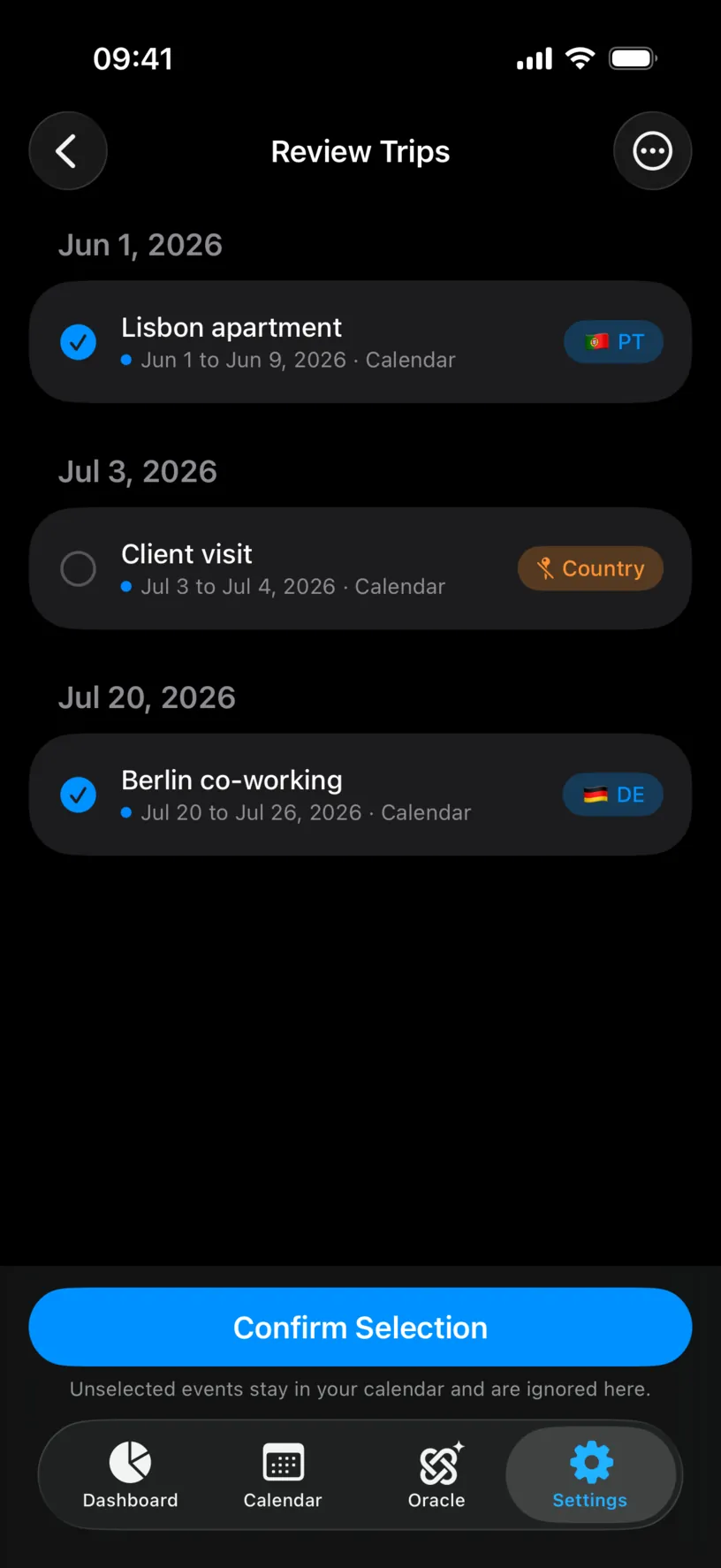
A row carries four things. The tick on the left says whether the trip will be counted. The title is your own event title, untouched. The line under it is the dates, then the calendar the event came from, with that calendar’s colour as a dot. The chip on the right is the country.
The chip is the part to read first. A blue chip with a flag means the app found a country. An orange Country chip means it did not, and that row cannot be selected until you say where the trip was.
Step 2: Set the country the app could not find
Tap the orange Country chip.
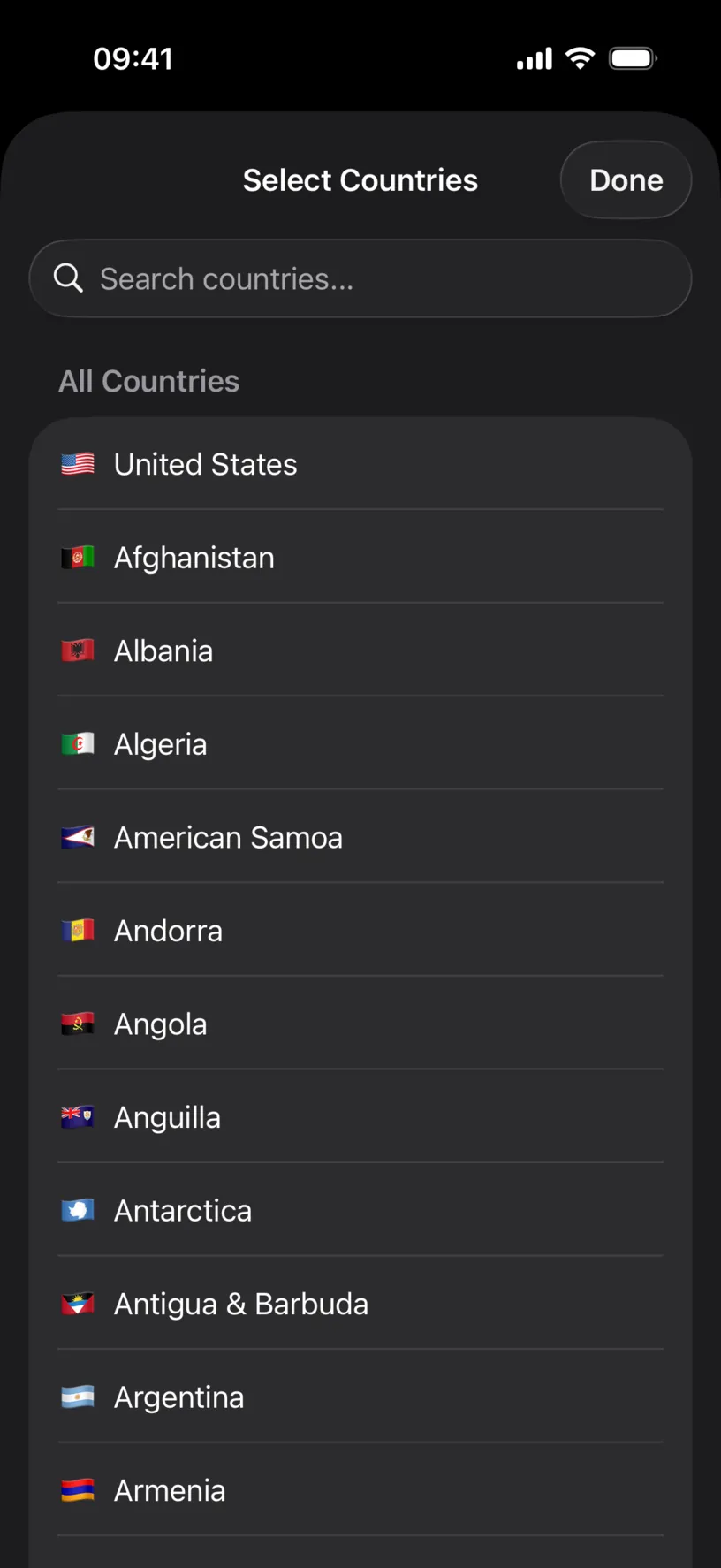
Search for the country and tap it. One country per trip, so the sheet closes on your choice.
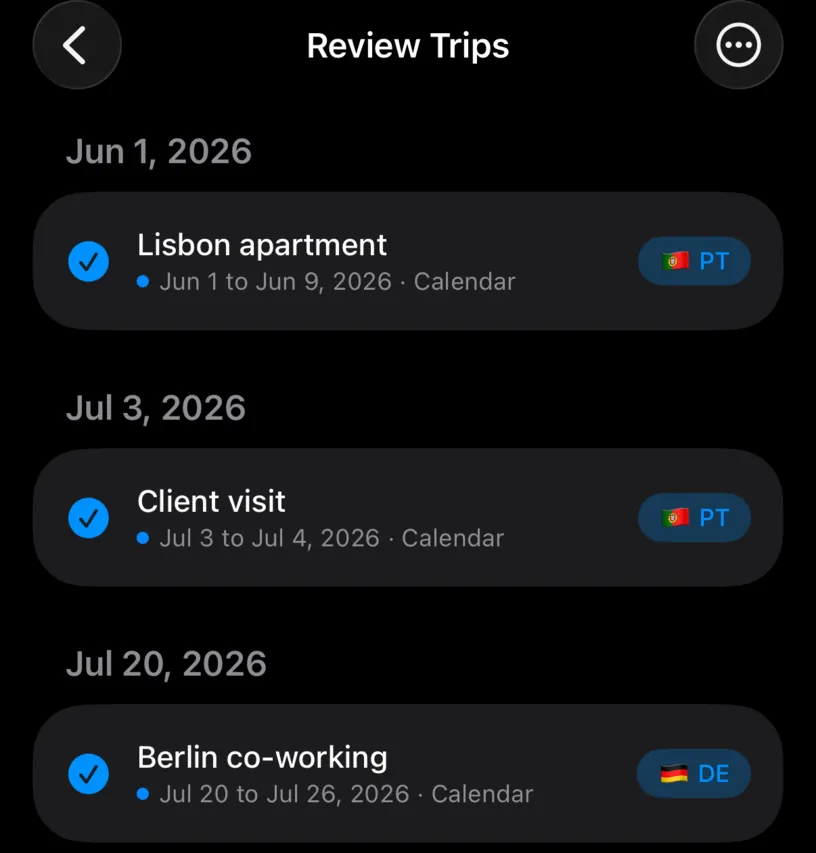
The row is now ticked and tagged. Setting a country selects the trip for you, because the only reason it was held back was that it had nowhere to count.
Your choice sticks to that event. If you later edit the event’s location in your calendar app, the trip comes back here for review rather than quietly changing country.
Step 3: Untick what is not a trip
Tap a row anywhere outside its country chip to include or exclude it.
Exclude the events that share a shape with travel but are not travel: a video call with a client abroad, a conference you are attending remotely, a booking you cancelled. Unselected events stay in your calendar and are simply ignored here.
For a long first import, the menu in the top right is faster.
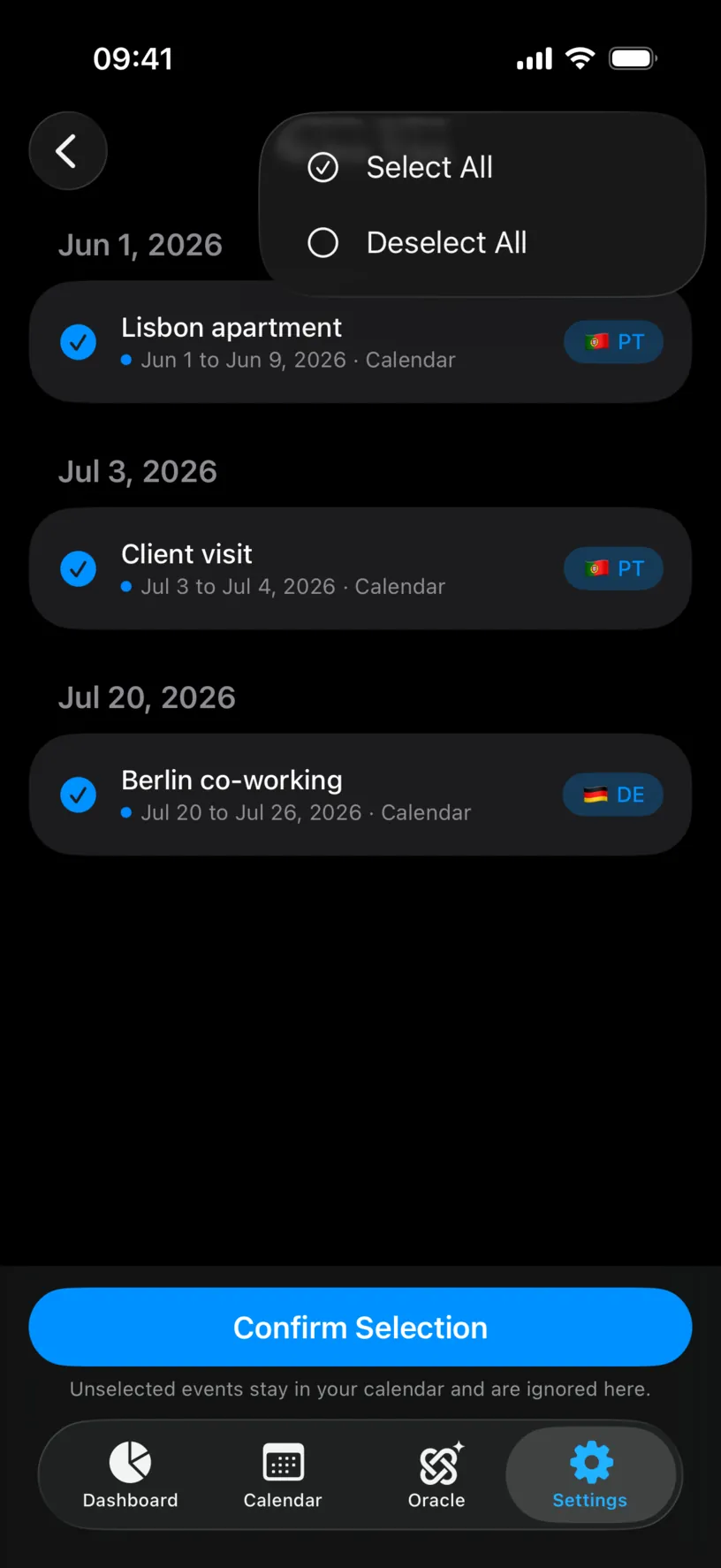
Deselect All clears everything so you can tick the handful that matter. Select All ticks every row that has a country; rows still waiting for one stay untouched.
When the list reads the way you want it, tap Confirm Selection.
Step 4: Open Synced Trips
Review is not a one-off. Everything you confirmed lives on the Synced Trips screen, and that is where you go to check or change a decision later.
Open the Settings tab, tap Calendar Sync, then tap Trips in Use.
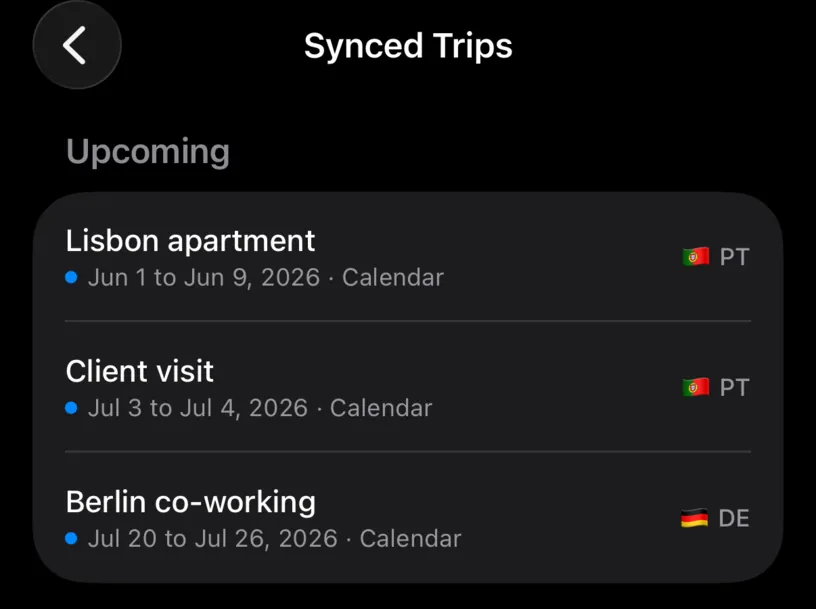
The screen splits into up to four sections. Upcoming holds trips that have not finished yet. Past holds the ones that have, most recent first. Ignored holds what you excluded. And when the app finds something it cannot resolve, a row at the top says how many trips need review and takes you straight back to the review list.
That top row is the only warning this feature has. After the first import, clean trips are accepted on their own, so it is worth a look whenever you add a calendar or change a booking.
Step 5: Inspect a single trip
Tap any row to see what the app actually read.
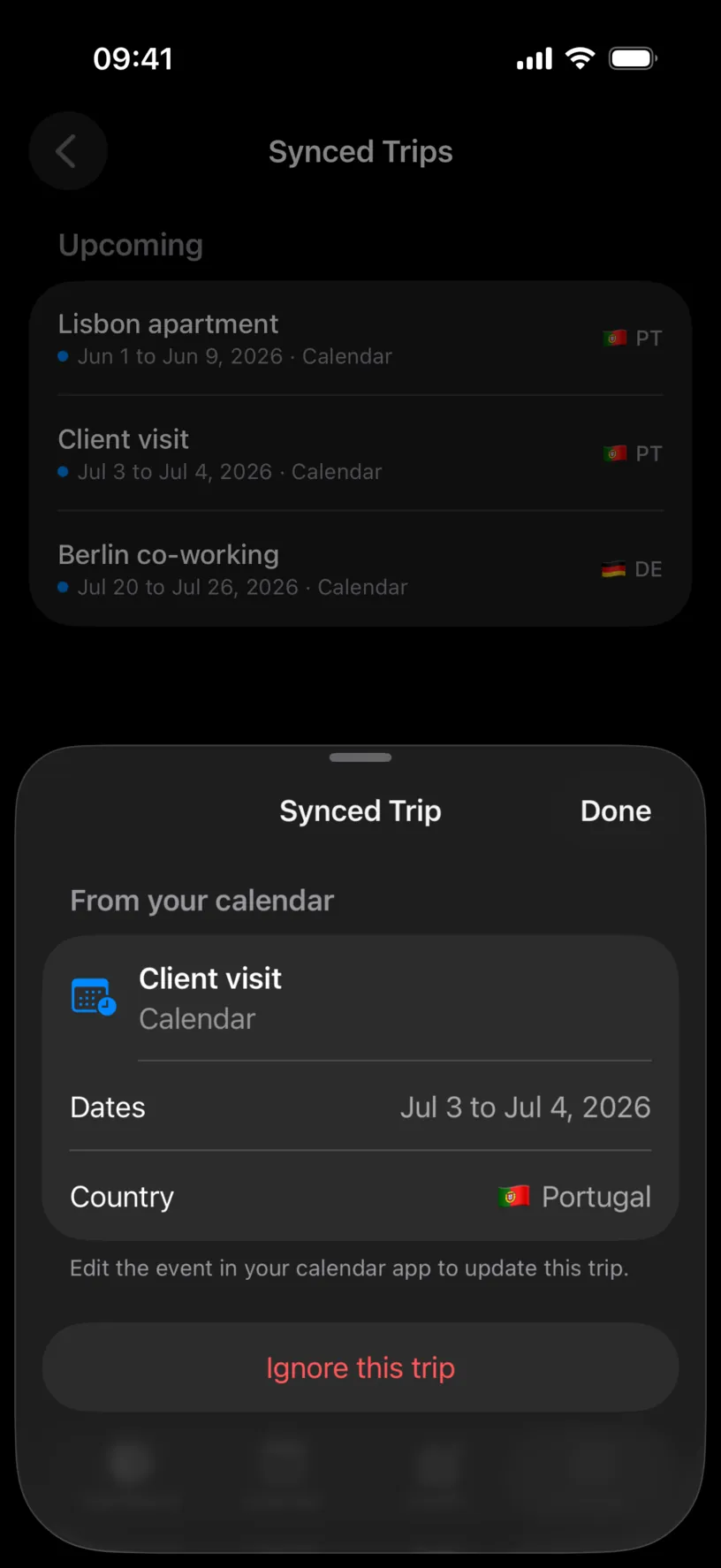
The sheet is a mirror, not an editor. Dates and title come from the event, so the footer sends you where the fix belongs: change the event in your calendar app and the trip follows.
The one decision you can make here is Ignore this trip.
Step 6: Ignore a trip, and undo it
Tap Ignore this trip in the sheet, or swipe a row left in the list and tap Ignore Trip.
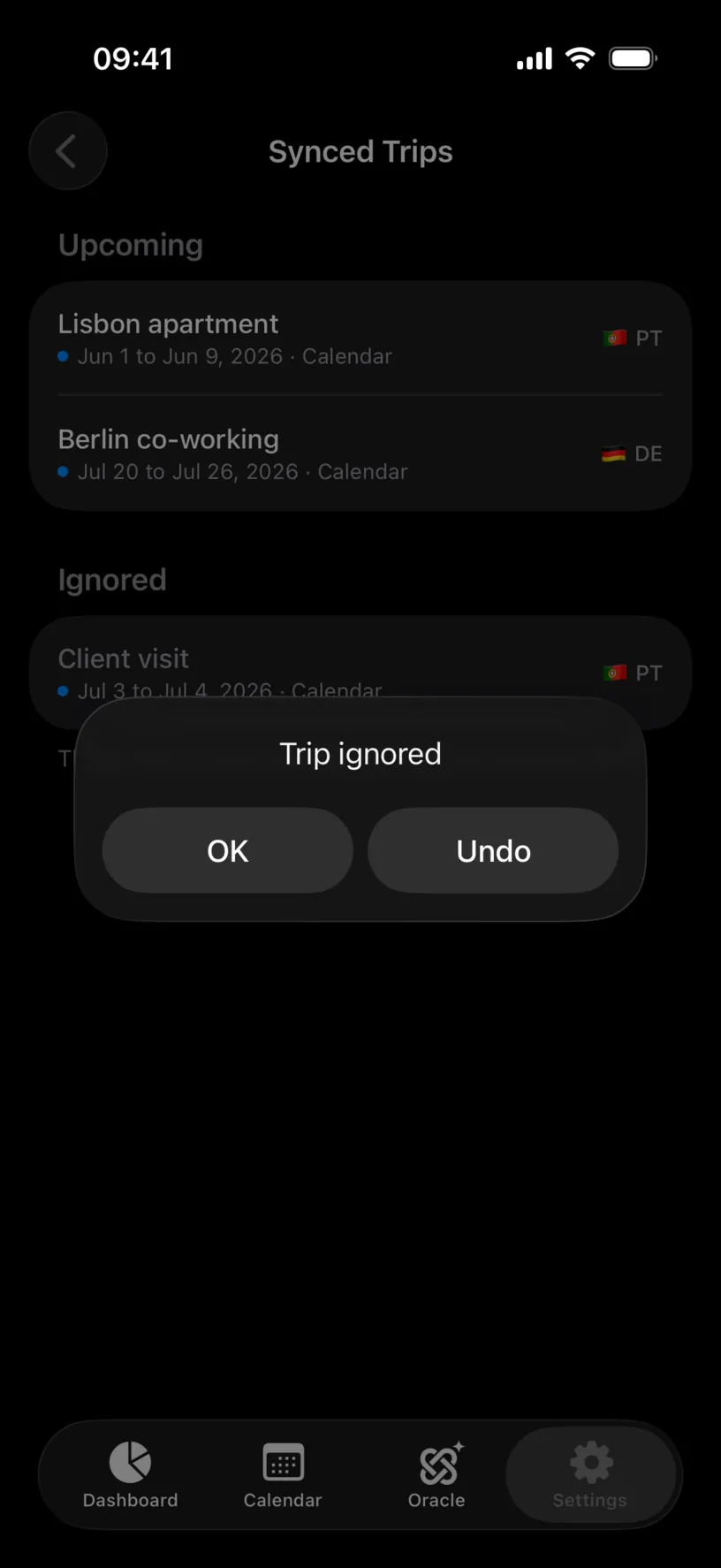
The trip stops counting immediately and an alert offers Undo. Nothing is deleted from your calendar at any point.
If you dismissed the alert and changed your mind, the trip is still in the Ignored section. Swipe it left and tap Restore.
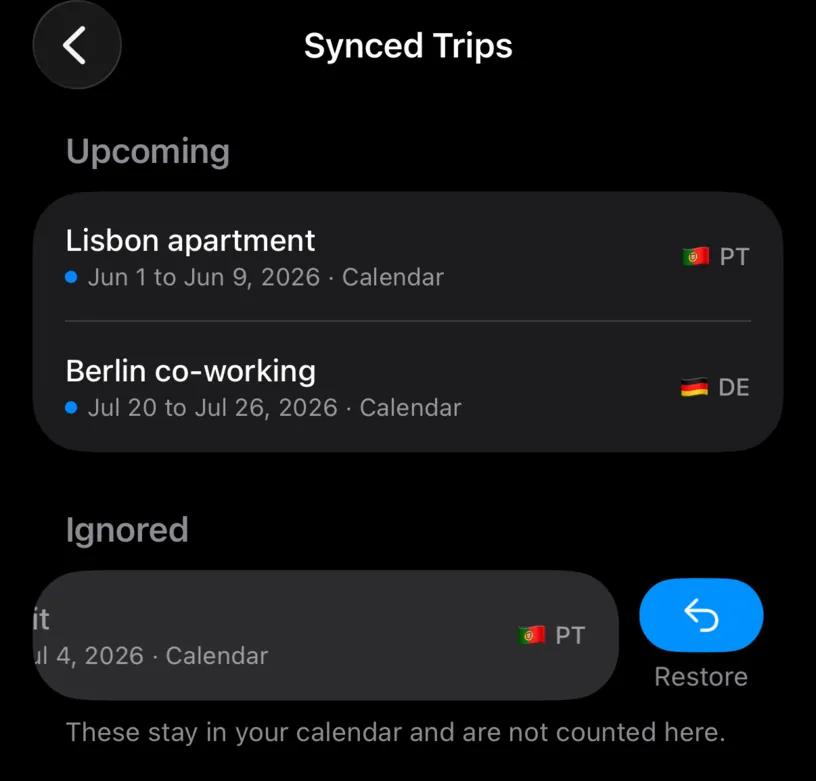
A restored trip goes back to counting if it has a country. If it does not, it goes back to review instead, so a trip can never return in a state where it silently does nothing.
Check your result
Open Synced Trips again. There is no row asking for a review, every trip under Upcoming and Past carries a country flag, and anything you rejected sits under Ignored.
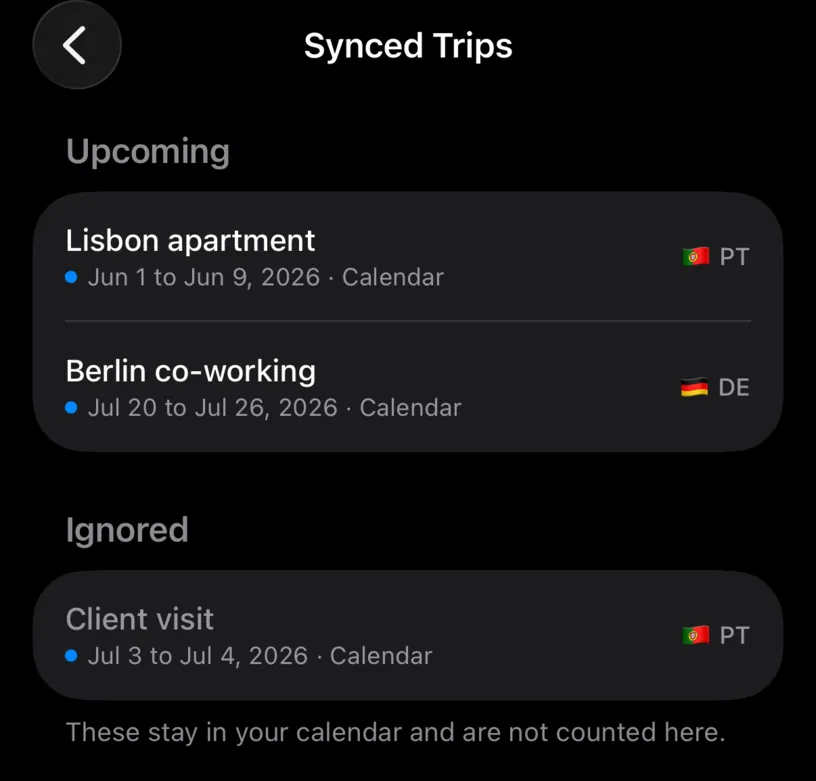
Then open the Calendar tab and move to the month of a confirmed trip. Its days carry the calendar badge and the country name.
The days stay out of your logged totals until they happen. A synced trip is a plan, and the month header keeps counting only what you actually lived.
If something looks different
The review list is empty. It reads "Nothing to review", which means every synced trip is resolved. Nothing is wrong.
A trip has an orange Country chip and you do not know why. The event names no country the app recognises. Set it here, or add the country to the event’s location in your calendar so future edits resolve on their own.
Two rows look like the same trip. A date group flagged Possible duplicate means the same journey reached the app through two events, usually the same booking in two calendars. Tick the one you trust and leave the other.
A trip you already accepted came back for review. Something material changed: the event’s dates, or its location after you had set a country by hand. The app asks again rather than moving days behind your back.
Trips need review but you never see the row. The Calendar sync dashboard tile shows the same count, and tapping it opens the same screen. It is one of the tiles you can add to the dashboard strip.
You want to undo the whole thing. Turn Off Calendar Sync on the Calendar Sync screen removes every trip this feature created. Your calendar events are untouched.
Next steps
Connect your calendars is the setup this guide continues, if you arrived here first.
Add and edit a stay in the calendar turns a synced trip into a logged one once you have actually travelled.
Read your dashboard at a glance explains where planned days show up and where they deliberately do not.