What you’ll achieve
By the end of this guide you can change which calendars are read, force an update, see how many trips the feature is contributing, and disconnect it without touching your history by accident.
Calendar sync is the one import that keeps working after you set it up. That makes its settings screen worth knowing: it is where you find out what the feature is doing on its own.
Step 1: Open the sync settings
Open Settings and tap Calendar Sync.
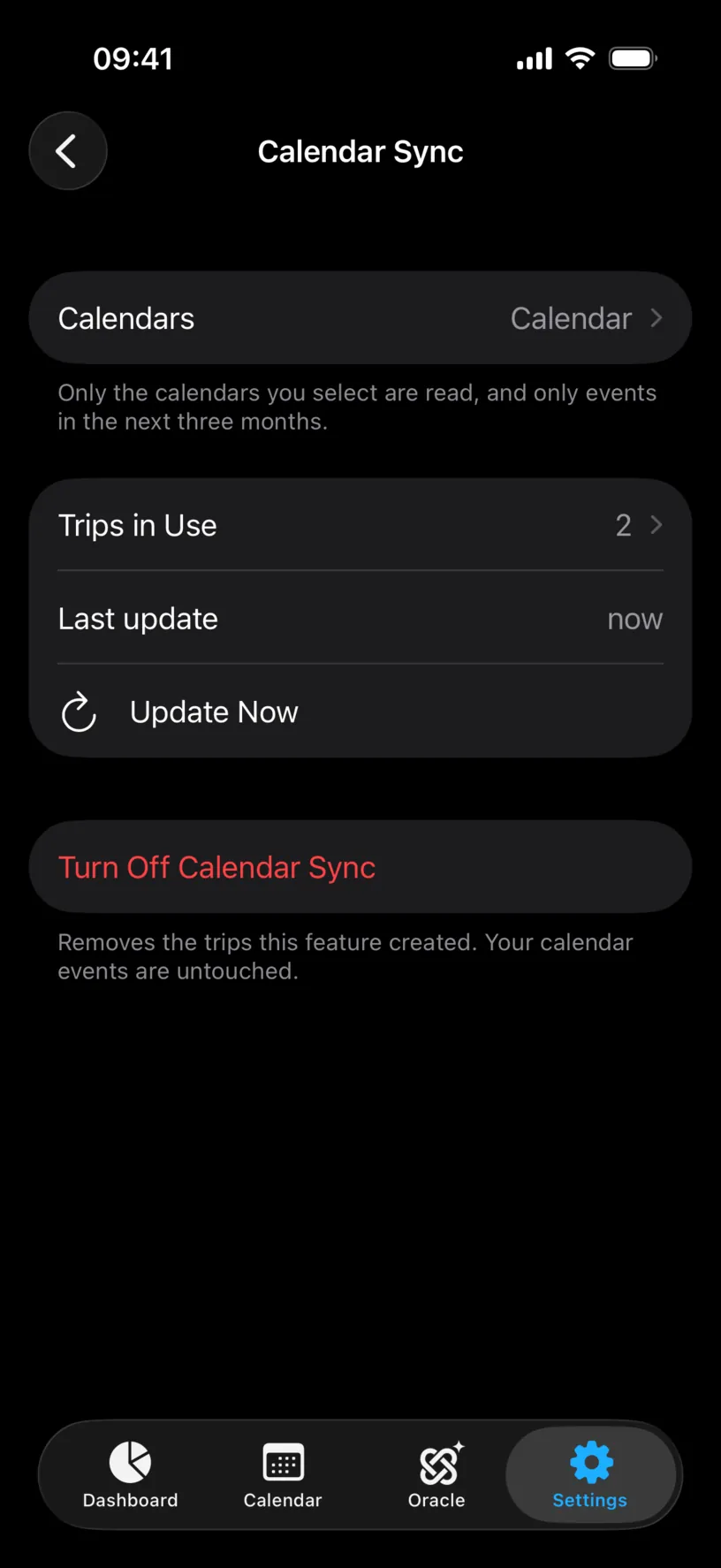
Once sync is connected this screen replaces the setup pitch, and every control the feature has is on it.
Calendars names what is being read, and the footer states the scope in one line: Only the calendars you select are read, and only events in the next three months. That three-month horizon is worth remembering, because it explains why an old trip in your calendar never appeared.
Trips in Use is how many trips the feature is currently contributing to your counters. Last update is when it last looked, and Update Now makes it look again.
Step 2: Change which calendars are read
Tap Calendars.
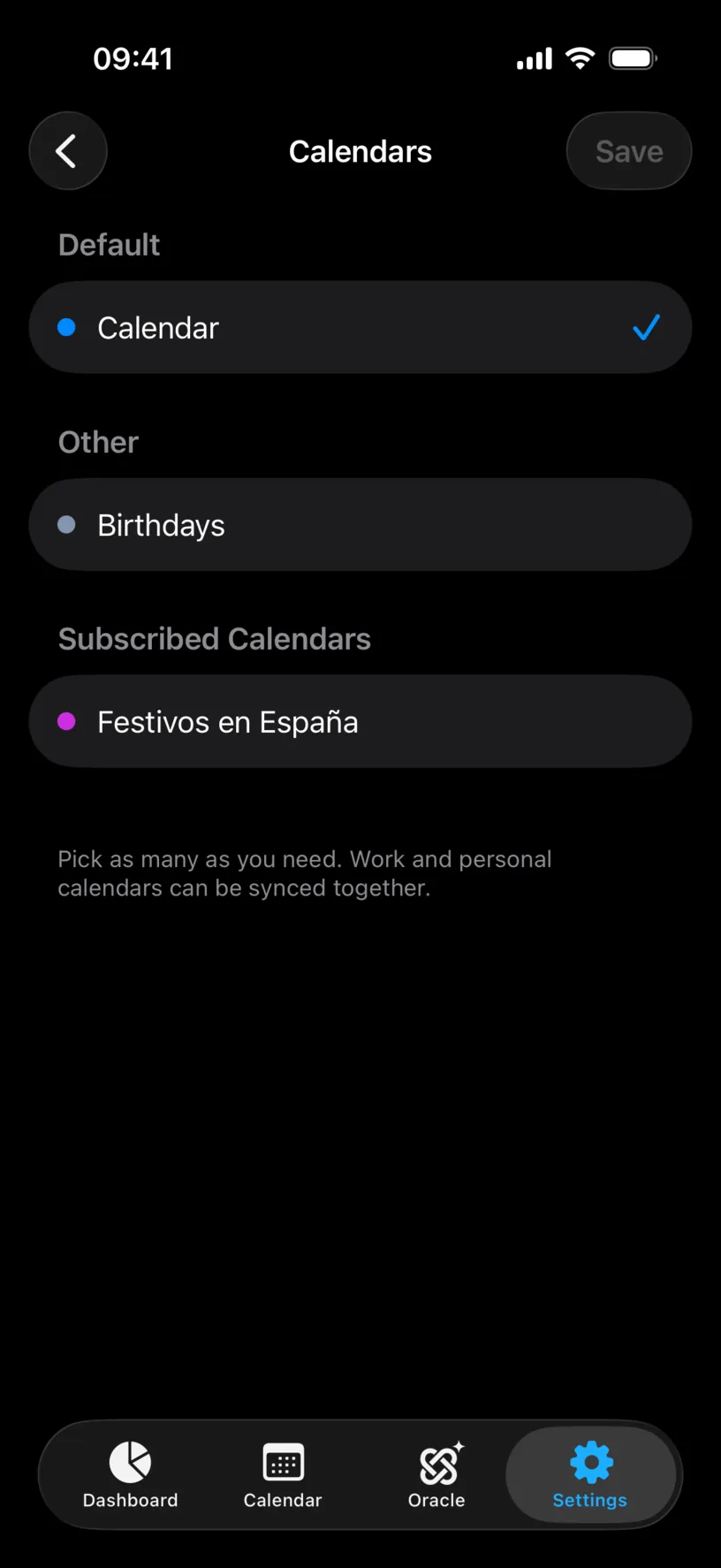
Every calendar on the device is here, grouped the way iOS groups them, and selection is multiple: tap to add, tap again to remove.
Add the calendar that holds your flights and remove the ones that hold noise. A birthdays calendar or a subscribed holidays calendar has nothing useful in it for day counting, and everything selected here is one more source of events to review.
Save commits the change and triggers a sync. New calendars bring their trips in; a calendar you removed takes its trips with it.
The row on the previous screen then names your selection, or counts it when you pick more than one.
Step 3: Read what sync is contributing
Tap Trips in Use.
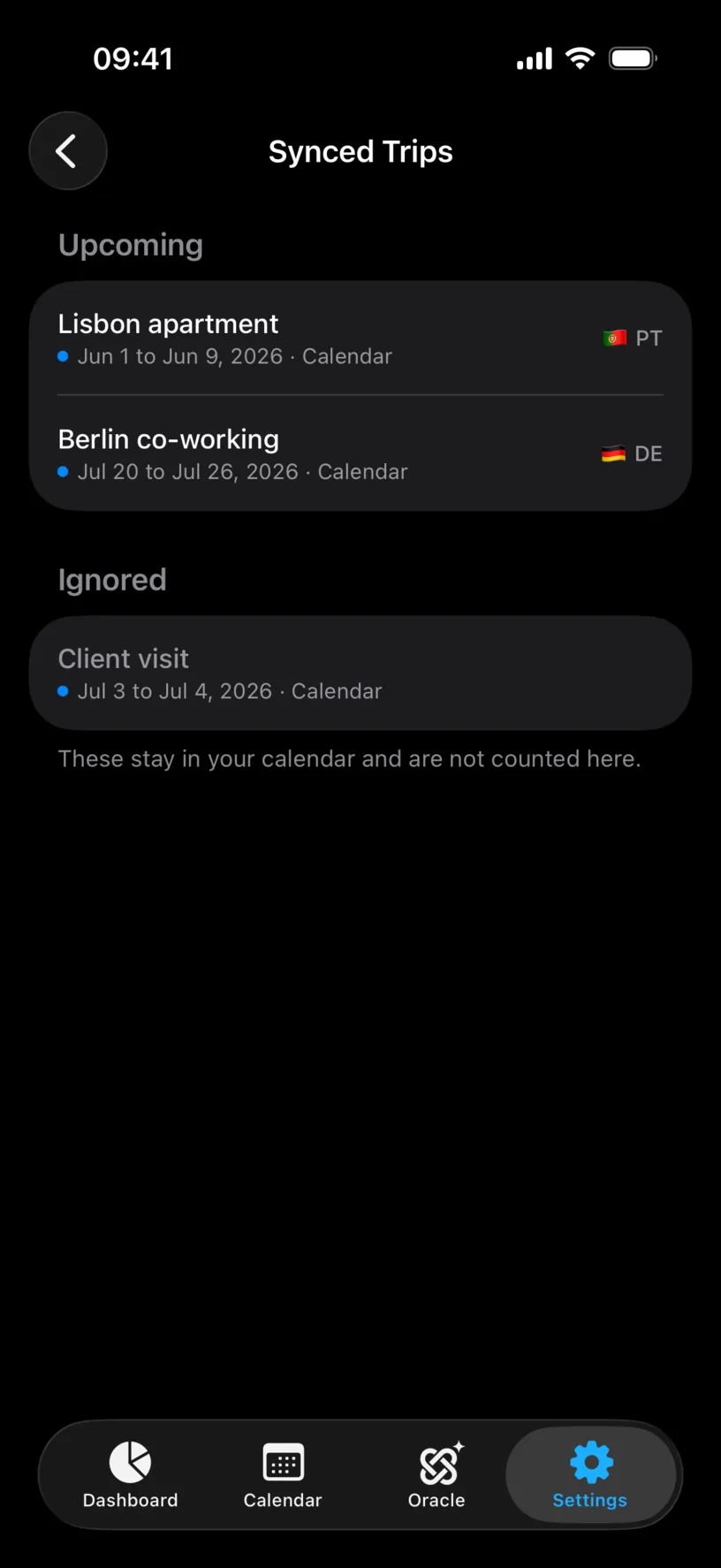
Upcoming and Past split the trips by whether they have happened. Each row names the event, its dates, the calendar it came from and the country the app detected.
Ignored holds what you excluded. Those trips stay in your calendar, they stay in this list, and they count for nothing, which is the point. Review trips detected in your calendar covers ignoring a trip and undoing it.
Check the dates rather than the titles, because an all-day event can land here a day shorter than you wrote it. An event running to the 27th in your calendar shows as a trip ending on the 26th, so if the last day matters to a count, fix it in your history rather than assuming the sync will.
Step 4: Force an update, or wait
Sync runs on its own when your calendars change. Update Now exists for the times you do not want to wait: you have just added the flights for a new trip, or you have edited an event and want the counters to catch up.
Last update tells you whether waiting would have been enough. now means the feature is current, and Never means it has not managed a pass yet.
Nothing is created, edited or deleted in your calendar at any point. The access is read only, in both directions of the word.
Check your result
Open the Calendar tab and look at the month a synced trip falls in. The days carry a small calendar badge and the trip’s colour, and the chip under the month name counts them separately from your logged days.
That separation is the result to confirm. A synced trip contributes to your counters without being logged history, and the app never mixes the two.
Disconnect it
Turn Off Calendar Sync removes every trip the feature created. The footer says the rest: Your calendar events are untouched.
Use it when you want the feature gone. Do not use it to fix one wrong trip, because it takes all of them: ignore that single trip instead.
If you turn sync back on later, the first import asks you to review the trips again from scratch.
If something looks different
The screen shows a Review Trips row. Some trips need a country or a decision before they count, and the footer says so. Until you finish that review those trips are not in your numbers.
The screen says Sync paused. Your subscription lapsed. The trips you already have stay on the device and stop being updated, and renewing PRO resumes it.
The screen says Some calendars are no longer available. A calendar you selected was deleted or unshared on the device. Edit the selection and the rest keeps syncing.
The screen says Calendar access is off. The permission was revoked in iOS Settings. The app cannot read anything until full access is granted again, and iOS offers nothing smaller for this.
A trip in your calendar never appeared. Check the three-month horizon first, then the country. An event whose title and location name no recognisable country cannot be resolved on its own, and it lands in the review list instead.
Trips in Use is lower than the number of trips in the list. Ignored trips are in the list and not in the count. That is the difference between the two numbers.
You deleted the day logs of a synced trip and it came back. Removing days does not remove the trip, because sync keeps its own record. Ignore the trip instead.
Next steps
Connect your calendars is the setup guide, and the place to start again if you turned sync off.
Review trips detected in your calendar covers the review list, ignoring a trip and restoring it.
Understand where a travel entry came from explains how a synced trip looks next to a logged day in your calendar.