What you’ll achieve
By the end of this guide you can look at any coloured band in your calendar and say what produced it, whether it counts, and what to do to change it.
Four kinds of entry share the same grid, and they are not equal. One is your history. One comes from your calendar. One is a plan you are trying out. And one is the absence of all three.
Telling them apart is the difference between trusting a number and misreading it.
Step 1: Read the month header first
Open the Calendar tab and look at the line above the list, not at the grid.
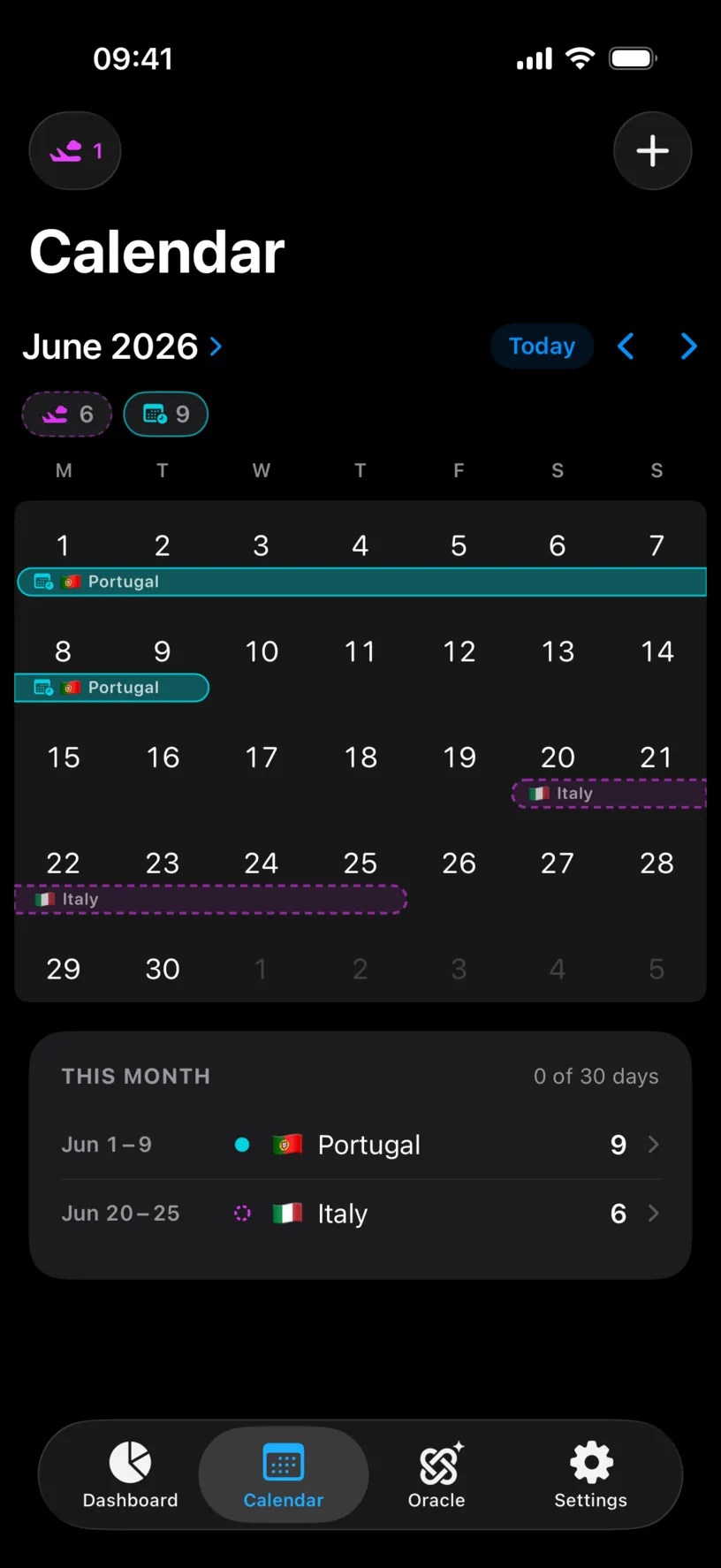
THIS MONTH reads 0 of 30 days for a month that visibly holds two trips. That is not a bug, it is the answer: the header counts logged days, and neither of these entries is one.
The chips under the month name count the other kinds separately. 9 with a small calendar icon is nine days that came from your calendar. 6 in a dashed outline with a plane is six simulated days.
Everything below is about telling those apart at a glance.
Step 2: A day that came from your calendar
The teal band with a small calendar badge is calendar sync. Tap any day inside it.
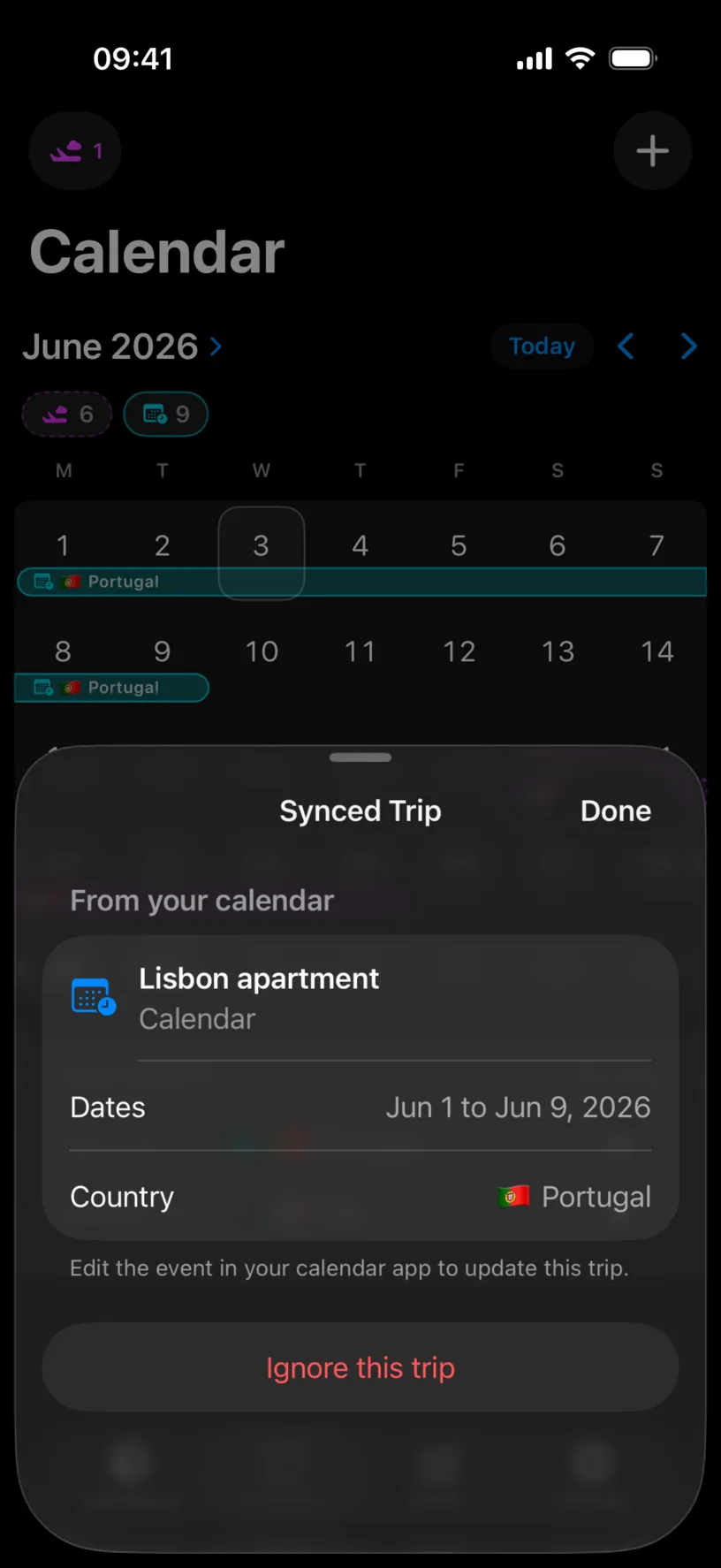
The sheet answers the question in its first line: From your calendar. Then the event that produced it, Lisbon apartment, the calendar it lives in, the dates, and the country the app detected.
The footer is the important part. Edit the event in your calendar app to update this trip. You cannot change these dates here, because the calendar owns them. Your options are to fix the event where it lives, or Ignore this trip and log the days yourself.
These days do count toward your counters. They are just not yours to edit here. Manage calendar sync and imported trips covers the rest of the feature.
Step 3: A day you logged, and a day with nothing
Go to a month of real history.
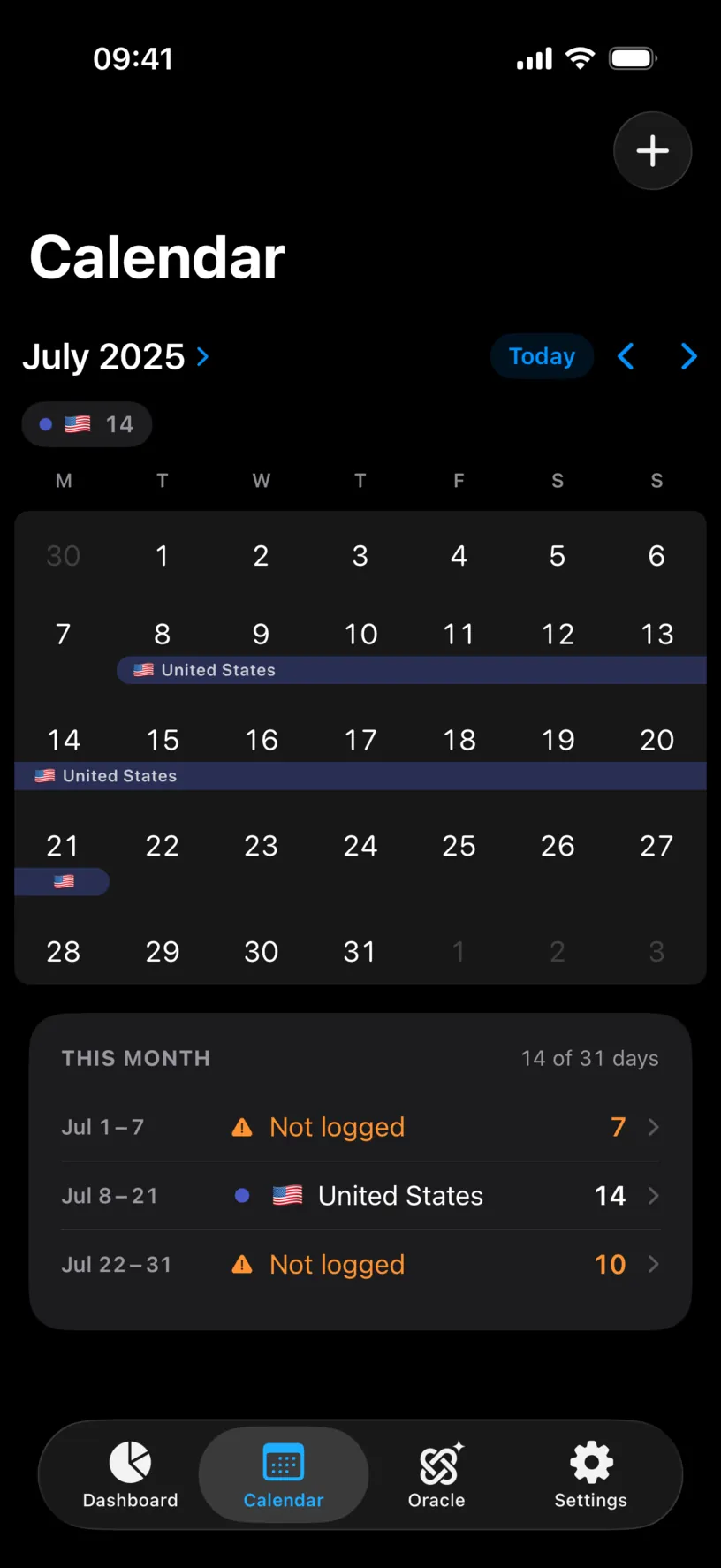
A solid band in the country’s own colour, with a filled dot on its row in the list, is a logged day. It is history, it counts everywhere, and tapping it offers to edit the day or the whole stay.
An orange row with a warning triangle, Not logged, is the fourth kind: no entry at all. The header counts it against you, 14 of 31 days, and every counter in the app treats those dates as days it knows nothing about.
Which is the thing to remember about gaps. They do not count as anything, so they quietly lower a Schengen or fiscal count and quietly raise a residence-permit allowance. Find and fill missing days closes them.
Step 4: A day that is only a plan
The dashed outline with a plane marker is a ghost trip. Tap the plane badge in the top bar to see what is running.
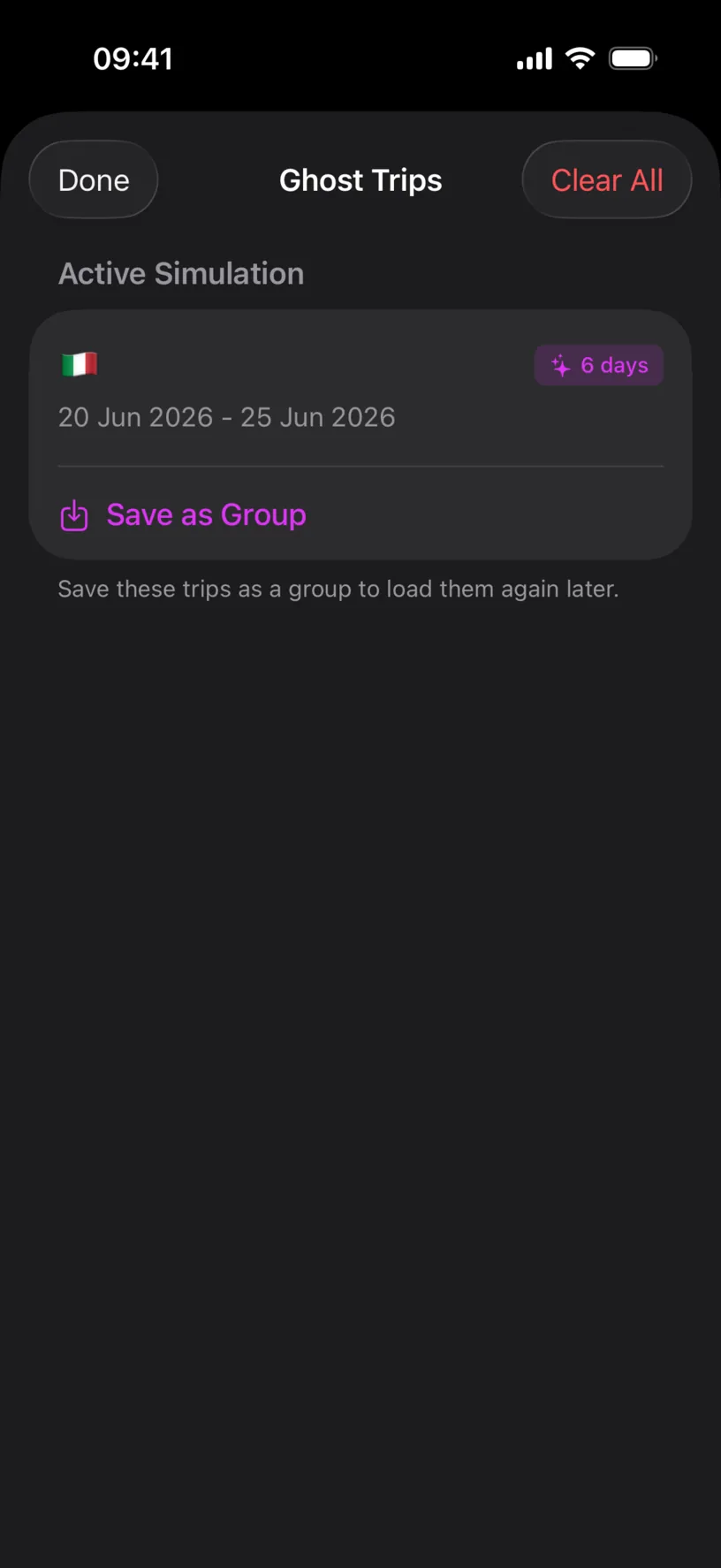
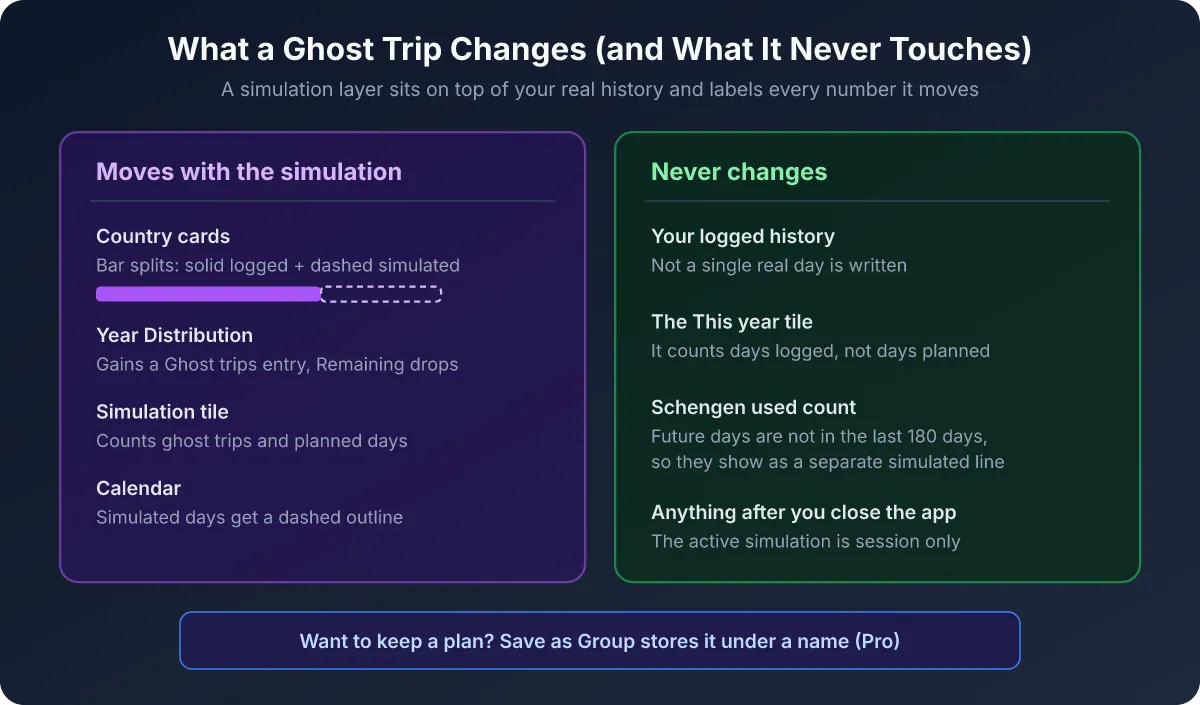
Simulated days never enter your logged history. They appear in your counters as their own labelled segment, always named, and Clear All removes them in one tap.
They also do not survive a restart, which is a feature: a plan you forgot to clear cannot quietly become part of your numbers. Plan your first trip with Ghost Trips covers building them.
Step 5: When two sources disagree
A day can hold more than one thing, and the app has rules about which one wins.
A manual entry beats an automatic one. If automatic tracking wrote a country for a day and you then typed a different one, yours is what the app shows and counts. Corrections are never silently overwritten, which is why fixing a day by hand is always safe.
A logged day beats a simulated one. A ghost trip laid over real history draws both, and the counters use the logged country. The simulation is a question, not an answer.
Two logged countries on one day both count. That is deliberate, and it is how a border crossing is recorded. Record two countries on the same day covers when you want it and how to undo it.
Check your result
Pick any band in your calendar and name its source before you tap it: solid and coloured is logged, teal with a calendar badge is synced, dashed with a plane is simulated, orange is missing.
Then tap it. The sheet you get confirms the answer: Edit Stay for a logged day, Synced Trip for one from your calendar, the ghost trip editor for a simulation.
When your guess matches the sheet every time, you can read your own history without second-guessing it.
If something looks different
A day shows two countries. Two logs on one date, which is normal for a travel day. Open the day to see both and remove one if it is wrong.
A trip you never logged is in your calendar. Check the badge. A calendar badge means sync produced it, and it disappears when you ignore the trip or turn sync off. No badge means something wrote a day log, and the usual suspect is automatic tracking or a photo import.
A dashed trip you do not remember creating. A ghost trip from a saved group you loaded, or one you built and forgot. Clear All in the Ghost Trips sheet removes the lot.
The month header does not match what you see. By design. It counts logged days only, so synced and simulated days are excluded from it and counted in the chips instead.
You want a synced trip to become real history. Log the days yourself and ignore the synced trip, so the same dates are not carried by two things at once.
The app does not tell you which days came from GPS or from photos. It does not, and no screen shows a per-day source label. What it guarantees instead is the rule in step 5: your manual entry is the one that survives.
Next steps
Manage calendar sync and imported trips is where synced trips are added, ignored and removed.
Find and fill missing days turns the orange rows into history.
Correct a country or date in your history is the fix for a logged day that is wrong rather than missing.