What you’ll achieve
By the end of this guide Nomad Tracker reads the calendars you choose and turns the trips in them into planned days, without you retyping a single date.
The flights and bookings are already in your calendar. This connects that to your day count, and it reads only: the app never creates, edits or deletes an event.
Step 1: Open Calendar Sync
Open the Settings tab and tap Calendar Sync.
The screen explains the deal in three numbered steps: you pick the calendars, the app detects the trips, and you confirm the first import.
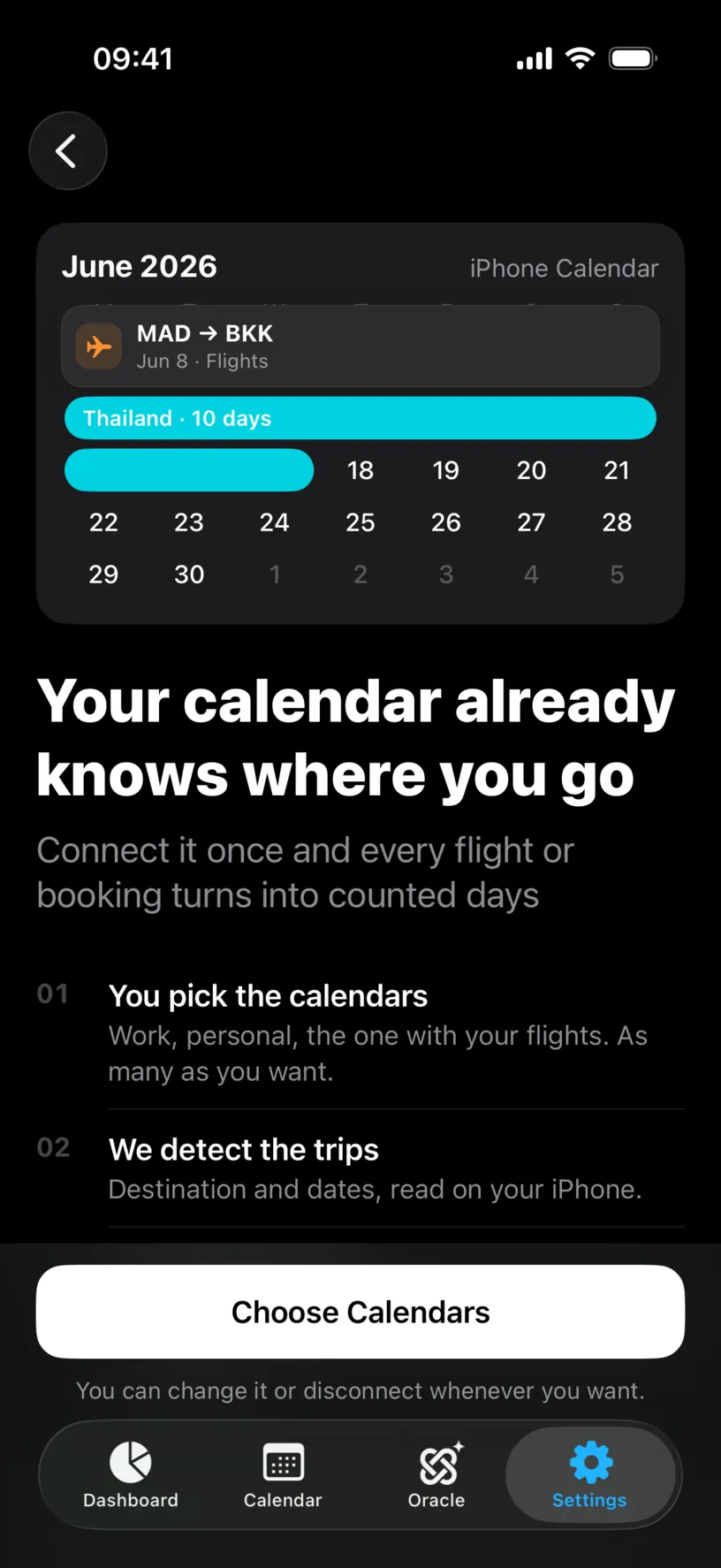
The line worth reading is the green one: Read only. Nothing in your calendar changes, and your events are never sent anywhere.
Tap Choose Calendars.
Step 2: Grant full calendar access
iOS asks once, and it asks for everything.
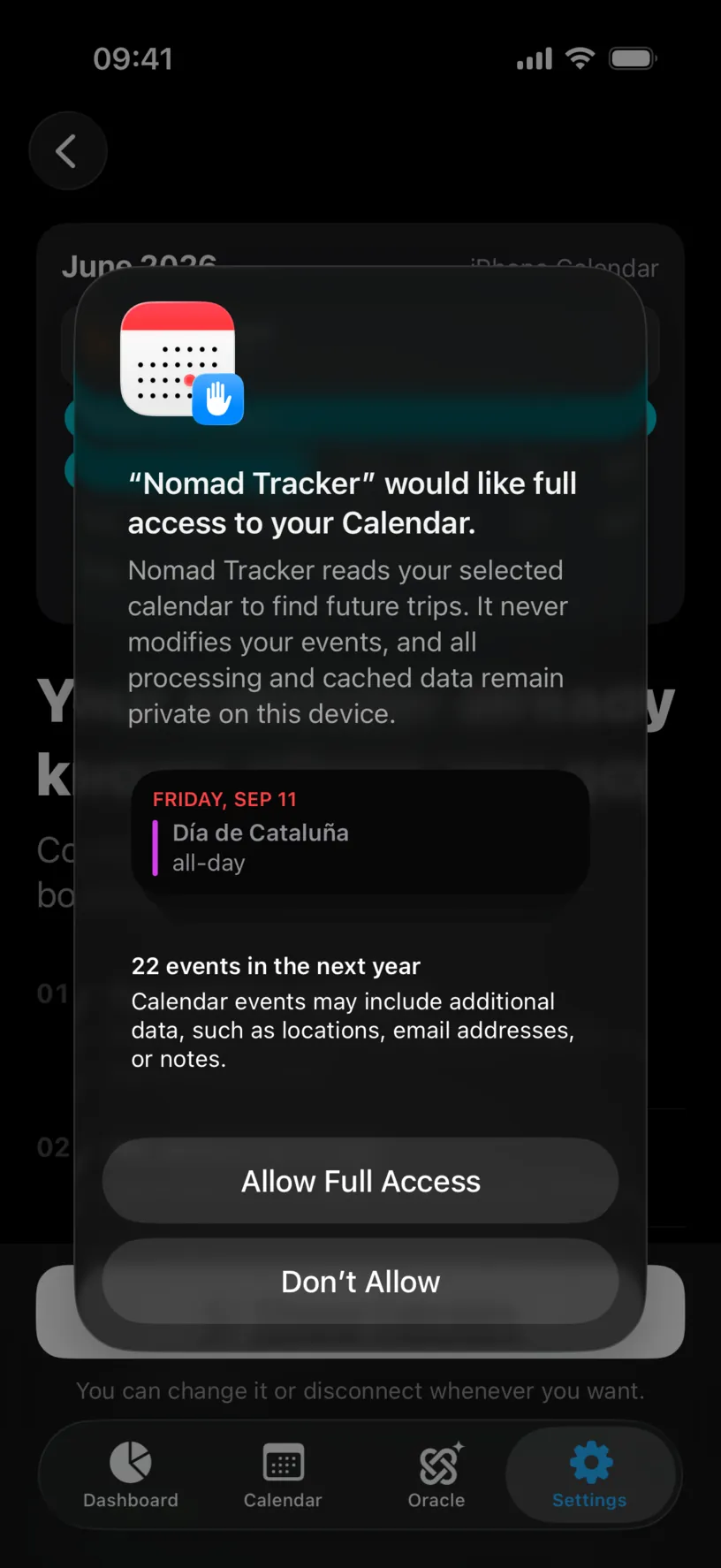
Tap Allow Full Access.
There is no smaller option here. iOS offers a limited "add events only" mode, but an app that has to read your calendar cannot use it, so full access is the only answer that works. What the app does with it is still read-only, and you choose which calendars are in scope in the very next step.
Don’t Allow ends the flow. iOS will not ask again, and the button on this screen changes to Open Settings.
Step 3: Choose the calendars
The Calendars screen lists everything on the phone, grouped the way iOS groups it: Default, Other, and Subscribed Calendars.
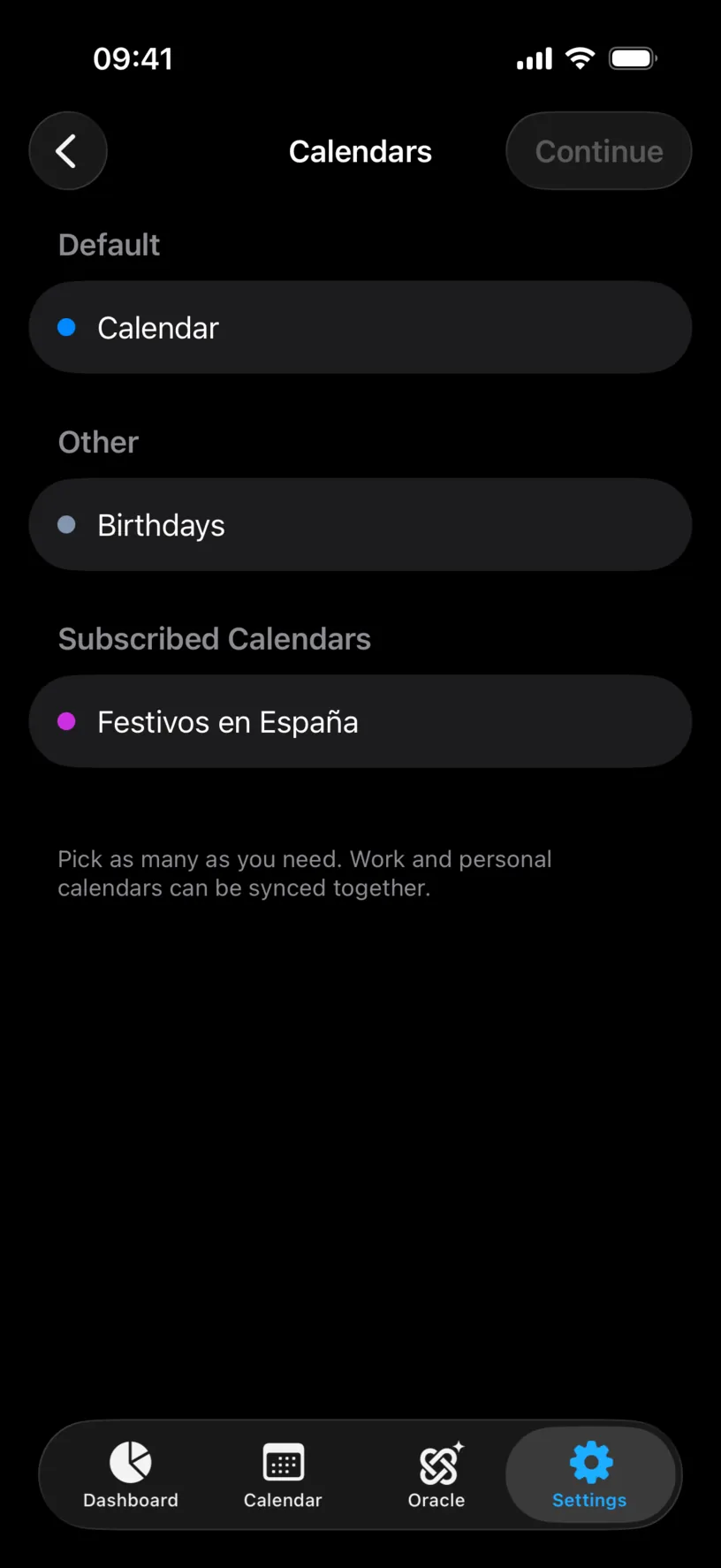
Tap the ones that hold your travel. You can pick several: work and personal sync together.
Leave out the noisy ones. A subscribed holiday calendar or a birthdays list has a country name in half its entries and nothing to do with where you are.
Continue stays dimmed until you pick at least one.
Step 4: Confirm the first import
The app reads the selected calendars and shows what it found, dated and grouped, on a screen called Review Trips.
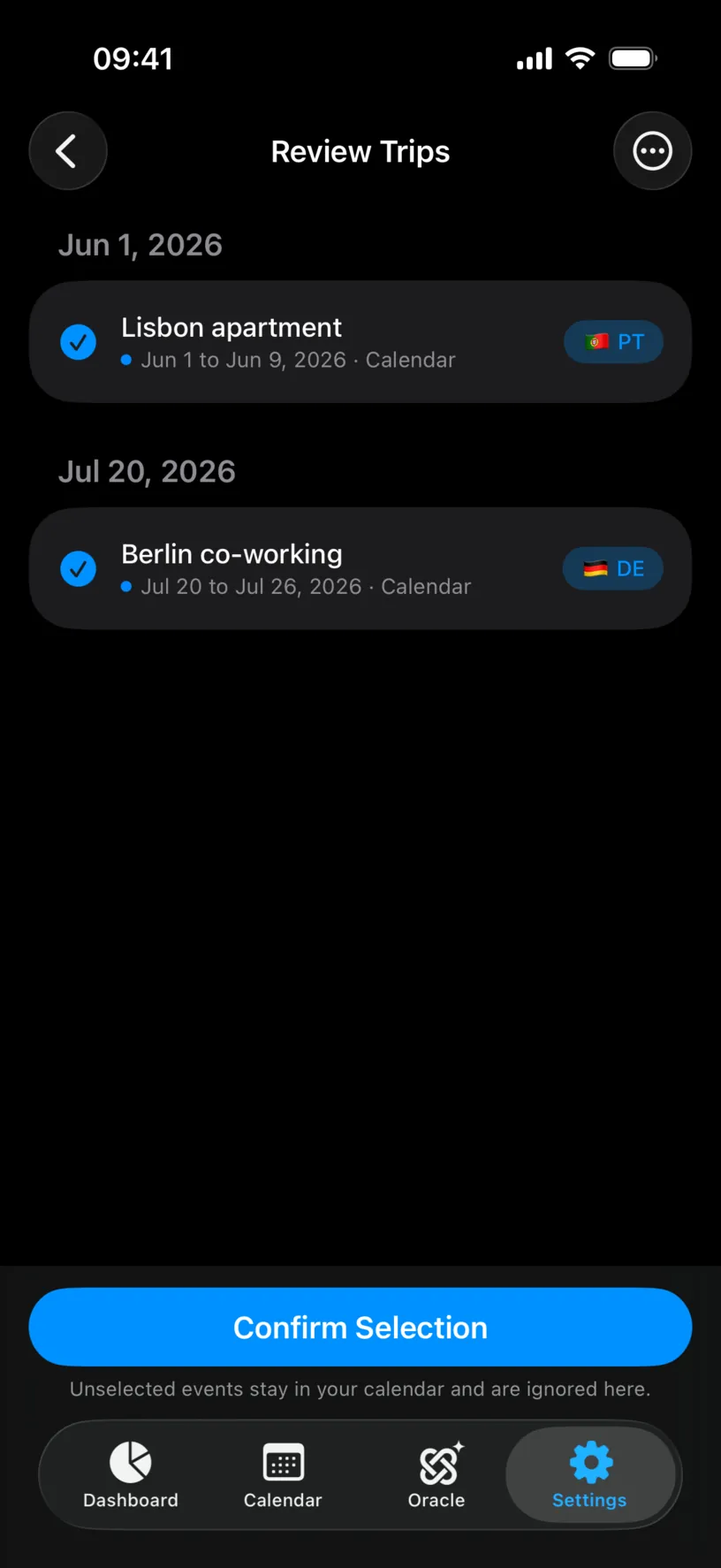
Each row carries the event title, its dates, the calendar it came from, and the country the app read out of it. The country comes from the event’s own text and location, so an event that names a city and a country is recognised and a bare "Flight BA 234" is not.
Untick anything that is not a trip, then tap Confirm Selection. Unselected events stay in your calendar and are ignored here.
Check your result
The Calendar Sync screen now shows what is connected: which calendars are read, how many trips are in use, and when it last updated.
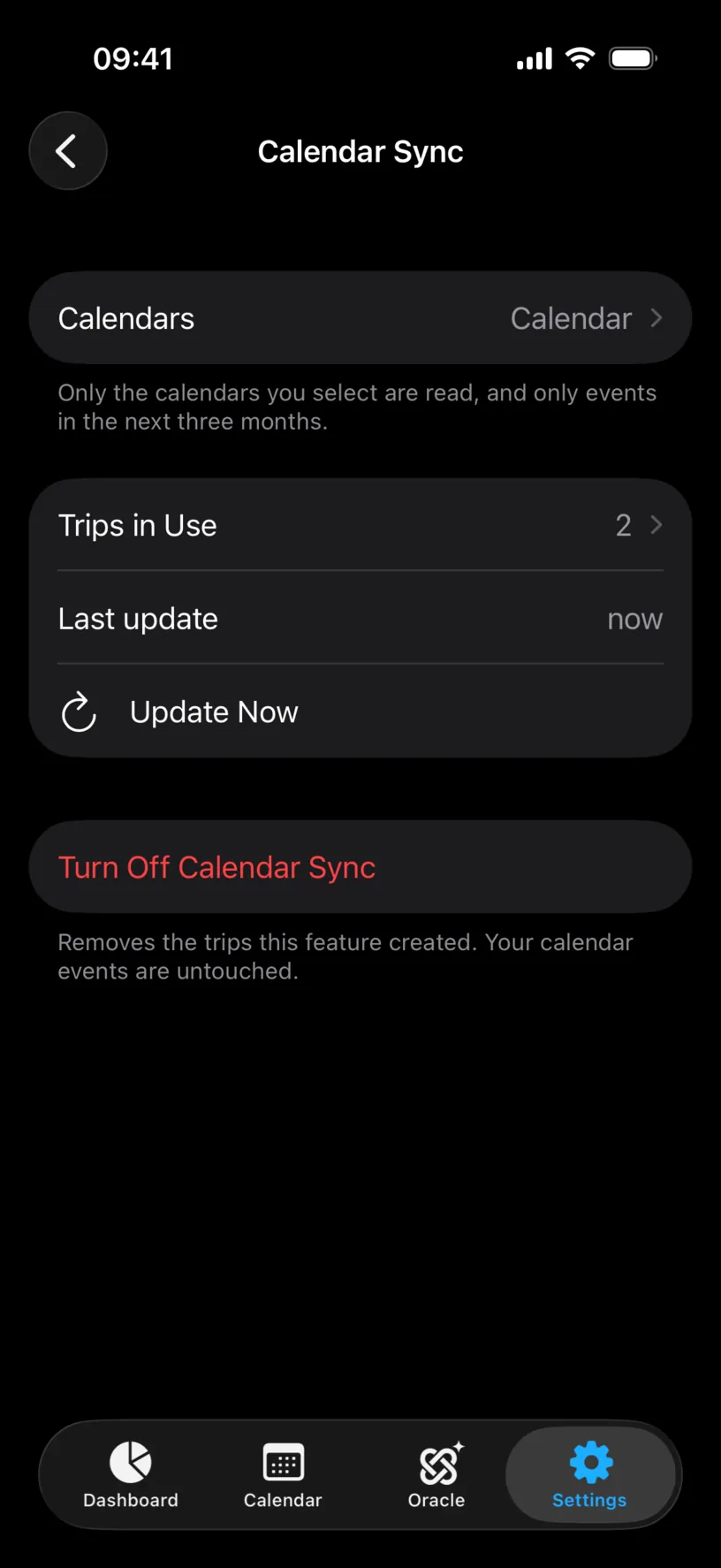
The footer under Calendars is the scope in one line: only the calendars you select are read, and only events in the next three months.
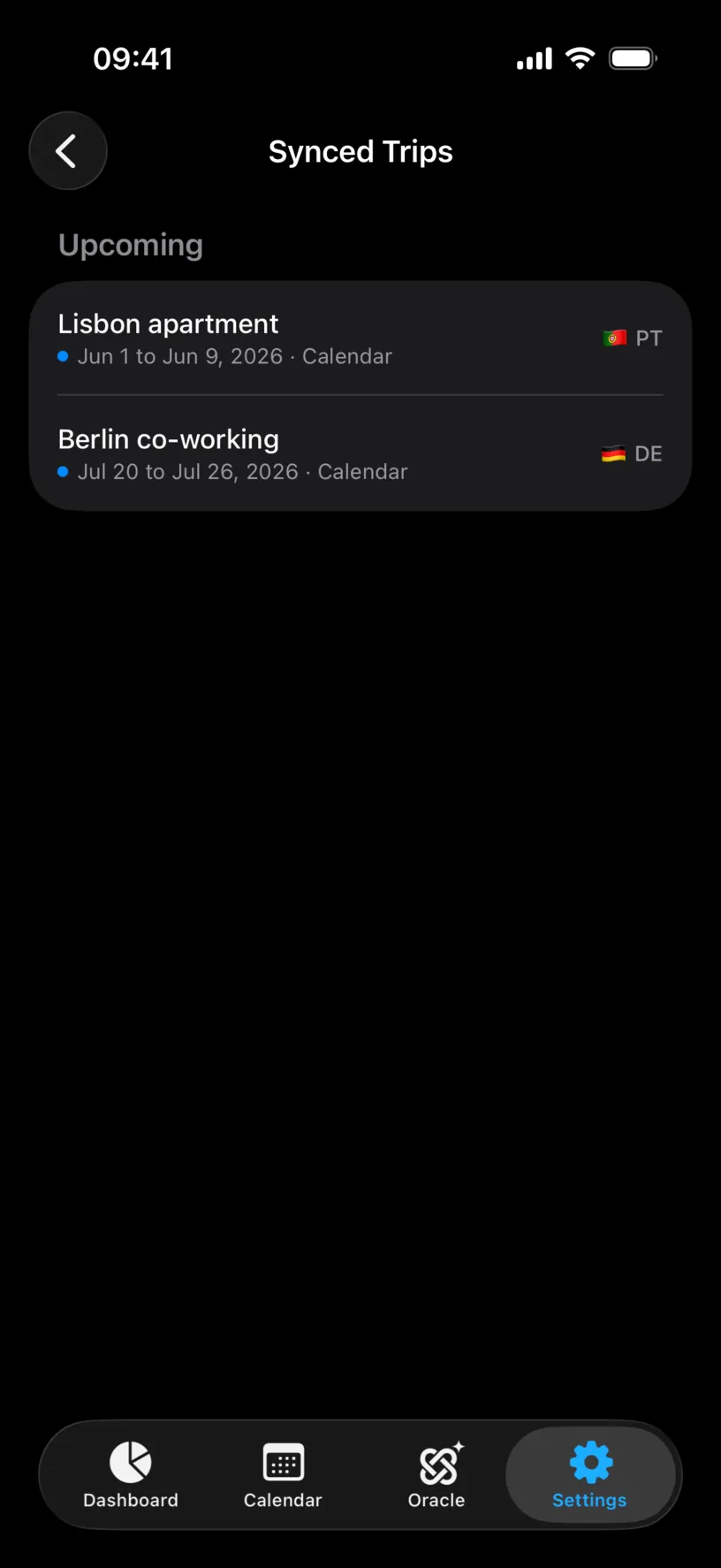
Tap Trips in Use to see them listed under Upcoming, each with its country.
Then open the Calendar tab and move to the month of a trip. The days carry a small calendar badge and the country name, and the month header counts them separately from your logged days.
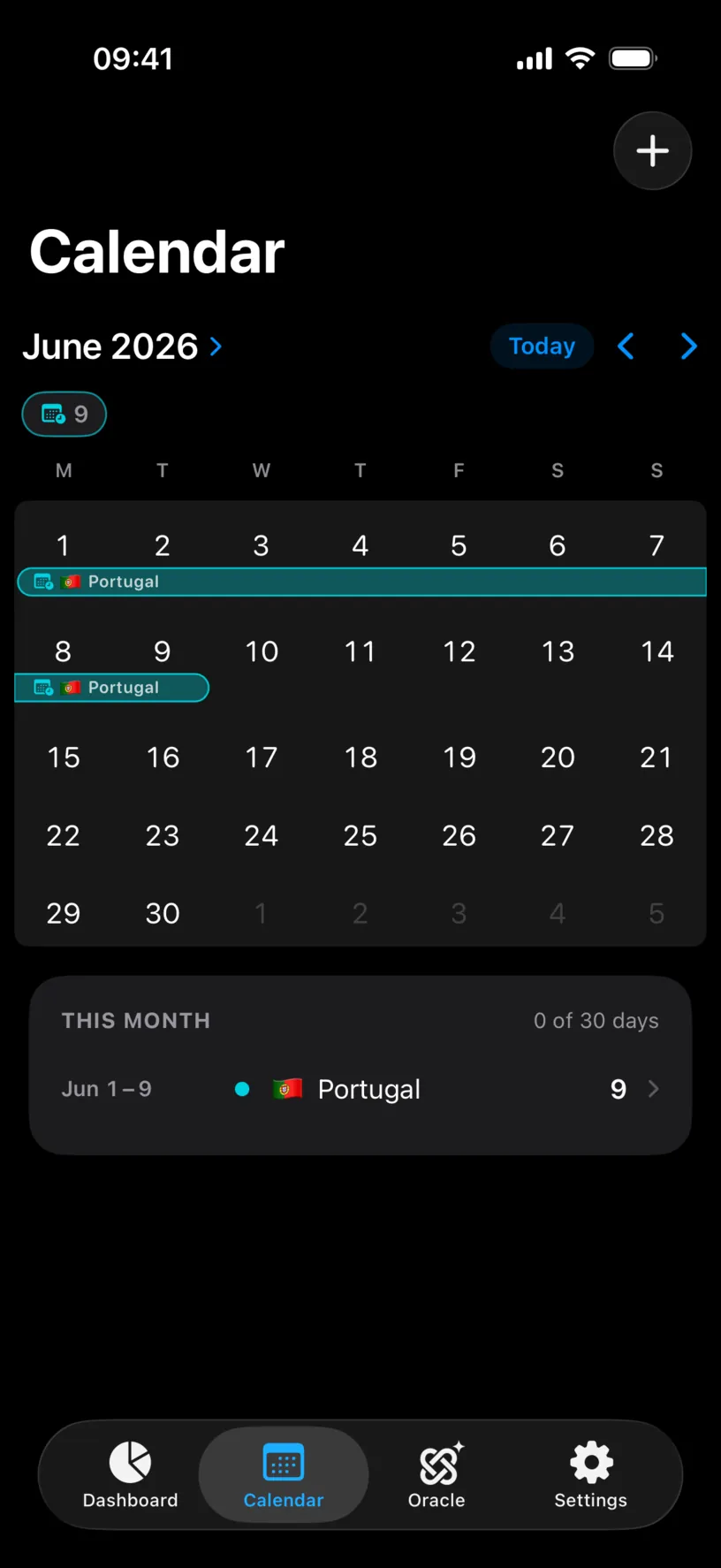
A synced trip is a plan, not a fact. That is why the month still reads 0 of 30 days: those days are booked, not lived, and they stay out of your logged totals until they happen.
If something looks different
Choose Calendars does nothing. Calendar sync is a PRO feature, and the tap opens the paywall rather than the picker.
The button says Open Settings. Access was refused earlier. iOS does not re-ask, so the fix is the iOS Settings app.
A trip you expected is missing. Three usual causes: the event is outside the three-month window, it lives in a calendar you did not select, or its text names no country the app can recognise. Adding the country to the event’s location is the quickest fix.
A trip has no country tag. The app could not read one, and it says so rather than guessing. Trips that need a decision are held for review instead of being counted.
Something that is not a trip was detected. Untick it in the review. It stays in your calendar untouched and stops being offered.
You added a new calendar later. A newly selected calendar always goes through review before its trips count, so nothing arrives unseen.
The trips did not update after you changed an event. Tap Update Now on the Calendar Sync screen. The app also refreshes on its own, and this forces it.
You want it all gone. Turn Off Calendar Sync removes the trips this feature created. Your calendar events are untouched.
Next steps
Read your dashboard at a glance explains where planned days show up and where they do not.
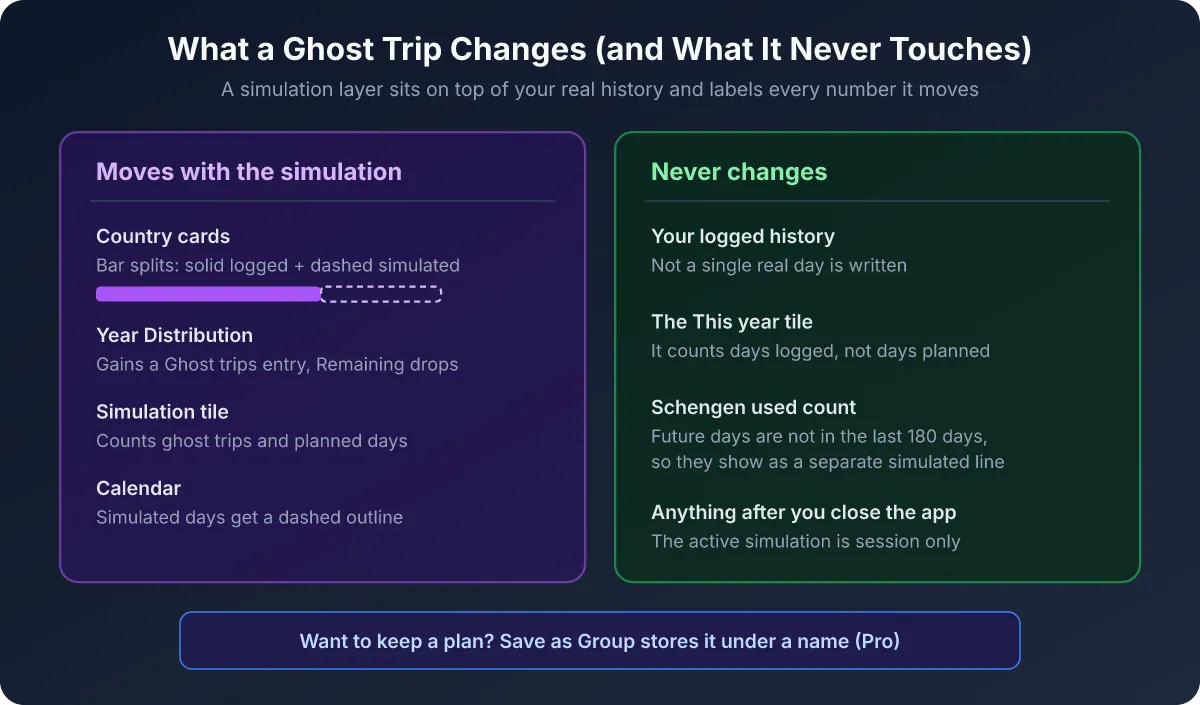
Plan your first trip with Ghost Trips does the same job by hand, for a trip that is not booked yet.
Add and edit a stay in the calendar turns a synced trip into a logged one once you have actually taken it.