What you’ll achieve
By the end of this guide you know which of the three photo access levels the app is on, what each one lets it find, and how to change your mind later without reinstalling anything.
This matters more than it sounds. The scan can only propose stays from photos it can see, so a library it can barely reach produces a history full of holes that look like the app failing.
Step 1: Read the question iOS asks
The first time you tap Scan Photos, or open the Proof Classifier sheet, iOS asks once.
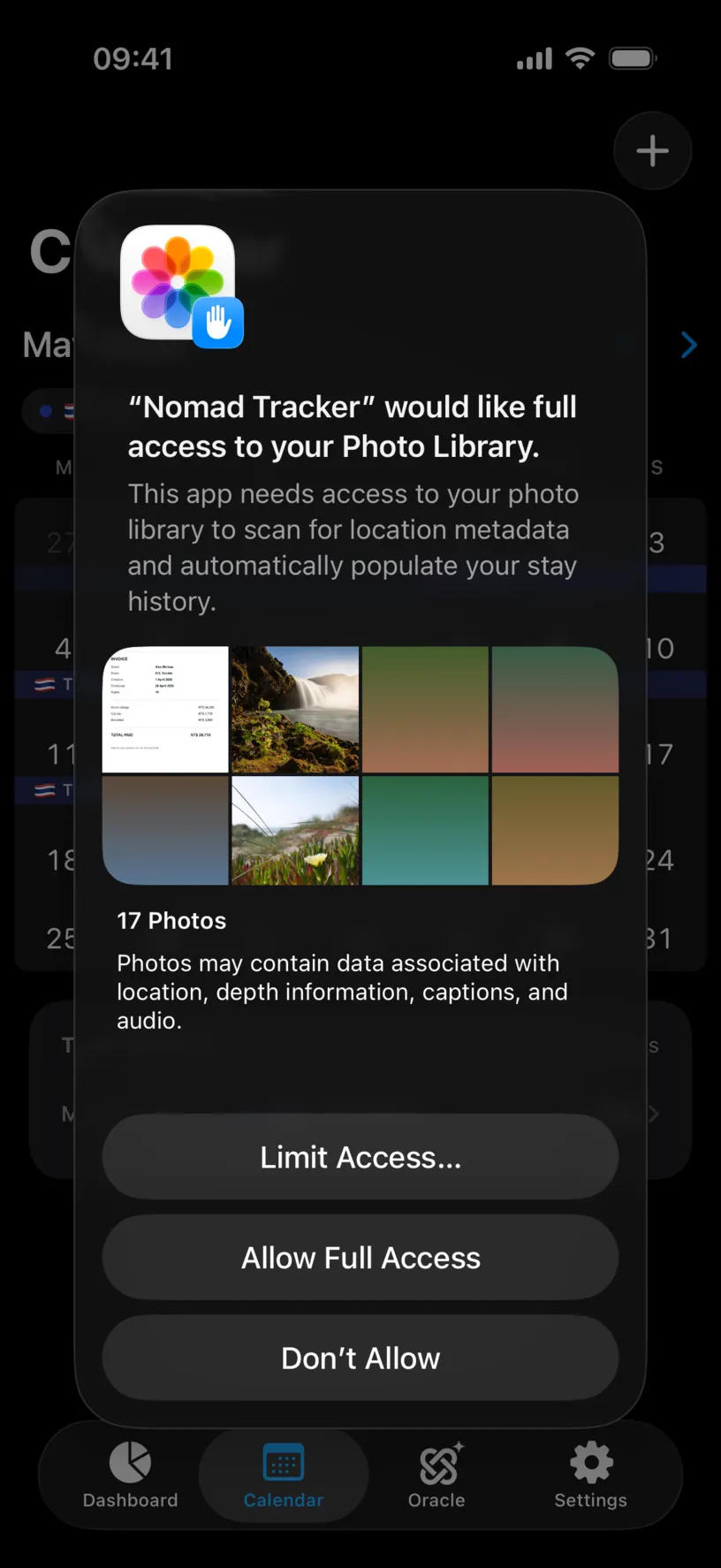
The three answers are not degrees of the same thing.
Allow Full Access lets the app read every photo in the library. This is what a history rebuild wants: it can check a whole year in one pass.
Limit Access… opens a picker and grants access to the photos you choose, and only those. The app cannot see anything else, and it cannot tell that anything else exists.
Don’t Allow blocks the library. Photo import finds nothing and the recent photos strip on the Proof Classifier sheet does not appear at all.
None of the three sends a photo anywhere. What the app reads is the capture date and the coordinates stored inside each file.
Step 2: If you choose Limit Access, choose well
The picker opens with your whole library and a banner explaining the deal.
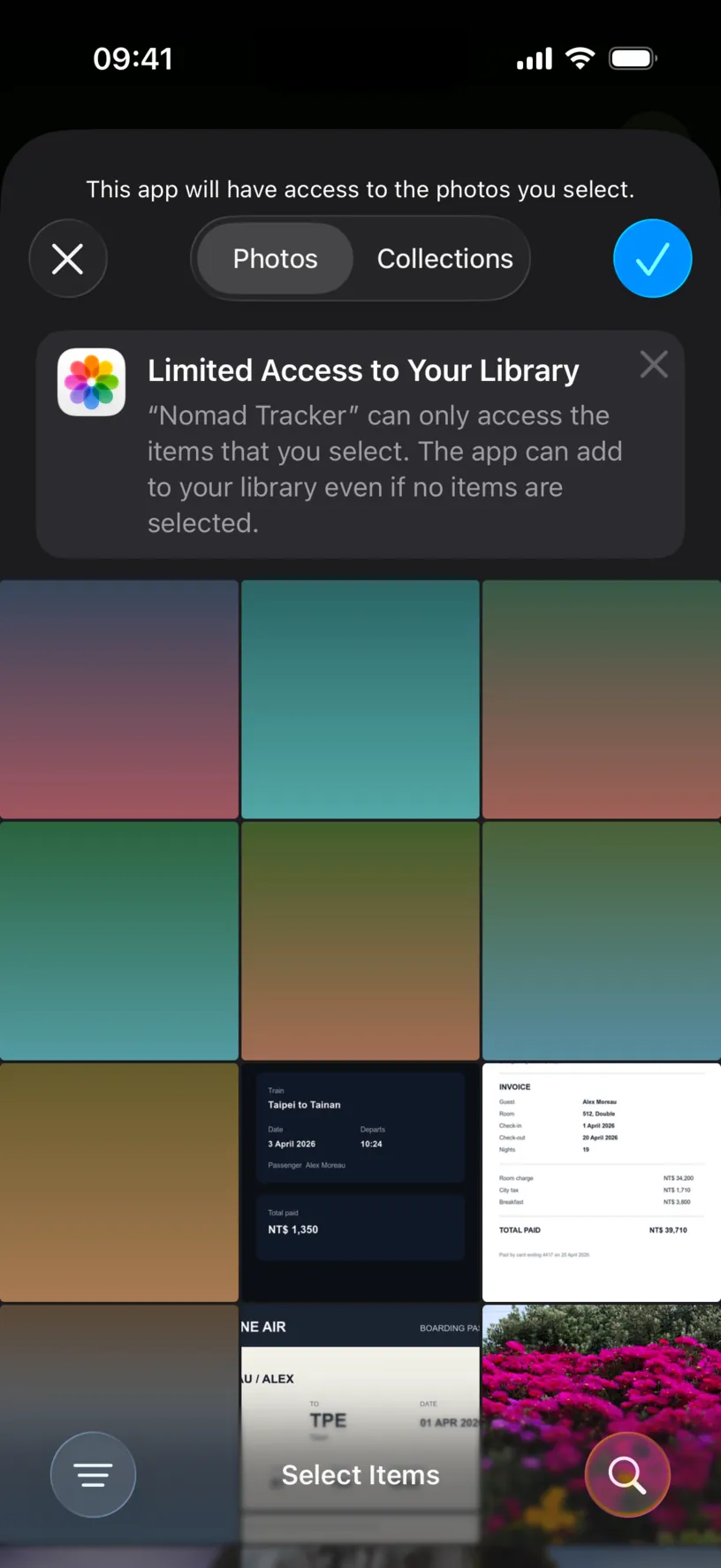
The banner is worth reading once: “Nomad Tracker” can only access the items that you select. The app can add to your library even if no items are selected.
Tap the photos you want the app to see. Selected ones take a blue check, and the pill at the bottom counts them.
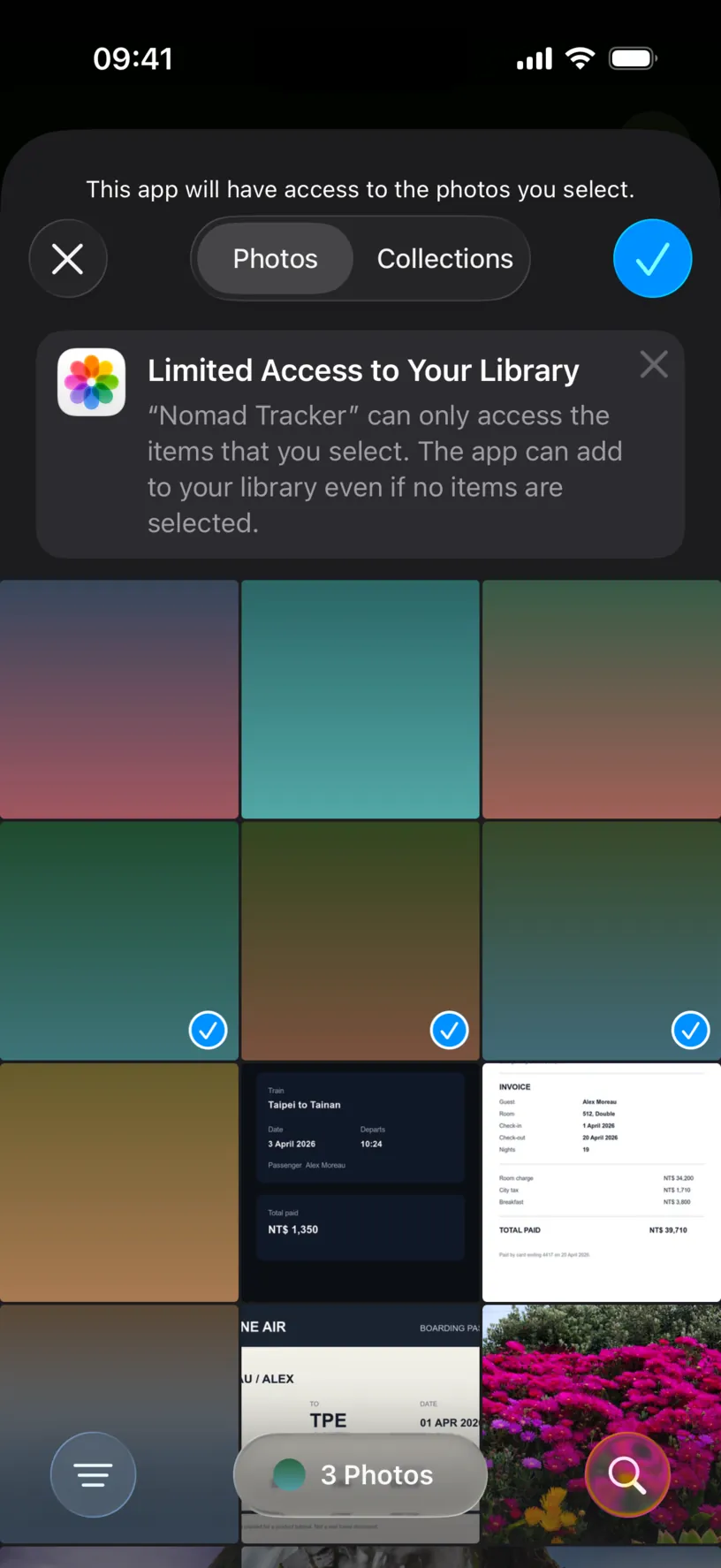
Tap Done.
Step 3: See what limited access actually scans
Pick a period on the Import Photos screen and tap Start Import. The scan runs over the photos you granted, and nothing else.
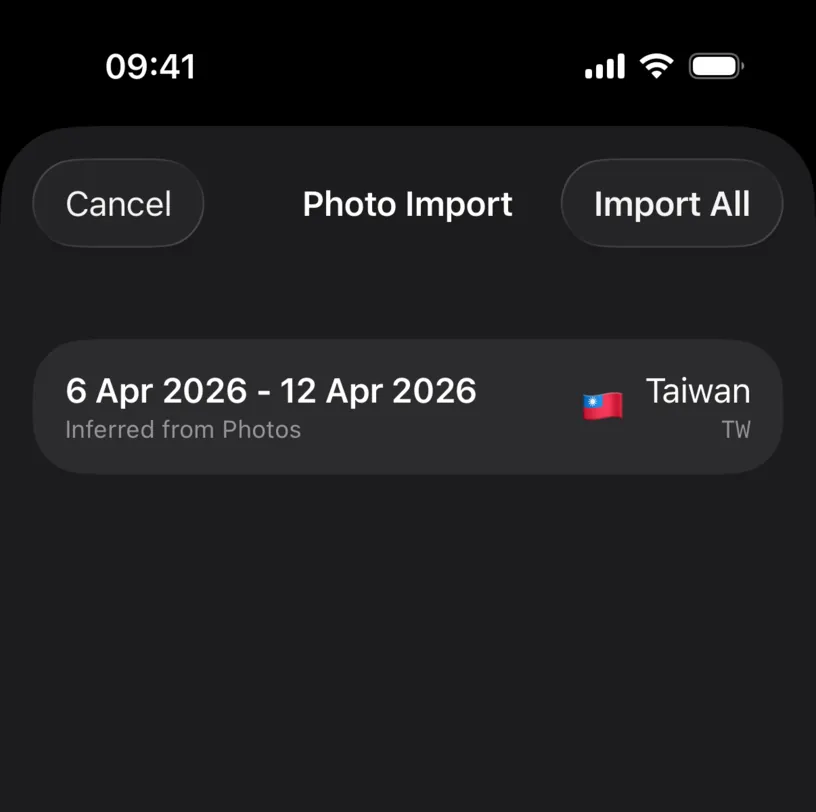
Three photos taken in Taipei on 6, 9 and 12 April produced one row covering the whole stretch. The gap filling is deliberate: two photos in the same country either side of a gap are read as one continuous stay.
That is the shape of limited access. The scan is right about where you were on the days it can see, and silent about every day it cannot.
Nothing is saved until you tap Import All.
Step 4: Change your mind later
Photo access lives in iOS, not in the app, so it is changed in the iOS Settings app. Open Settings, tap Apps, then Nomad Tracker.
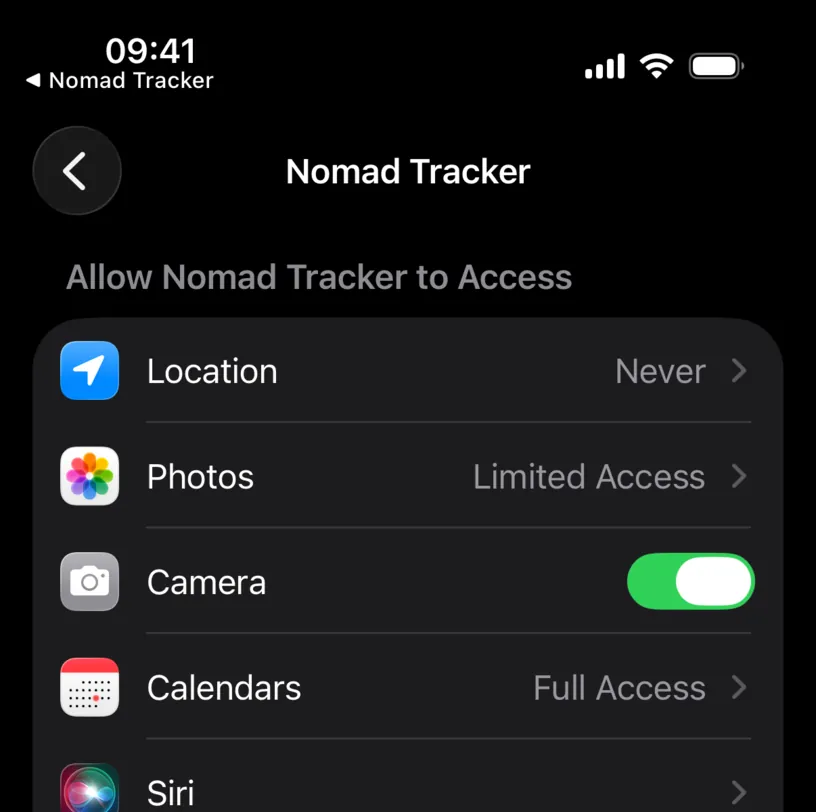
The row says where you stand right now. Tap Photos.
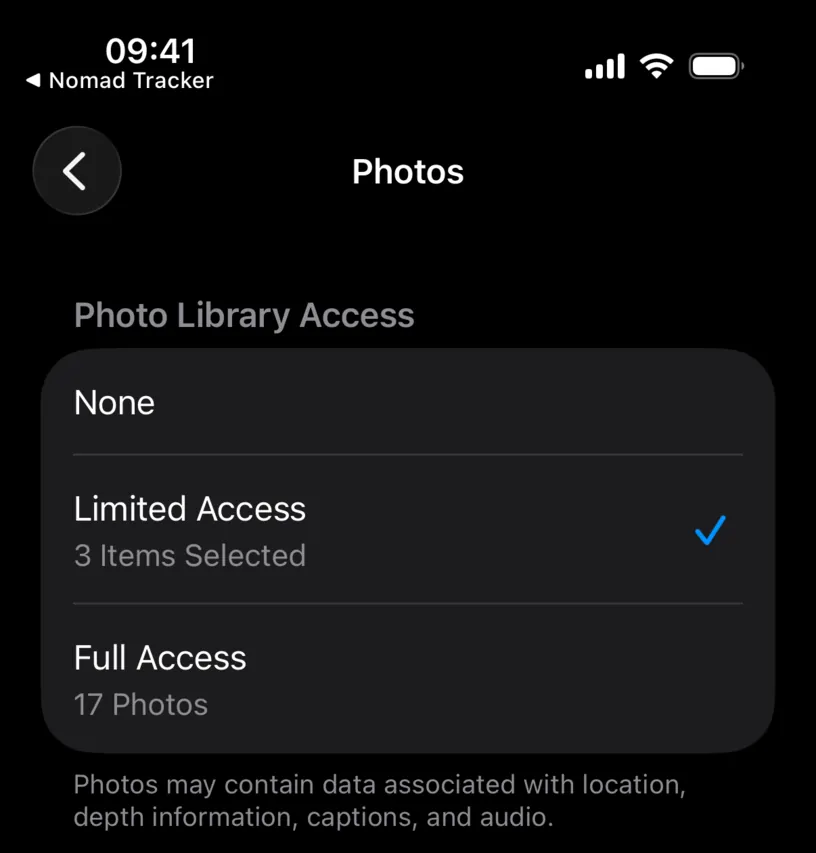
Three choices, and each one carries its own count. Limited Access shows how many items are shared, and Edit Selected Photos underneath changes which ones without changing the level.
Full Access shows how many photos are in the library, which is the number the scan checks. Switching up to it asks for confirmation once.
Check your result
Go back to the app and open the Proof Classifier sheet from the Calendar tab, under Add.
With full access, the strip beside Camera and Gallery holds your most recent photos. With limited access it holds only the ones you shared. With no access it is not there at all.
That strip is the quickest way to see which level the app is on without leaving the app.
If something looks different
iOS never asked. The answer is already stored from an earlier session. Step 4 shows where it lives.
The scan finds nothing on full access. The photos in that period carry no coordinates. Screenshots, images saved from a chat, and photos taken while location services were off have nothing to read, whatever the access level.
The scan found far less than you expected. Access is limited to a selection. Compare the count on the Photo Library Access screen with the size of your library.
You granted full access and want to go back. The same screen moves in both directions. Dropping to Limited Access opens the picker and starts a fresh selection.
The app asks to add to your library. It does not need permission for that, which is what the banner in step 2 means. The app never writes photos.
Next steps
Rebuild travel history from photos is the full import, from picking a period to correcting the stays it proposes.
Attach evidence to your travel history uses the same library for a different job: one document on one day.