Every day counter has the same weakness on the day you install it: it counts nothing. The Schengen calculator does not know about the six weeks you spent in Portugal in spring. The fiscal counter does not know you were in Spain from January to March. Until your past is in the app, every number it shows is optimistic, and an optimistic Schengen or tax number is worse than no number at all.
Typing that history in by hand works if you remember it. Most people do not, at least not to the day. But the phone in your pocket has been keeping a remarkably precise travel log for years without being asked: every photo you took carries the moment it was taken and, in most cases, the exact coordinates. This guide covers how to turn that metadata into a day-by-day history in Nomad Tracker, what the import can and cannot know, and the specific situations where it gets a day wrong so you can catch them before they reach your counters.
Why your past matters more than your present
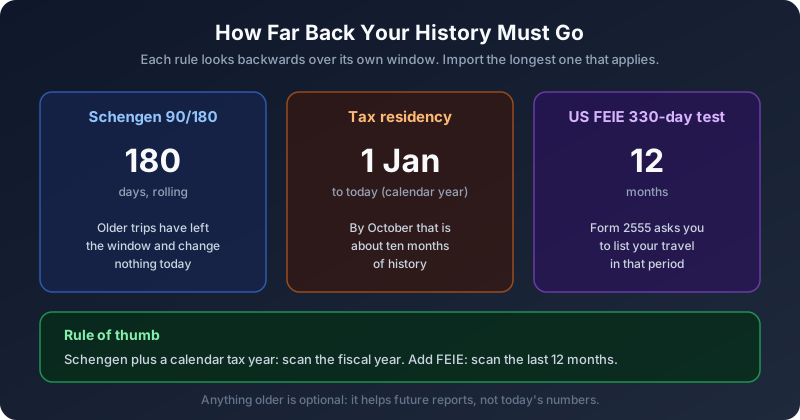
Day tracking going forward is the easy part. Automatic GPS logging handles it. The problem is that the rules you are tracking all look backwards.
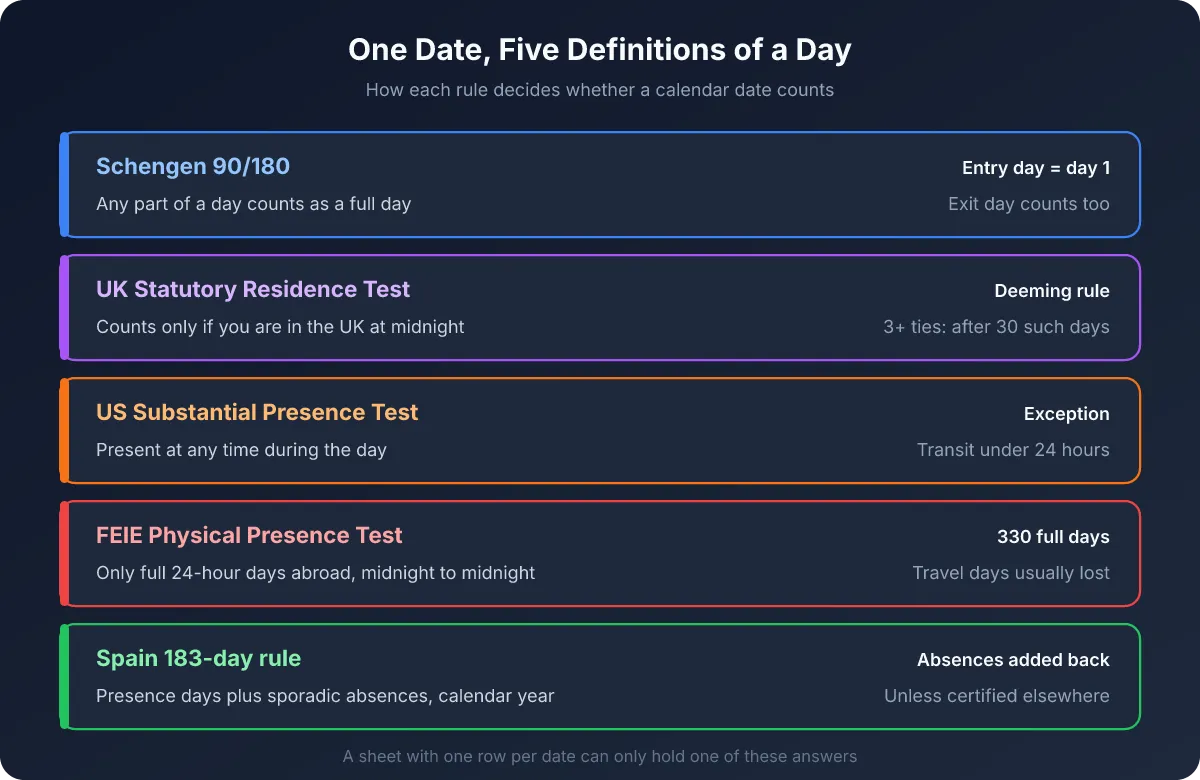
- The Schengen 90/180 rule looks at the last 180 days. Whatever you did in the previous six months decides how many days you have left today.
- Fiscal residency counts the current tax year. In Spain and most of Europe that is 1 January to 31 December, so by October you need ten months of history for the number to mean anything.
- The US FEIE physical presence test needs 330 full days abroad inside a 12-month period, and Form 2555 asks physical presence claimants to list their travel during that period.
So the minimum history you need is the longest of the windows that apply to you. If you track Schengen and a calendar-year tax residency, the fiscal year is almost always the longer one. Anything older is optional: it improves next year's reports and changes nothing about today's numbers.
What a photo actually knows about your trip
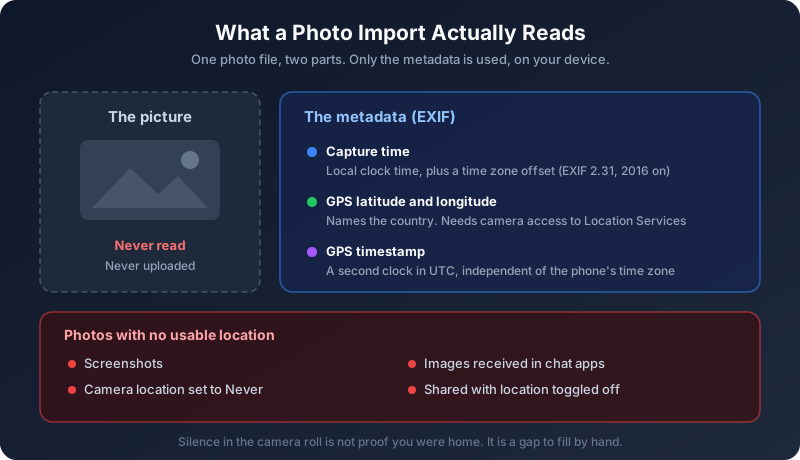
A photo file is two things: the picture, and a block of metadata the camera wrote alongside it, usually in the EXIF format. For rebuilding travel history, only the metadata matters, and only a few fields in it:
- Capture date and time. The EXIF
DateTimeOriginalfield records the local clock time where the photo was taken. Since the EXIF 2.31 revision in 2016, phones also write an offset field that says which time zone that clock was in. - GPS coordinates. Latitude and longitude, written when the Camera app has access to Location Services. Coordinates are what name the country.
- A GPS timestamp in UTC. A second, independent clock reading, useful when the local time and the time zone disagree.
That is the whole input. Nomad Tracker reads those fields on your device through the iOS Photos index. It does not look at the image itself, it does not upload anything, and there is no server on the other end that could keep a copy. The country comes from the coordinates; the day comes from the capture date.
Which photos carry nothing useful
The import is only as good as the metadata, and a surprising share of a typical camera roll has none:
- Screenshots. No GPS, by definition.
- Photos taken with camera location turned off. On iPhone this lives in Settings, Privacy & Security, Location Services, Camera. If it was set to "Never" for a period, those photos have dates but no place.
- Images received through messaging apps. WhatsApp's standard photo mode strips GPS from what it sends. Others vary, and some keep the sender's location, which is a different problem covered below.
- Photos shared with location removed. The iOS share sheet has an Options toggle for location. If a friend sent you their trip photos with it off, there is nothing to read.
- Photos from cameras without GPS. Many dedicated cameras write a date but no position unless paired with a phone.
The practical consequence: an import fills the days you photographed and the gaps between them, and is silent about everything else. A silent period is not proof you were at home. It is just a period the camera roll cannot speak to.
How to run the import, step by step
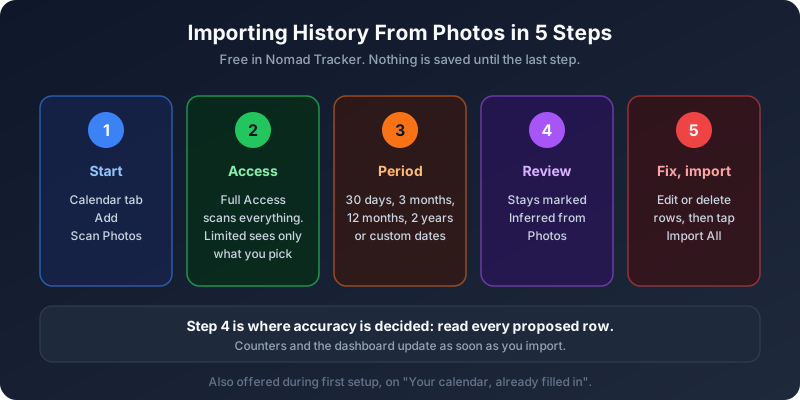
The photo scan is free. It runs during first setup, on the screen titled "Your calendar, already filled in", and you can run it again at any time afterwards.
Step 1: Start the scan
Open the Calendar tab, tap Add, and choose Scan Photos.
Step 2: Decide on photo access
iOS asks once. The three answers are not degrees of the same thing:
- Allow Full Access lets the scan check every photo in the library. This is what a history rebuild wants.
- Limit Access opens a picker and the scan only sees the photos you select. Only those photos can become days, and the app cannot tell that anything else exists.
- Don't Allow means the scan finds nothing.
If you chose limited access in the past and the scan finds far less than you expected, that is almost always why. You can change it in the iOS Settings app under Apps, Nomad Tracker, Photos.
Step 3: Pick the period
The Import Photos screen offers four presets: Last 30 days, Last 3 months, Last 12 months and Last 2 years, plus custom start and end dates. Every photo in the range is checked, so a two-year scan of a large library takes noticeably longer than a month. Pick the window from the first section, not the biggest one available.
Step 4: Review the proposed stays
The scan proposes stays, not single days. Each row is one continuous stay with a country, its dates and the label Inferred from Photos. Nothing is saved yet. This is the step where you earn the accuracy of everything that follows, so read every row.
Step 5: Correct, delete, then import
Tap a row to open it as Edit Stay, change the dates or the country, and save it back to the list. Delete a row entirely when it describes something that was not a stay, such as an airport layover. When the list looks right, tap Import All. Every row is written to your calendar, and the dashboard and counters recalculate in the same pass.
Where a photo import gets it wrong
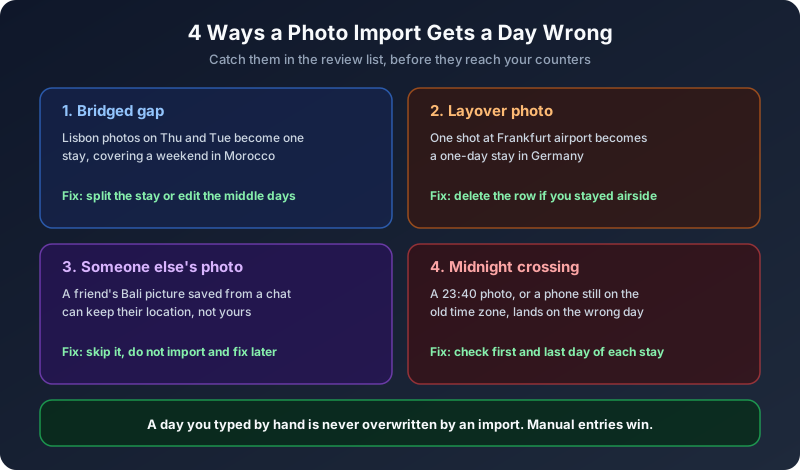
The scan is fast and usually right. It is also making inferences, and the inferences fail in predictable ways. Knowing them turns a five-minute review into a reliable one.
Gap bridging: the feature and the trap
The scan assumes that if two photos in the same country sit either side of a gap, you stayed in that country for the days between them. In the app's own documented example, eight photos taken in Taipei produce one stay of twenty days. That is the behaviour you want almost all the time: people do not photograph every day of a long stay.
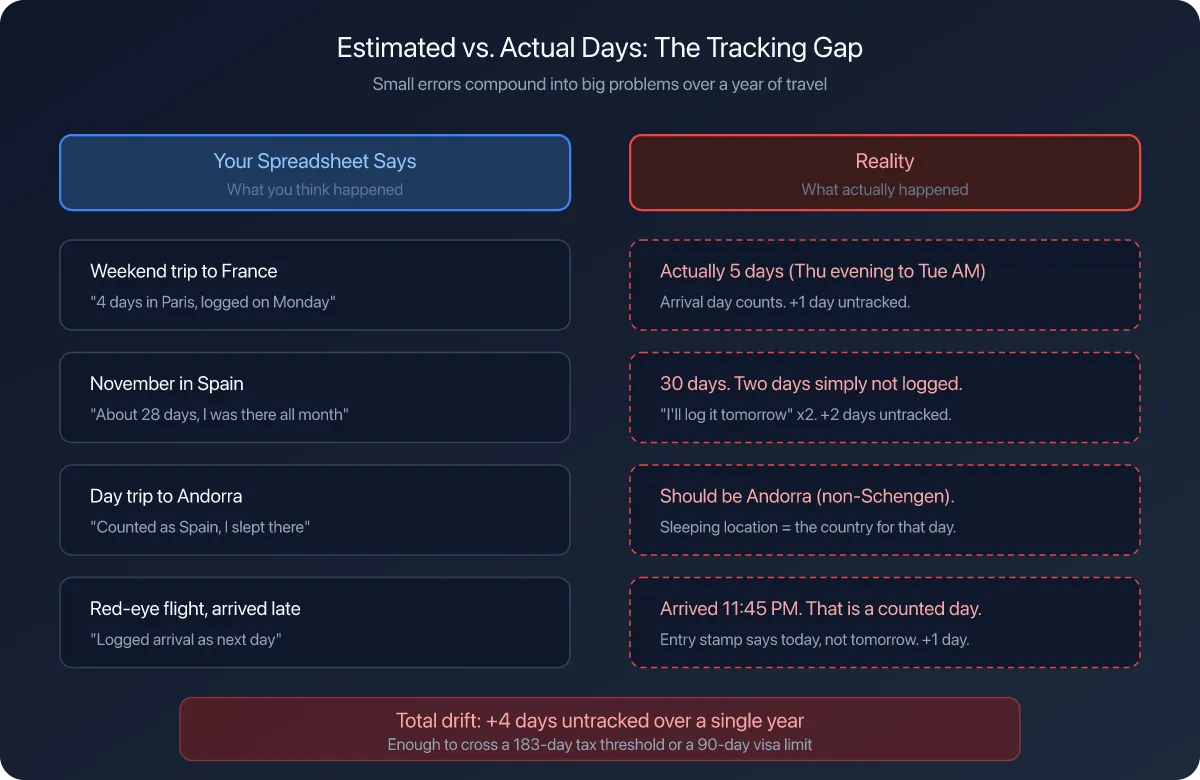
It goes wrong when you did leave in the middle. Imagine Ana, a Brazilian designer based in Lisbon who flies to Morocco for a long weekend and takes no photos there. Her Lisbon photos on Thursday and the following Tuesday get bridged into one Portugal stay that covers four days she spent in Marrakech. For Schengen, that is four days counted against her that should not be. For a Portuguese residency count, it is four days too many. The fix is the same either way: open the stay and split it, or edit the days in the middle.
Layovers and transit
A photo taken during a six-hour layover in Frankfurt is, as far as the metadata is concerned, a photo in Germany. The scan will propose a one-day German stay. Whether that day should count depends on what you are tracking. Airside transit generally does not count as a Schengen entry if you never pass passport control, but a single photo cannot tell the app which side of the border you were on. Delete the row if you stayed airside.
Photos that came from someone else
Some messaging apps keep the location of the person who took the photo. Save a friend's beach shot from Bali and it can look like you were in Indonesia that day. Large volumes of saved images are the usual source of a country you never visited appearing in the review list. Skip those proposals rather than importing and fixing them later.
Midnight and time zones
The capture date is the camera's local date. A photo taken at 23:40 on a red-eye flight, or with a phone that had not yet switched to the destination time zone, can land on the neighbouring day. For border crossings this matters: under Schengen rules both the entry day and the exit day count as days of stay, and Spain's tax authority has taken the position that any part of a day spent in Spain counts. Check the first and last day of every international stay.
What the scan will not overwrite
If a day already carries an entry you typed by hand, the import leaves it alone. Manual entries outrank anything the app infers. That makes it safe to run the scan after you have already corrected things, and it means the correct order of work is clear: bulk import first, manual repair second.
A worked example: the Schengen number nobody remembered
Here is a hypothetical but typical case. Daniel, a Canadian software contractor, installs Nomad Tracker on 1 November 2026 and wants to know how many Schengen days he has left before a December trip to Germany. His memory says "about two months in Europe this year, so plenty".
He runs Scan Photos for the last 12 months. The review list shows two stays: Portugal from 3 May to 10 June, and Croatia from 1 August to 15 September. Croatia has been in Schengen since January 2023, which Daniel had not factored in.
The 180-day window ending 1 November starts on 6 May. Three days of the Portugal stay have already rolled out of it, which leaves 36 days. The Croatia stay contributes all 46. That is 82 days used and 8 remaining, not the 30 or so he expected. The December trip, as planned, would be an overstay. With the history in place, a Ghost Trip for December shows exactly when enough days roll back out of the window for the trip to work.
None of this required new data. The answer was already in his camera roll. It just was not in a counter.
After the import: close the gaps and keep the proof
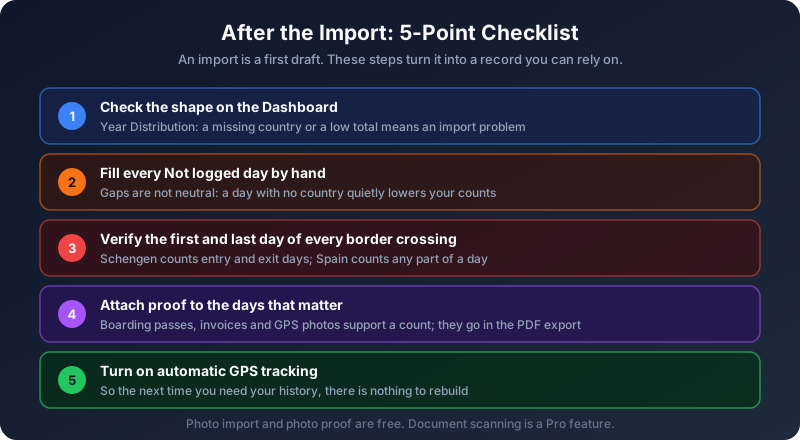
An import is a first draft. Three habits turn it into a record you can rely on.
Check the shape before the numbers. On the Dashboard, Year Distribution splits the fiscal year by country. A country that should be there and is not, or a total far below the days that have passed, points to an import problem faster than any single counter.
Fill what the photos could not see. Weeks at home, a trip with a dead phone, a period with location off. The Not logged widget counts days with no entry at all, and each gap can be filled by hand from the Calendar. Gaps are not neutral: a day with no country quietly lowers a Schengen or fiscal count.
Keep evidence, not just counts. Under Spanish rules, when you claim to have been abroad without a foreign tax residence certificate, the burden of proving it falls on you, and the Agencia Tributaria counts sporadic absences as days in Spain unless you show residence elsewhere. A photo with GPS coordinates is supporting evidence, not a substitute for a certificate, but alongside boarding passes and invoices it is the kind of contemporaneous record that a day count alone is not. Nomad Tracker lets you attach photos to the day they prove for free, and the PDF export carries them as an appendix for your adviser.
Then turn on automatic tracking, so the next time you need your history it is already there.
The short version
Your phone has been logging your travel for years. Each photo carries a local capture time and, usually, GPS coordinates, and that is enough to rebuild months of history in minutes. Import the window your rules actually look at, review every proposed stay before saving, watch for bridged gaps, layovers, saved images and midnight crossings, and then fill the remaining days by hand. Do that once, switch on automatic tracking, and your Schengen and fiscal counters start from the truth instead of from zero.
Your camera roll already knows where you were.
Nomad Tracker rebuilds your past travel from photo metadata on your device, then keeps counting with automatic day tracking, the Schengen calculator, fiscal residency counters and Ghost Trips to test a trip before you book it. Photo import is free and nothing leaves your phone. Available on iOS.
Download on the App Store