What you’ll achieve
By the end of this guide you know which of the four AI providers answers your questions, what each one needs from you, and where your travel data goes when you ask.
Nomad Tracker ships with one selected already, so this is a screen you can visit once, understand, and never touch again.
Step 1: Open AI Providers
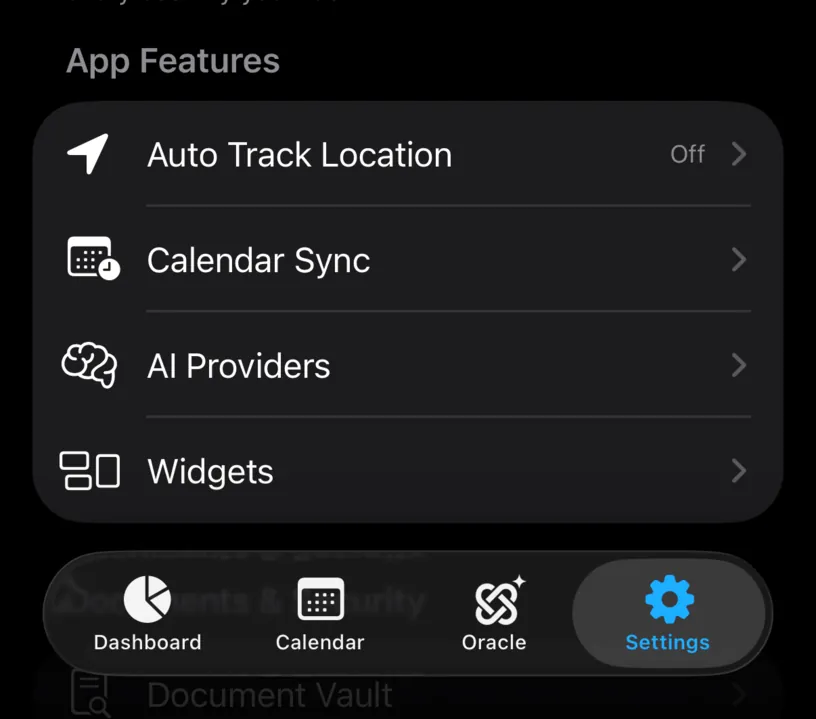
Go to the Settings tab and find the App Features section. AI Providers sits between Calendar Sync and Widgets.
Step 2: Read the four options
The Provider section lists every engine the app can talk to. The one with the blue checkmark is the one in use.
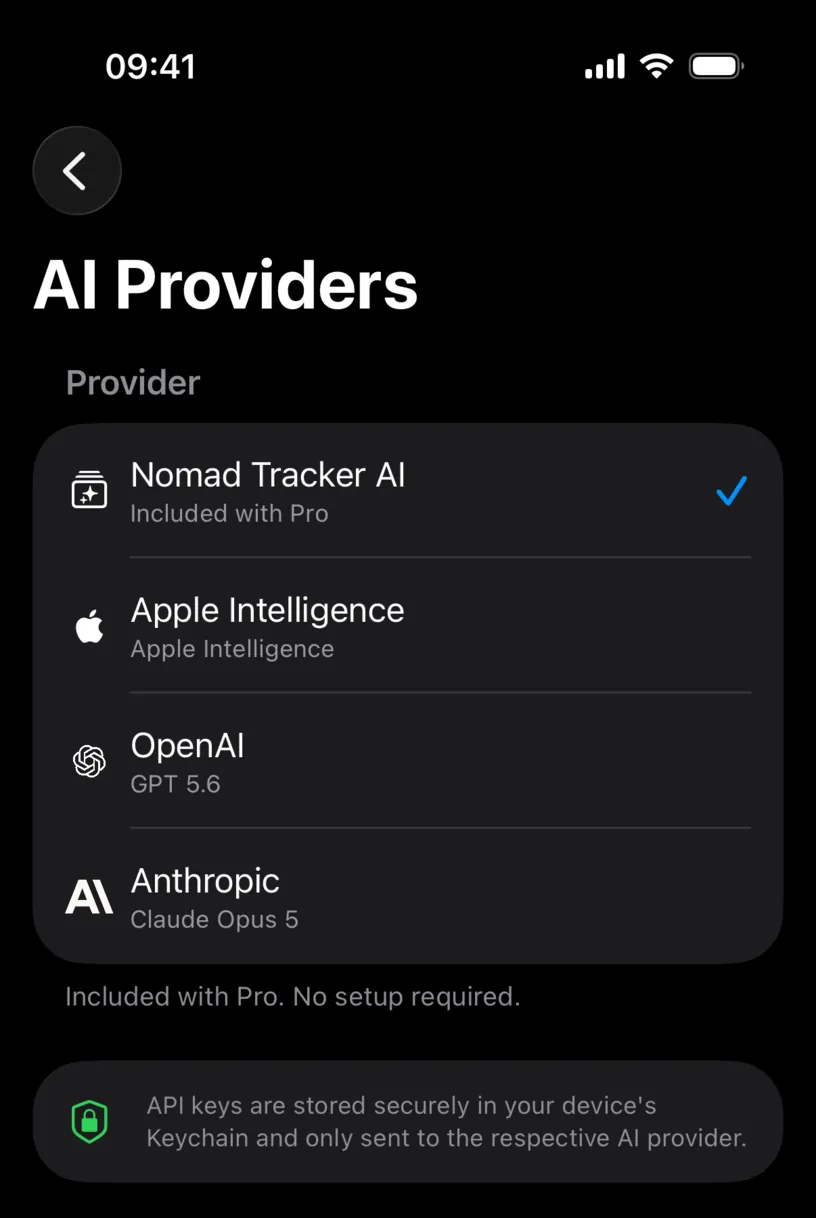
Nomad Tracker AI is the default, and its subtitle says why: Included with Pro. The footer underneath repeats it in plain terms, Included with Pro. No setup required. There is no key to paste and no account to create.
Apple Intelligence runs the model on the iPhone itself. It is the only option with a hardware requirement, and the only one where nothing leaves the device.
OpenAI and Anthropic name the model they use, GPT 5.6 and Claude Opus 5. Both need an API key that you create and pay for in your own account with that company.
Step 3: See what an external provider asks for
Tap OpenAI. Two rows appear under it that the other options do not have.
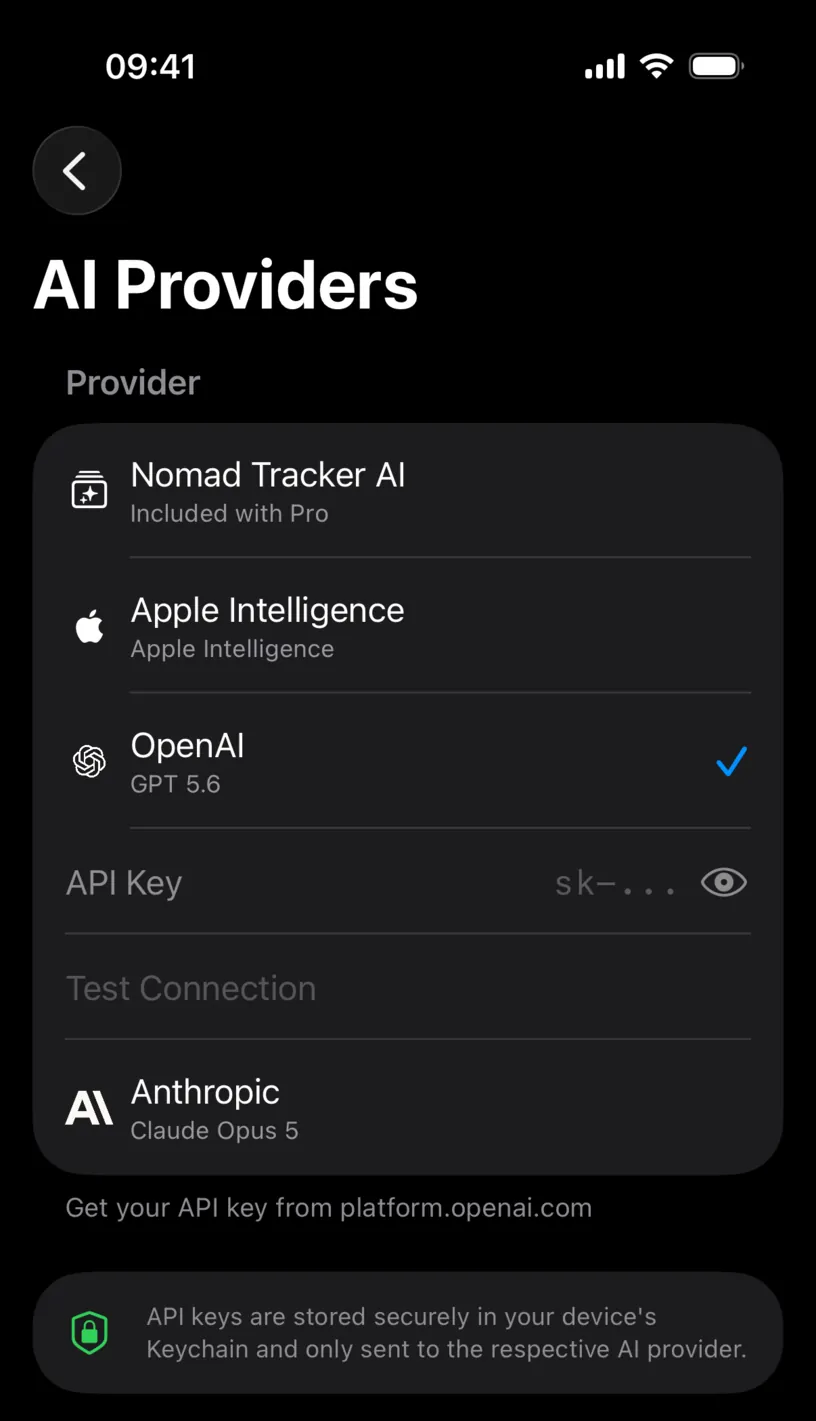
API Key is where the key goes. It is masked as you type, and the eye on the right reveals it. Test Connection stays greyed out until the field has something in it, then checks the key against the provider and reports back.
The footer changes with the selection, and for OpenAI it tells you where to get the key: Get your API key from platform.openai.com. Anthropic points at console.anthropic.com in the same place.
The card at the bottom of the screen is the part worth reading twice. API keys are stored securely in your device’s Keychain and only sent to the respective AI provider.
Check your result
The blue checkmark moves to whatever you picked, and it stays there between launches.
The other confirmation is in the Fiscal Oracle tab. The line under the message box names the provider that will answer. With the default it reads ✨ AI-generated. Your travel data is not stored. Consult a professional. Pick a different provider and that line changes with it, which is the quickest way to check where an answer came from.
If you only wanted to know what the app is using, set it back to Nomad Tracker AI and leave the screen. That is the setting most people should stay on.
If something looks different
The assistant is locked. The provider screen is open to everyone, but the Fiscal Oracle tab needs PRO. Choosing a provider does not unlock it.
Test Connection does nothing. It is disabled while the key field is empty, and it only exists for OpenAI and Anthropic. The other two providers have nothing to test.
You picked Apple Intelligence and the Oracle will not answer. The on-device model has to be present and ready on your iPhone. If it is not, the assistant reports an error instead of a reply. Switch back to Nomad Tracker AI, which works on any iPhone that can run the app.
You would rather not use an external provider. You do not have to. The key fields only appear for the provider you select, and nothing is sent anywhere until you actually ask a question.
Next steps
Ask the AI assistant your first question uses the provider you just confirmed.