What you’ll achieve
By the end of this guide you have asked the assistant a question about your own travel history and read an answer built from the numbers already in the app.
The point is not that it writes well. The point is that it answers from your calendar and your limits, so the figures in the reply are the figures on your dashboard.
Step 1: Open the assistant
Tap the Oracle tab. An empty chat opens under the title Fiscal Oracle.
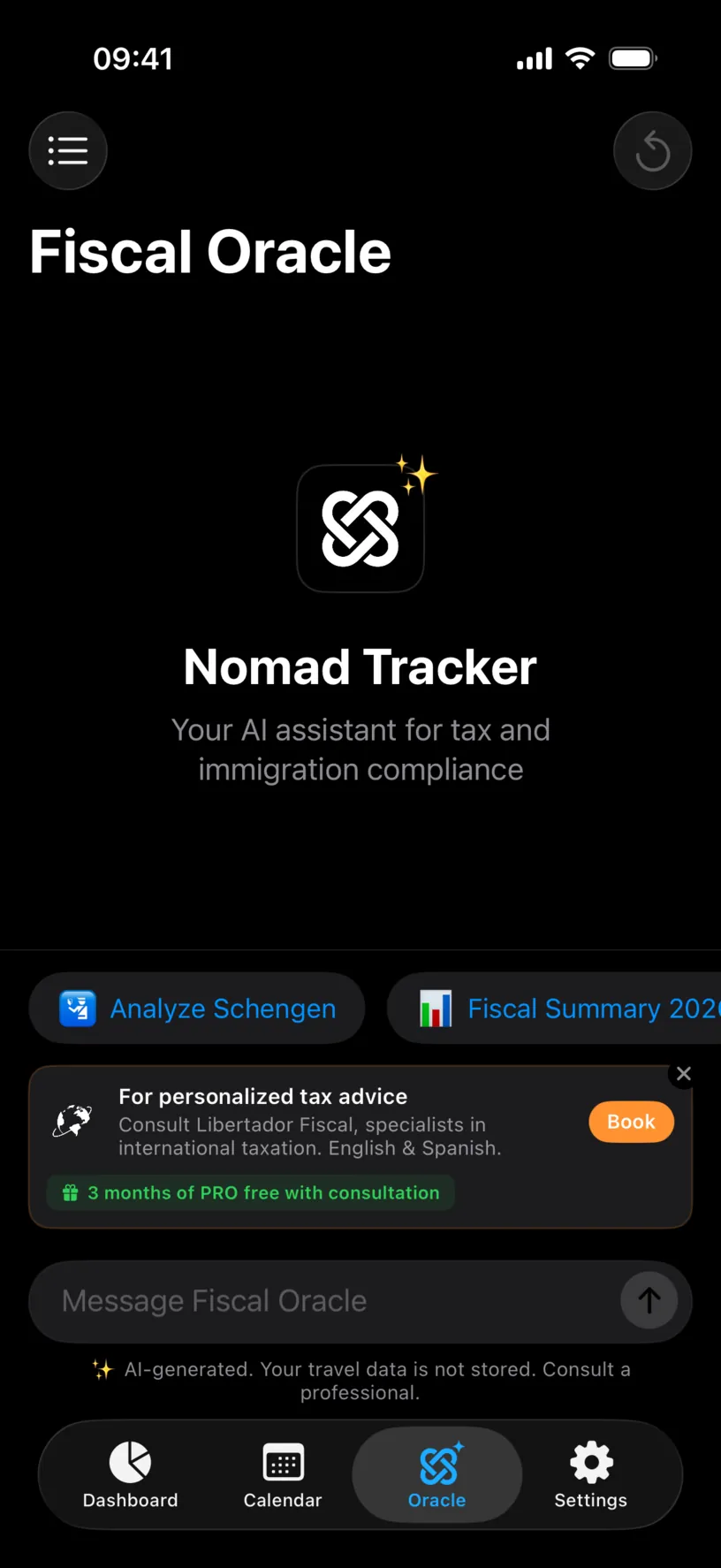
Three things are worth locating before you type. The message box says Message Fiscal Oracle. The row of shortcuts above it is a horizontal list you can scroll. The small line under the box, ✨ AI-generated. Your travel data is not stored. Consult a professional., tells you which provider is answering and what happens to the text.
Step 2: Ask something concrete
Tap the message box and write a question about a country you actually track. Vague questions get vague answers, so name the country.
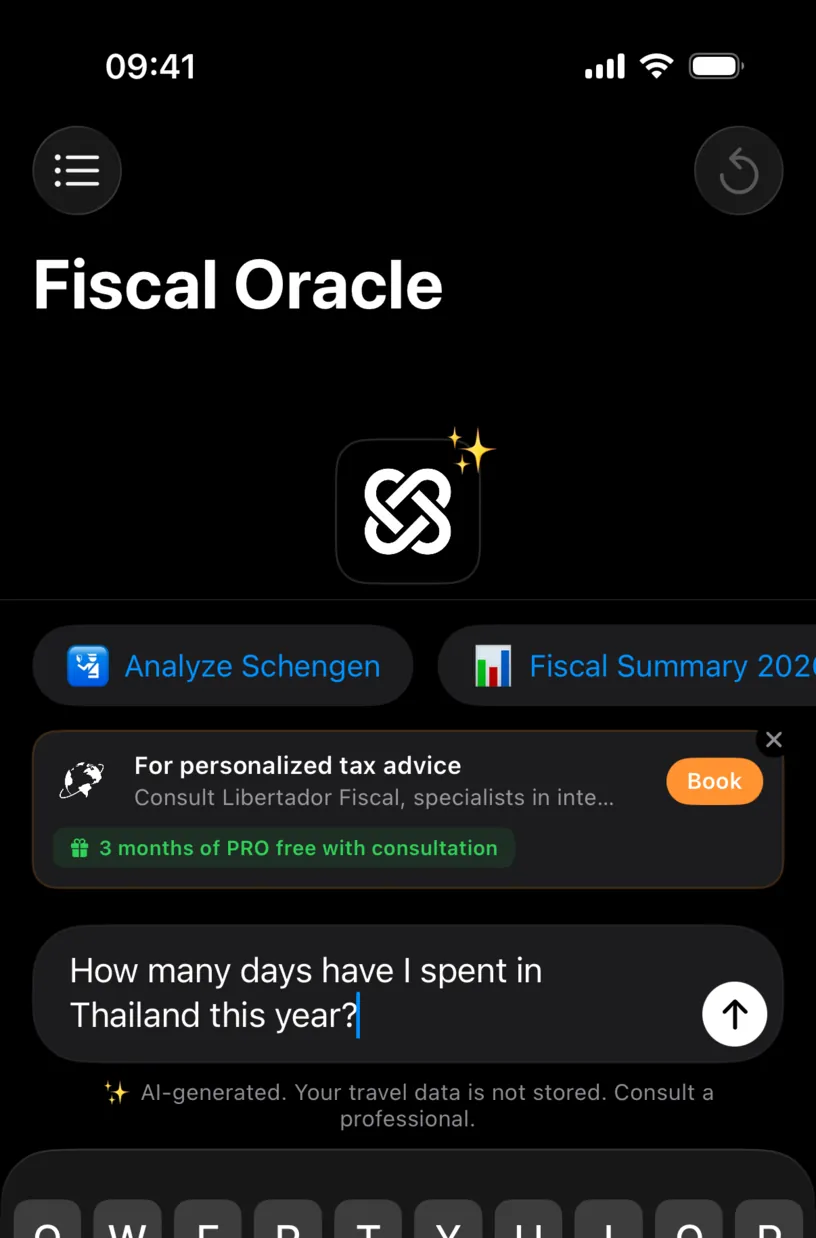
Tap the arrow to send.
Step 3: Read the answer against your dashboard
The reply arrives in a few seconds and lands under your question.
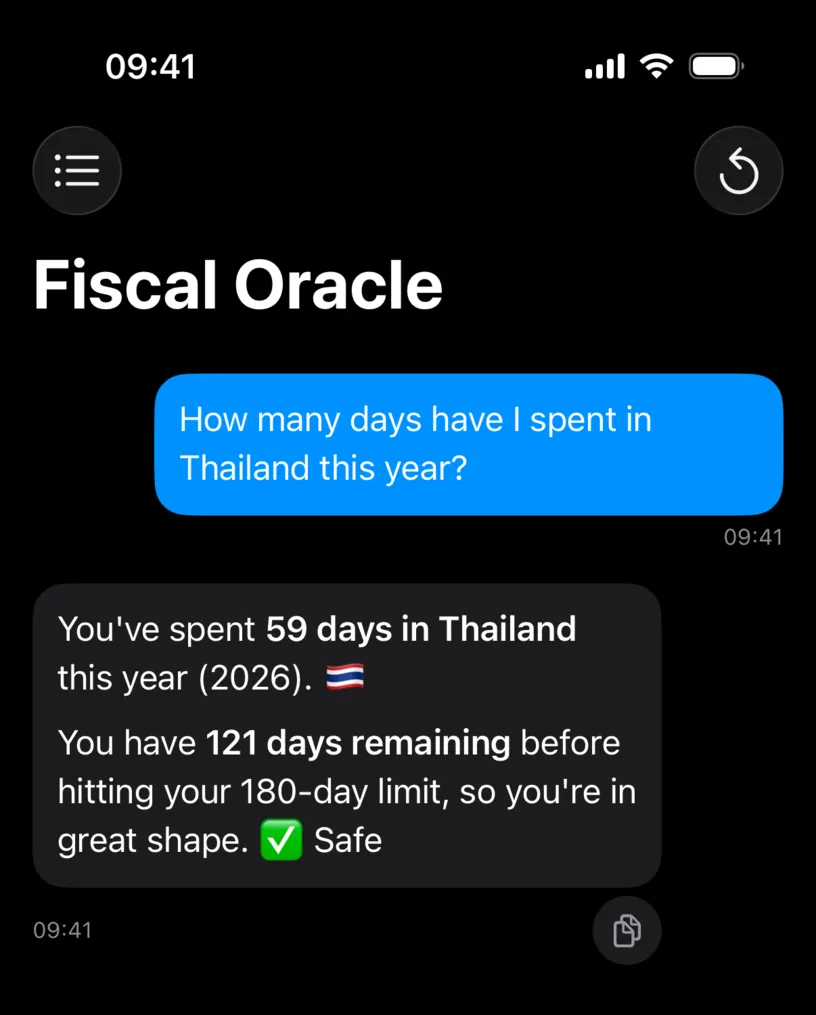
Now check it. The answer says 59 days in Thailand and 121 days remaining against a 180-day limit. Open the Dashboard tab and the Thailand card says the same thing: 59 of 180, 121 days remaining.
That match is the whole exercise. The assistant is reading the same counters you can read yourself, which means an answer that disagrees with your dashboard is an answer to distrust.
The small icon under a reply copies its text, which is useful when you are pasting a summary into an email.
Step 4: Ask a follow-up
The chat keeps its context, so you do not have to repeat yourself.
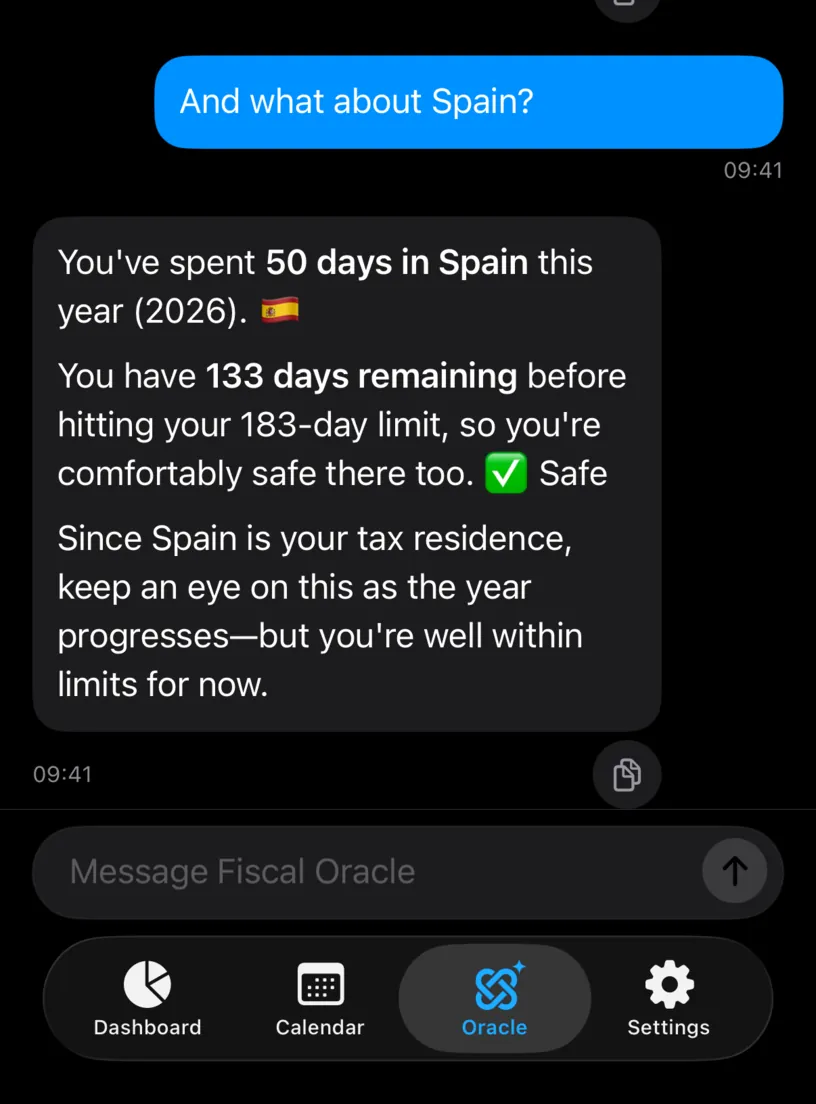
And what about Spain? is enough. The reply knows you are still asking about days this year, gives 50 of 183, and adds that Spain is the configured tax residence.
Step 5: Use the shortcuts instead of typing
Scroll the row above the message box. There are six shortcuts, and they send a full question for you.
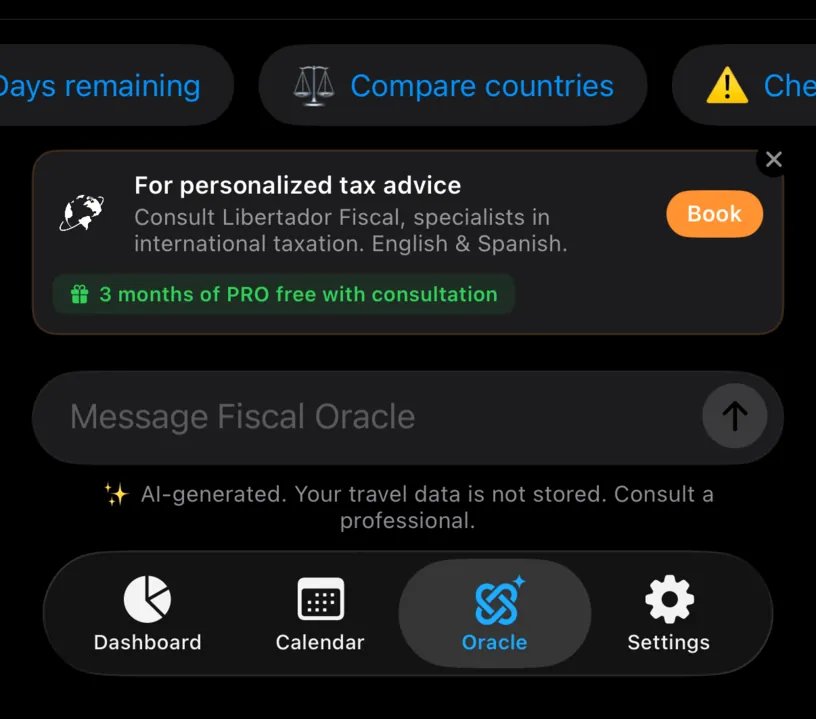
Analyze Schengen, Fiscal Summary 2026, Days remaining, Compare countries, Check alerts and Simulate trip. The last one opens a form rather than sending a question, and Explore a travel scenario with the assistant covers it.
Tap Fiscal Summary 2026 and the answer comes back with a chart drawn by the app, not by the model.
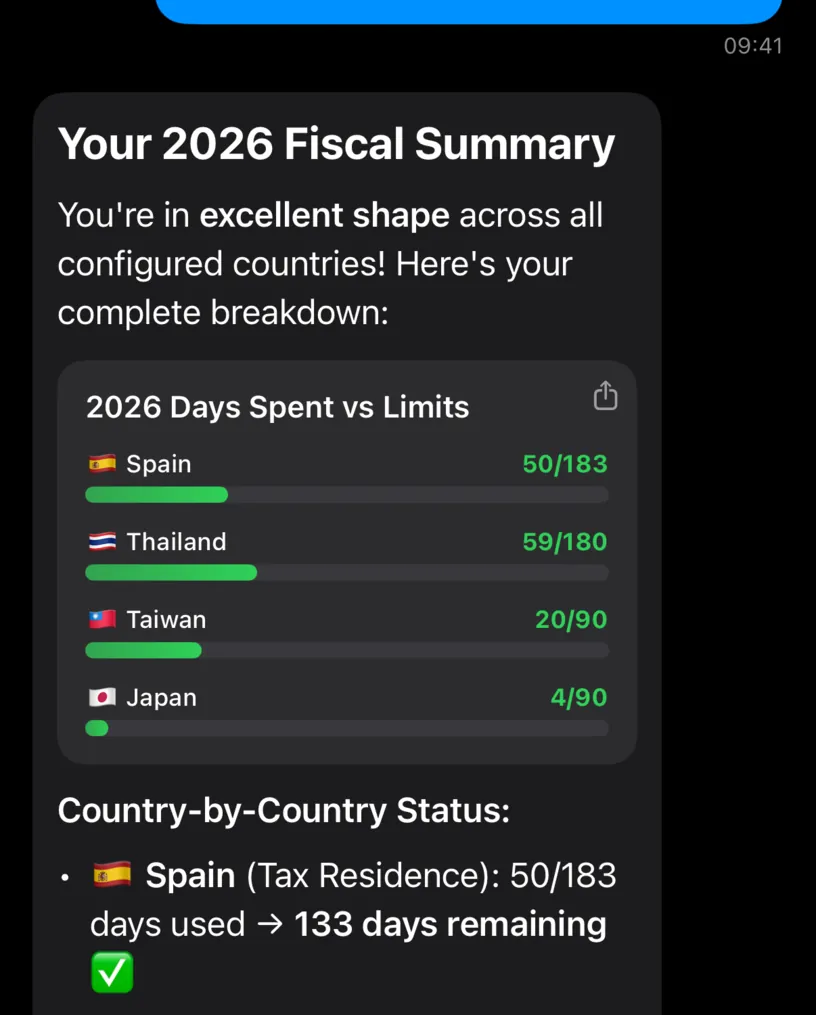
Every bar matches a card on the dashboard. The share icon in the corner of the chart exports it as an image.
Check your result
Pick one number from any answer and find it on the Dashboard. If the two agree, the assistant is reading your data and you can keep asking.
Start a new conversation with the circular arrow in the top right when you want a clean slate. The one you leave behind is saved, and Manage your AI conversations shows where it went.
If something looks different
The tab shows a lock. The Fiscal Oracle is a PRO feature. The screen lists what each provider offers and a button to see the plans.
The reply says an error occurred. The assistant could not reach the model. Check your connection, and check which provider is selected in Settings, AI Providers. An external provider with a missing or expired key fails the same way.
The answer has no chart. Charts come from the shortcuts that ask for one, and the on-device provider does not draw them at all. Ask in words instead.
The numbers look wrong. They come from your logged days and your configured limits, so a wrong number usually means a wrong day or a wrong limit. Fix it in the calendar or in Countries & Regions and ask again.
It gave you tax advice. Treat everything it says as a description of your own data, not as a ruling. The disclaimer under a fresh chat says the same thing, and it is there for a reason.
Next steps
Choose an AI provider explains the four engines behind that reply and what each one costs you.