What you’ll achieve
By the end of this guide you have handed the assistant a trip you are considering and read back what it does to that country’s day count, before and after, side by side.
This is the same machinery as a ghost trip, asked as a question instead of read off a card. The trip you describe really does land in your simulator, so the calendar and the dashboard move with it.
Step 1: Find the Simulate trip shortcut
Open the Oracle tab. Scroll the row of shortcuts above the message box to its end.
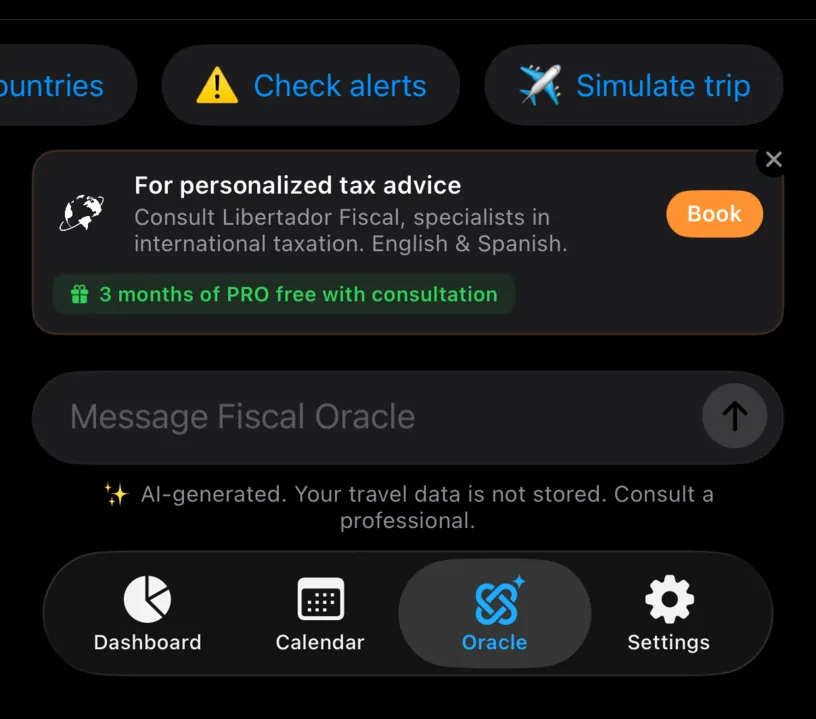
✈️ Simulate trip is the last one, and it behaves differently from its neighbours. The others send a question. This one opens a form.
Step 2: Describe the trip
Tap it. The Simulate Trip sheet opens with a country row, two dates and a running total.
Tap Select country and pick one. The picker closes as soon as you tap a name, and the search field at the top saves scrolling through two hundred entries.
The dates start on a short trip from tomorrow. Tap either one to open a month calendar, move between months with the arrows, and tap the day you want.
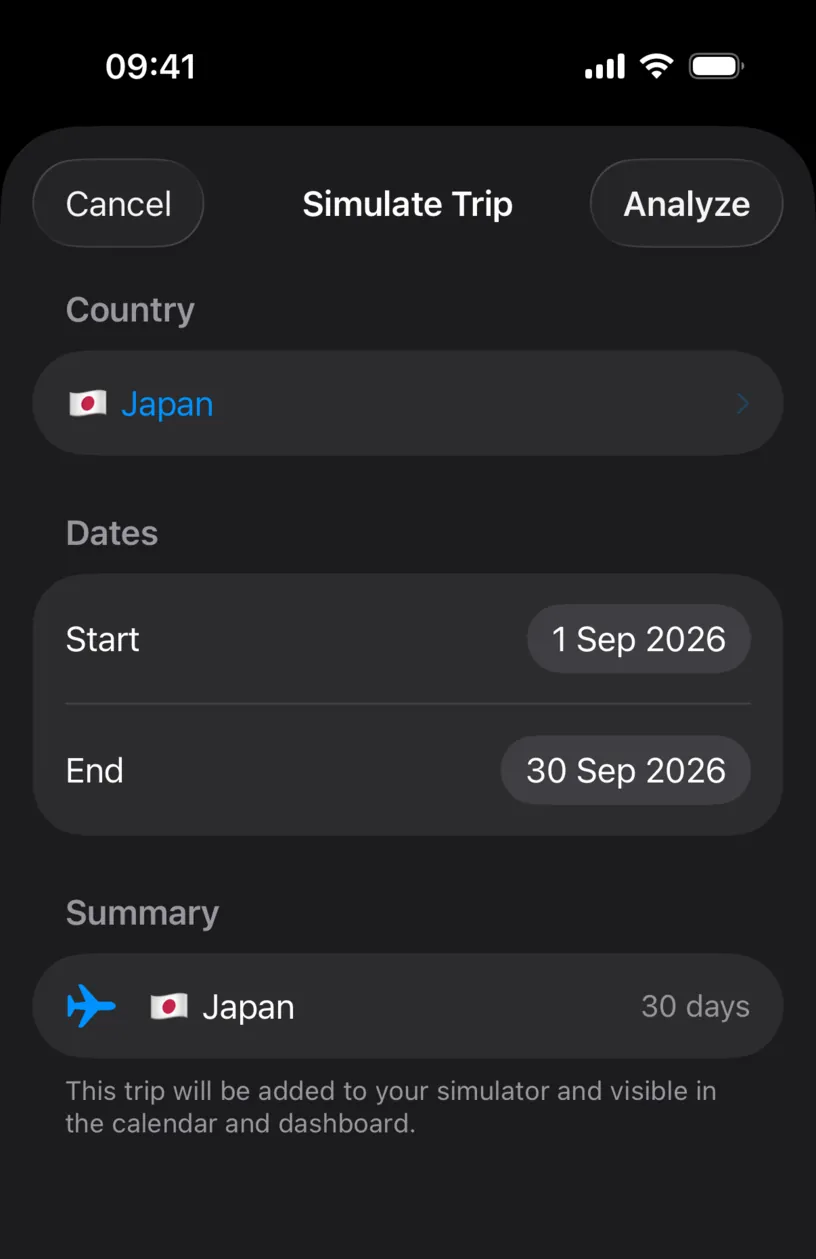
The Summary section counts the nights for you, here 30 days, and the footer says plainly what Analyze is about to do: This trip will be added to your simulator and visible in the calendar and dashboard.
Analyze stays greyed out until a country is chosen.
Step 3: Read the impact
Tap Analyze. The sheet closes, the question is written for you and sent, and the answer arrives with the dates you picked in its heading.
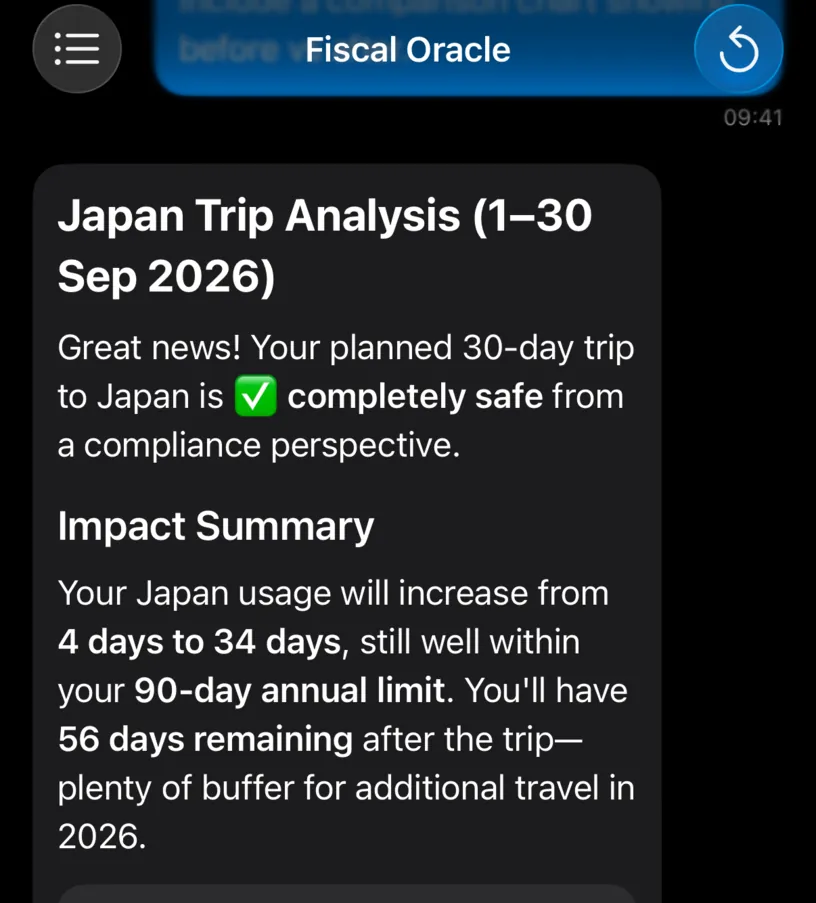
The summary is the sentence most people need: the Japan count goes from 4 days to 34 days against a 90-day limit, leaving 56 days remaining afterwards.
Underneath it the app draws the comparison rather than describing it.
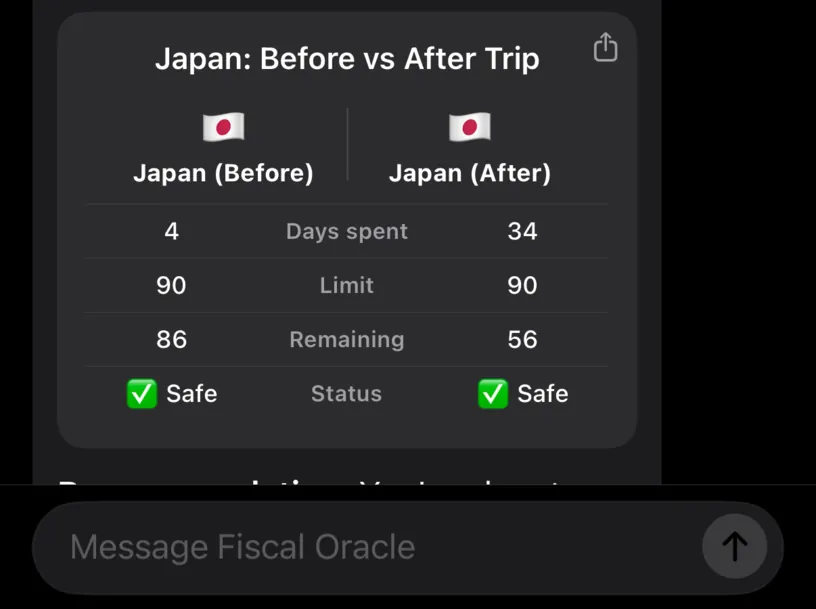
Four rows, two columns. Days spent rises, Limit does not move because the limit is a setting and not a consequence, Remaining falls by exactly the length of the trip, and Status shows whether either column breaks the rule.
A trip that pushes a country over its limit changes that last row, which is the fastest read on the whole screen.
Step 4: Clear the simulation when you are done
The trip is now a ghost trip in your active simulation, so your dashboard counts it as planned and your calendar shows it.
Open the Calendar tab and tap the aeroplane badge in the toolbar, then Clear All. The counters go back to where they started.
You can also just close the app. The active simulation is never saved, so a scenario you were toying with does not quietly become part of your record.
Check your result
Compare the chart with the country card on your Dashboard while the simulation is still active. The card shows the same total, with the simulated part marked separately underneath.
If the two disagree, trust the card. The chart is drawn from the same figures, but the card is the app’s own arithmetic with nothing in between.
If something looks different
The country has no limit set. Then there is nothing to compare against, and the answer can only tell you how many days the trip is. Set a day limit in Settings, Countries & Regions first.
The dates came out a day short. The summary counts what it was given. Reopen the sheet and check both dates rather than trusting the total.
Analyze will not tap. No country is selected yet.
Your dashboard changed and you did not want it to. That is the footer doing what it said. Clear the simulation from the Calendar toolbar, or relaunch the app.
You want to keep the scenario. Save it from the Ghost Trips sheet instead, which stores it under a name you can load again.
Next steps
Plan your first trip with Ghost Trips is the same idea without the assistant, and shows every counter the trip moves.