What you’ll achieve
By the end of this guide a day in your calendar carries the document that proves it: a boarding pass, a hotel invoice, a ticket. The day count does not change. What changes is that you can show where the number came from.
The example attaches a boarding pass photographed on 1 April 2026 to that same day in Taiwan.
Step 1: Open the proof sheet
Open the Calendar tab, tap Add, and choose Proof Classifier.
The sheet explains its own rule in one line under the title: Each photo attaches to the day it was taken. You are not picking a day, you are picking a file, and the file already knows its day.
Step 2: Pick the file
Four sources sit on the sheet. Camera photographs something now. Gallery opens the full picker. The strip beside them holds your most recent photos, so a boarding pass shot this morning is one tap away. Scroll the strip to reach older ones.
Tap a photo. It tints and takes a checkmark, and a button appears at the bottom.
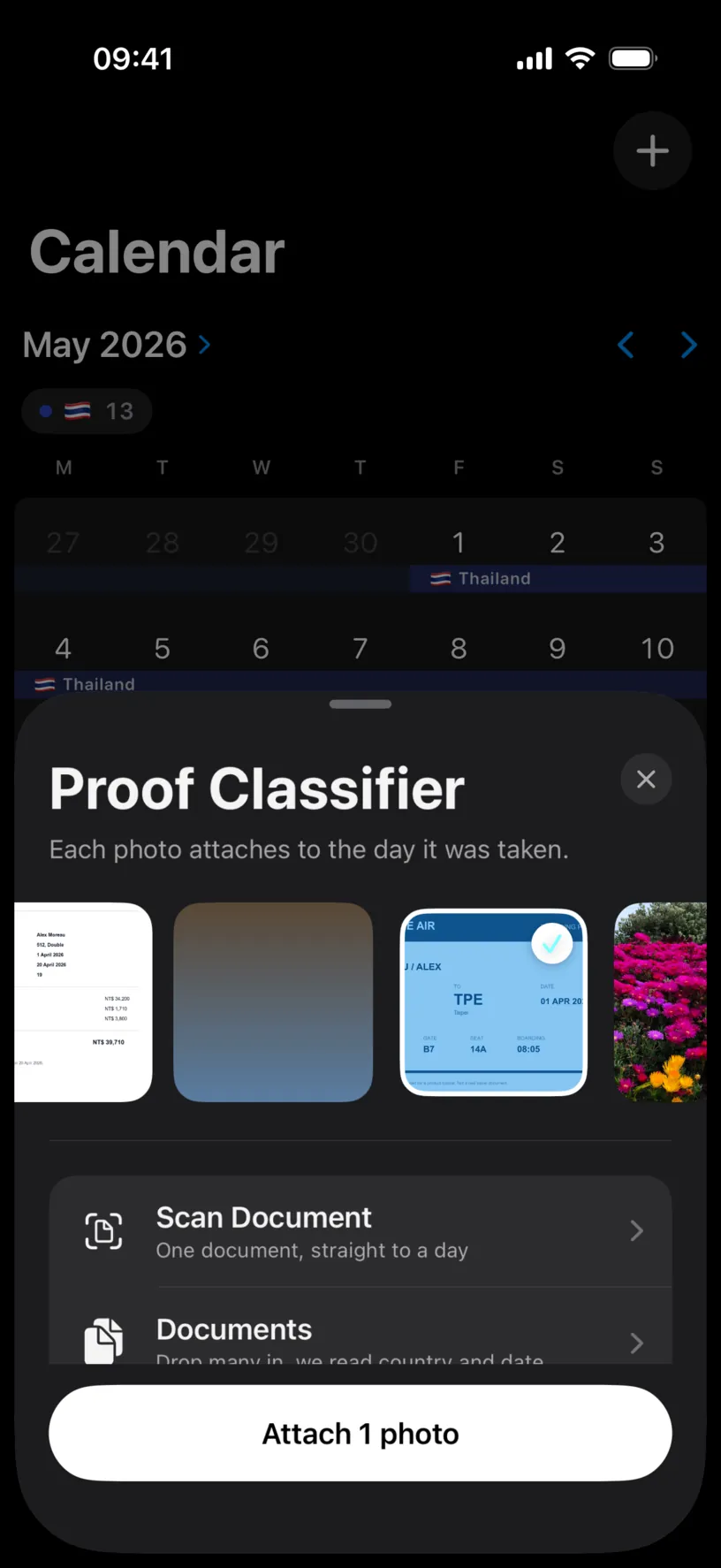
The two rows underneath are a different job. Scan Document and Documents read a file to work out where and when it was issued, and both are PRO. A photo needs no reading, which is why the strip is free.
Tap Attach 1 photo.
Step 3: Check what it worked out
Nothing has been saved yet. The Review screen shows what the app read out of the photo so you can correct it first.
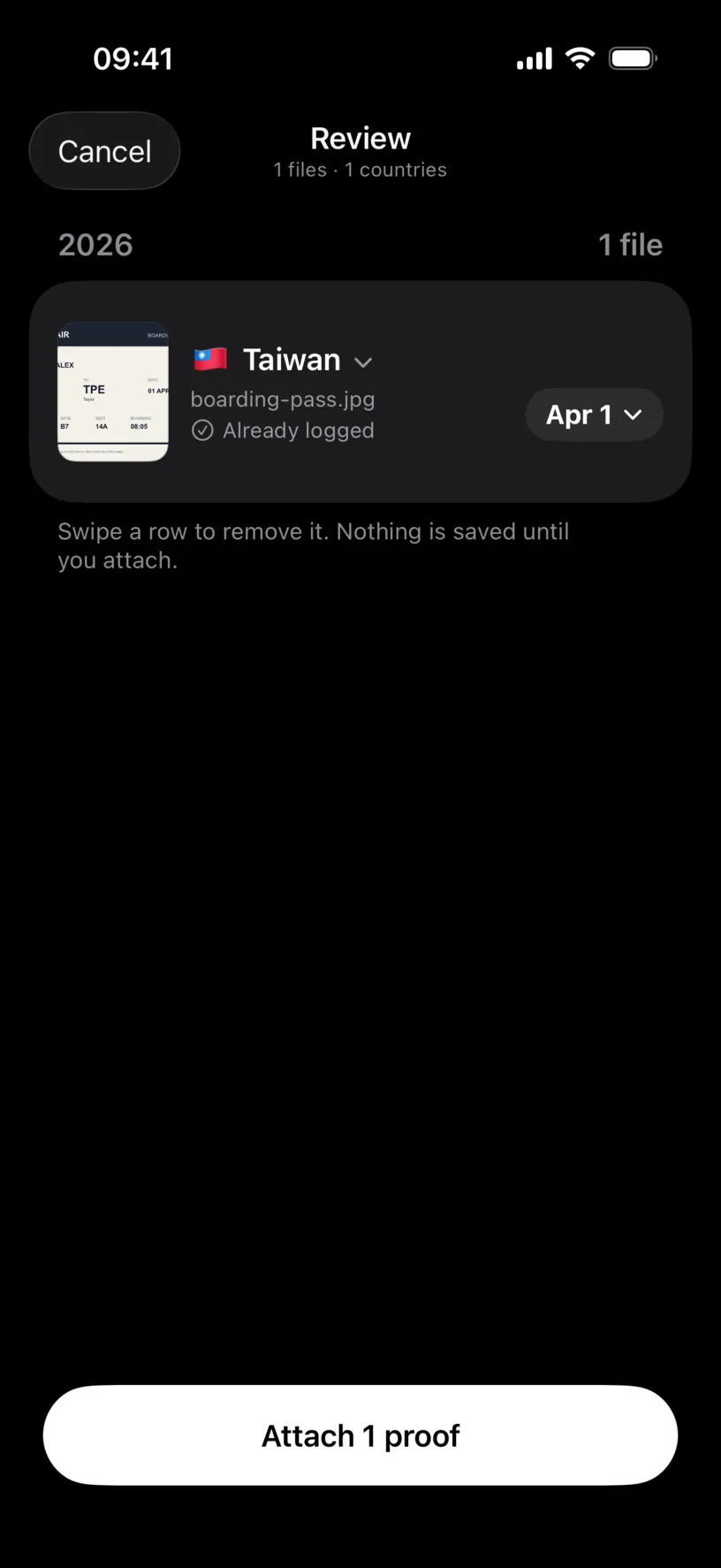
The row carries three facts. The flag and country came from the coordinates the camera saved. The pill on the right is the day, taken from the capture date. Already logged underneath means your calendar already has a stay on that day, so the proof lands on something rather than floating.
Tap the thumbnail to open the photo full screen if the small version is not enough to be sure.
Tap Attach 1 proof.
Check your result
The calendar comes back, and the day now wears a paperclip.
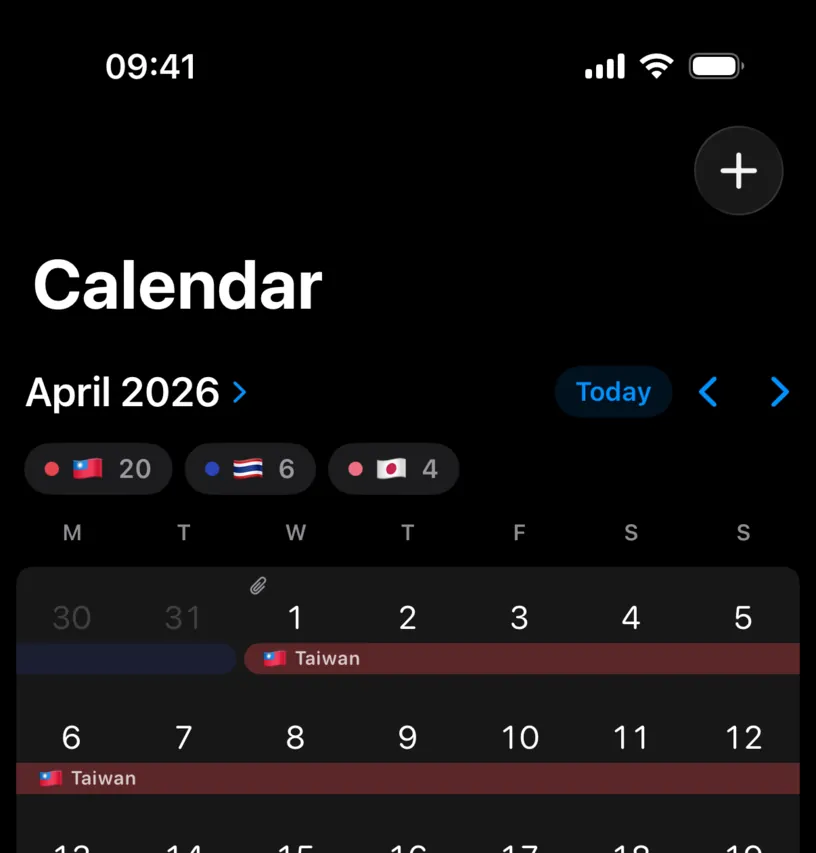
Open the day to see the document itself. Tap the date, choose Edit This Day Only, and scroll to Proof.
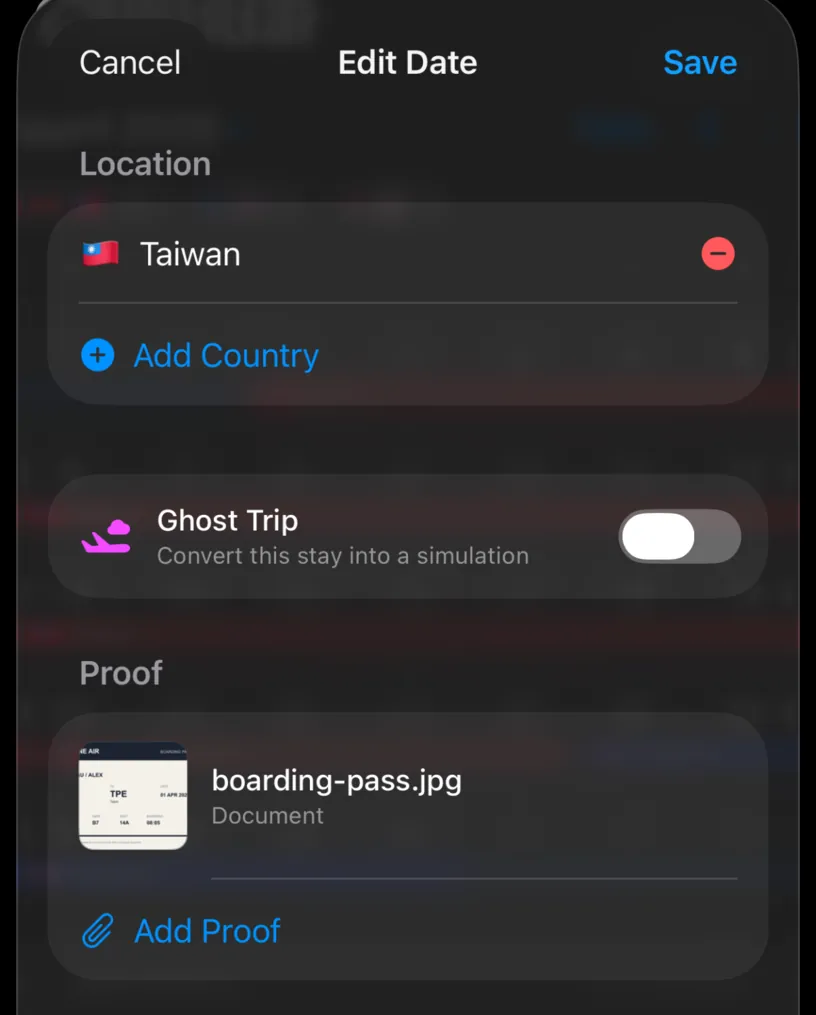
The file is listed with its thumbnail and its name. Tap it to open it full screen. Add Proof below attaches another one to the same day, which is the ordinary case: a flight and a hotel for the same arrival.
If something looks different
The strip of recent photos is missing. The app has no photo library access, so it has nothing to show. Manage photo access for imports covers granting it and the difference between limited and full access.
The row says Choose country instead of a flag. The photo carries no location. Screenshots, images saved from a chat and photos taken with location services off have nothing to read. Tap Choose country and pick it yourself.
The date is a day out. The capture date is what the camera wrote, and a photo taken late at night on one side of a time zone can land on the neighbouring day. Tap the date pill and correct it.
The day has no stay under it. The proof still attaches. It is evidence for a day, and the day itself is yours to log, which Add and edit a stay in the calendar covers.
Scan Document or Documents leads to the subscription screen. Both read the contents of a file, and that reading is part of PRO. Attaching a photo is not.
Next steps
Review AI-classified travel evidence covers the Review screen properly: fixing a country, moving a date and dropping a file before anything is saved.
Prepare your records for a tax adviser turns the documents you attach into an appendix inside the exported PDF.