What you’ll achieve
By the end of this guide you can read the Review screen line by line and correct it before anything is written: the country the app guessed, the day it picked, and which files you actually want attached.
The screen exists because approving evidence against a file name is a rubber stamp. Approving it against the document itself is a check.
The example reviews three files picked at once: two photographed in Taipei and a screenshot of a booking that carries no location.
Step 1: Read the three rows
Pick several files from the Proof Classifier sheet and the Review screen opens with one row each.
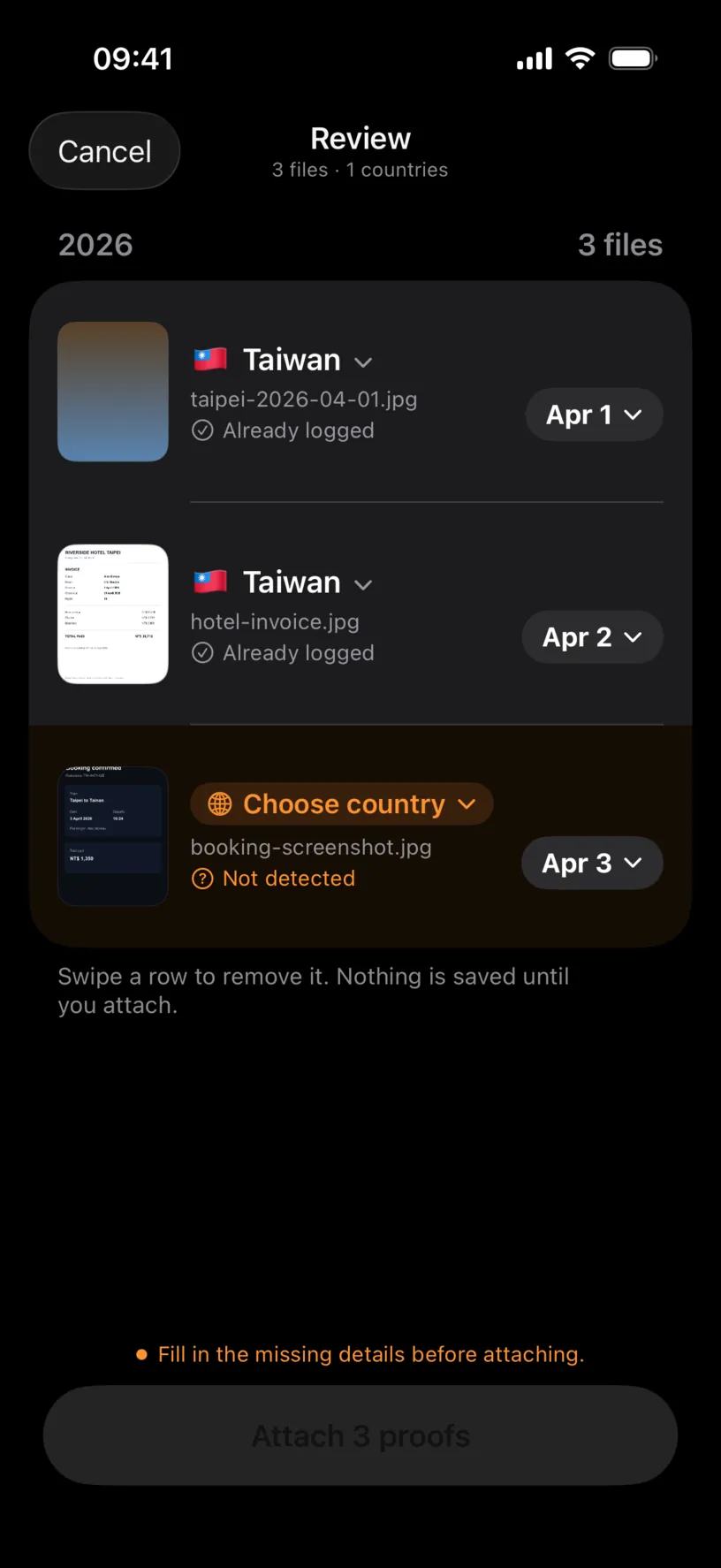
The title bar counts what you are about to save: 3 files · 1 countries. Below it, files are grouped by year, newest year first, and ordered by day inside the year.
Each row carries the same four things. The thumbnail is the document. The country came from the coordinates in the file. The file name is there so two similar documents are still tellable apart. The pill on the right is the day the proof anchors to.
Already logged under a row means your calendar already has a stay on that day.
The third row is the one worth understanding. It is tinted orange, its country reads Choose country, and where the others say Already logged it says Not detected. That file is a screenshot, and a screenshot carries no coordinates.
The button at the bottom is unavailable while any row is incomplete, and the line above it says why: Fill in the missing details before attaching.
Step 2: Fix the country
Tap Choose country on the orange row. The country picker opens.
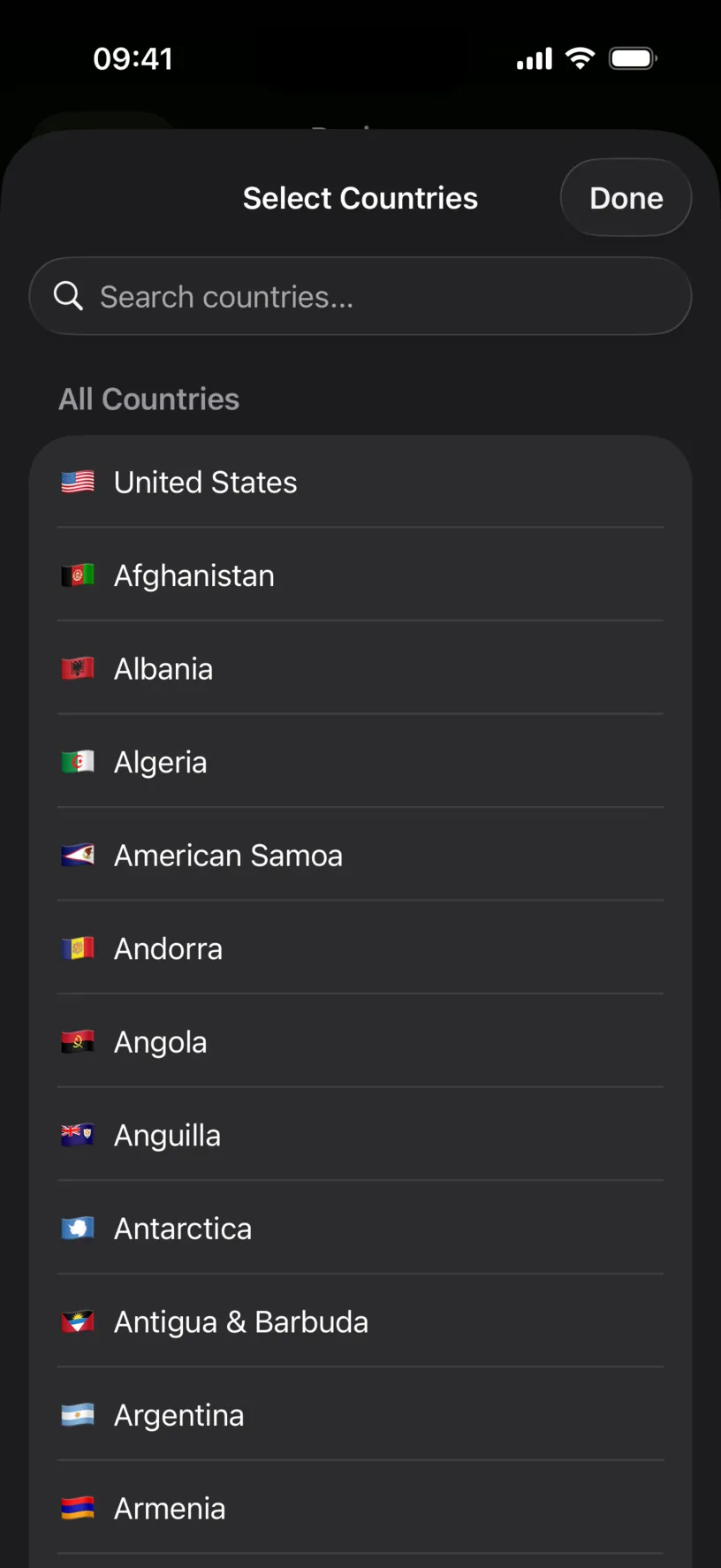
Search or scroll, then tap the country. The picker closes on the tap, and the row takes the flag.
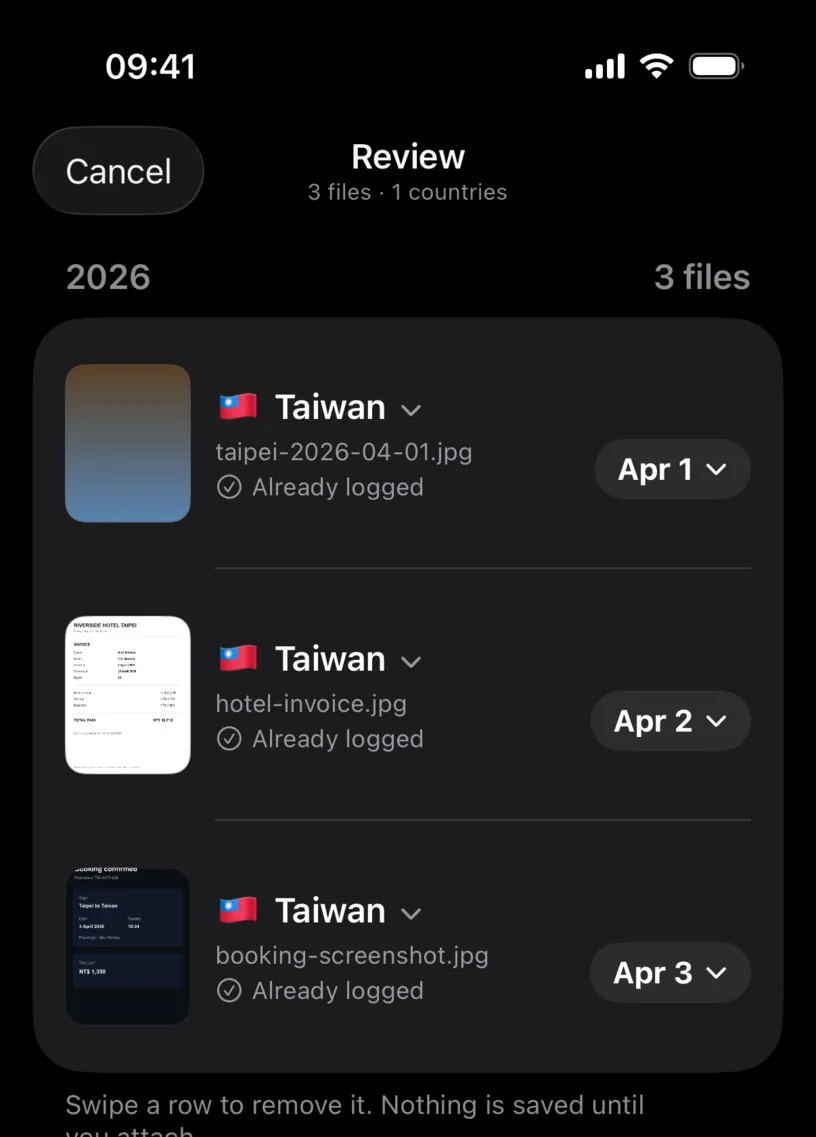
The tint disappears, the row picks up Already logged if the day is covered, and the button at the bottom comes alive.
The same control works on a row that already has a country. A layover photographed on the way through is read as a day in that country, and this is where you correct it.
Step 3: Move a date
Tap the day pill on any row.
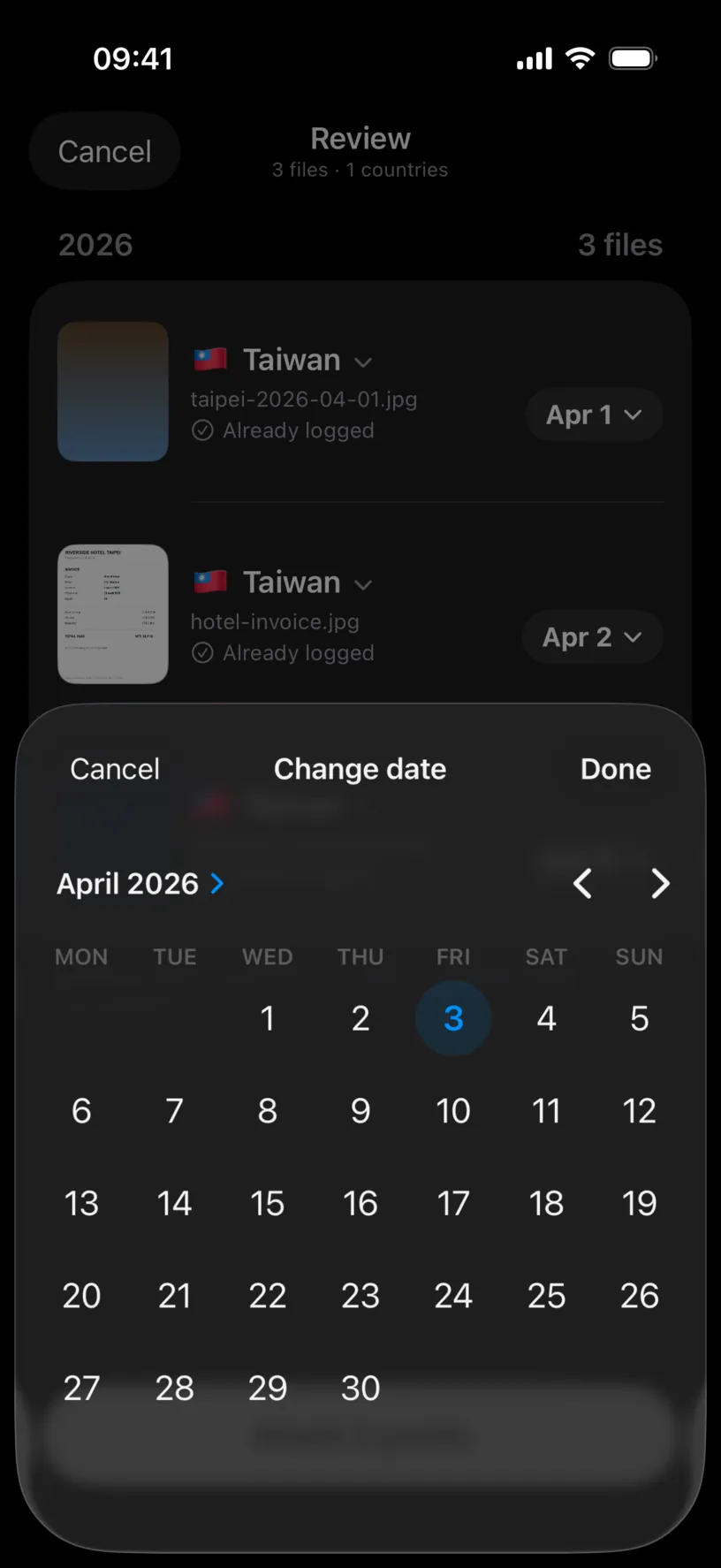
The panel is titled Change date and opens on the month the proof is anchored to. Pick a different day and the row updates behind the panel, so you can see the effect before committing. Cancel puts the old day back and Done keeps the new one.
Use it when the capture date is not the date the document is about. A boarding pass photographed the night before a 6 a.m. flight belongs to the flight, not to the photograph.
Step 4: Drop what you do not want
Swipe a row left to reveal Remove.
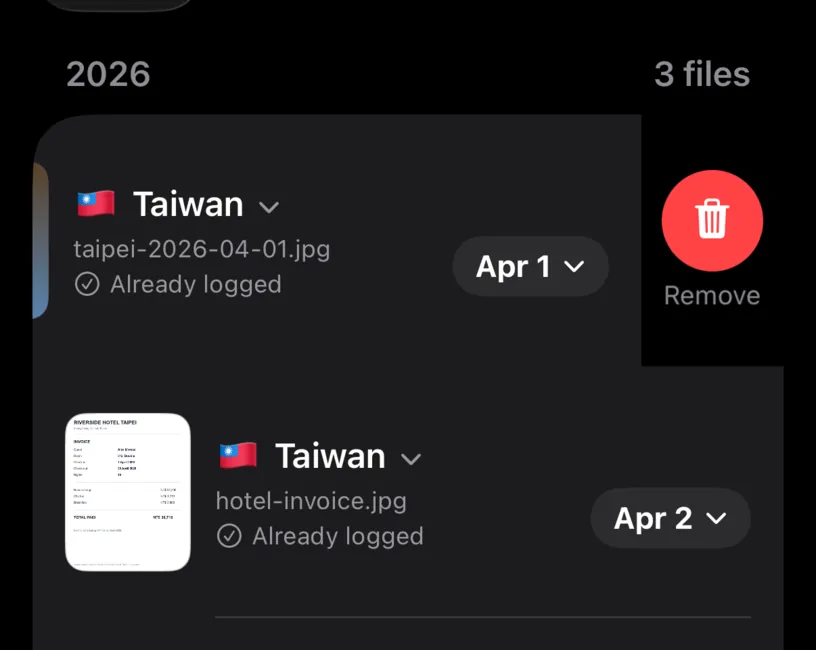
The footer under the list says what this means: Swipe a row to remove it. Nothing is saved until you attach. Removing a row here does not delete the photo. It only takes the file out of this import.
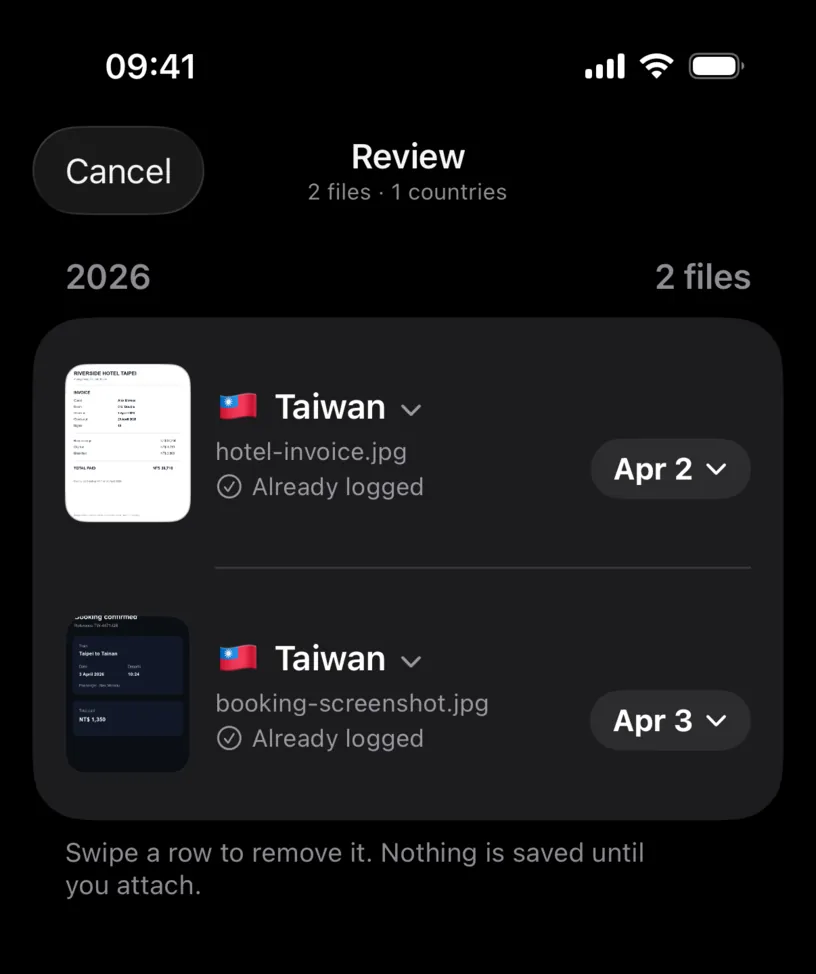
The counts at the top and on the button follow along, so the number on the button is always the number of files about to be written.
Tap Attach 2 proofs.
Check your result
The calendar comes back with a paperclip over every day that received a file.
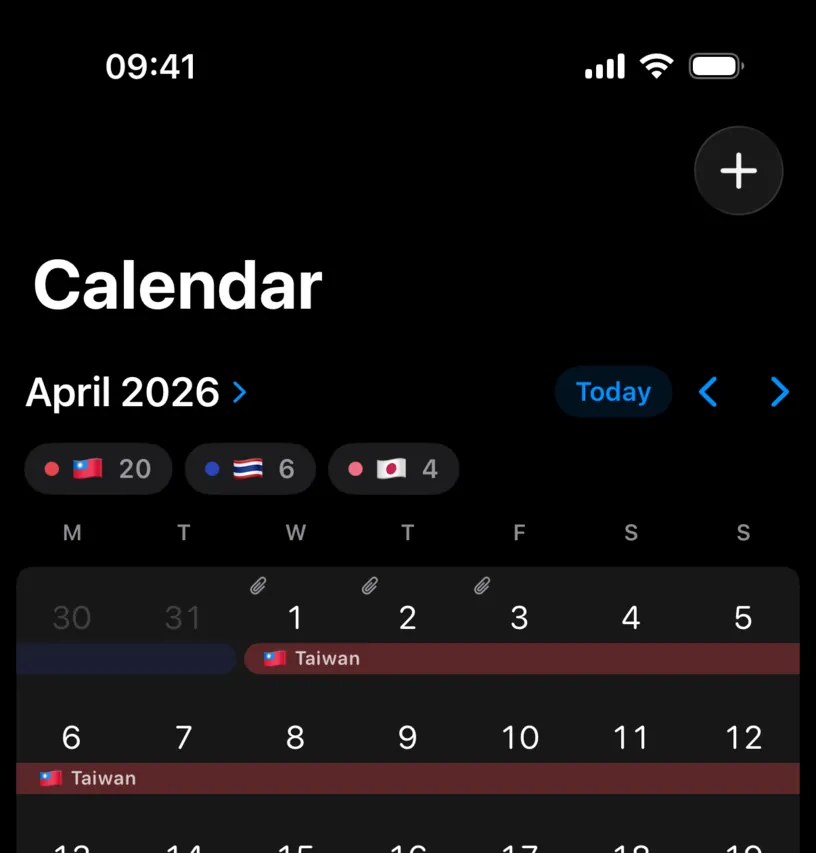
Open any of those days, choose Edit This Day Only and check the Proof section. The file listed there should be the one whose thumbnail you approved.
If something looks different
Every row is orange. None of the files carry coordinates. That is normal for screenshots and for images saved from a chat, and the fix is the same for each: tap Choose country.
A row shows the wrong country. The coordinates put the photo there. A photo taken from a plane or near a border can land on the wrong side. Tap the country and correct it.
The screen is empty and says Nothing left to attach. Every row was removed. Go back and pick different files.
The attach button stays unavailable after you set a country. Another row further down is still incomplete. The list is scrollable and the tint makes an unfinished row visible while you scroll.
A file was attached to a day you were somewhere else. Open that day in the Calendar tab and remove the proof there. The review screen is the last chance to catch it before it is written, not the only one.
Next steps
Attach evidence to your travel history covers the short version of this flow, one photo at a time.
Prepare your records for a tax adviser shows what the files you approve here look like in an exported report.