What you’ll achieve
By the end of this guide you have one PDF that answers the two questions an adviser asks: how many days you spent where, and what backs each claim up.
The difference from an ordinary export is the appendix. A report with evidence attached carries copies of your boarding passes and invoices inside the same file, so nothing arrives as a separate pile of images.
The example covers 1 January to 13 May 2026 and appends three documents.
Step 1: Make sure the period is complete
An adviser cannot tell a day you did not log from a day you spent at home. The app cannot either, and it counts unlogged days as days at home.
Open the Dashboard tab and compare the This year tile with the calendar.
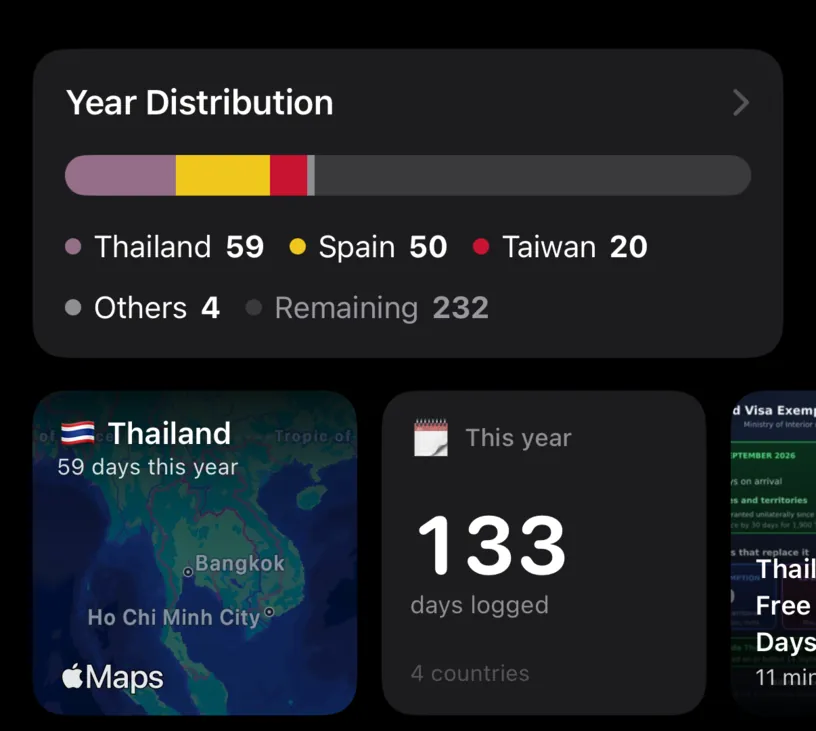
133 days logged against a year that is 133 days old means nothing is missing. A number below that is a gap, and Find and fill missing days is where to close it.
Fix the history first. Everything below exports whatever is there at the moment you tap the button.
Step 2: Attach evidence to the days that matter
Not every day needs a document. Arrivals, departures and the days a border was crossed do.
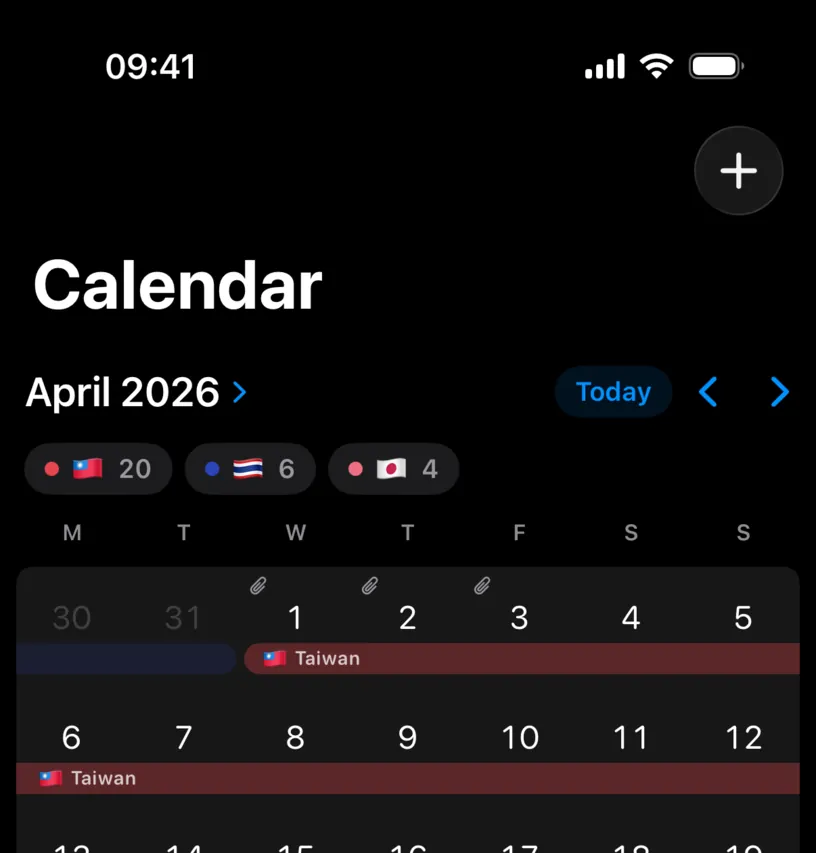
A paperclip over a day means that day carries a file. Attach evidence to your travel history covers getting them in.
Only documents attached to days inside the exported period reach the appendix. A file on a day in 2025 does not travel into a 2026 report.
Step 3: Set the period to the one your adviser asked for
Open the Settings tab, scroll to Data and tap Export Data. Keep the format on PDF Report.
Under Date Range, set Start Date to the first day of the fiscal year you are reporting on and leave End Date on today. The sheet opens on the last twelve months, which is almost never the period you want.
If your fiscal year does not start on 1 January, use the one you set in the app rather than the calendar year. Set a non-calendar fiscal year covers where that lives.
Step 4: Turn the evidence on and read the count
Options decides what goes in the file.
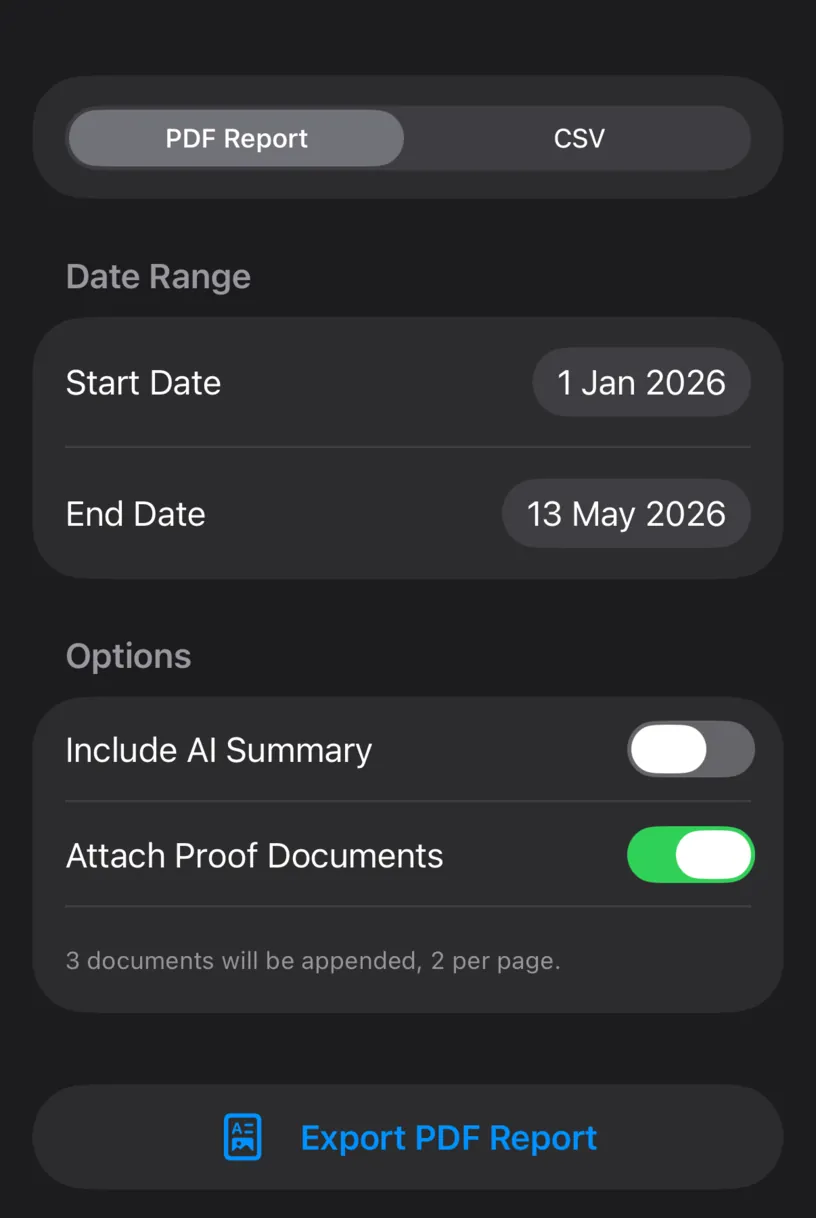
Attach Proof Documents is the switch that matters here, and the line under it is the number to check: 3 documents will be appended, 2 per page. The app counts the files it is about to append, not the rows it has on record, so the number matches what comes out.
Two other lines can appear under the same switch, and both are worth reading before you send anything.
A cap line says the report only appends the first so many documents. A warning in orange says how many documents in the range have no file left on this device and cannot be attached, which happens when the original was deleted after it was recorded.
Include AI Summary adds a written summary of the period. Leave it off for a report an adviser will read. The summary is generated text, the PDF labels it as such, and a professional wants the tables.
Tap Export PDF Report.
Step 5: Hand it over
The app builds the file and passes it to the iOS share sheet.
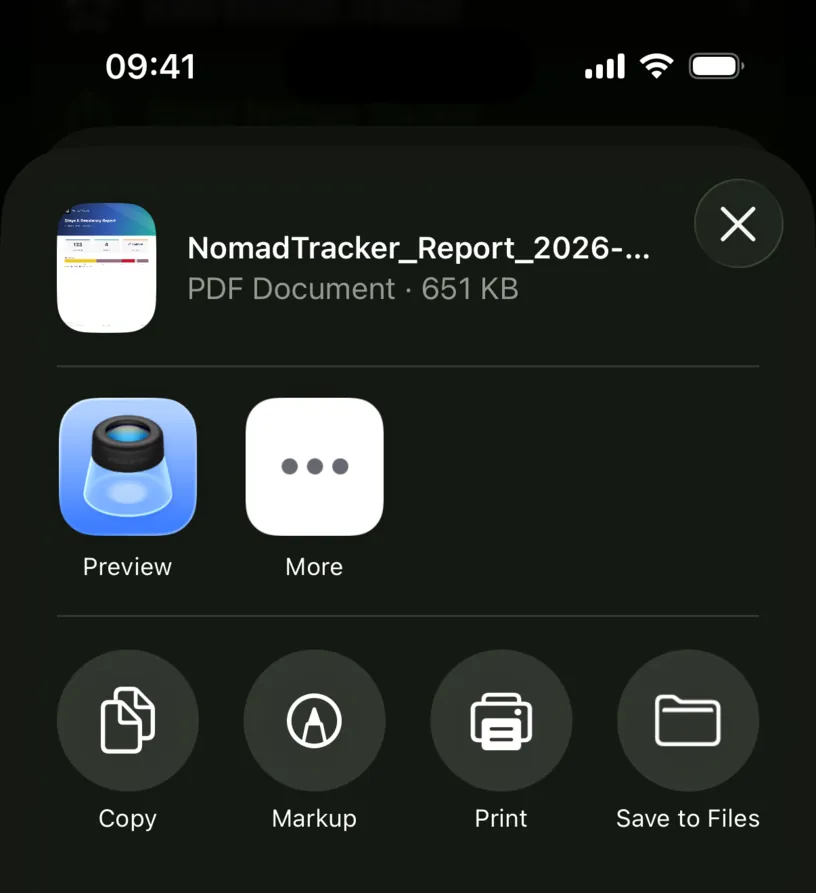
The file carries the period in its name, so this one arrives as NomadTracker_Report_2026-01-01_2026-05-13.pdf. Use More to send it, or Save to Files to keep a copy.
The size is a quick sanity check. A report with an appendix is several times heavier than the same report without one, because the document images travel inside it.
Check your result
Open the PDF and go past the tables. With three documents appended it runs to five pages instead of three.
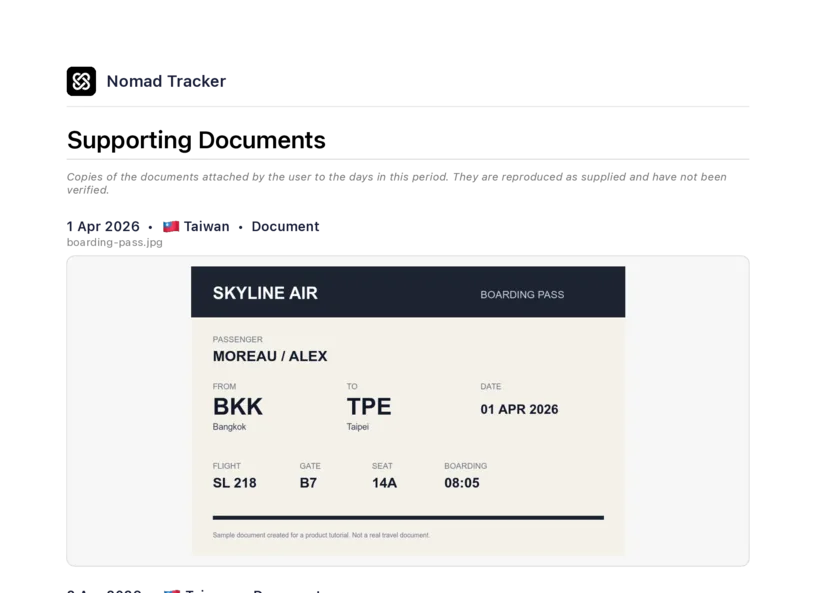
The appendix is headed Supporting Documents and each entry carries the day, the country, the file name and the document reproduced underneath. Two fit on a page.
The note under the heading is the one your adviser needs to see, and the report says it for you: the copies are reproduced as supplied and have not been verified.
Check the last appendix entry against the last paperclip in your calendar. If a day you attached something to is missing from the appendix, its file is no longer on this device.
If something looks different
Attach Proof Documents cannot be switched on. No day inside the range carries a document, and the app says so underneath: No documents attached to days in this range. Widen the range or attach the evidence first.
The count is lower than the number of paperclips you can see. Some of those days are outside the exported range, or their files are missing. The orange line under the switch counts the missing ones.
The report has tables but no appendix. The switch was off when you exported. Tap Export Again and check Options.
The PDF is enormous. Every appended document is a full image. If the file is too big to email, export without the appendix and send the documents separately.
Export Data leads to the subscription screen. Exporting is part of PRO.
Next steps
Create a PDF travel report walks through the export screen itself, page by page.
Export your travel history as CSV is the same period as a spreadsheet, for an adviser who wants to run their own numbers.