What you’ll achieve
By the end of this guide your travel history is a spreadsheet file: one row per day, with the country, where the entry came from and whether it counts.
A PDF is for reading. A CSV is for checking. It is the format to send when someone wants to run their own totals, or when you want to keep a copy that will still open in twenty years.
Step 1: Open the export screen
Open the Settings tab and scroll to the Data group.
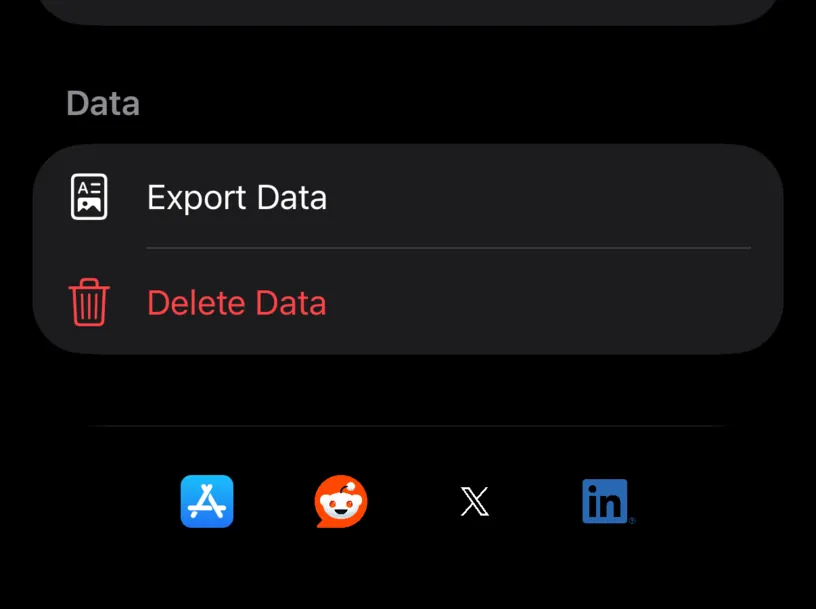
Tap Export Data. Delete Data below it is a different thing entirely, and it is red for a reason.
Step 2: Switch the format to CSV
The sheet opens on PDF Report. Tap CSV.
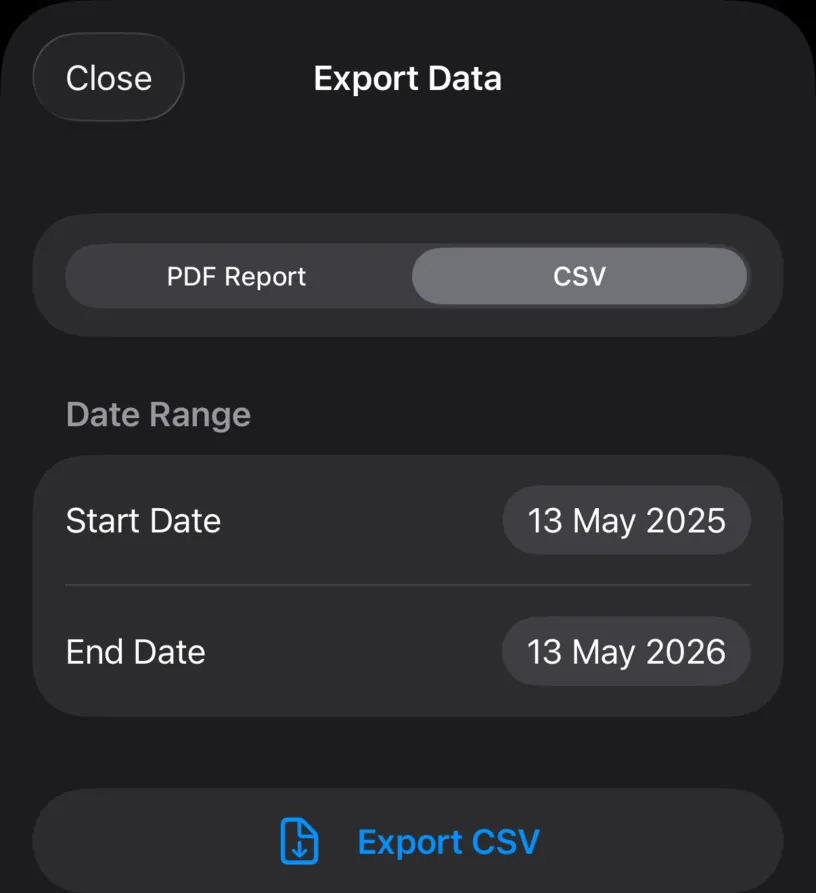
The screen gets shorter, because the Options that belong to the report do not apply here. A CSV has no summary and no attachments: it is the days, and nothing else.
Step 3: Set the period
The range starts at one year back and ends today. Tap a date to change it.
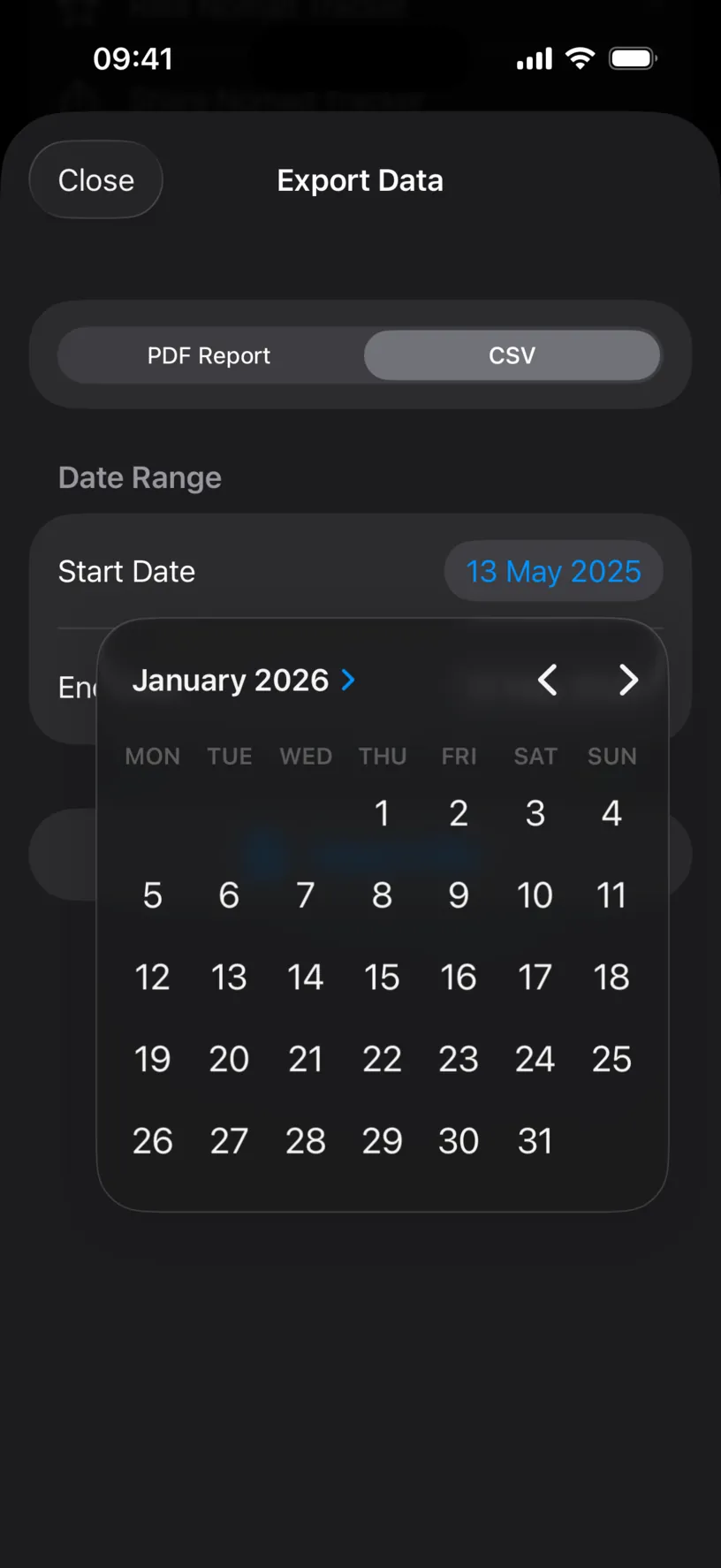
Move between months with the arrows, then tap the day. Tap outside the popover to close it.
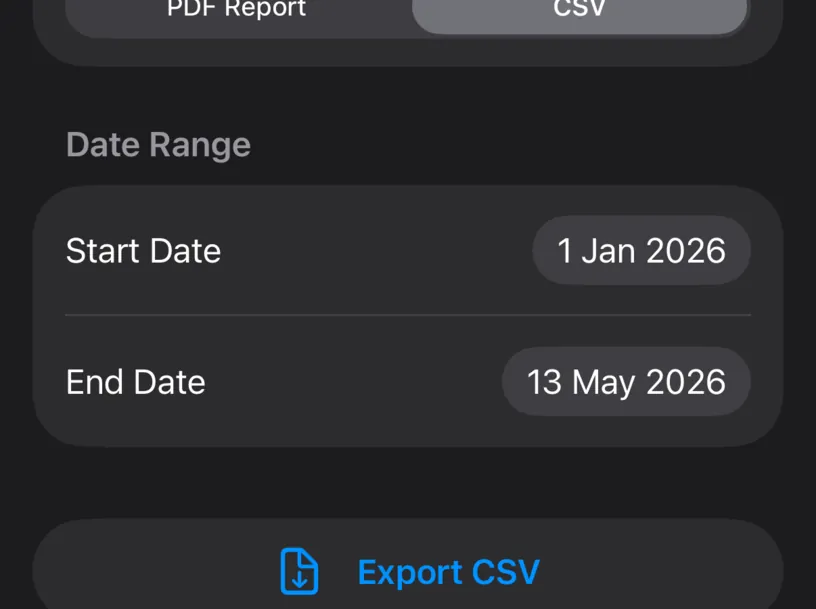
Match the range to whatever you are answering. A tax year, the period a form asks about, or your whole history if you are keeping an archive. Both ends are included.
Step 4: Export and send it
Tap Export CSV. The iOS share sheet opens with the file already made.

The name carries the range, so a file called NomadTracker_Export_2026-01-01_2026-05-13.csv still tells you what is in it a year later.
Save to Files puts it on your iPhone or in iCloud Drive. Mail sends it to your adviser. Copy puts the file on the clipboard for a Mac you are handing off to.
The sheet is iOS, not Nomad Tracker. Nothing has been uploaded anywhere: the file is made on your phone and goes only where you send it.
Check your result
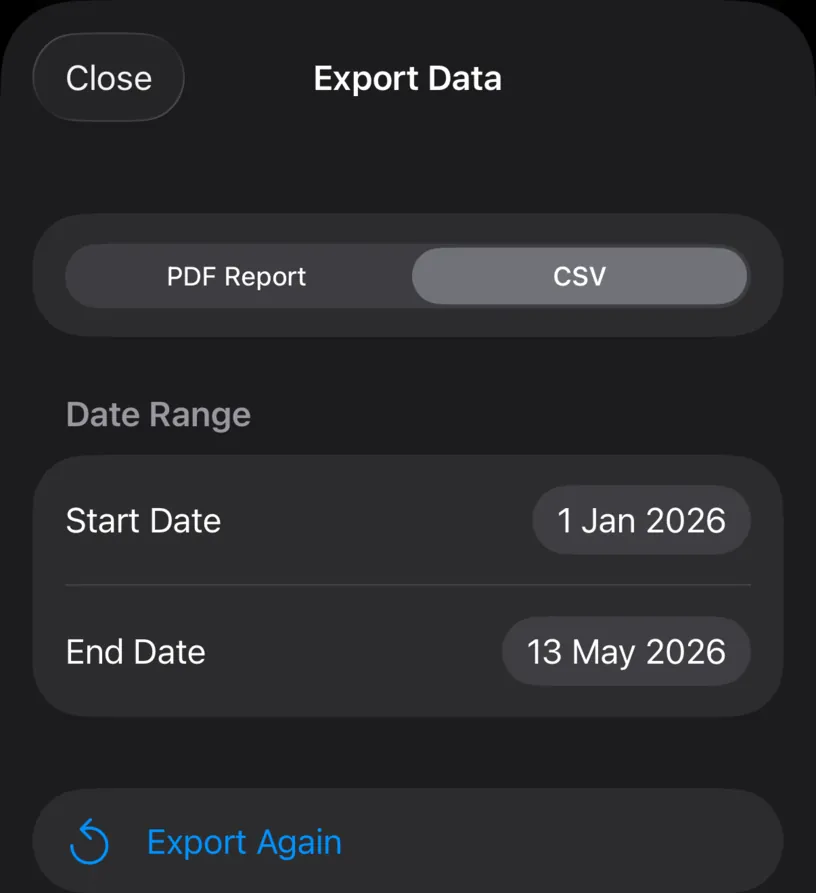
Back in the app the button becomes Export Again, which is how you know the file was written.
Open the file in Numbers, Excel or Google Sheets. There is a header row and then one row per logged day:
Date,Country Codes,Country Names,Is Fiscal Day,Source,Note
2026-01-01,ES,Spain,Yes,manual,""
2026-01-02,ES,Spain,Yes,manual,""
Six columns, and each one answers a question an adviser tends to ask.
Date is the day, written YYYY-MM-DD in UTC so it sorts correctly and never flips between date formats.
Country Codes and Country Names are the same information twice, for filtering and for reading. A day with two countries carries both, separated by a semicolon.
Is Fiscal Day is Yes or No, and it is the column that decides whether a day counts toward a residency threshold.
Source says where the entry came from: manual, gpsAuto, photoInference or documentImport. This is the column that shows how much of your history is evidence and how much is memory.
Note is whatever you typed on the day, always quoted so a comma in your own text cannot break the file.
Count the rows. The file holds one per logged day in the range, so the total should match the days your dashboard counts over the same period.
If something looks different
The file is empty apart from the header. No days in the range have an entry. Check the dates, then check the month in the Calendar tab.
A day you remember is missing. The export writes what is stored, not what happened. A gap in the calendar is a gap in the file.
Export Data opened the paywall. Export is PRO, and the gate is on that row rather than on the format. Both PDF and CSV are behind it.
The dates in the spreadsheet are a day out. They are UTC, which is the same space the app stores days in. A spreadsheet set to a local time zone can shift them on import; keep them as text if that happens.
You wanted the countries in one column, not two. Delete Country Names in the spreadsheet. The codes are the stable half.
You want proof documents too. A CSV cannot carry them. Use Create a PDF travel report, which can attach them.
Next steps
Create a PDF travel report is the readable version of the same data, with a summary and evidence attached.
Find and fill missing days is worth running before you export anything anyone else will read.
Read your dashboard at a glance explains the totals your spreadsheet should reproduce.