What you’ll achieve
By the end of this guide you have read five numbers, and you know whether the app’s answers can be trusted yet.
A day counter is only as good as the days in it. The first week is when the gaps appear: tracking that is off when you thought it was on, a country with nobody’s limit on it, a residence that is still the one setup guessed. Each check below is one screen and one number.
Step 1: Check this month has no holes
Open the Calendar tab.

Read the THIS MONTH row. It says how many days of the month are logged: 13 of 31 days here, and since today is the 13th, nothing is missing.
Count from today, not from the end of the month. Days that have not happened yet are not gaps.
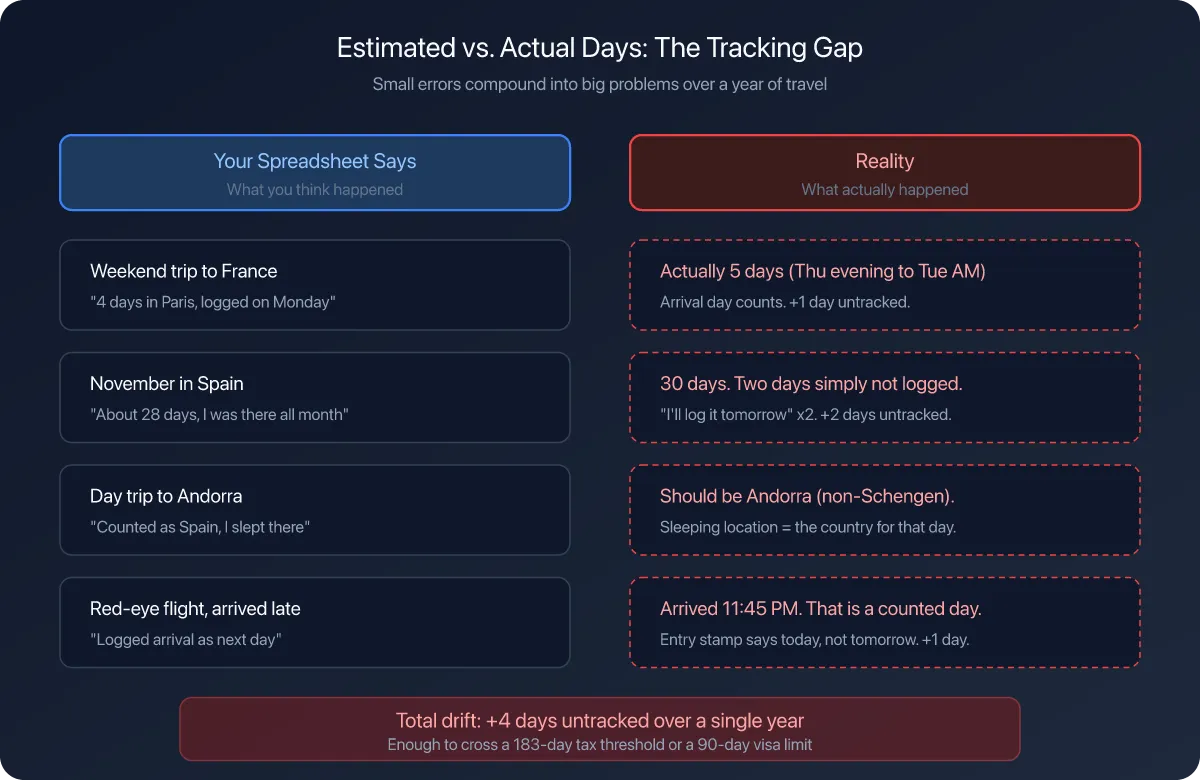
An unlogged day is not a neutral day. It counts as nothing for a visa limit, and as a day at home for a residence permit, so a week of holes quietly flatters both. Find and fill missing days closes them.
Step 2: Check tracking is where you think it is
Open the Settings tab.

The Auto Track Location row reads On or Off on the right. Read it now rather than assuming, because this is the setting most likely to be the opposite of what you remember: iOS asks again about an always-on location permission from time to time, and an answer given in a hurry leaves the app with less access than you think.
Off is a valid answer. It means you are logging by hand, and step 1 is your only safety net. Turn on automatic location tracking covers turning it on, and Understand your tracking status explains what the states mean.
Step 3: Check the countries you use have real limits
Tap Countries & Regions.

Every country you spend real time in should be on this list with a limit under it. A country that is not on the list still gets counted, but against the app’s default of 183 days, which is nobody’s actual rule.
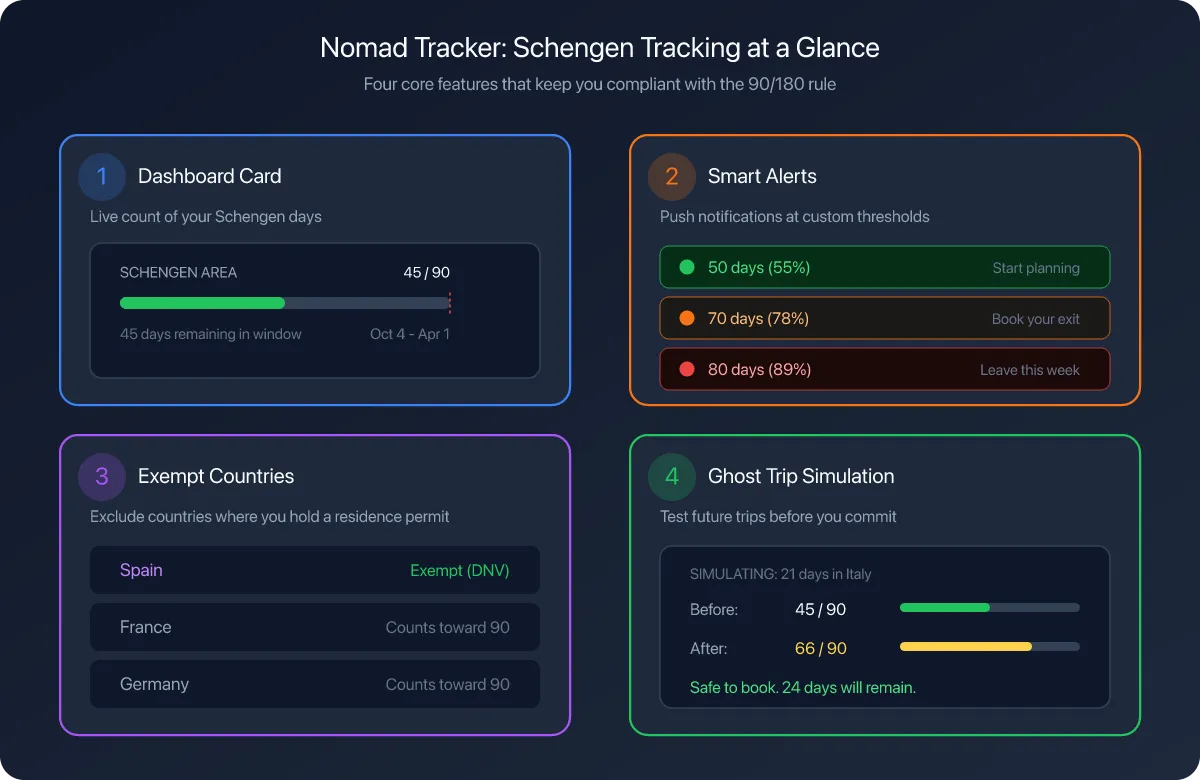
While you are here, read the two rows under Regional. Schengen Area and US Tax (FEIE) say Not tracked until you turn them on, and if either applies to you, that is the most expensive thing on this page to leave alone.
Add your first country to track adds one, and Set a country’s visa limit puts the immigration rule on top of the tax one.
Step 4: Check your residence
Go back and tap Residence.
Tax Residence is the setting every other number leans on: it decides which fiscal year the dashboard groups your history by. Open the country under Country Rules and read Day Limit and Fiscal Year Start, which the app filled in from its own table rather than from your paperwork.
If you have moved recently, this is the row to fix first. Set your tax residence covers the setting, and Update your residence after a move covers what else moves with it.
Step 5: Check the dashboard agrees with your memory
Open the Dashboard tab.

Year Distribution is your year in one line, and the This year tile totals it: 133 days logged across 4 countries.
Compare that with what you know about your own year. A country missing from the list, or a total well under the days you have actually lived through, means the history is thinner than your memory, and the counters are optimistic by exactly that much.
Check your result
Write down four numbers: the days logged this month, the days logged this year, the number of countries with their own limit, and your residence country.
If all four match your own account of the year, the app is measuring your life rather than a fraction of it. If one does not, fix that one before trusting anything downstream of it, including alerts and reports.
If something looks different
THIS MONTH is missing several days but you were somewhere. Automatic tracking cannot fill a day it was not running for. Troubleshoot missing automatic entries covers why, and Rebuild travel history from photos recovers days from photos you already took.
Auto Track Location says On but nothing is being logged. The switch and the iOS permission are two different things. Choose the right location permissions explains which permission the app needs.
A country shows a limit you did not set. Limits come pre-filled per country. They are a starting point, not advice, and Customize a country’s fiscal day limit changes one.
Your history only starts the day you installed the app. That is expected. Build your starting travel history is how to backfill the months before.
The dashboard shows a year you did not expect. The year comes from your residence country’s fiscal year. Check Fiscal Year Start in step 4.
Everything reads zero. No days are logged yet. Log your first trip is one stay, and the rest of this checklist makes sense afterwards.
Next steps
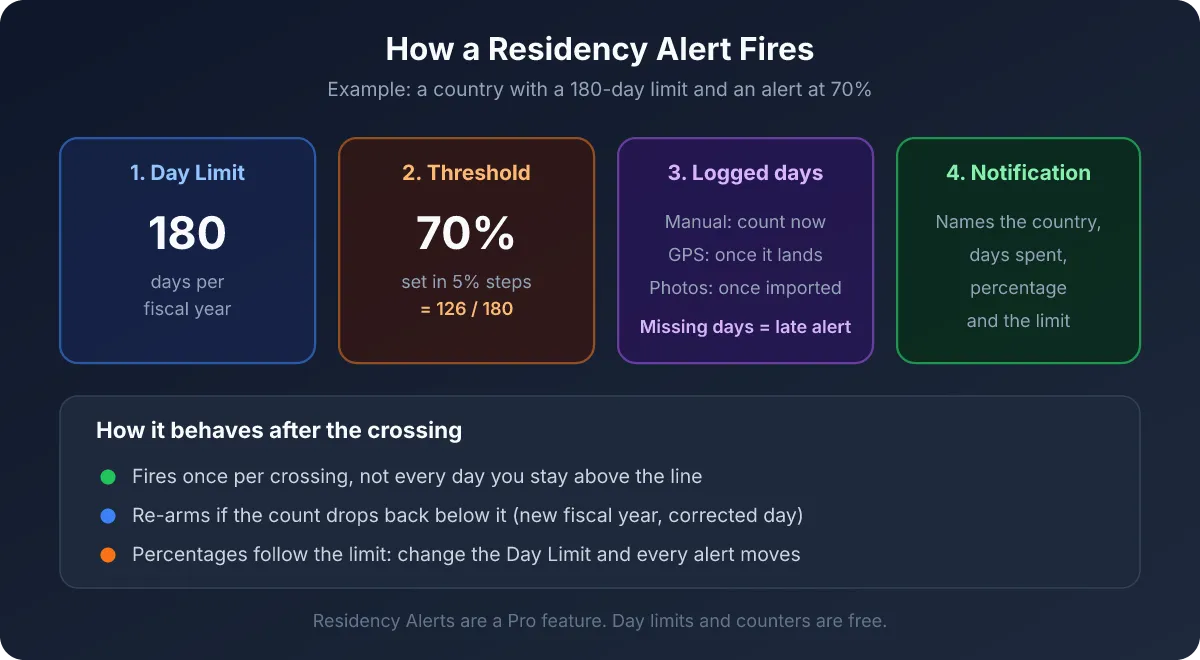
Set up immigration alerts and Configure fiscal day-count alerts are what turn these checks into something the app does for you.
Enable iCloud sync protects the history you have just verified.
Read your dashboard at a glance is the fuller reading of the screen in step 5.