What you’ll achieve
By the end of this guide the app knows you have moved: the new country drives your fiscal year, the old one is still tracked as somewhere you spend days, and your travel history is untouched.
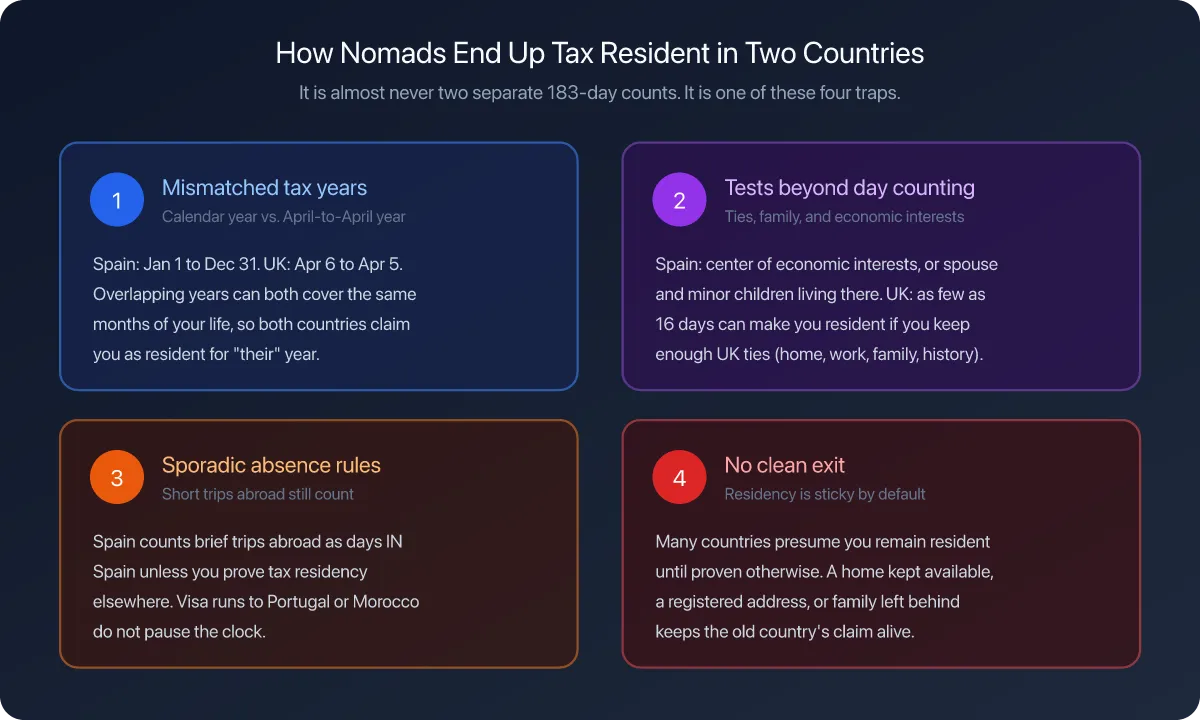
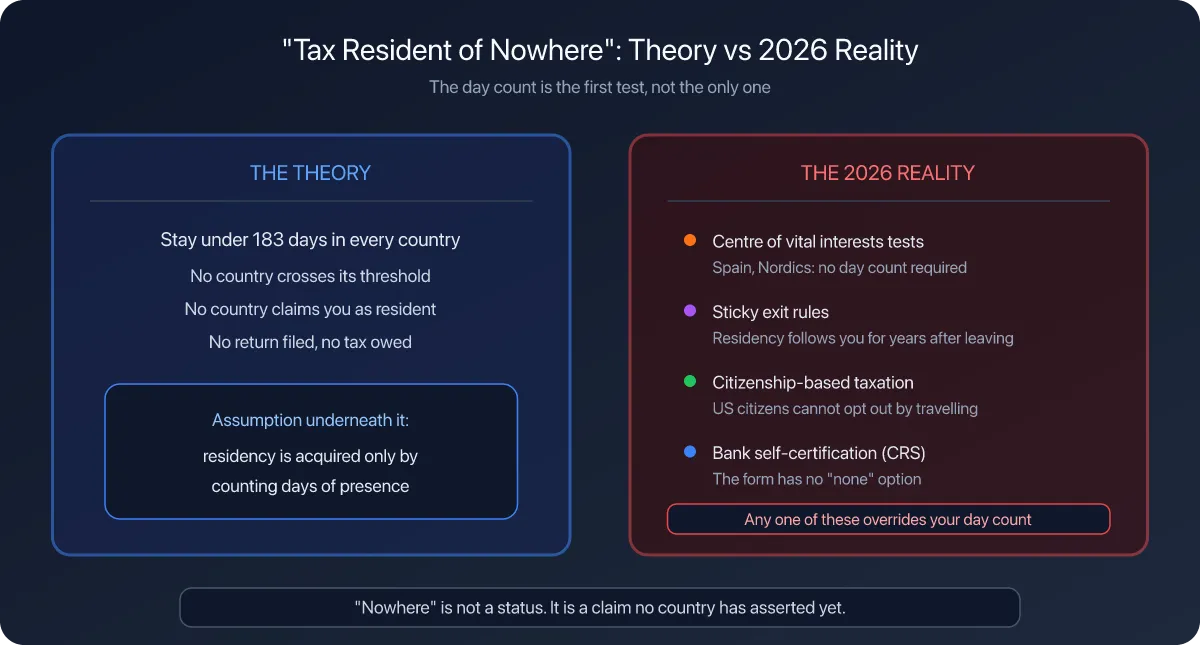
The app holds one tax residence at a time, which is the right model for the app and rarely the whole story in the year you actually move. Treat this as bookkeeping, not as an opinion about where you are resident: that answer comes from your adviser and from two sets of national rules.
Step 1: Open your residence
Open the Settings tab and tap Residence.

Three things live here, and the move touches all three: the country, any permit tied to it, and the country’s own rule.
Step 2: Set the new country
Tap Tax Residence, then type the country in Search countries....

Tap the country in the results. That is the whole change: the sheet closes and the setting is saved.

Country Rules now points at the new country, because that row always follows the residence.
Step 3: Check what the new country brought with it
Tap the country under Country Rules.

Day Limit and Fiscal Year Start come from the app’s own table, not from your paperwork. Thailand arrives as 180 days and January 1.
Read both before you trust the dashboard again. The day limit is the threshold your days are counted against, and the fiscal year start decides which window the dashboard groups your history into. A country whose year starts in April regroups the same trips completely differently.
Step 4: Leave the old country tracked
Go back to Settings and tap Countries & Regions.

The country you left is still in this list with its own day limit, and that is what you want. You will keep spending days there, and those days keep counting against its threshold, which is exactly the situation a move creates.
Two things do not move themselves, so handle them here:
A residence permit belongs to the residence. If you tracked one for the old country, delete it from the Residence screen and set up the one that applies now. Track a residence permit covers both halves.
Alerts stay attached to the country they were created on. An alert warning you about the old country still fires, which may be right for a year in which you lived in both.
Check your result
Open the Settings tab and read the Residence row: it shows the new country.
Then open the Dashboard tab and read the year chip in the top left. If the new country’s fiscal year starts on 1 January, the chip stays a plain year and your counters keep their numbers. If it starts on any other date, the chip becomes a range and the totals under it change, because the same travel is now being cut into a different year.
Neither of those is a data loss. Your logged days are stored by date and never rewritten.
If something looks different
The Tax Residence row did not change. The tap has to land on the country row itself. There is only one residence, so picking one commits it and closes the sheet, whether you searched for it or scrolled to it.
Every number on the dashboard changed. The new country has a different fiscal year, so your history has regrouped. Set a non-calendar fiscal year explains the window, and the year chip will confirm it.
Your residence country’s card disappeared from the dashboard. Cards are built from days logged in the selected year. A country you moved to in November has almost no days in that year yet.
The old country is not in Countries & Regions. Add it back with the + in the top right and give it its day limit. Add your first country to track covers the fields.
Countries & Regions now lists a country twice. It does not: the residence country appears both there and under Residence, because they are two routes to the same rule.
Your permit counter is counting days away from the wrong country. The permit follows the residence, so it is measuring absences from the country you just set. Delete it and set up the permit that matches where you live now.
You were resident in both countries this year. The app cannot model a split year. Set the residence you want the dashboard organised by, keep the other under Countries & Regions with its own limit, and let your adviser handle the split.
Next steps
Set your tax residence is the first-time version of this setting, with more on choosing the country.
Customize a country’s fiscal day limit is where to correct the day limit the new country arrived with.
Review a previous year is how to read the year before the move once the new residence is in place.