What you’ll achieve
By the end of this guide you know exactly which location permission Nomad Tracker holds, where to read it, and how to change it.
There are four possible answers and only one of them logs your days while the app is closed. The app cannot pick for you, and after the first time you answer, it cannot ask again either. Everything from that point on happens in the iOS Settings app.
Step 1: Understand the two prompts
iOS splits location access into two questions, and Nomad Tracker has to ask both.
The first one appears when you turn on Auto Track Location. It offers Allow Once, Allow While Using App and Don’t Allow.
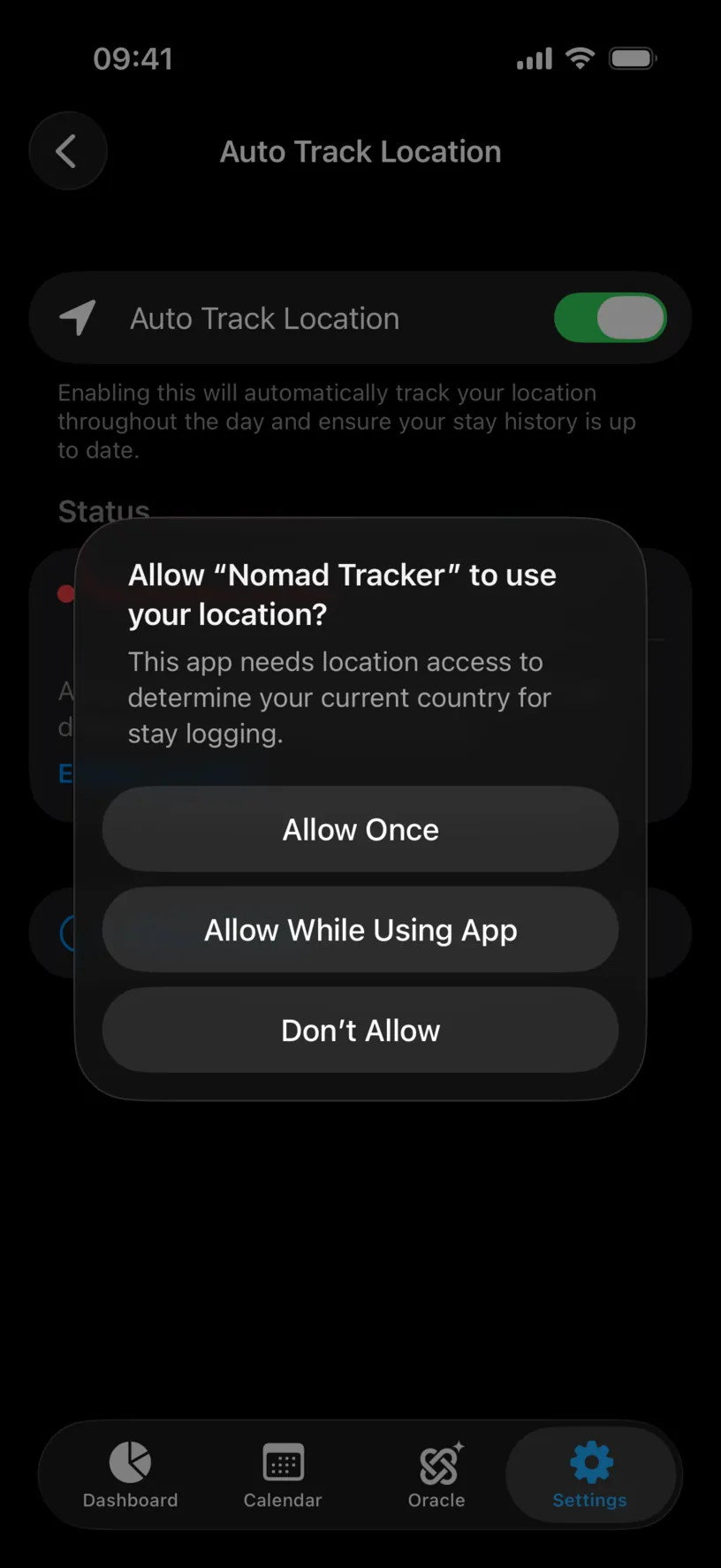
Allow While Using App is the answer that moves you forward. Allow Once expires when you close the app, and Don’t Allow ends the flow: iOS never shows this dialog again, and the only way back is the Settings app.
The second question arrives later, when you tap Turn on “Always Allow”. It asks whether the app can use your location when you are not using it.
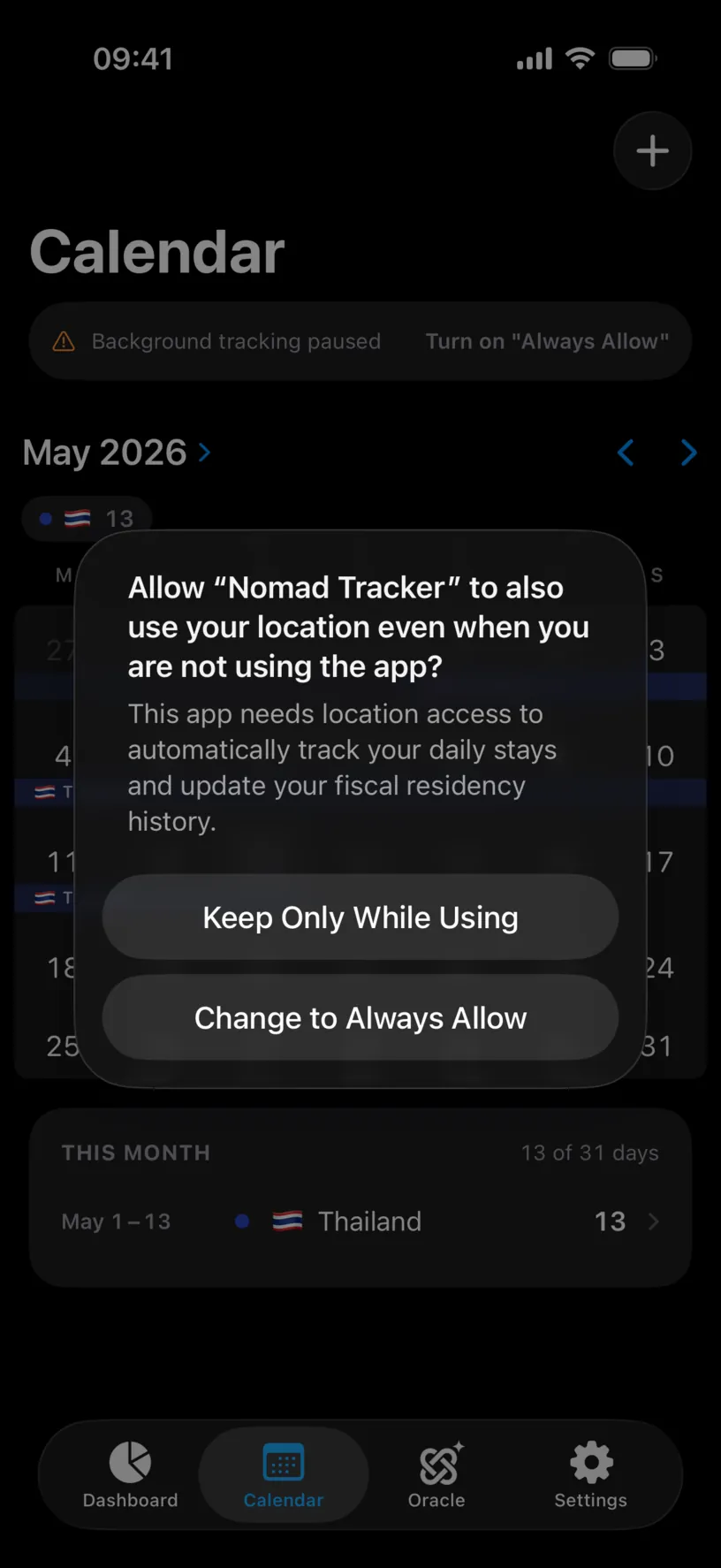
This one is fired once. Answer Keep Only While Using and iOS will not offer it again, so the app stops asking and starts pointing you to Settings instead.
Step 2: Check what you actually granted
Open the iOS Settings app, then Privacy & Security, then Location Services.
The list shows every app that has asked, with its current answer next to it. Look for Nomad Tracker.
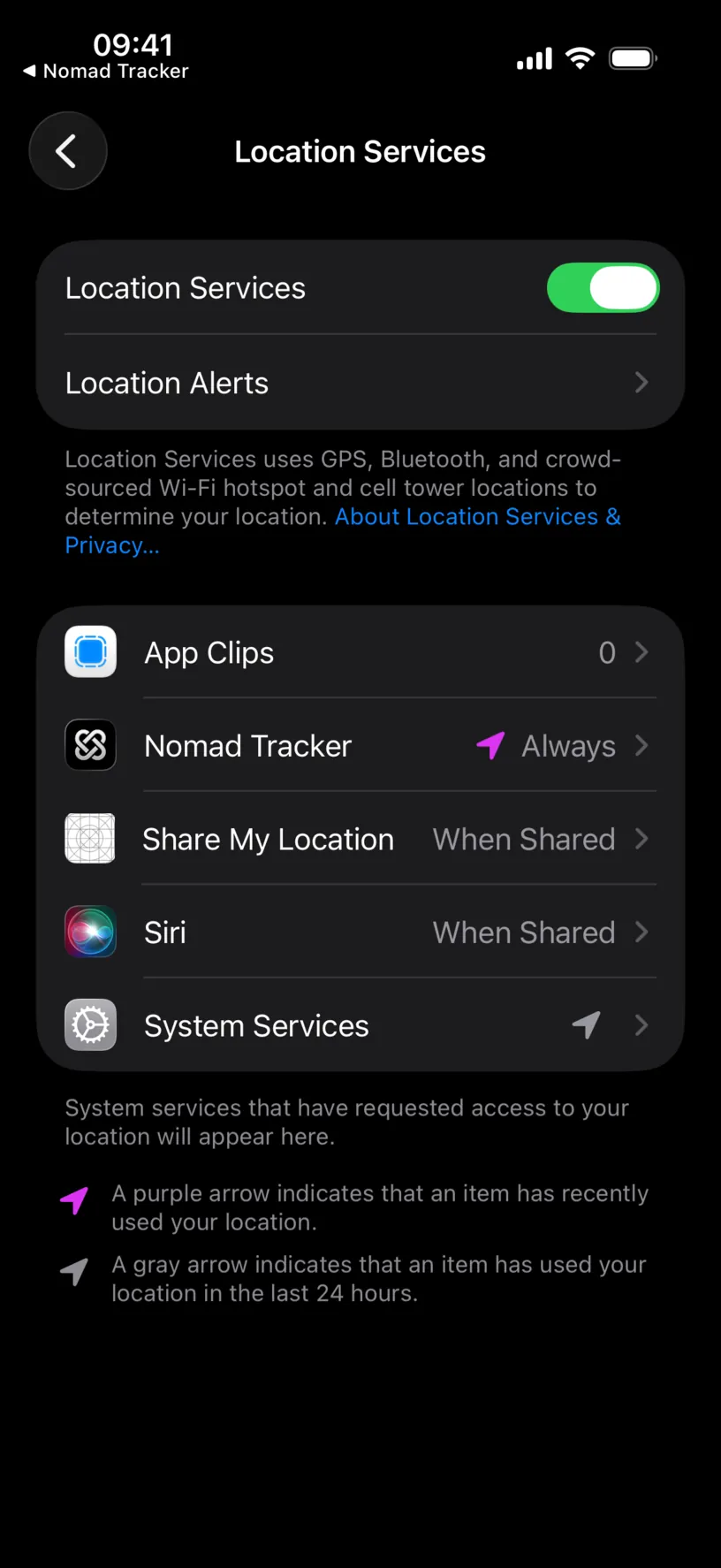
The switch at the top of that screen is the master one. With Location Services off, no app on the phone gets a location, whatever each app’s own setting says.
Step 3: Pick the right option
Tap Nomad Tracker. The screen holds four options under Allow Location Access, and a Precise Location switch under them.
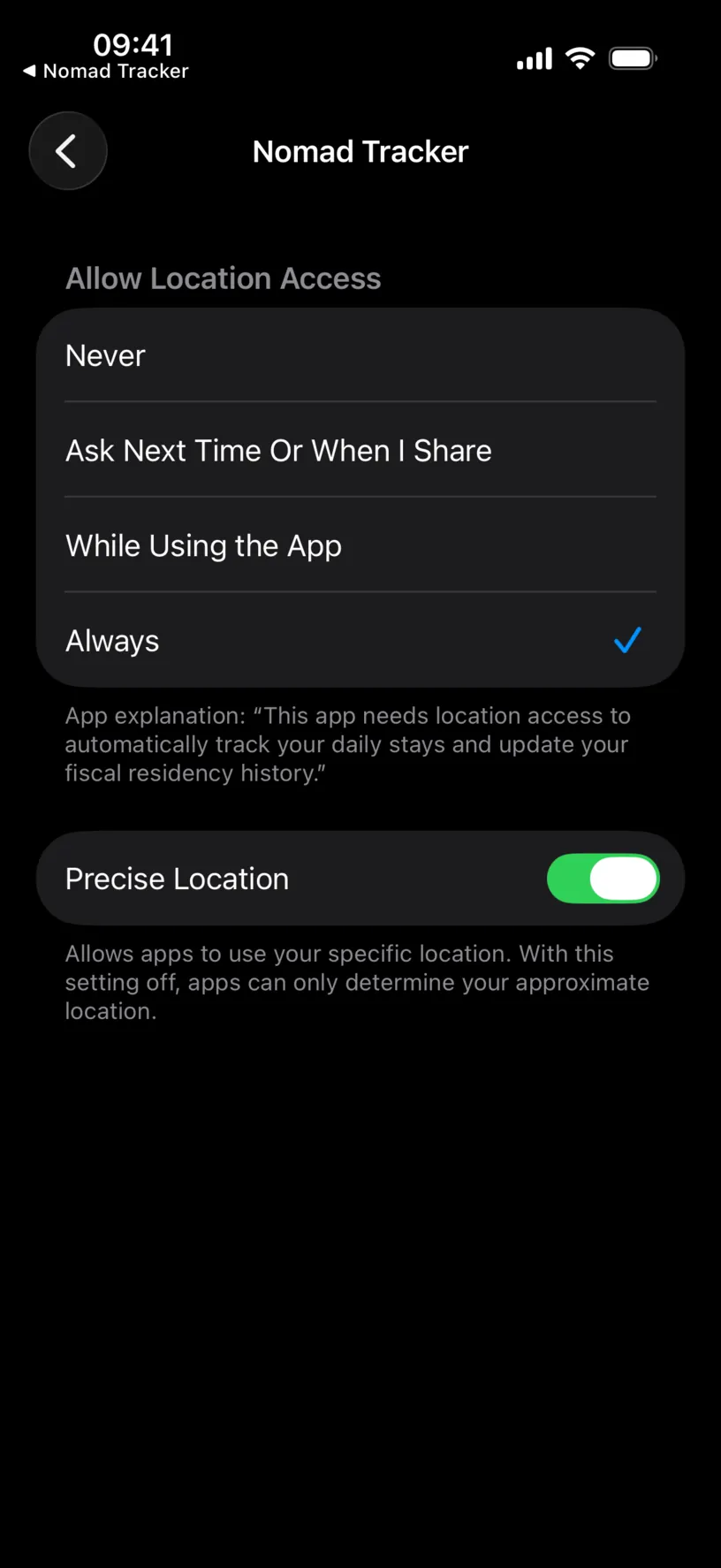
Always is the one to pick. It is what automatic tracking is for: the app logs the country you are in without you opening it.
While Using the App logs your country only while the app is on screen. It works, but every day you do not open Nomad Tracker is a day it cannot fill.
Ask Next Time Or When I Share resets the question. The app has no access until the next prompt, which you then have to answer again.
Never blocks location entirely. Automatic tracking logs nothing, and the app says so instead of failing quietly.
Step 4: Leave Precise Location on
Precise Location decides whether iOS hands over your exact position or a rough area, and it only appears once you have granted some access.
Leave it on. Nomad Tracker needs to know which country you are in, and near a border an approximate location is exactly where an approximation goes wrong.
The permission has no effect on what leaves your phone. Country detection runs on the device against offline map data, so a more precise location means a more accurate day count, not more data shared.
Check your result
Go back to Nomad Tracker, open the Settings tab, and tap Auto Track Location.
Status reads Tracking in background with a green dot, and there is no card underneath asking for anything else.
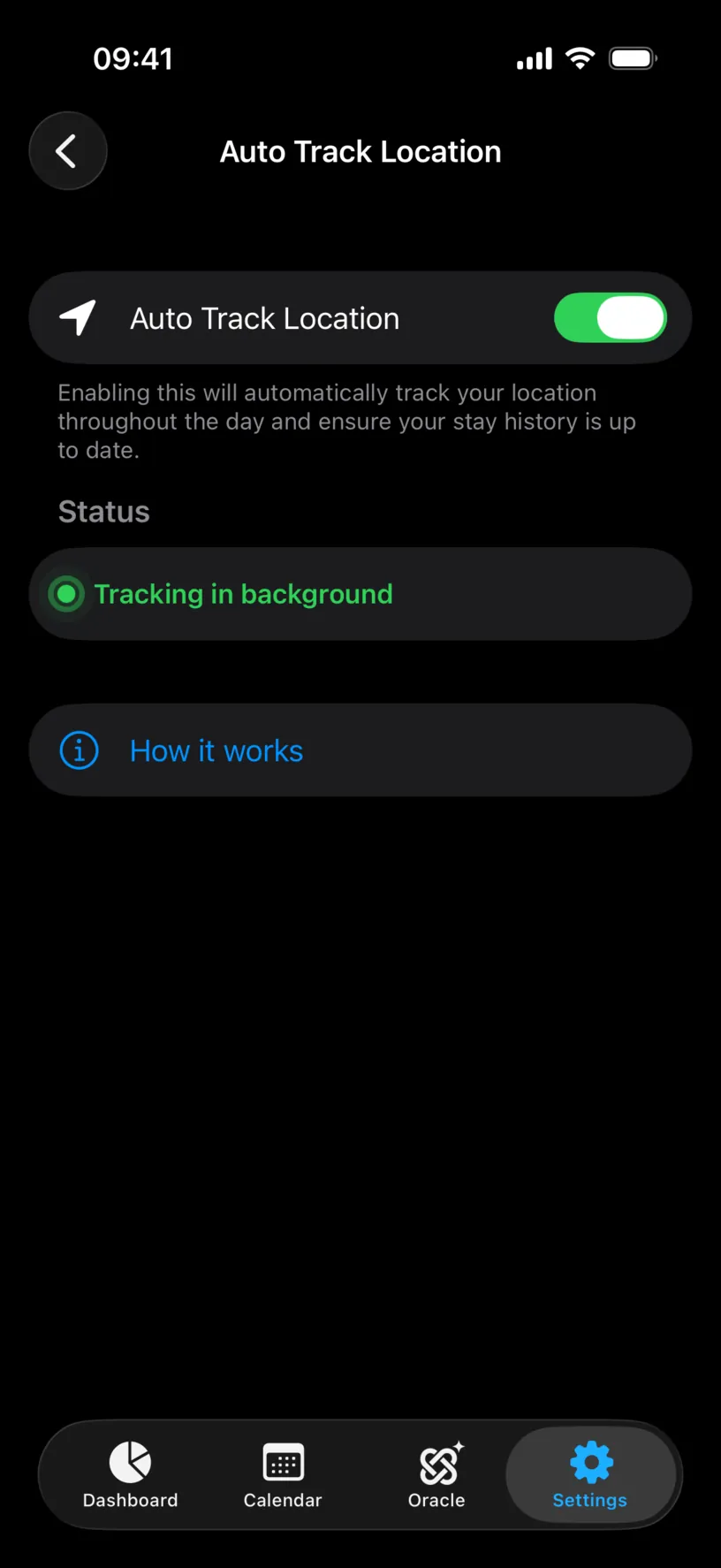
That green line is the only confirmation worth trusting. It combines the switch and the permission, which is what actually decides whether a day gets logged.
If something looks different
The status reads Only while app is open. The permission is While Using the App. Set it to Always in the iOS Settings app, or tap Turn on “Always Allow” in Nomad Tracker if you have not spent that prompt yet.
The status reads No location access. The permission is Never, Ask Next Time Or When I Share, or the master Location Services switch is off.
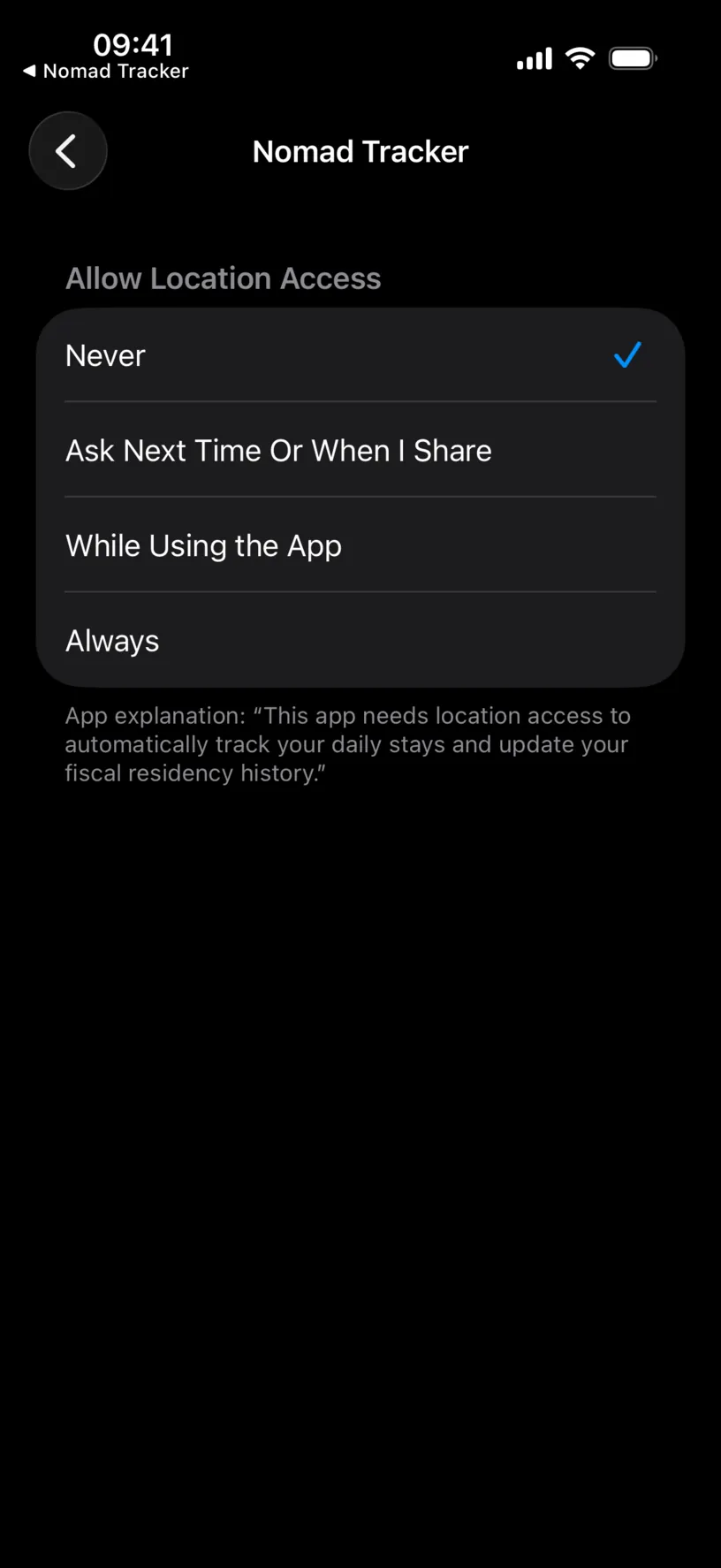
Notice that Precise Location disappears with Never selected. There is nothing to be precise about.
Nomad Tracker is not in the Location Services list. The list only holds apps that have asked at least once. Turn on Auto Track Location in the app, answer the prompt, and the entry appears.
The app shows Open Settings instead of asking. That is the expected behaviour once a prompt has been answered. iOS gives an app one chance at each question, so a denied permission or a spent Always prompt can only be changed from the Settings app.
Tracking is on, the permission is Always, and no new days appear. The permission is not the problem. Check Low Power Mode and Background App Refresh in the iOS Settings app, both of which pause background work for every app on the phone.
You would rather not grant Always. That is a reasonable choice. Keep While Using the App, open Nomad Tracker once a day, and the day gets logged. You can also skip location entirely and enter stays by hand, which the app treats as the more authoritative source anyway.
Next steps
Turn on automatic location tracking walks the whole switch and prompt sequence from the beginning, in order.
Read your dashboard at a glance explains the counters that the days logged this way feed.