What you’ll achieve
By the end of this guide your iPhone warns you before you run out of visa days, in the countries you set it for and in the Schengen Area.
An immigration limit is not a tax limit. Crossing a tax threshold gets you a filing obligation you can resolve with an adviser. Crossing an immigration one gets you an overstay, and the day it matters is the day you are standing at a border.
Step 1: Let the app send notifications
Open the Settings tab and tap Countries & Regions.
While the app has never asked, an Enable Notifications button sits at the top of the screen.
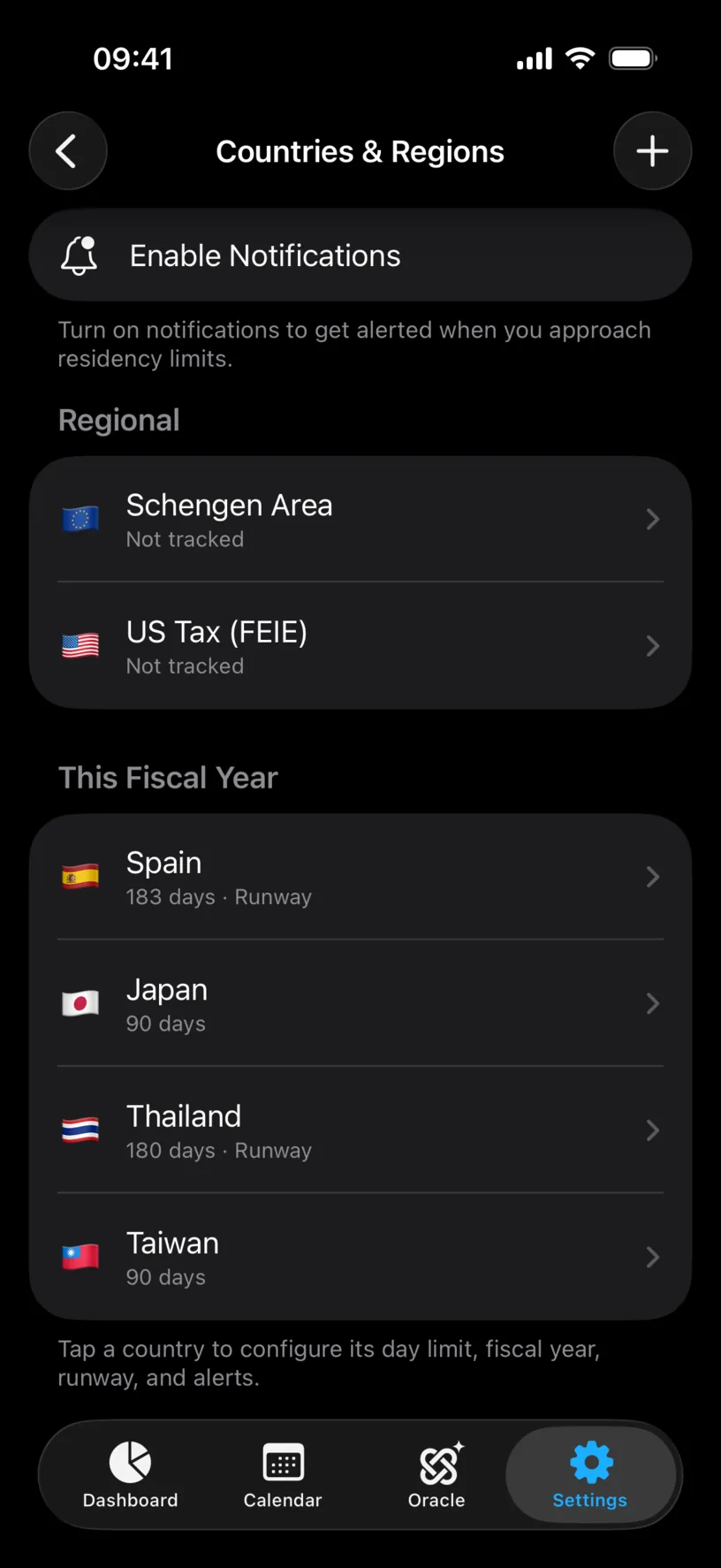
Tap it, then tap Allow in the iOS dialog.
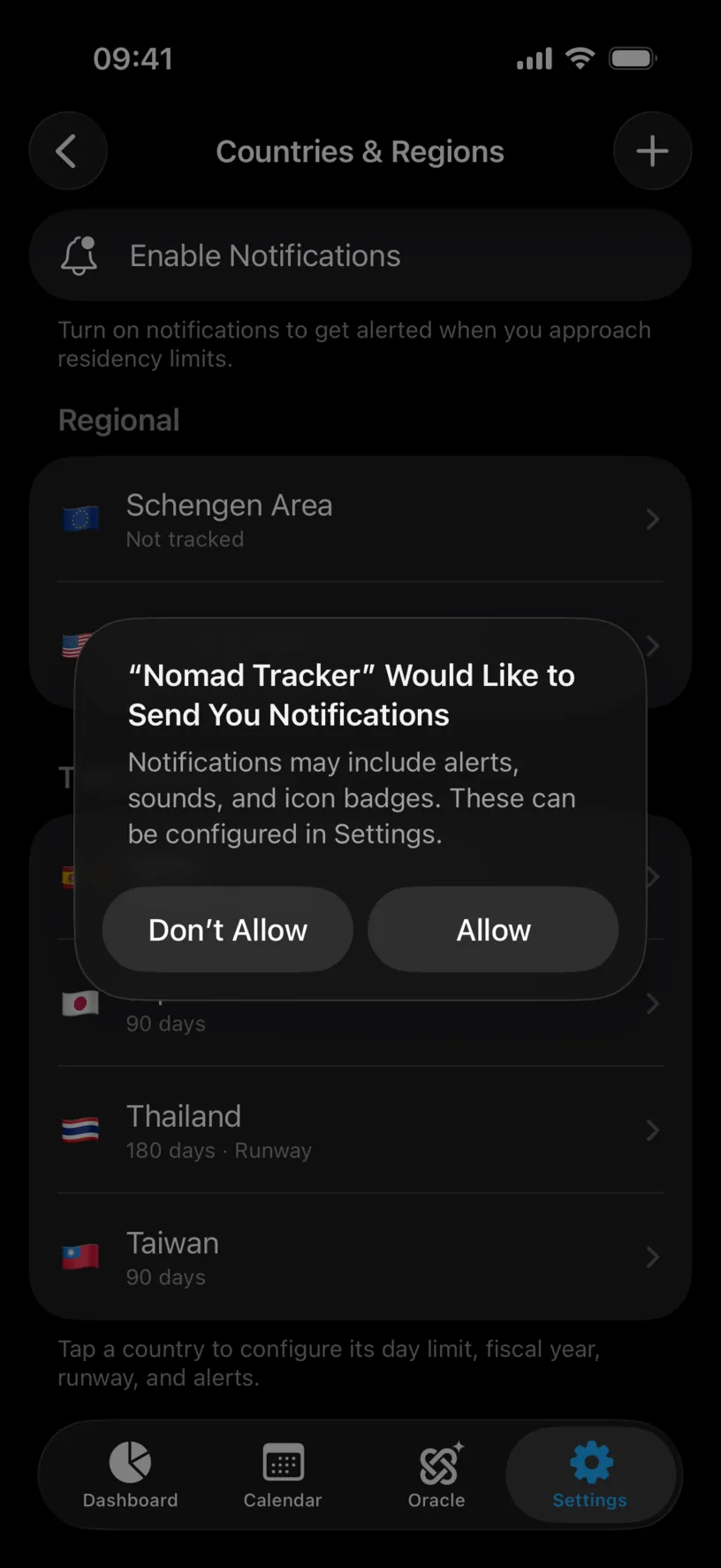
Nothing else on this page works without that answer. An alert with no permission is a setting that silently does nothing.
Step 2: Open the country and find Visa Alerts
Tap the country in the list and scroll to Visa Alerts, the last of the four groups.
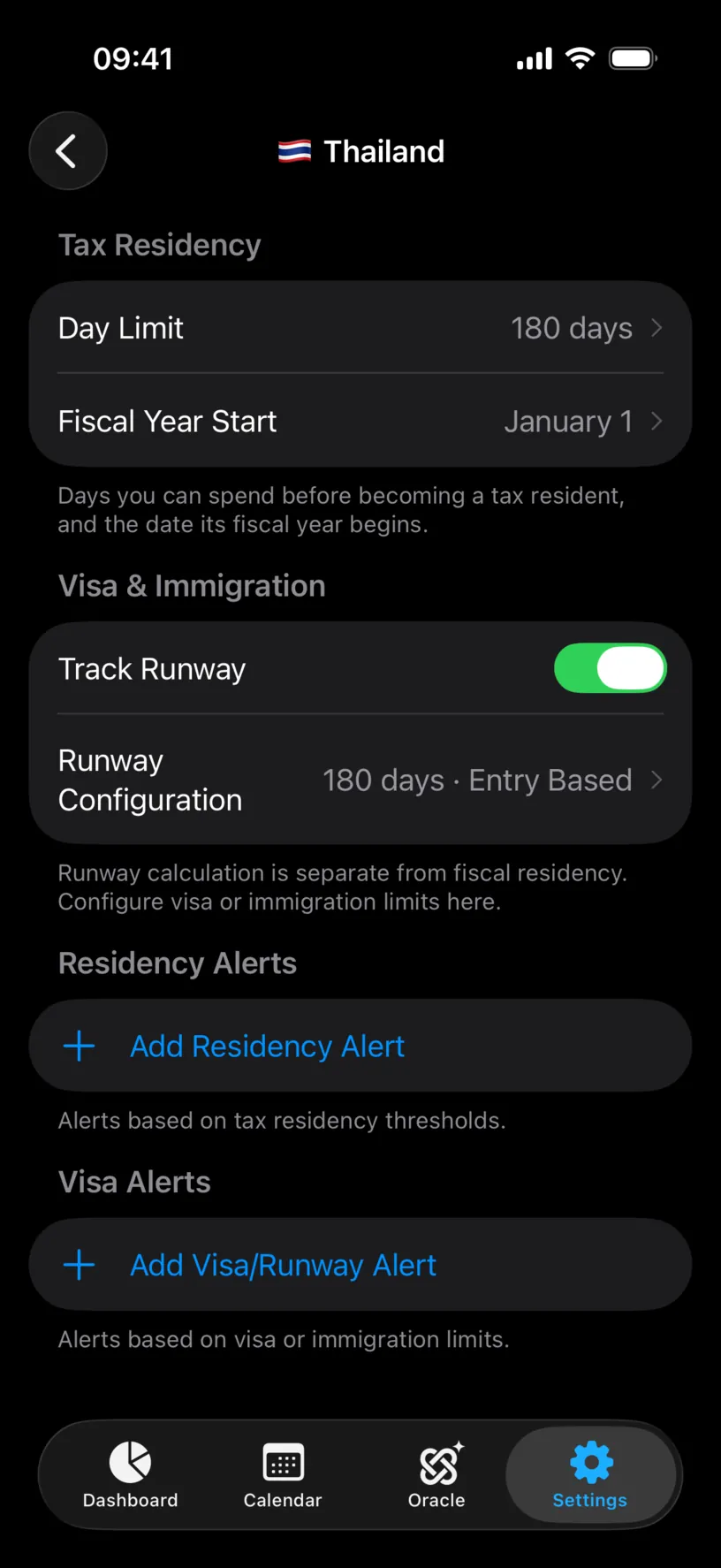
The section immediately above it, Residency Alerts, watches the tax threshold. This one watches the runway limit set under Visa & Immigration, so it needs Track Runway to be on and configured.
Step 3: Add the alert
Tap Add Visa/Runway Alert. The Edit Alert sheet opens on 80%.
Drag the slider and read the line underneath, which turns the percentage into days: 80% of a 180-day allowance is 144 / 180.
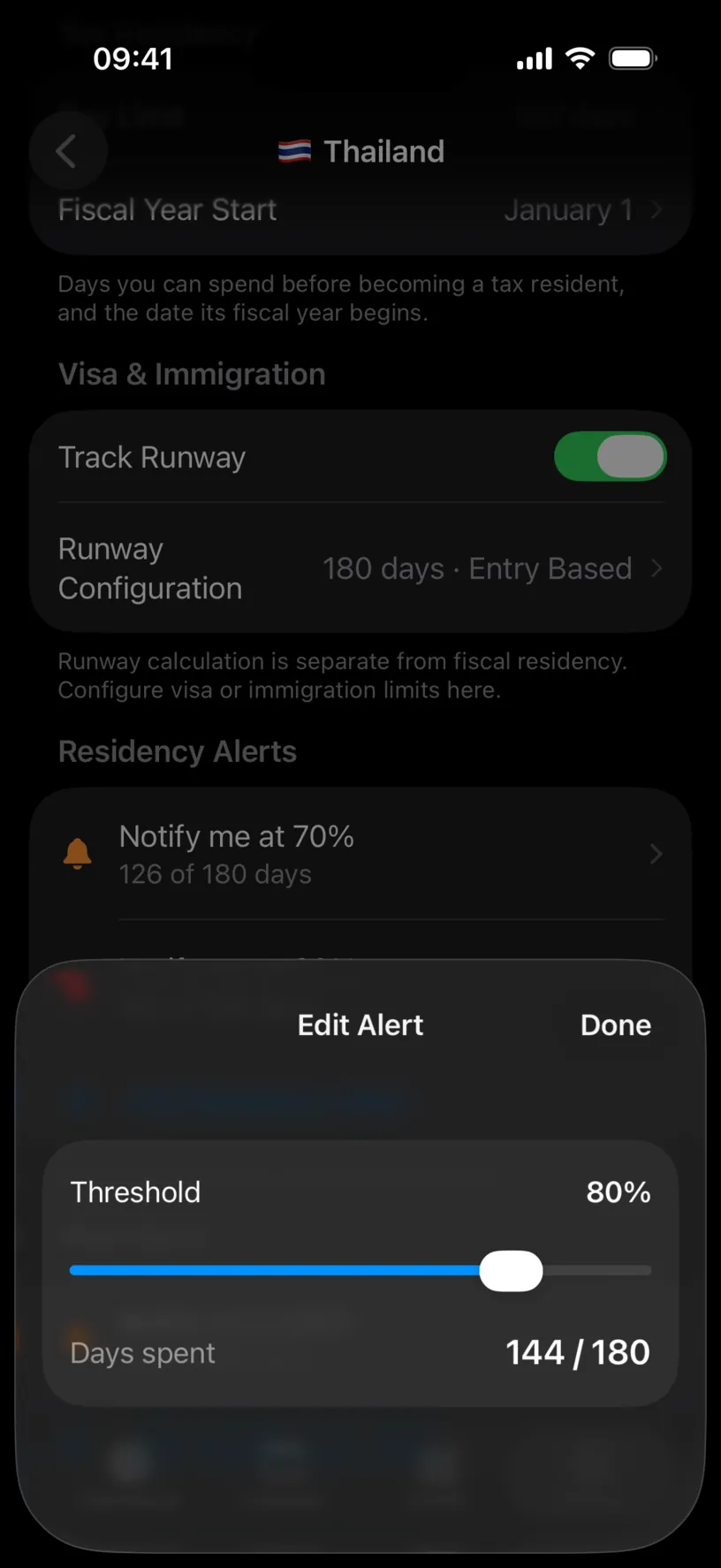
Tap Done.
Set the threshold at the point where you would still have time to act. A warning at 95% of a visa allowance arrives after the flight you would have needed to change.
Step 4: Check it landed in the right section
The row appears under Visa Alerts, reading Notify me at 80% with the day count under it.
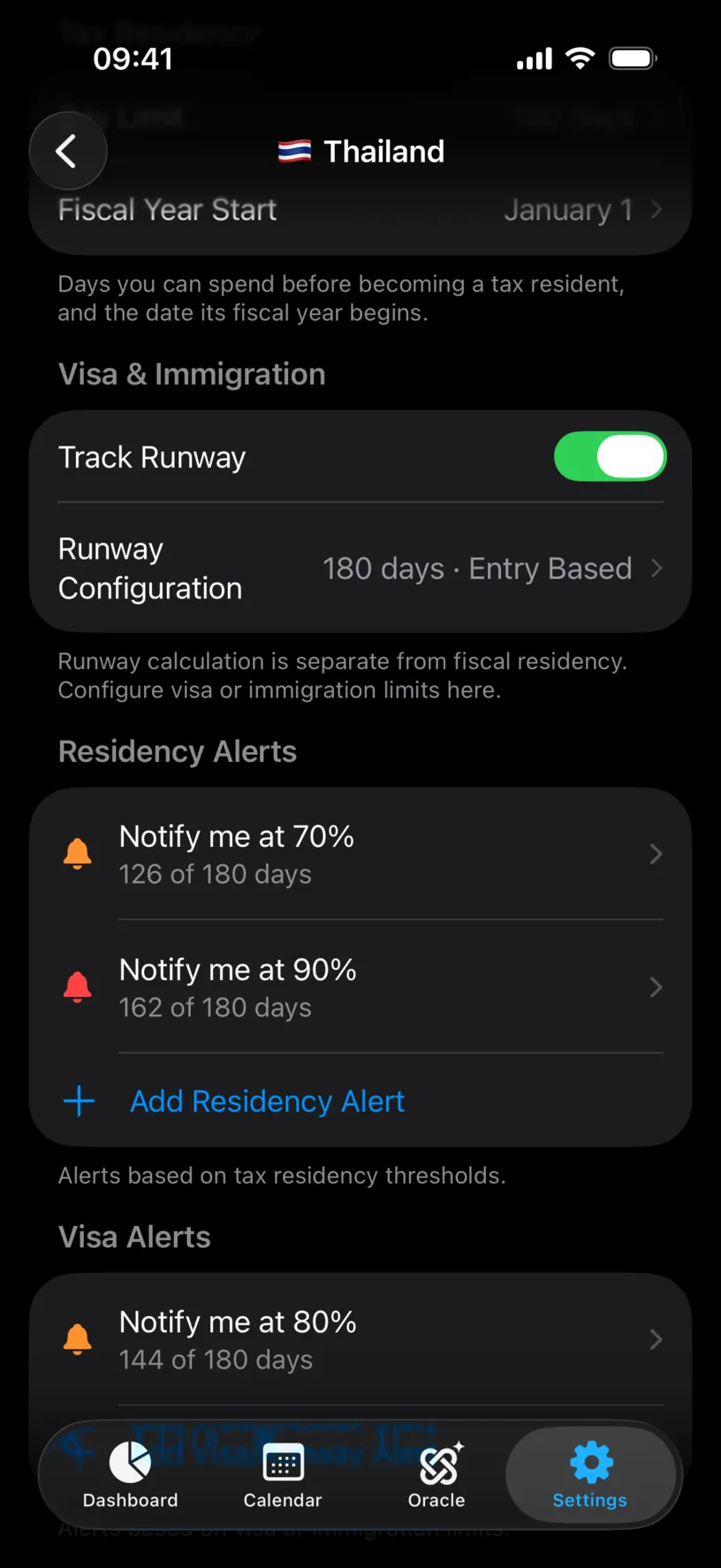
Two alerts in Residency Alerts and one in Visa Alerts are three separate warnings about the same country, measured against two different limits. That is the point of the split.
Step 5: Add the Schengen one separately
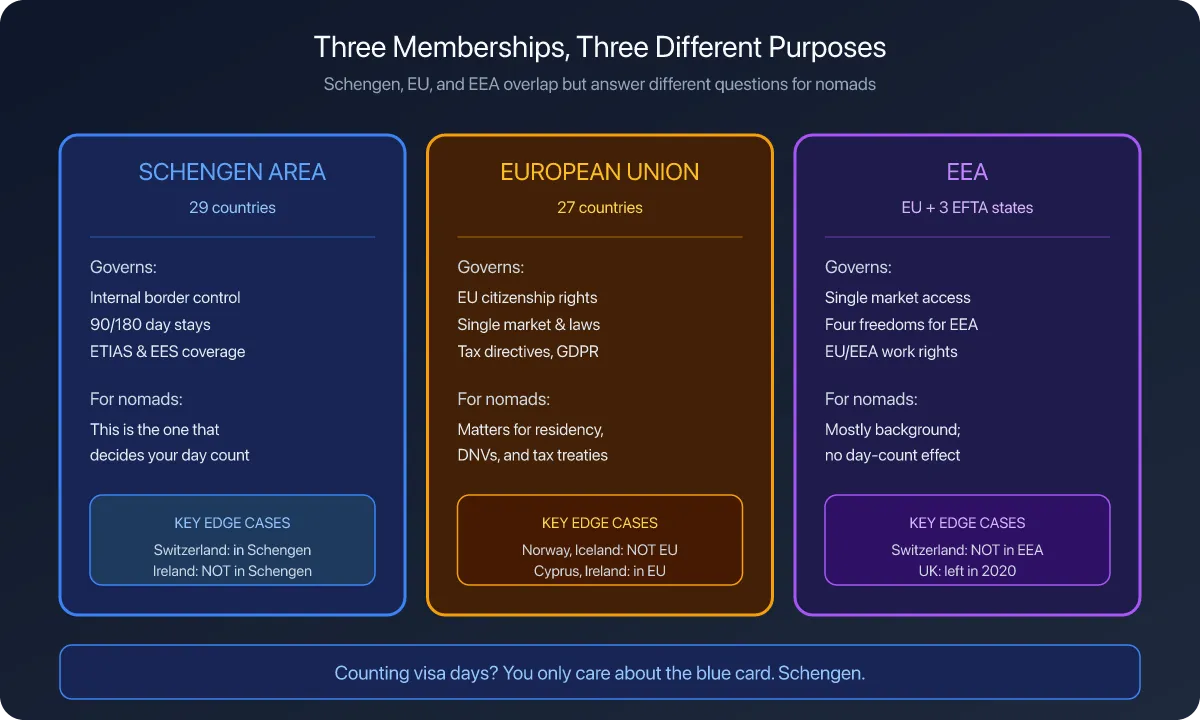
Schengen is not a country, and its alerts are not on any country’s screen.
Go back to Countries & Regions and tap Schengen Area under Regional. With Track 90/180 Limit on, a Schengen Thresholds section appears with Add Schengen Alert.
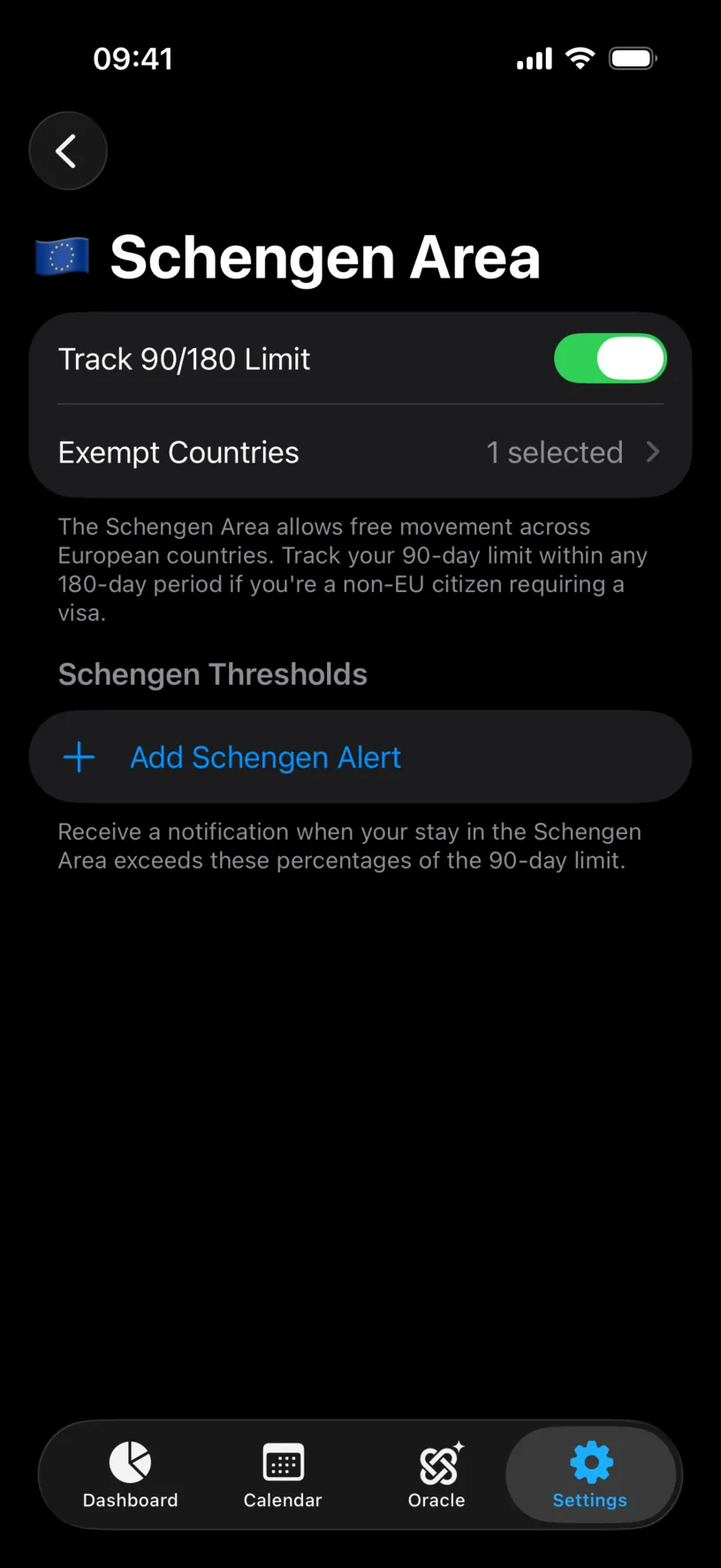
The alert works the same way, as a percentage of the 90-day limit, and it is measured across every member country at once rather than one at a time.
Check your result
Each alert reads back as a sentence you can check without arithmetic: Notify me at 80%, then 144 of 180 days. The bell is blue below 70%, orange from 70 to 90, and red above.
When one fires, the notification is titled Visa Warning and names the country, the days used, the percentage and the limit, so you can act on it from the lock screen without opening the app.
If something looks different
There is no Visa Alerts section, only Residency Alerts. Track Runway is off for that country. A visa alert needs a visa limit to measure against, so turn the switch on and configure it first.
Both alert sections are replaced by one locked row. Alerts are a PRO feature. Residency & Visa Alerts with a padlock is what a free account sees.
The screen shows Notifications Disabled in orange. Permission was refused, and iOS does not allow a second prompt. Tap the row to open the iOS Settings app and turn notifications on there.
The alert fires at the wrong day count. The percentage is applied to the runway limit, not to the tax Day Limit. If those two numbers differ, check which one you were reading.
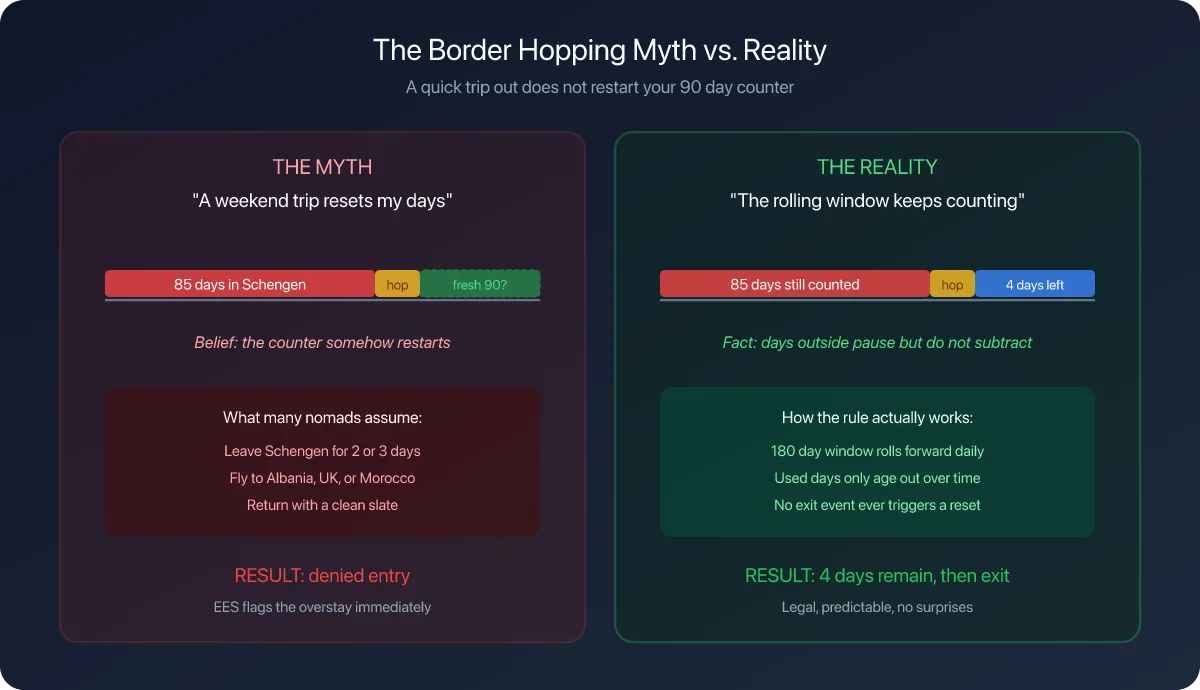
You have an entry-based limit and the alert never fires. Entry-based counting resets on every entry, so the count is the current stay rather than the year. A short trip may never reach the threshold, which is the rule behaving correctly.
You set a Schengen alert and nothing counts. Days in exempt countries do not count toward the 90/180 limit. If every Schengen day you have is in an exempt country, the counter has nothing to warn you about.
Next steps
Read your Schengen day counter explains the number the Schengen alert is watching.
Configure fiscal day-count alerts covers the other section on the same screen, the one about tax residency.
Plan your first trip with Ghost Trips tests a trip against these limits before you book it.