What you’ll achieve
By the end of this guide you have a short written read of one country’s numbers, and a side by side table that puts it next to another country you have spent time in this year.
Both live on the country’s own screen, so you get them without opening the Oracle or typing a question. And both read the two limits a country can have: the tax day count, and the visa allowance if you set one up.
Step 1: Open the country
Open the Dashboard tab, scroll to Countries, and tap the country’s card. This guide uses Spain, which has both limits: Fiscal Residency at 50 / 183 and Visa / Immigration at 50 / 60.
The screen is titled with the country’s flag and name. At the top sits Generate AI Summary. Below it are your stays in that country, grouped by year with the total on the right, and at the bottom Country Guides, articles from the Nomad Tracker blog about that country.
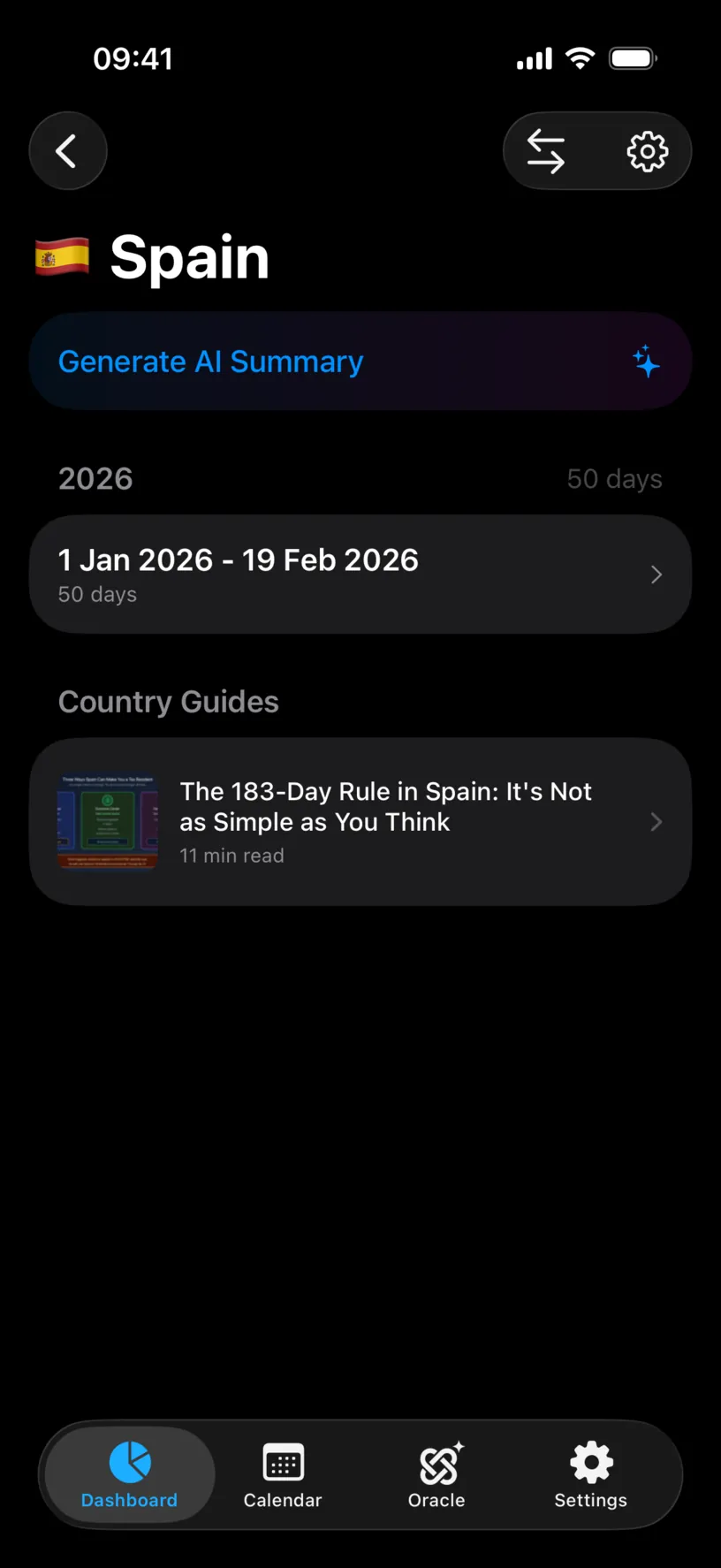
Two buttons sit in the top right. The arrows are Compare, and the gear is Country Settings, a shortcut to the same country under Settings.
Step 2: Generate the summary
Tap Generate AI Summary. The row reads Analyzing travel history... for a few seconds, then turns into a card titled AI Summary.
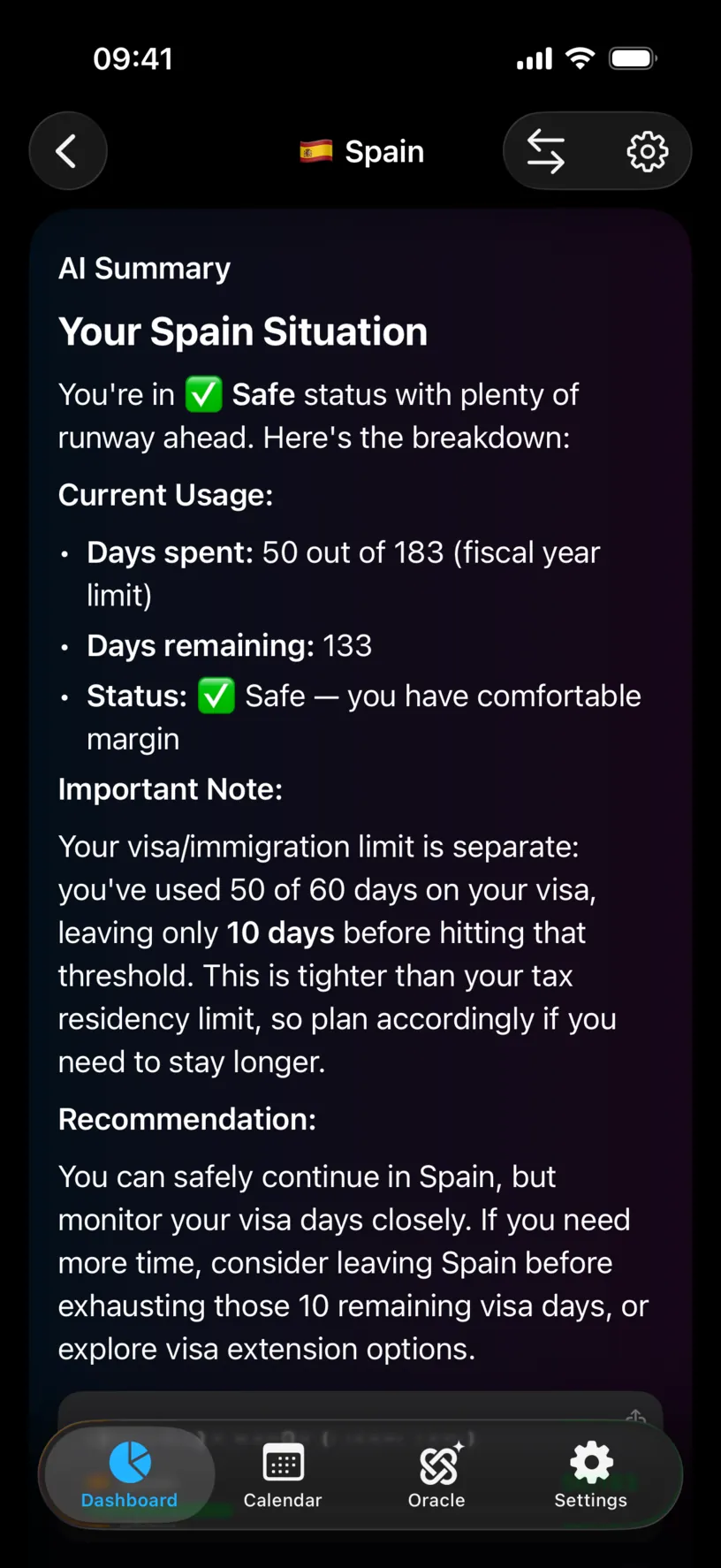
The summary uses the same numbers as the dashboard card. The tax count comes first, 50 out of 183 with 133 remaining, and then the visa allowance, 50 of 60 with 10 left, which is the one that runs out first here.
Under the text sit a small chart with its own share button, a copy button that copies the text ready to paste into a message to your adviser, and a line saying who wrote it. With the default provider it reads AI-generated. Your travel data is not stored. With OpenAI or Anthropic it names that company instead.
The wording changes every time you generate it. The numbers do not, because they come from your logged days, not from the AI.
Step 3: Pick a country to compare with
Tap Compare, the arrows in the top right. A sheet titled Compare with... lists every other country with days logged this year, with its day count on the right.
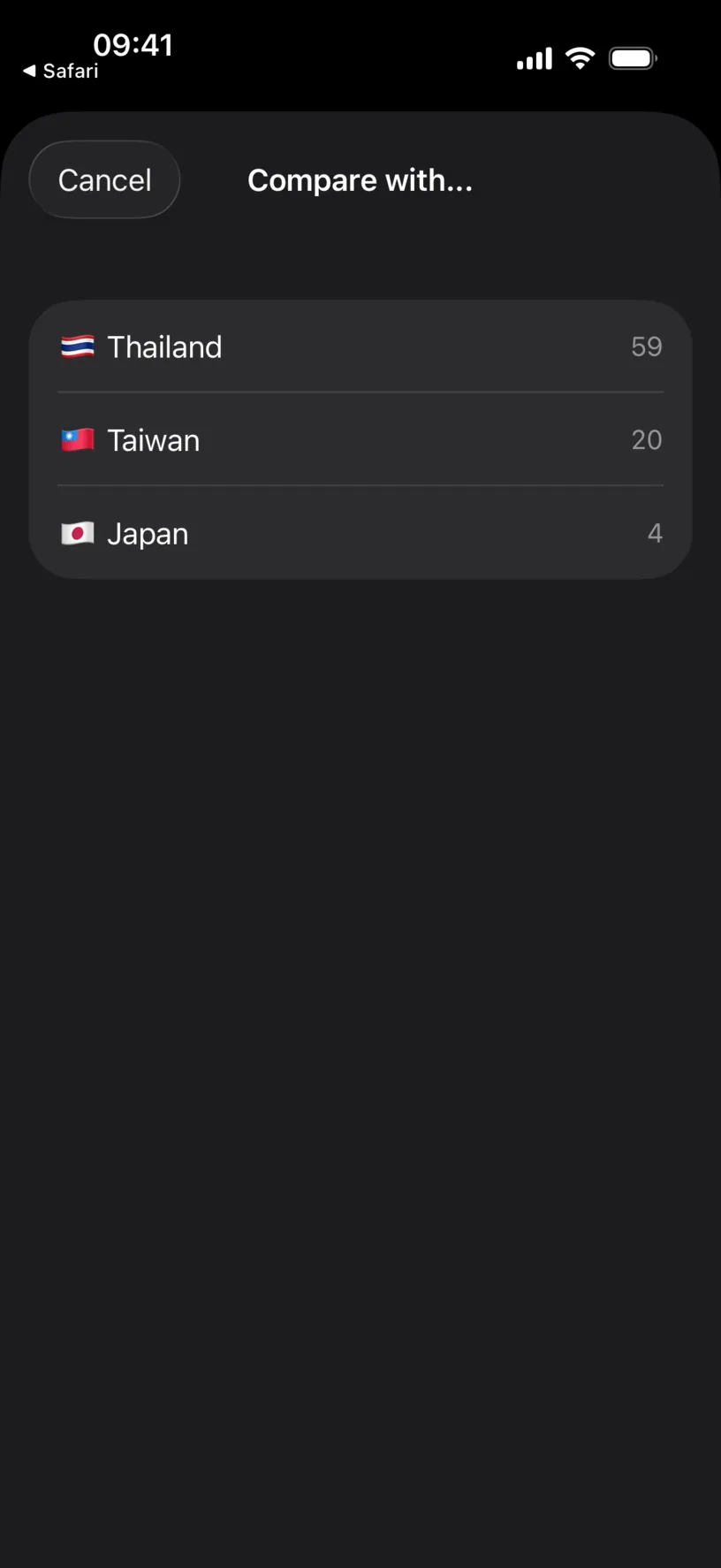
Tap one. The sheet closes on its own, there is no Done to press. This guide compares Spain with Taiwan.
Step 4: Read the comparison
A second card appears under the summary, titled Comparison. Scroll down to it.
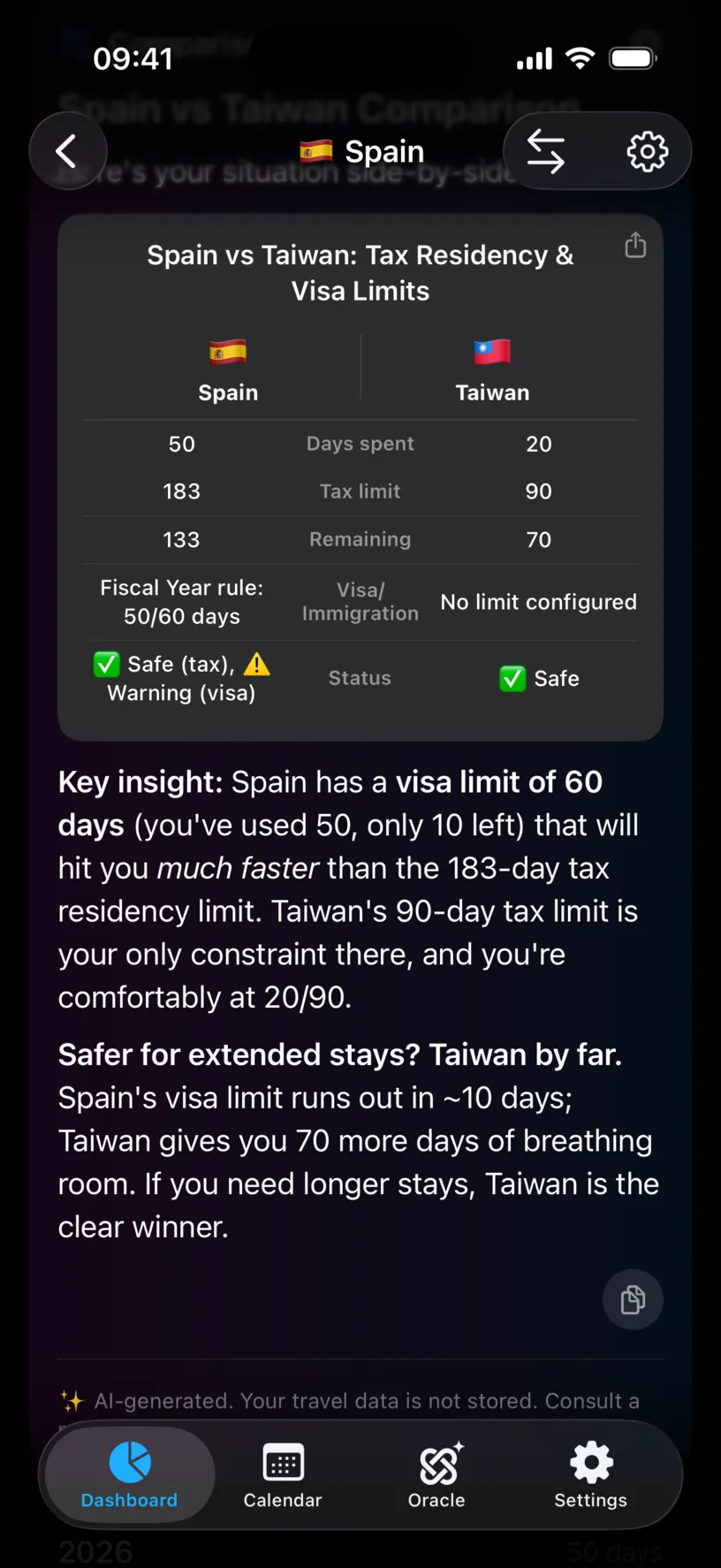
Each column is one country and each row is one counter. The tax rows come first: days spent, the limit and what remains. Below them sits the visa allowance, filled in for any country where you turned on Track Runway. Taiwan has none, so its column reads No limit configured. The last row gives each country a status, and Spain gets two: safe for tax, a warning for its visa.
The AI draws the table itself, so the row names and their order can vary from one run to the next. The numbers do not.
Under the table, the takeaway names the country that leaves you more room, and the limit that decides it. Here Taiwan wins by far, because Spain’s visa allowance runs out in about 10 days while its tax count still has 133.
The X in the top right of the card closes it. To compare with a different country, tap Compare again.
Check your result
Go back to the Dashboard and read the two country cards. Every number in the table is on a card: Spain’s Fiscal Residency 50 / 183 and Visa / Immigration 50 / 60, Taiwan’s Fiscal Residency 20 / 90.
If they match, the comparison is reading your own history. The wording changes each time you generate it, the numbers do not.
If something looks different
The comparison has no visa rows. Either neither country has Track Runway on, or your app is older than 3.12.1, where the summary and the comparison only read the tax counts. Update the app, and before acting on "safer", read both rows on the dashboard cards.
The visa numbers look wrong for a country you are not in right now. An entry based limit counts the entry you are on today. If you are somewhere else, the current entry is 0 and the whole allowance is shown as left. See when a stay becomes a new entry explains how entries are counted.
There is no Compare button. It only appears with PRO and a working AI provider. Check both under Settings.
Compare with... says there are no other countries. The list only holds countries with days logged in the current year. Log a stay somewhere else first.
Generate AI Summary shows Error generating summary. Most often it is the connection. Tap Try Again, more than once if needed. If it keeps failing, switch provider under Settings, AI Providers.
The summary row opens the subscription screen. The summary and the comparison are PRO. The stay list and Country Guides on the same screen are free.
The AI tells you what to do. It reads your counters and writes around them. It does not know your visa, your passport or your tax situation, and the card says so: consult a professional.
Next steps
Set a country’s visa limit turns on the second counter the comparison reads.
Choose an AI provider explains the difference between the providers the summary can use.