What you’ll achieve
By the end of this guide your travel history syncs through your own iCloud account, so a new phone starts with the days you already logged instead of an empty calendar.
Sync is off until you turn it on. Nothing leaves the device before that, and nothing goes anywhere except your own iCloud container.
Step 1: Find the Data Sync section
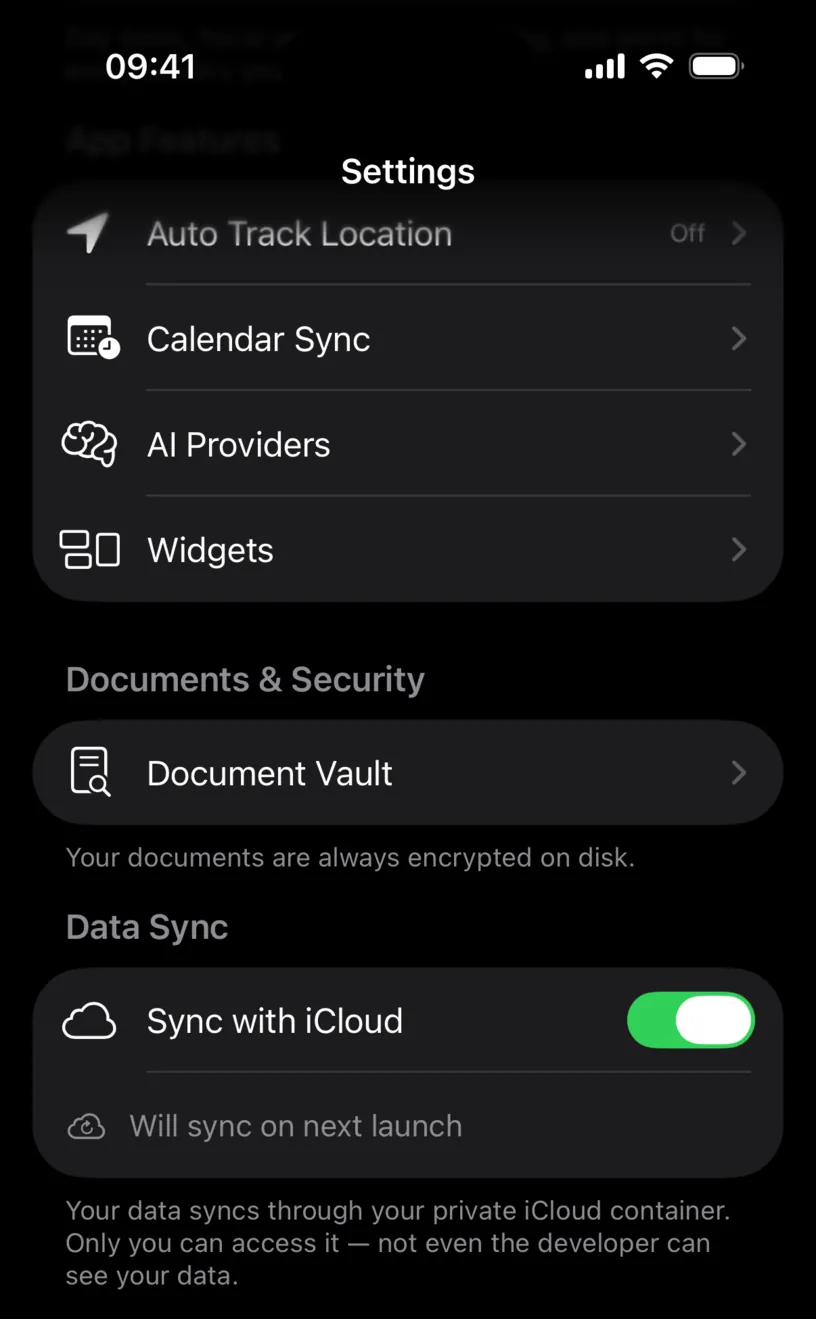
Open the Settings tab and scroll to Data Sync, near the bottom, under Documents & Security.
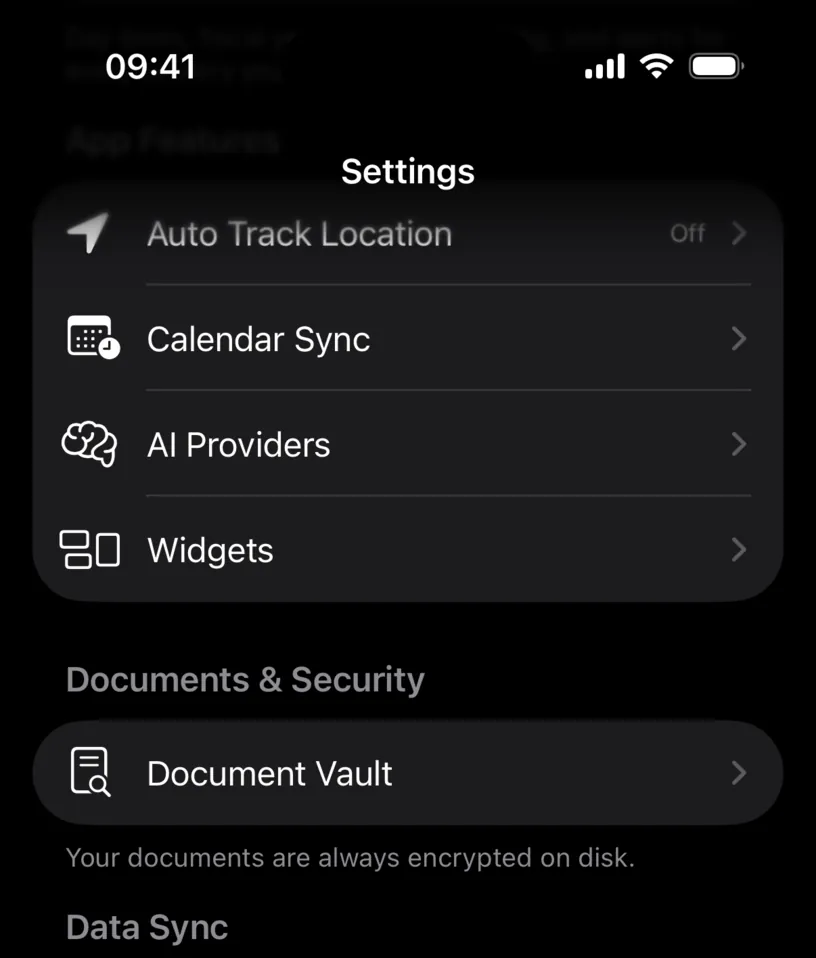
The row is Sync with iCloud, and the text under it is worth reading once: your data travels through your private iCloud container, which the developer cannot see either.
If the row shows a padlock instead of a switch, sync is part of PRO. Tapping it opens the subscription screen.
Step 2: Turn the switch on
Tap Sync with iCloud.
A status row appears under the switch and reads Will sync on next launch. That is the accurate answer: the app builds its database at launch, so the switch takes effect the next time the app starts, not the second you flip it.
Step 3: Restart the app
Close Nomad Tracker fully, then open it again.
Swipe up from the bottom of the screen and hold to see the app switcher, swipe the Nomad Tracker card up, and tap the icon again. Locking the screen is not enough.
Check your result
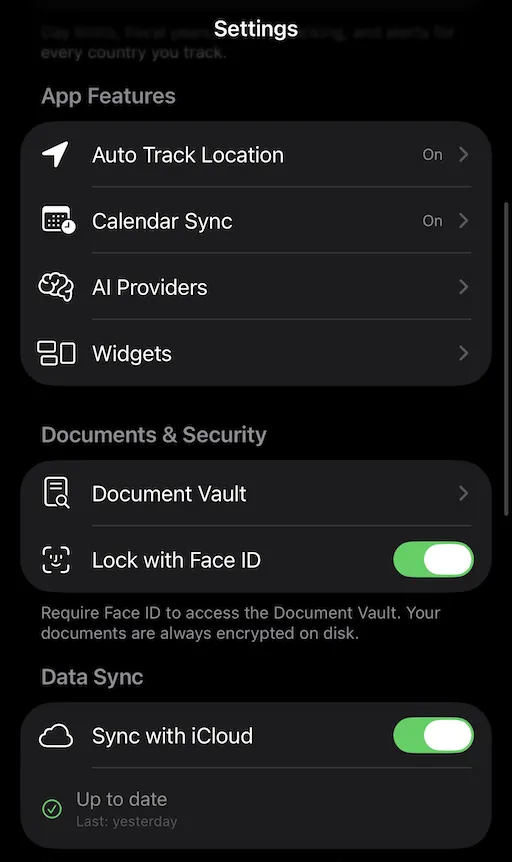
Go back to Settings, then Data Sync. The status row under the switch now reports where sync stands, and it has one of four things to say.
Will sync on next launch means the app has not restarted yet. Go back to step 3.
Syncing... with a spinner means it is working. A first sync moves your whole history, so give it a minute on a slow connection.
Up to date, with a green check and when it last ran underneath, is the state you are after.
Sync failed, in orange, means the container could not be reached.
To confirm sync end to end, install Nomad Tracker on a second device signed in to the same Apple Account, turn the same switch on there, and open the app. Your countries and days arrive on their own. There is no code to enter and no account to create, because the sync is between your devices and your iCloud, with no server of ours in the middle.
If something looks different
The row has a padlock. Sync is a PRO feature. Tap the row to see the plans.
Sync failed. Check that the iPhone is signed in to iCloud and that iCloud Drive is on, in the iOS Settings app under your name. An account with no storage left, or a device with no network, produces the same row.
The status row is missing. It only appears while the switch is on.
The second device is still empty. Both devices need the same Apple Account, the switch on, and one full launch each. A device that has never finished a launch with sync on has not asked iCloud for anything yet.
You turned sync off. The days stay on the device. Turning it off stops the exchange, it does not delete your history.
You want the data out of the app entirely. iCloud sync is a backup between your own devices, not an export. Export Data, in the Data section of Settings, is the one that gives you a file, and Create a PDF travel report walks through it.
Next steps
Read your dashboard at a glance covers the counters that arrive with your synced history.
Rebuild travel history from photos is worth running before you sync, so what lands on the second device is a complete history rather than a partial one.