What you’ll achieve
By the end of this guide your widget shows the same number as the app, and you know which changes reach it straight away and which ones wait.
A widget is not a live window into the app. iOS asks it for a fresh picture now and then, and in between it keeps showing the last one.
Step 1: Compare the widget with the app
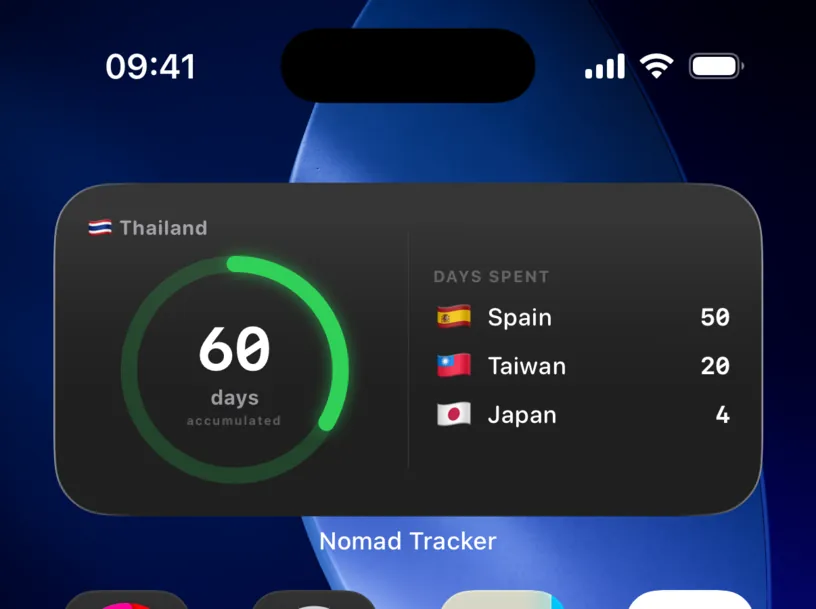
Look at the widget first. This one is in Fiscal Risk mode and reads 60 days accumulated in Thailand.
Then open the app, go to the Dashboard tab and find the same country under Countries. The Fiscal Residency row is the number the widget should match.
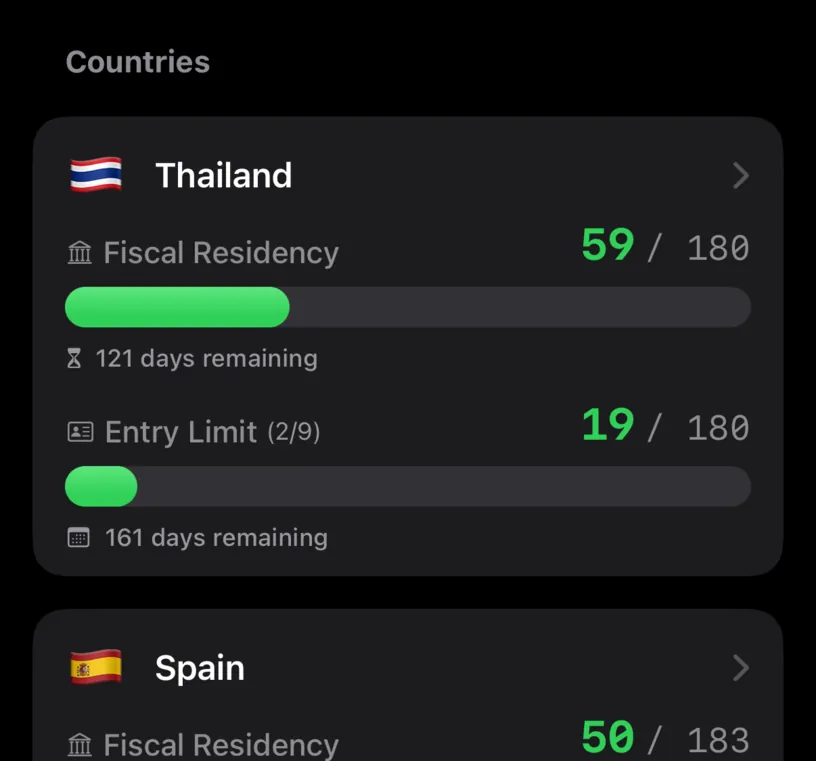
Here the app says 59. The widget is one day behind: a day was removed on another iPhone, and this widget has not caught up yet.
If the app itself shows the wrong number, the widget is not the problem. Fix your history first, with Correct a country or date in your history.
Step 2: Know when the widget refreshes
Every change you save on this iPhone reaches the widget within a second or two, whichever screen you made it on: the Calendar tab, a country’s screen, a photo import, or a day logged by auto tracking.
Changes made on another device are different. They reach this iPhone through iCloud, and that mostly happens while Nomad Tracker is open. Until then the widget keeps showing the old number.
On top of that the widget refreshes itself about once an hour. iOS decides the exact moment, so it can be later.
Step 3: Refresh it now
Open Nomad Tracker and give it a few seconds on the Dashboard. That pulls in whatever iCloud has for you, and the widget follows as soon as the new days are saved.
If the widget still shows the old number, save any stay again. It does not have to change anything. Open the Calendar tab and tap any stay in the list under THIS MONTH.
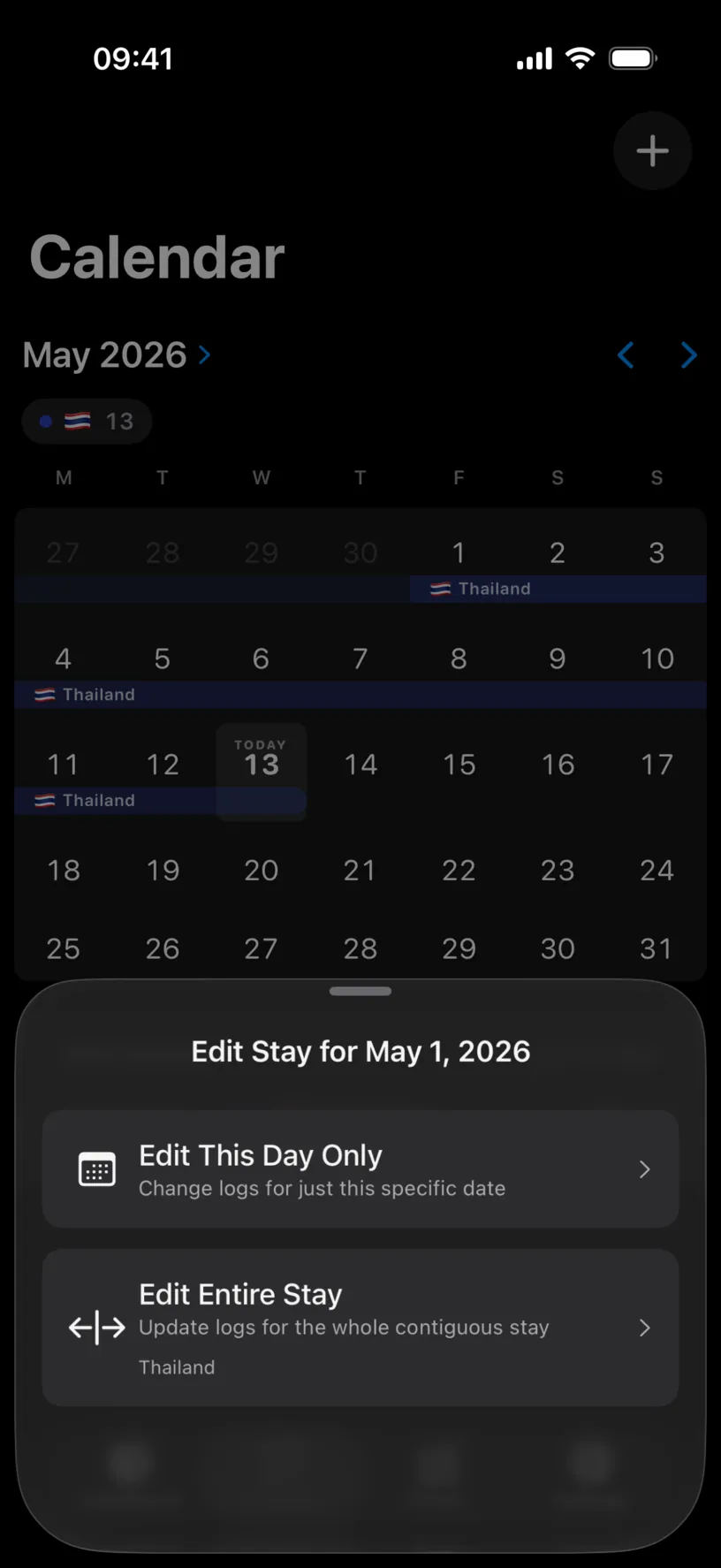
Tap Edit Entire Stay, leave the dates and the country as they are, and tap Save. Then go back to the Home Screen.
Switching the widget’s Display Mode away and back does not do the same. If you end up where you started, the widget keeps its old picture.
Check your result
Look at the widget again. It now reads 59, the same as the Fiscal Residency row in the app.
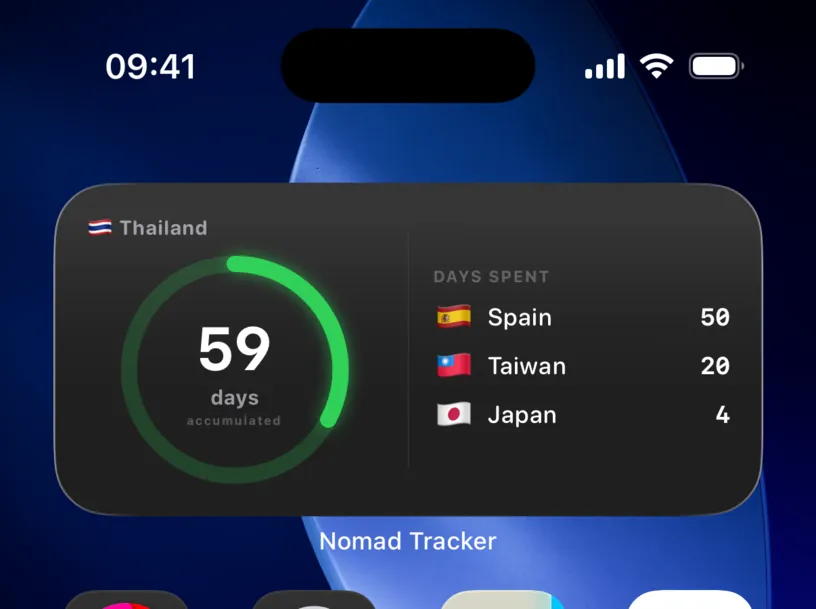
The Days Spent list on the right updates at the same time.
If something looks different
The widget shows a different country from the one you are looking at. It follows the country you are in today, unless you pinned one. Customize the country shown in a widget covers the Country setting and how to pin one.
The widget says PRO Feature. It checks your subscription through the app. Open Nomad Tracker once so it can confirm PRO, and the widget picks it up on its next refresh. If it still says so, see if Settings in the app shows Nomad Tracker Pro as Active.
The Runway number on the widget is not on any dashboard row. In Runway (Days Remaining) mode the widget counts how many days you could stay if you entered the country today, so it moves every day on its own. Fiscal Risk (Days Accumulated) is the mode that matches a dashboard row one for one.
A trip from your other iPhone is missing. Open the app and check the trip is there. If the app does not have it either, the problem is iCloud, not the widget: see Enable iCloud sync.
Only changes made in the Calendar tab refresh the widget. That is how versions before 3.12.1 behave. Update the app, or save a stay again as in step 3.
Nothing refreshes it. Remove the widget and add it again. Add a Nomad Tracker widget walks through it, and a newly added widget arrives in Runway mode, so set Fiscal Risk again if that is what you had.
Next steps
Customize the country shown in a widget explains how to pin a country and why you might want to.
Find and fill missing days helps when the number is wrong in the app as well.