What you’ll achieve
By the end of this guide your day count is on your Home Screen, and you can read it without opening anything.
That is the whole point of the widget. A limit you have to go looking for is a limit you check once a week; a limit that sits under your thumb is one you notice before it matters.
Step 1: Open the widget gallery
Press and hold an empty part of your Home Screen until the icons start to jiggle, then tap Edit in the top left.
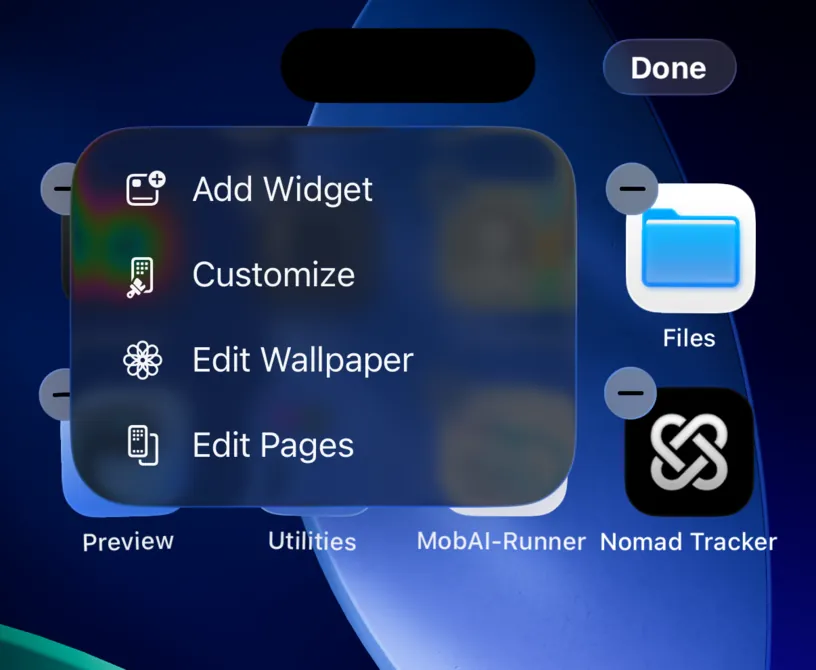
Tap Add Widget.
Step 2: Find Nomad Tracker
The gallery lists every app on the phone that offers a widget. Scroll to Nomad Tracker, or type its name in Search Widgets, which is quicker.
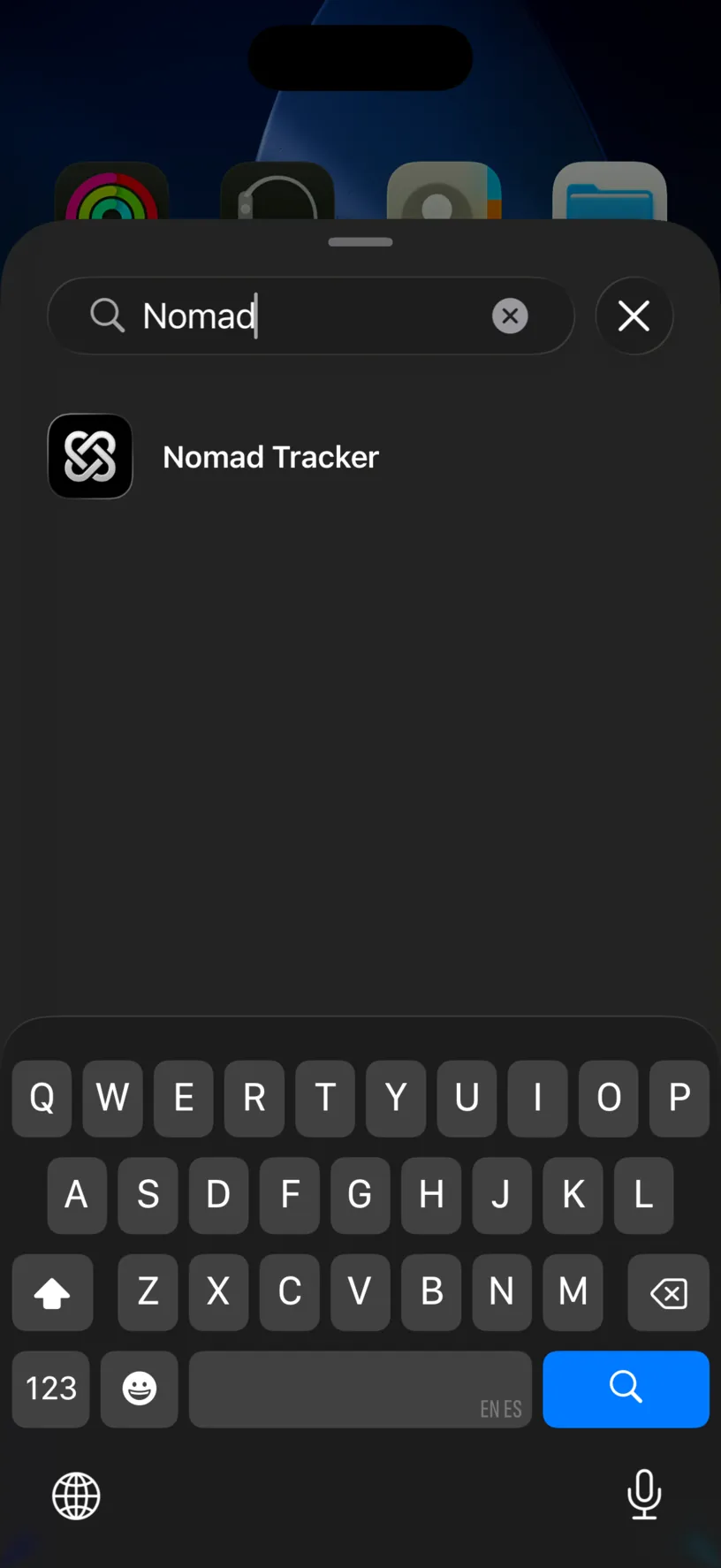
Tap the result.
Step 3: Pick a size
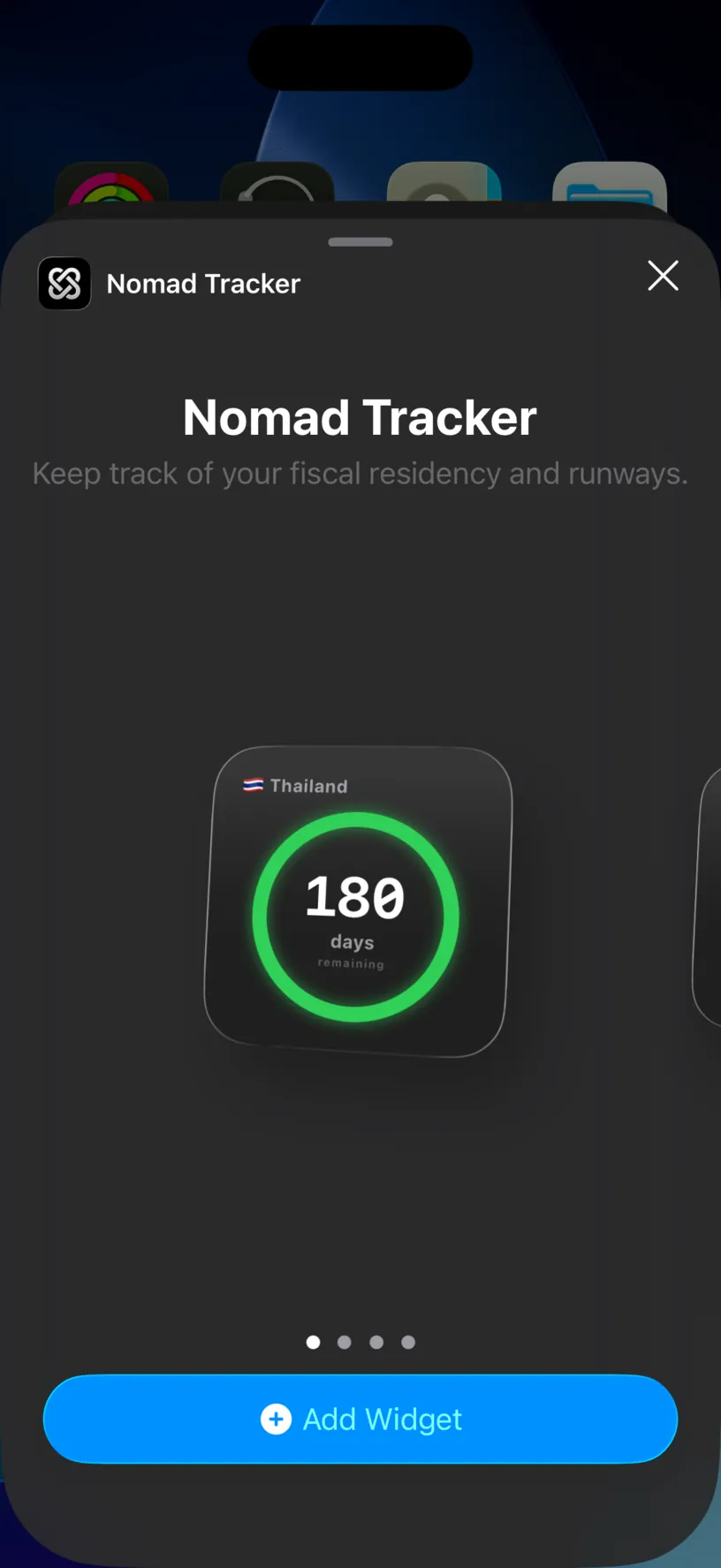
The small size is one ring: the country you are in and the number that matters for it. Four dots under the preview mean four sizes. Swipe to see them.
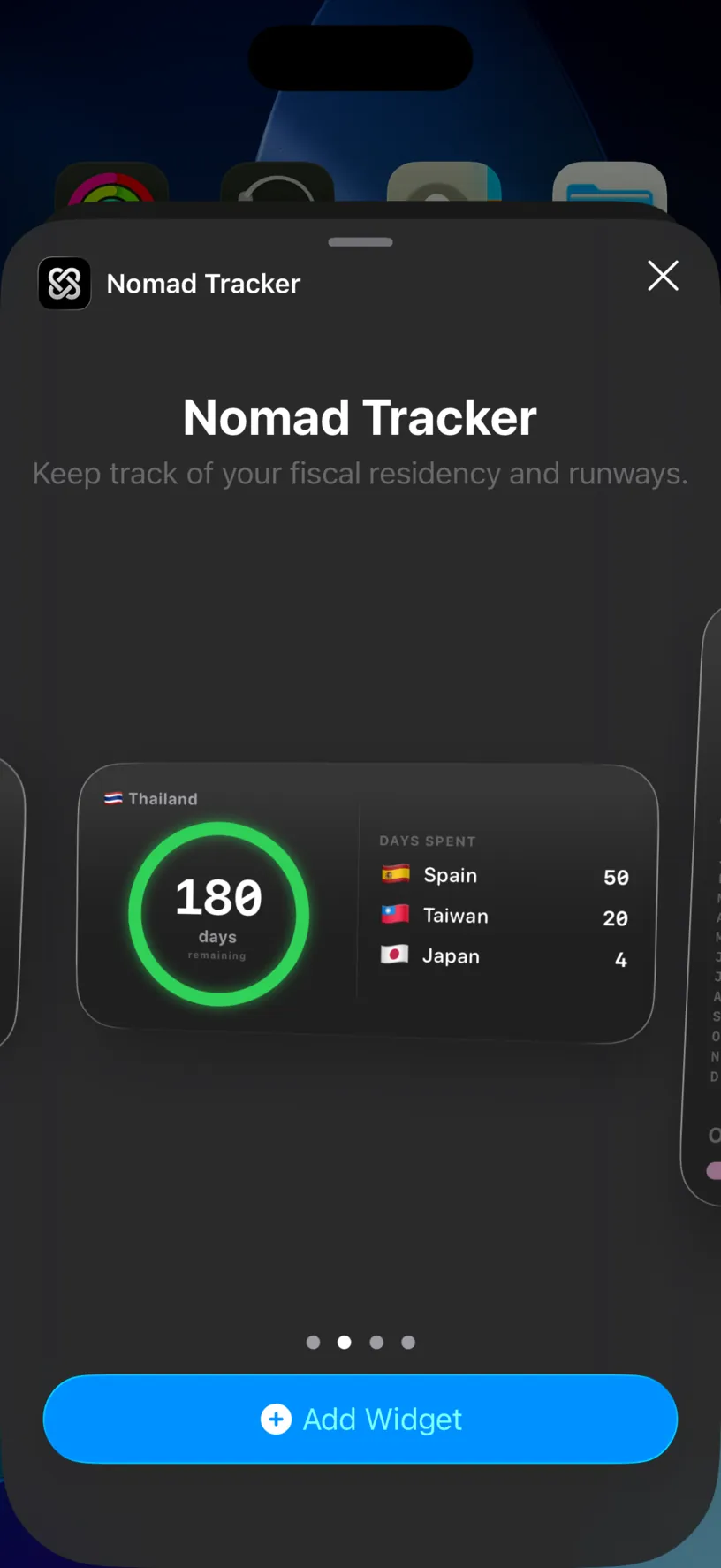
The medium size keeps the ring and adds DAYS SPENT, your top countries this year. It is the one worth starting with, because it answers both questions at once: how much runway you have where you are, and where the rest of your year went.
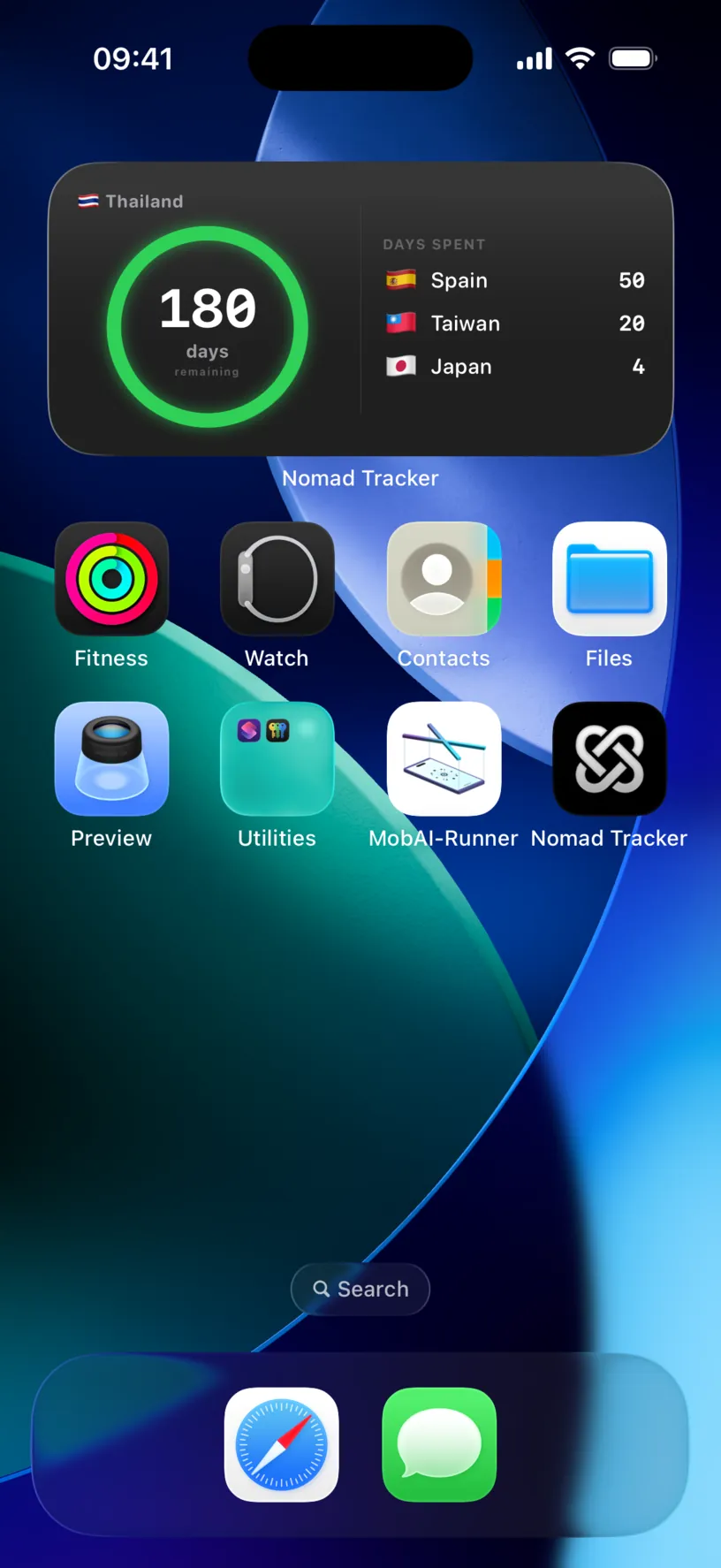
Tap Add Widget on the size you want, then tap Done.
Step 4: Choose what it shows
The widget arrives on its default setting. Press and hold it to change that.
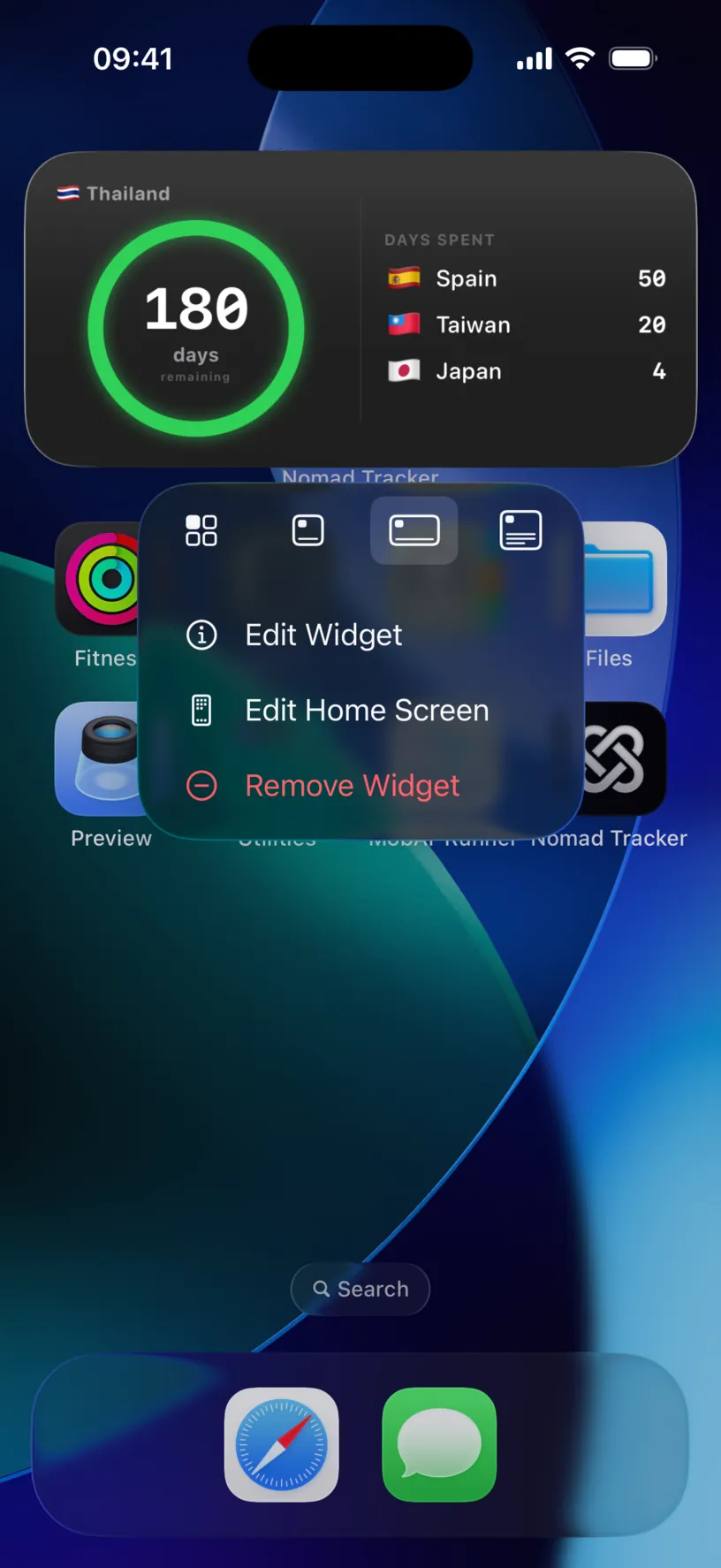
The row of icons at the top changes the size without going back to the gallery. Remove Widget takes it off the Home Screen and does not touch the app or your data.
Tap Edit Widget.
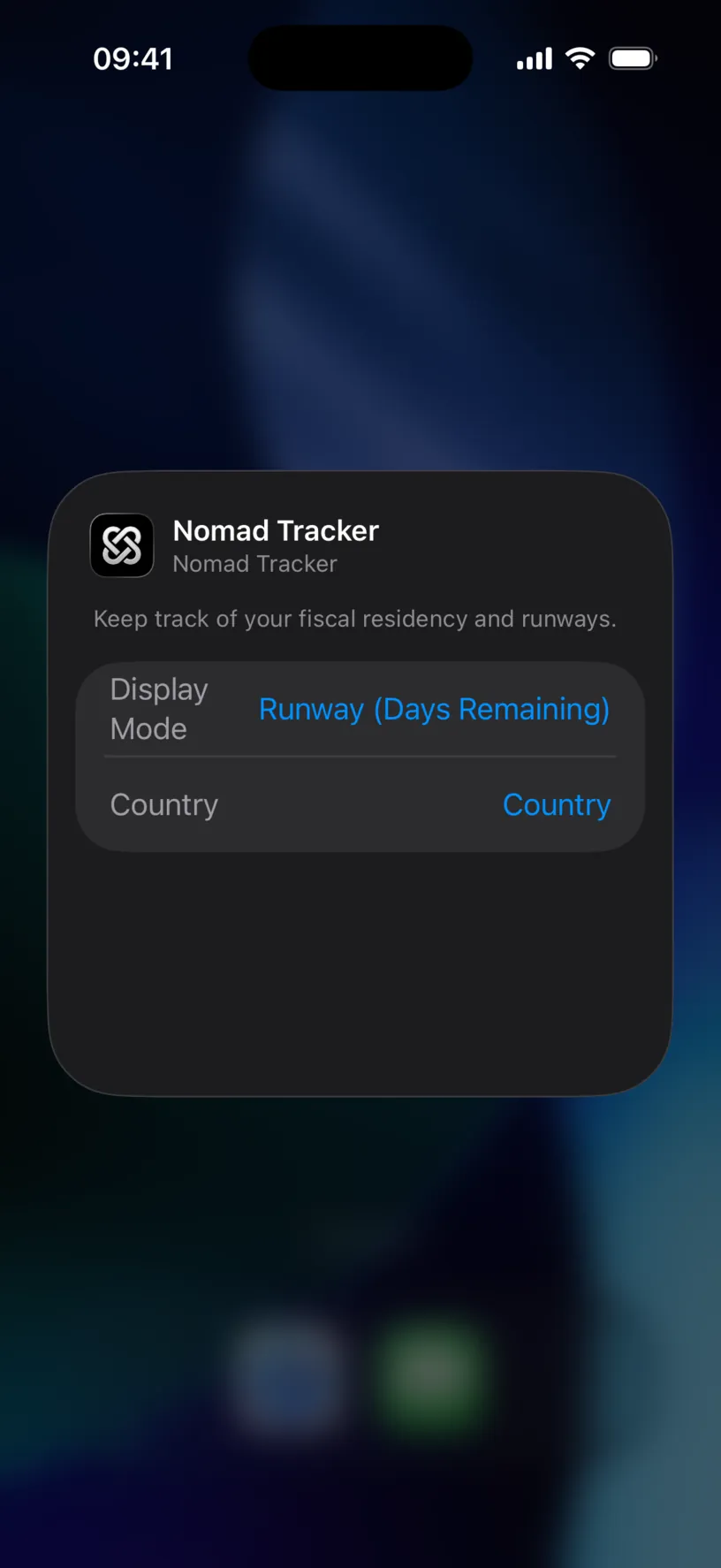
Two settings. Display Mode decides which question the big number answers.
Runway (Days Remaining) counts down how much longer you can stay. It is the immigration question, and the one to use if a visa is what keeps you awake.
Fiscal Risk (Days Accumulated) counts up the days you have spent against the limit. It is the tax question, and it matches what the dashboard shows you.
Country pins the widget to one country. Leave it unset and the widget follows you, showing wherever you are today.
Check your result
Close the sheet. The widget redraws with the setting you chose.
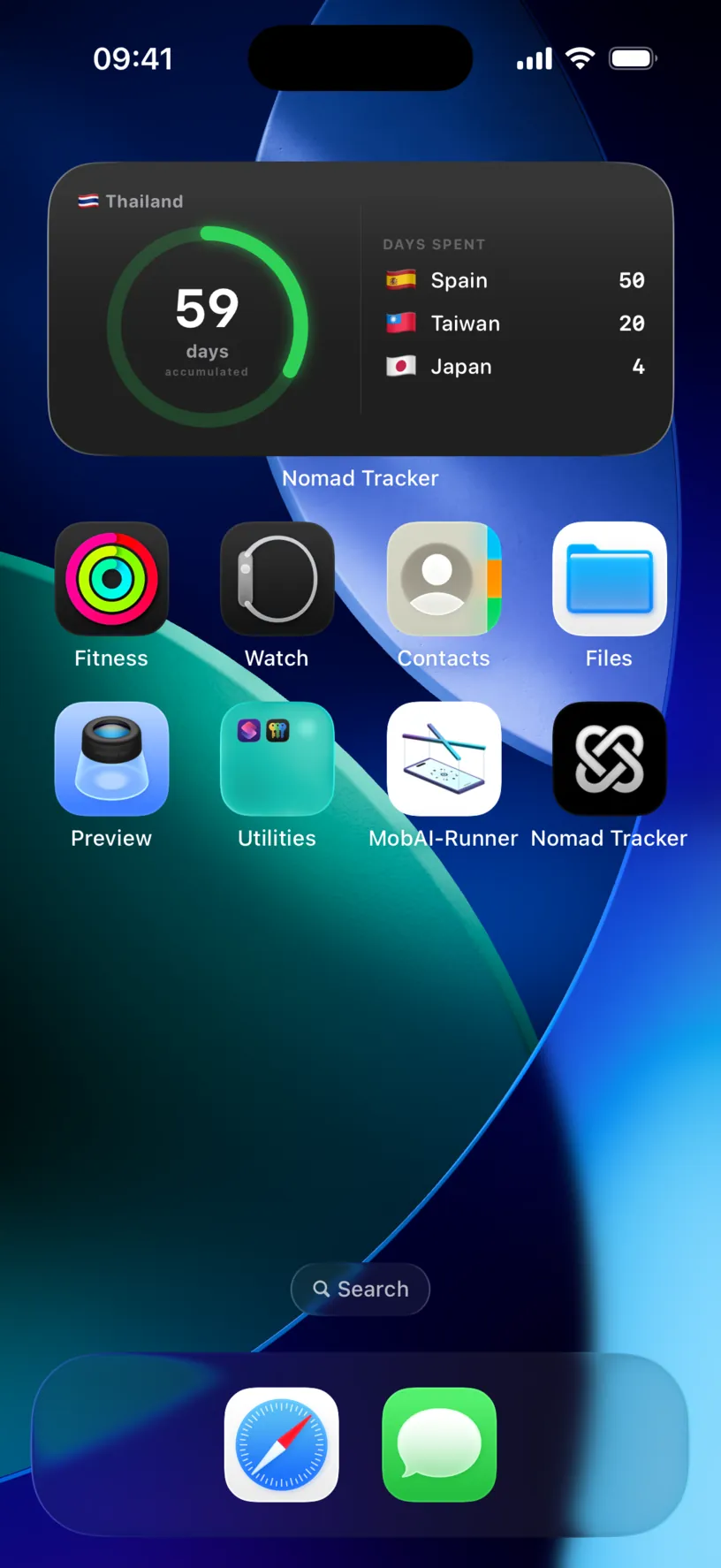
The number now matches the country card on your dashboard, which is the check worth doing: the widget and the app read the same days from the same place.
It refreshes on its own as your days change. There is nothing to pull down and nothing to open.
If something looks different
Nomad Tracker is not in the gallery. The app has never been opened on this phone, or it was only just installed. Open it once and look again.
The widget shows two dashes instead of a country. There is nothing tracked for it to read yet. Add a country under Countries & Regions, log a day, and it fills in.
The widget says PRO Feature with a padlock. Widgets are behind the subscription. The widget stays where you put it and starts showing your days as soon as PRO is active.
The number is different from the dashboard. Check Display Mode. Runway and Fiscal Risk answer different questions and will rarely agree.
The country is not the one you want. Set Country in Edit Widget. Without it the widget always shows today’s country.
It looks out of date. iOS decides when a widget redraws, not the app, so a few minutes of lag is normal. Opening Nomad Tracker forces a refresh.
You want more than one. Add it again and give each copy a different Country. Two widgets, two limits, no tapping.
Next steps
Read your dashboard at a glance explains the numbers the widget is a shortcut to.
Set a country’s visa limit is what the Runway mode counts down from.
Customize a country’s fiscal day limit is what the Fiscal Risk mode counts up to.