What you’ll achieve
By the end of this guide you know why automatic tracking stopped writing days, it is writing them again, and the days it already missed are back in your history.
Work through the checks in order. Each one either explains the gap or rules itself out, and the first three take under a minute.
Step 1: Confirm which days are actually missing
Open the Calendar tab and go to the current month.
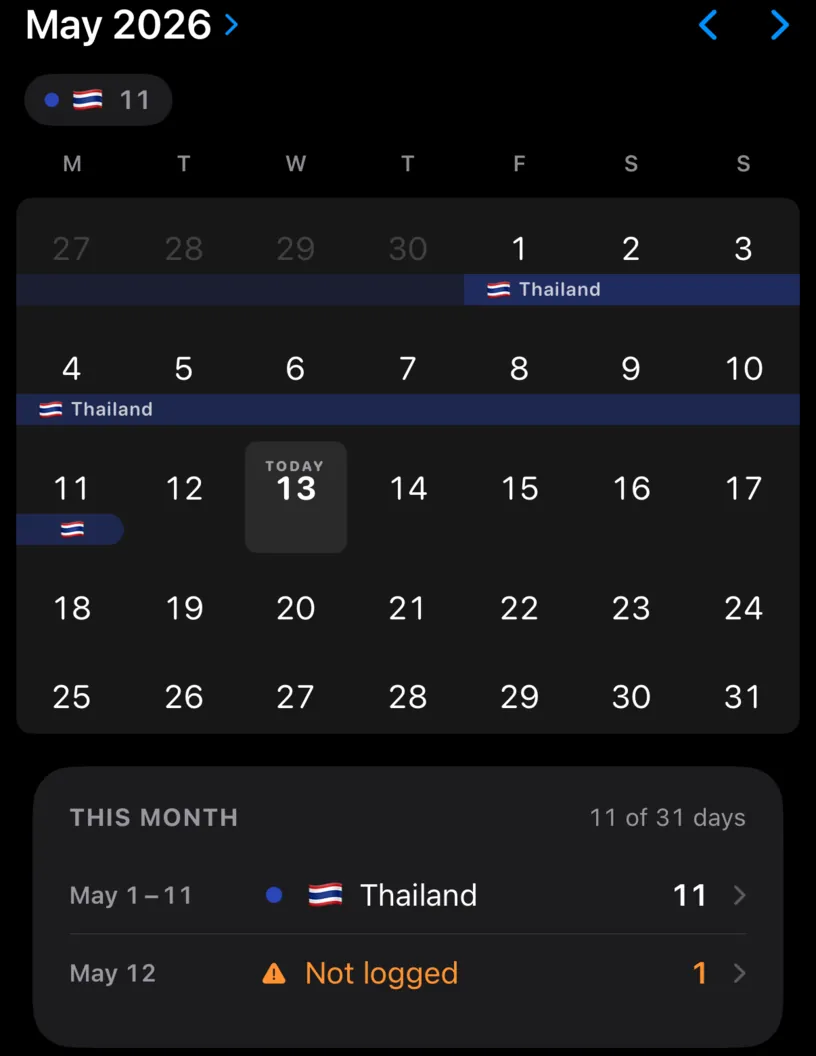
THIS MONTH names the gaps. A Not logged row in orange is a day with no entry at all, and the header counts the rest.
Note the last date that was logged. If tracking wrote days until a certain point and then stopped, that date is when something changed on your phone, which is usually the fastest clue you will get.
Today is not reported as a gap while it is still today. A day that is still running has not been missed yet.
Step 2: Check the switch
Open the Settings tab and look at the Auto Track Location row.
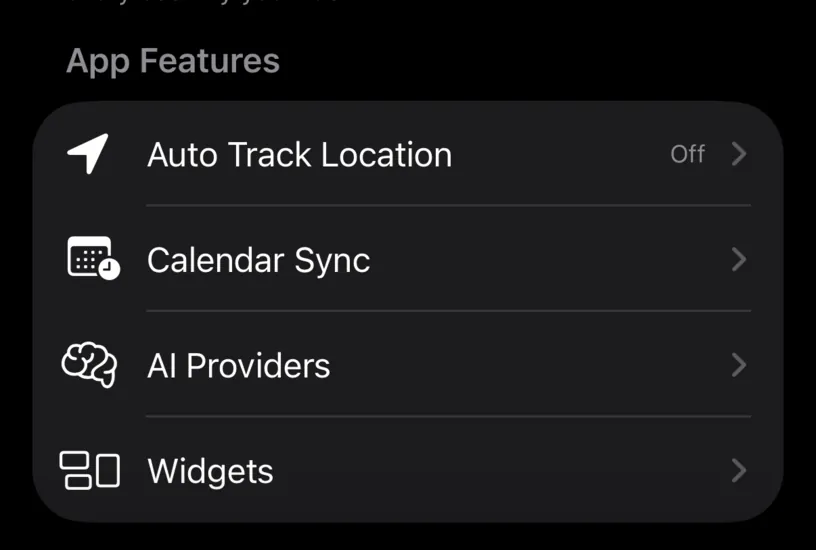
The row states the answer. Off means the app was never asked to log anything, and no amount of permission fixing will change that.
Tap the row.
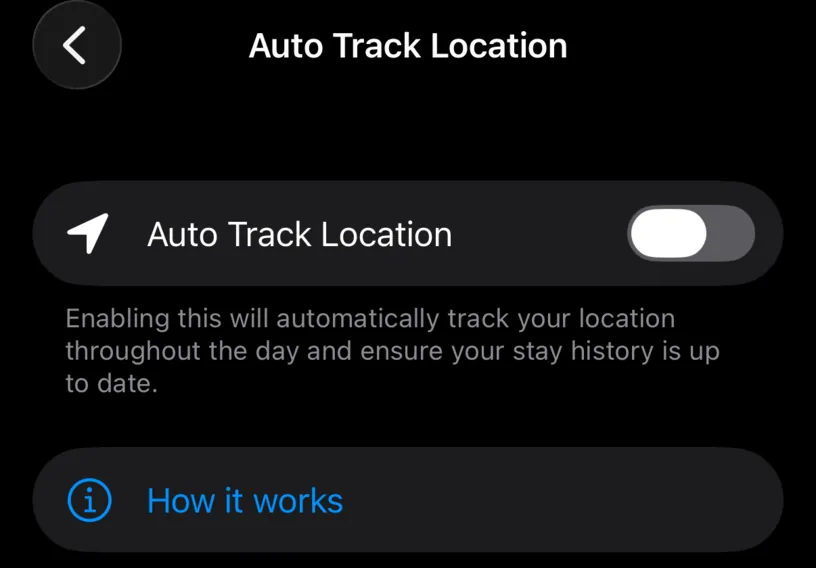
With the switch off there is no Status section, because there is nothing to report. Turn it on, answer the prompts, and the section appears.
Step 3: Check the status colour
With the switch on, Status tells you what iOS is granting.
Green, Tracking in background, means the app has everything it needs. Orange, Only while app is open, means your days are logged when you open the app and not otherwise, which is the single most common cause of scattered gaps. Red, No location access, means the switch is on and nothing at all is being recorded.
Each state carries the one button that fixes it. Understand your tracking status covers all four in detail.
If the status is green and days are still missing, the problem is below the app.
Step 4: Check what iOS controls
Open the iOS Settings app, go to Apps, and open Nomad Tracker.
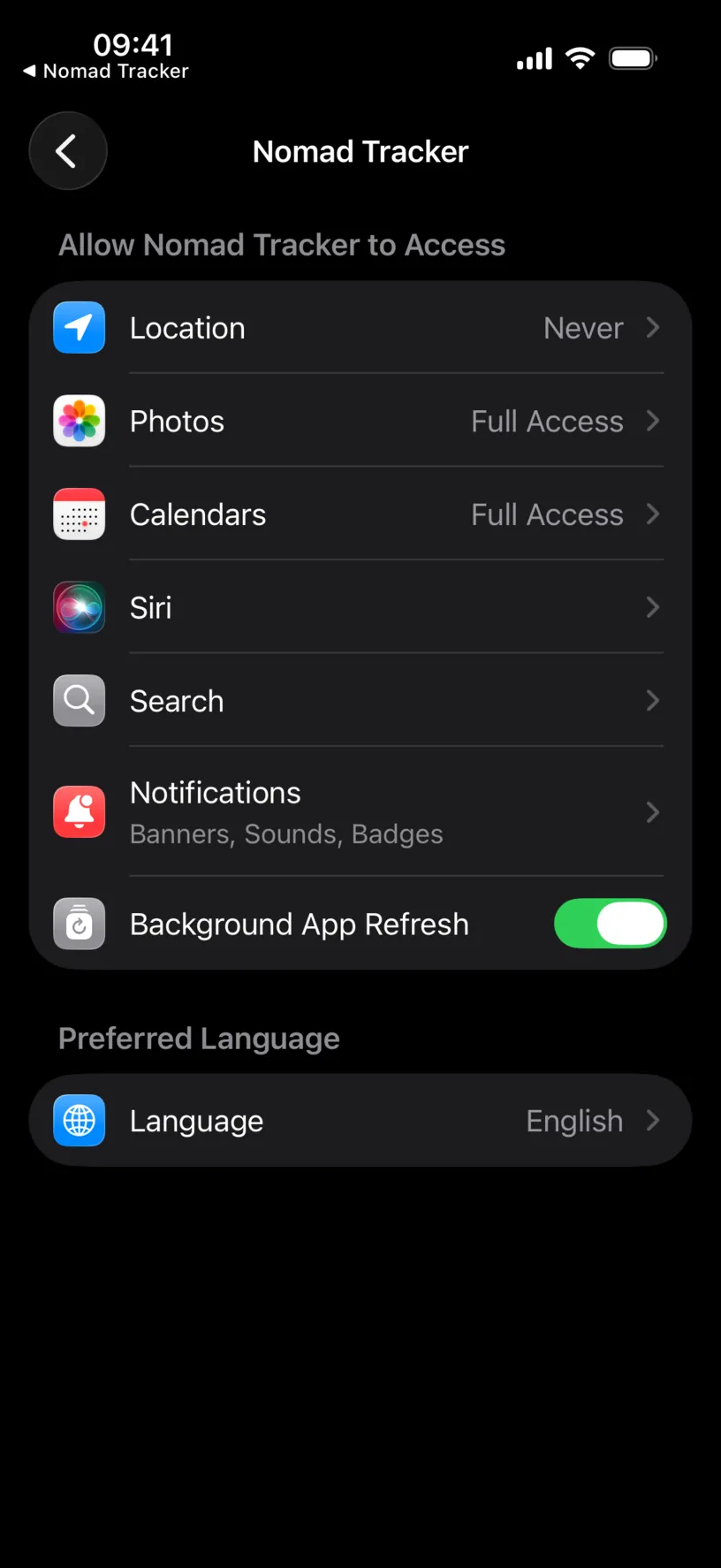
Three things on this page matter.
Location must be Always for unattended tracking. While Using the App is the orange state, and Never is the red one. Choose the right location permissions walks through changing it.
Background App Refresh must be on. The app tops up the day’s entry through a task iOS runs overnight, and that task is what this switch controls. Without it, a day you spend without moving may not appear until you next open the app.
Precise Location should be on. It does not cause missing days, but with it off iOS hands over a rough area instead of a position, and near a border a rough area is how a day ends up in the wrong country.
One level up, in Privacy & Security, the master Location Services switch must also be on. When that is off, every app’s permission is ignored, and the app cannot tell the difference.
Step 5: Know what tracking does not promise
Some gaps are not faults.
Automatic tracking starts the day you turn it on. It does not reach back, so every day before that stays empty until you fill it another way.
It reacts to significant location changes rather than checking the clock, so a day spent in one place can be written late. It fills in on its own.
A day your phone was off, in airplane mode the whole time, or out of battery is a day with no location to record. Nothing recovers that except you.
After three days with no location update at all, the app sends a Tracking Stopped notification rather than staying quiet about it.
Step 6: Fill what is already missing
Fixing the cause does not backfill the past. Tap the empty day in the grid, and the Add Stay sheet opens with that date in START and END. For a run of days, tap the last one too.
The Location section arrives pre-filled with the country you are logged in today, which is right for a gap you are closing now and wrong for one from three months ago. Check it before saving.
For more than a few days, Rebuild travel history from photos is faster than typing.
Check your result
The month reads a full count, its list has no Not logged row, and the band runs up to today.
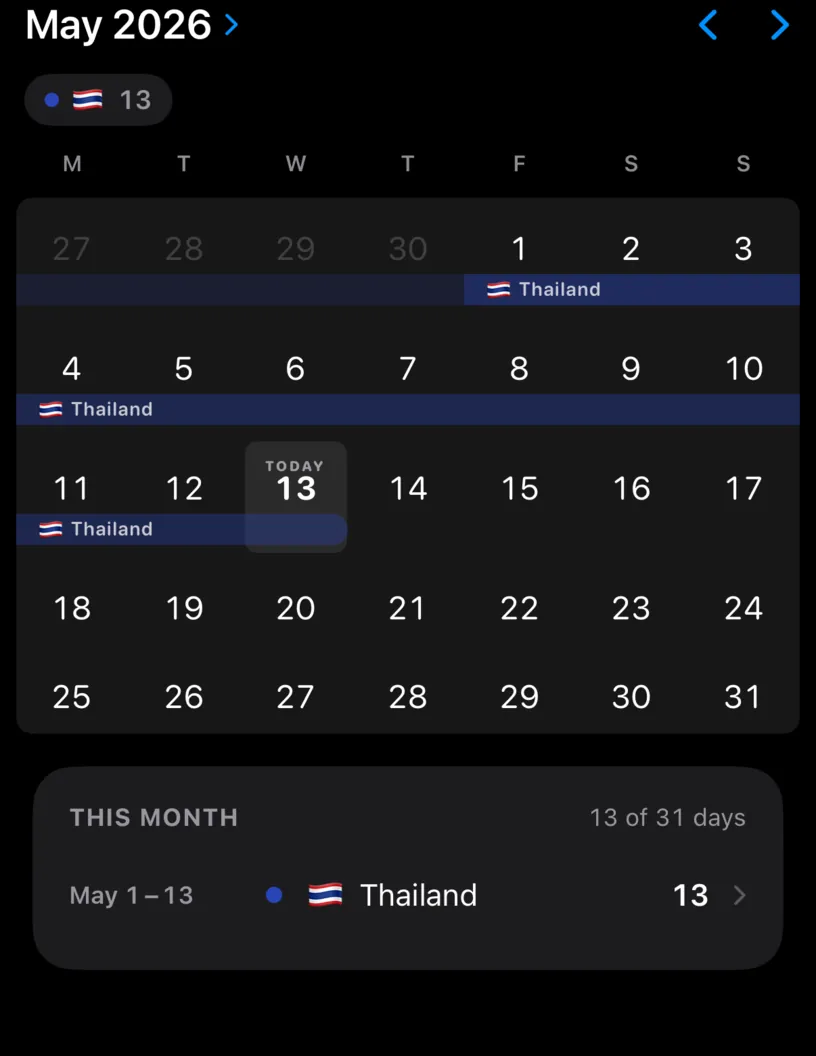
Then leave it a day. Tomorrow’s entry appearing on its own is the only real proof that the cause is fixed rather than the symptom.
If something looks different
Days stopped exactly when you changed phone. Permissions do not travel with iCloud. Grant location access again on the new device and turn the switch back on.
The status is green but entries arrive a day late. That is the overnight task doing its job rather than a fault. The date on the entry is the day it covers, not the day it was written.
Every day is logged, but some are the wrong country. That is not a tracking gap. Fix them with Correct a country or date in your history.
Tracking works, then stops every few days. Look at Low Power Mode. iOS holds back background work while it is on, and a phone that spends its evenings under 20 percent spends them there.
You force quit the app and days stopped. The app’s own Tracking Stopped notice asks you not to. Open it again and it resumes.
A day you edited by hand was not overwritten. By design. A manual entry always wins over an automatic one, so tracking will not correct a day you set yourself.
Next steps
Understand your tracking status is the reference for the coloured dot this guide keeps sending you to.
Choose the right location permissions is the fix for the orange and red states.
Find and fill missing days counts every gap in the year, not just this month’s.