What you’ll achieve
By the end of this guide your travel history is gone on purpose rather than by accident, and you know the one thing Delete Data does not touch.
This is the right tool for handing the phone on, starting a history again from a clean sheet, or clearing a test you seeded while learning the app. It is not an uninstall.
Step 1: Export anything you want to keep
There is no undo and no bin to recover from. Whatever you want later has to leave the app first.
Create a PDF travel report produces a readable record, and Export your travel history as CSV produces one you can reload into a spreadsheet. Do this now, not after.
Step 2: Find the row
Open the Settings tab and scroll to the bottom, to the Data group.
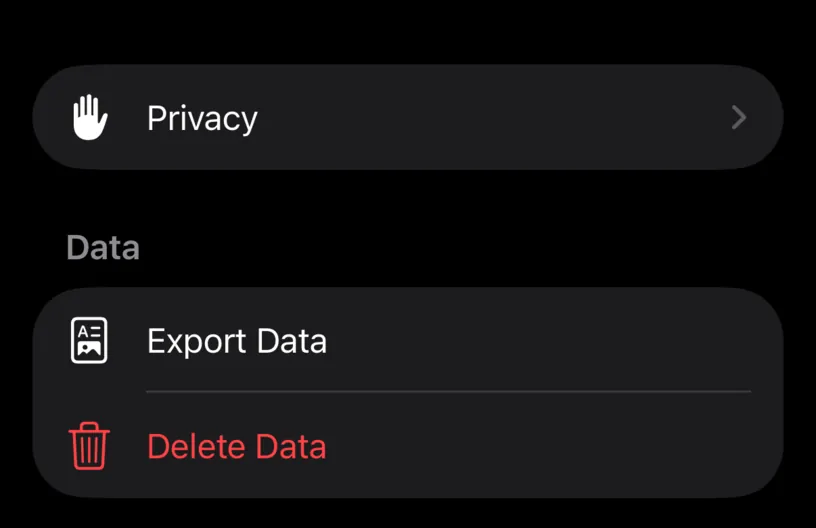
Delete Data is the red one, and it sits one row under Export Data on purpose. Check which one you are tapping.
Step 3: Read the confirmation before you accept it
Tapping the row opens an alert rather than doing anything.
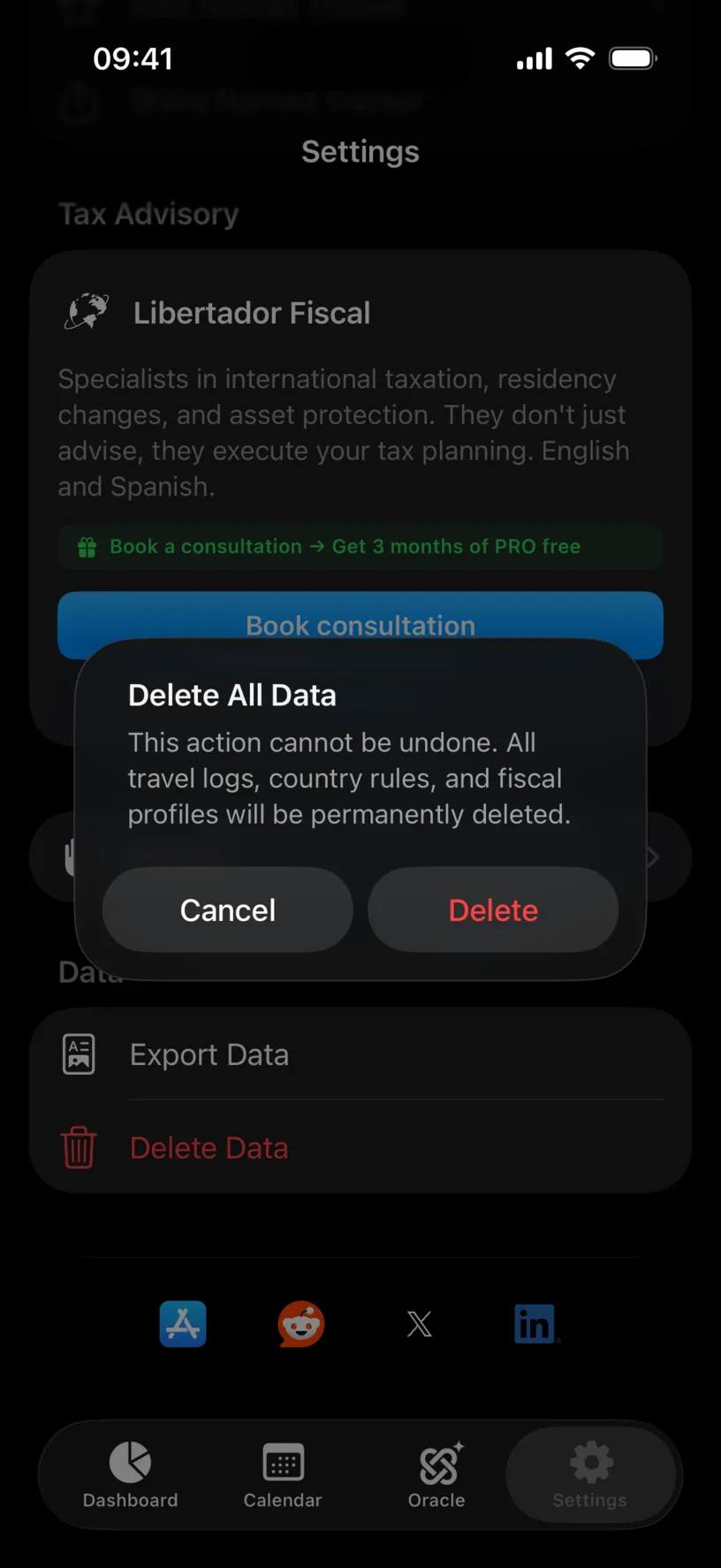
The wording is precise, and precise in a way that matters: This action cannot be undone. All travel logs, country rules, and fiscal profiles will be permanently deleted.
Three things, then. Every logged day. Every country you configured, with its limits and its fiscal year. Your residence setting.
If iCloud sync is on, treat this as clearing every device signed into the same account, not only this iPhone. Turn sync off first if you meant to clear one phone.
Tap Delete.
Step 4: See what is left
The app does not restart and does not send you back through setup. It simply has nothing to show.
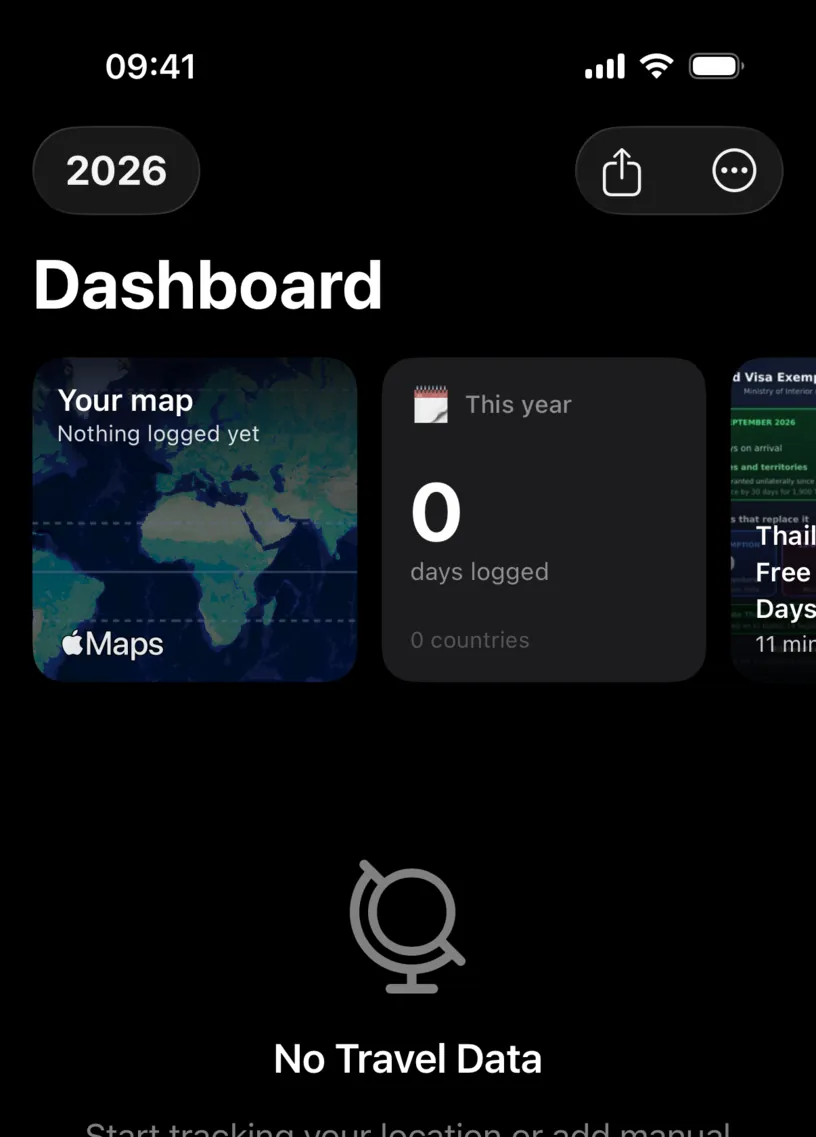
The This year tile reads 0 days logged across 0 countries, the map says Nothing logged yet, and the body of the dashboard reads No Travel Data.
From here the app behaves like a fresh install with your subscription intact. Logging a day rebuilds a country, and the dashboard comes back with it.
Check your result
Now check the thing the alert did not mention. Open Settings, scroll to Documents & Security and tap Document Vault.
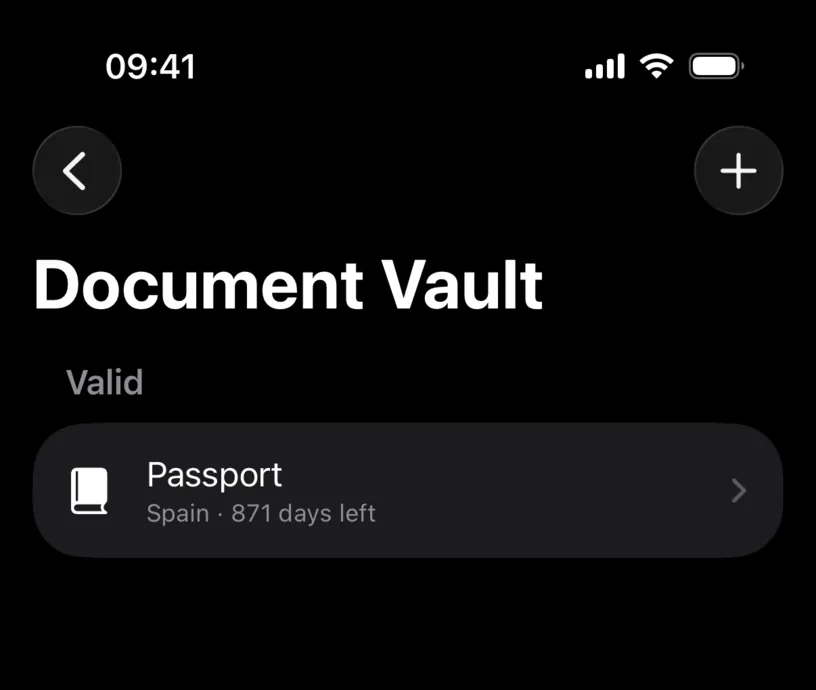
The vault is untouched. Your passports, visas and permits survive Delete Data, with their expiry dates and their alerts, because they are not travel history.
That is useful when you are starting a history again and wanted to keep the documents. It is the wrong outcome when you are handing the phone to someone else.
To clear the vault as well, delete each document from its own screen, which Review and manage saved documents covers. To clear absolutely everything at once, delete the app from the iPhone instead.
If something looks different
Delete Data did nothing visible. The screen you were looking at was already empty. Open the Dashboard tab to see the result.
Your days came back a few minutes later. iCloud sync brought them from another device that had not yet received the deletion. Turn sync off on every device before deleting, or delete from one and let it propagate.
You expected the subscription to go too. It does not. PRO belongs to your Apple Account rather than to the data, so it survives the deletion.
You wanted only one trip gone. This is the wrong tool by a wide margin. Remove an incorrect travel entry deletes a single stay.
Documents attached to days are still on the device. Deleting the history removes the days, not the files that were attached to them. Deleting the app removes both.
Next steps
Review your privacy settings covers what the app keeps and what it never collects in the first place.
Build your starting travel history is where to begin if you cleared the data in order to start again properly.