What you’ll achieve
By the end of this guide you know what the app keeps, where it keeps it, and the one switch that decides whether anything about your usage leaves the phone.
The short version: your travel history, your locations and your documents stay on the device. There is no account to sign into and nothing to sign out of.
Step 1: Open the privacy screen
Open the Settings tab and scroll down to the Privacy row.
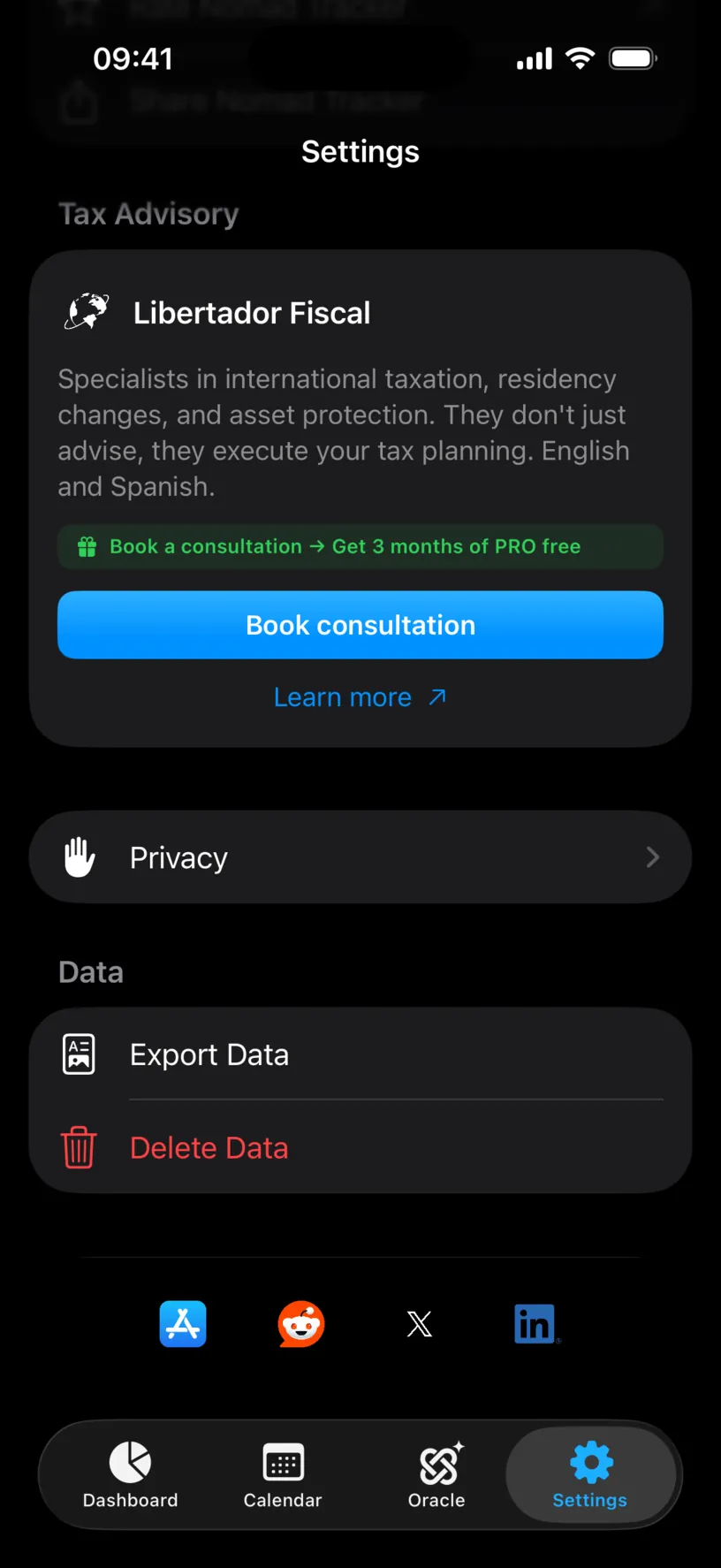
It sits directly above the Data group, which is where export and deletion live. Tap Privacy.
Step 2: Read what the app promises
The screen opens with three statements under How your data is handled, and each one is a claim you can check.
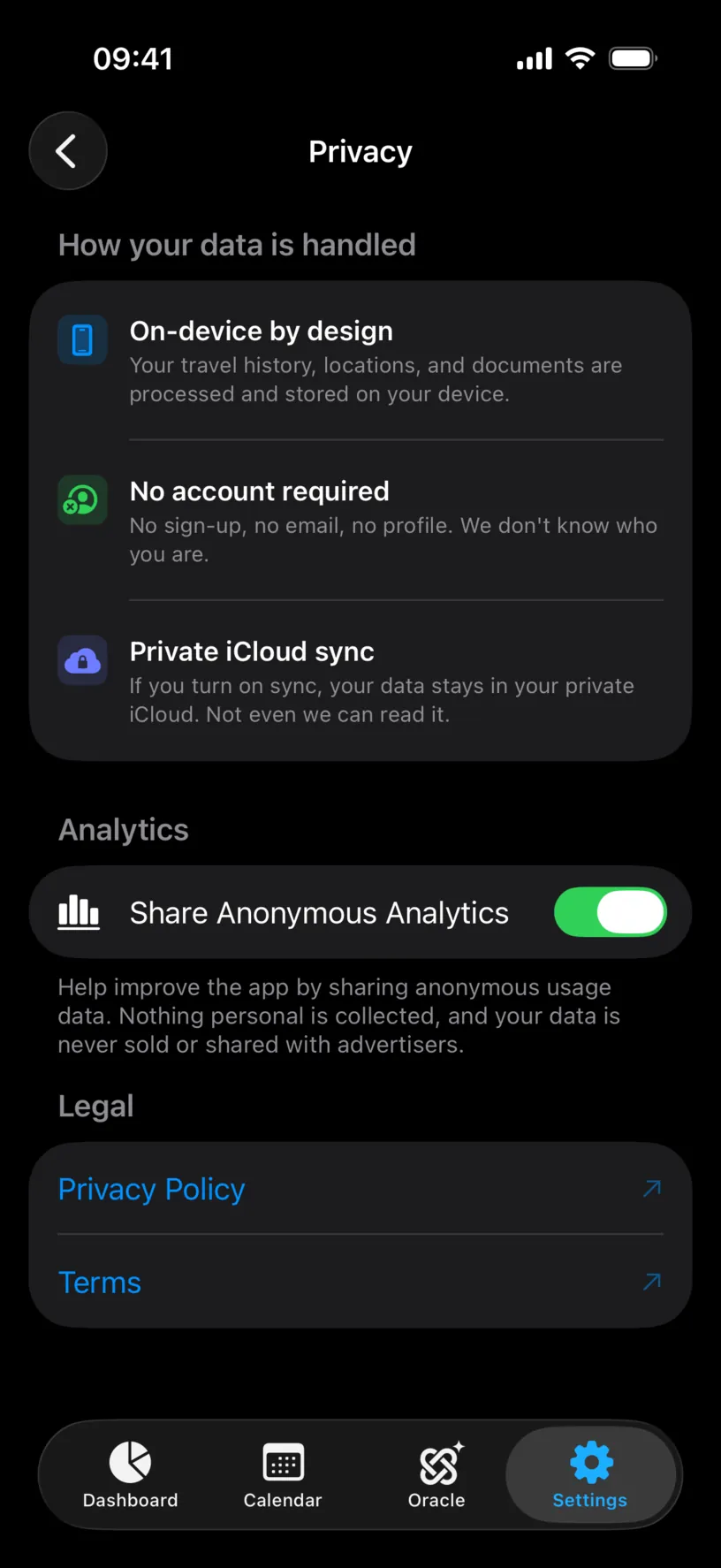
On-device by design. Your travel history, locations and documents are processed and stored on your device. The documents in the vault are encrypted on disk on top of that.
No account required. There is no sign up, no email and no profile. Nothing in the app asks who you are, which is why there is no way to recover data from a server if you lose the phone.
Private iCloud sync. Turning sync on puts your data in your own iCloud container, not on anybody else's server. Enable iCloud sync covers the switch itself.
Step 3: Decide about analytics
One switch sits under Analytics, and it is on by default.
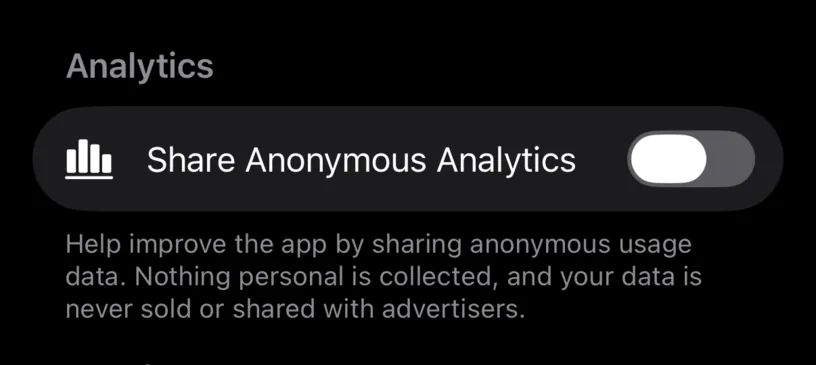
Share Anonymous Analytics sends usage data, meaning which screens are opened and which features are used. The footer states the limits: nothing personal is collected, and the data is never sold or shared with advertisers.
Turn it off if you would rather share nothing. The app works exactly the same either way, and the switch takes effect immediately.
Step 4: Know where the rest of the switches live
This screen is the summary, not the whole control panel. Four things that affect your privacy are set elsewhere.
Location tracking is a permission you grant iOS, and the app can only ask for what it needs. Choose the right location permissions covers the levels.
Photo access is the same kind of grant, and it can be narrowed to a handful of pictures. Manage photo access for imports covers it.
iCloud sync is off until you turn it on, under Data Sync in Settings.
The Document Vault can be put behind Face ID, under Documents & Security. Protect your document vault covers it.
Check your result
Go back to the Privacy screen and read the Analytics switch. It shows the state that is in force right now, with no confirmation step and nothing to save.
Privacy Policy and Terms at the bottom open the current published versions in your browser, which is the authoritative text rather than anything summarised here.
If something looks different
The analytics switch went back on. It is stored per install. Reinstalling the app, or restoring onto a new iPhone, starts from the default again.
You want the data gone, not private. That is a different screen. Delete your app data deliberately covers what Delete Data removes and, more importantly, what it leaves behind.
The privacy statements mention iCloud but sync is off. The third statement describes what happens if you turn sync on. With it off, nothing leaves the device at all.
You expected a way to download everything held about you. There is nothing held about you anywhere else. The equivalent is Export your travel history as CSV, which writes out what is on the phone.
Next steps
Enable iCloud sync explains the one feature on this screen that moves data off the device, and exactly where it goes.
Delete your app data deliberately is the other half of this screen: what to do when you want it all gone.